Programme settings tile
Programme settings are pre-filled when you create the programme, but you can adjust them at any time. The settings are organised into several sections:
- Basic information
- Additional settings
- Labels and colours
- Gallery
Basic information
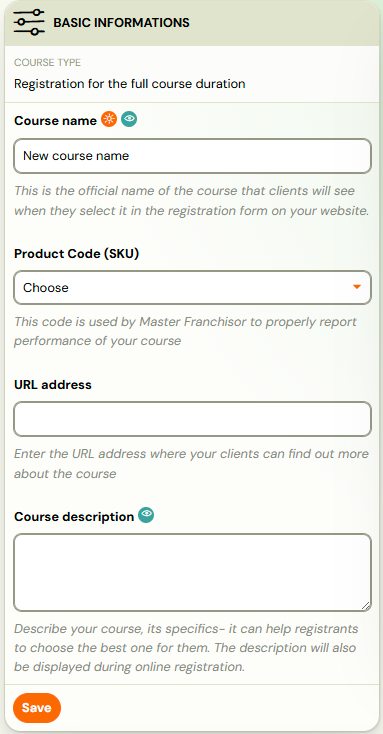
In this section, you can define the core details of your programme:
- Programme name - the name displayed to clients and used throughout the system.
- Product Code (SKU) -if you are part of a network, this is the product code assigned by the master franchisor.
- URL address where the programme description is more detailed
- Programme description
Additional settings
- In the Programme Type section, you can adjust the format of the programme — for example, changing it to an online session, a photography programme, or a standard programme with scheduled sessions.
- You can also update the Target audience if the programme changes from group classes to individual sessions, or vice versa.
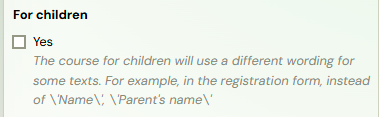
- Selecting the For children checkbox changes the wording in certain parts of the application. For example, in the booking form, “Name” will become “Parent’s Name.”
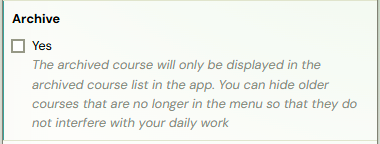
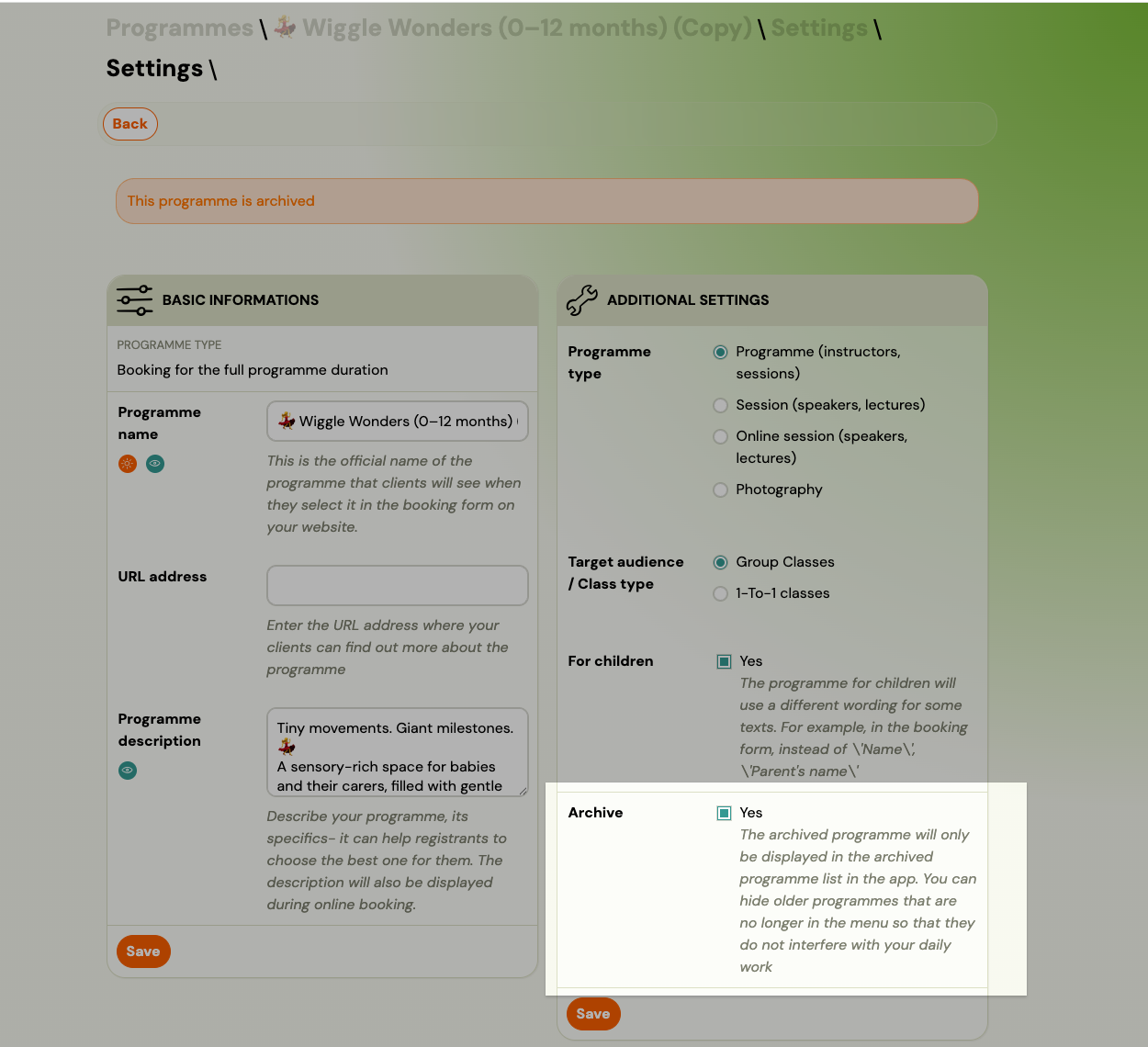
- Check the Archive box and click Save to archive the programme (see below).
Archiving a programme
Archiving hides a programme from the active list without deleting any data. Use it for older programmes you no longer offer but want to keep for records.
To archive a programme:
- Go to Programmes and click the programme name.
- Open the Settings tile and click Edit.
- Check the Archive box and click Save.
The programme disappears from the default list immediately.
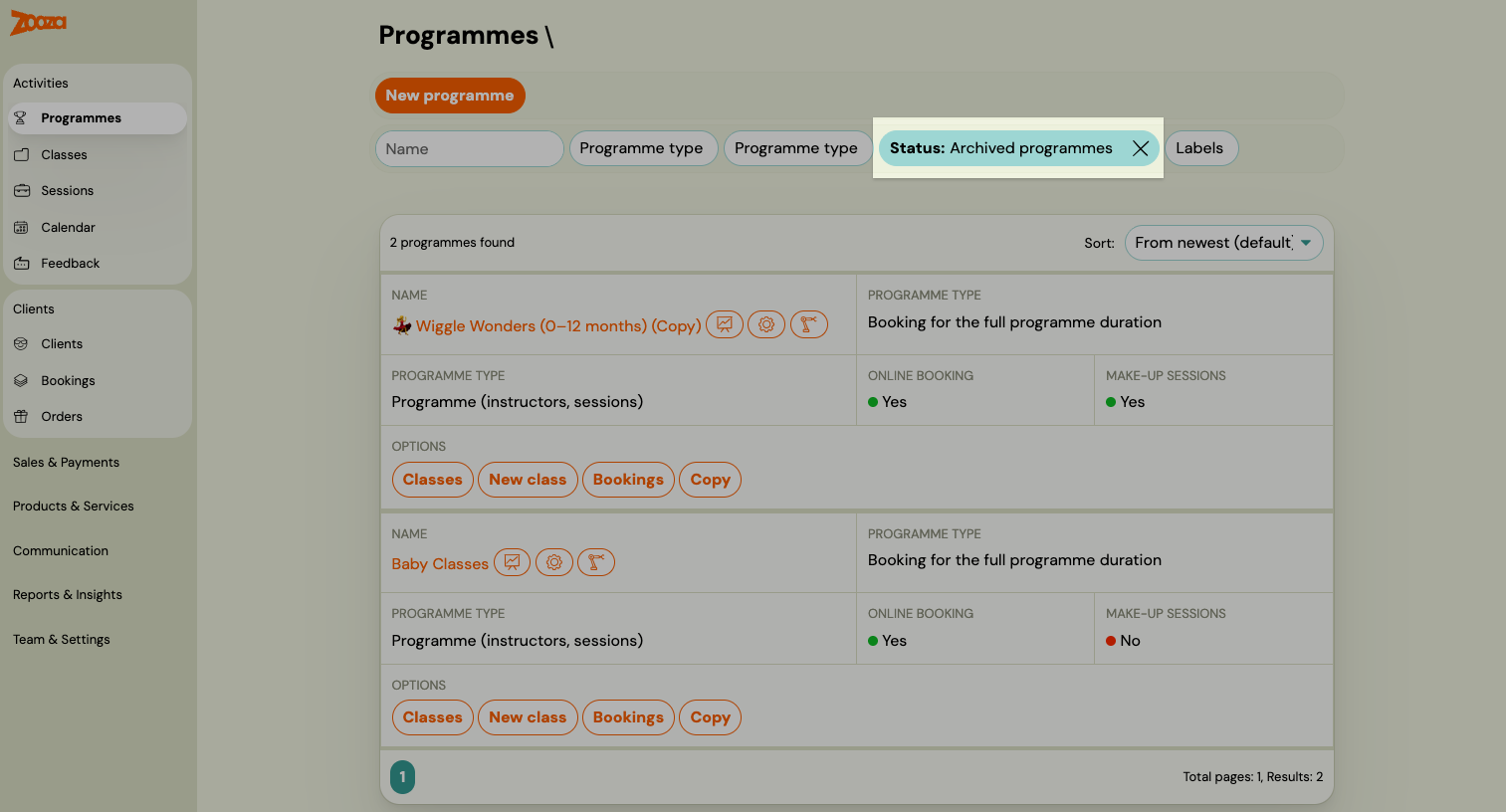
To view archived programmes:
In the Programmes list, use the filter and select Archived. Archived programmes only appear when this filter is active.
To restore a programme:
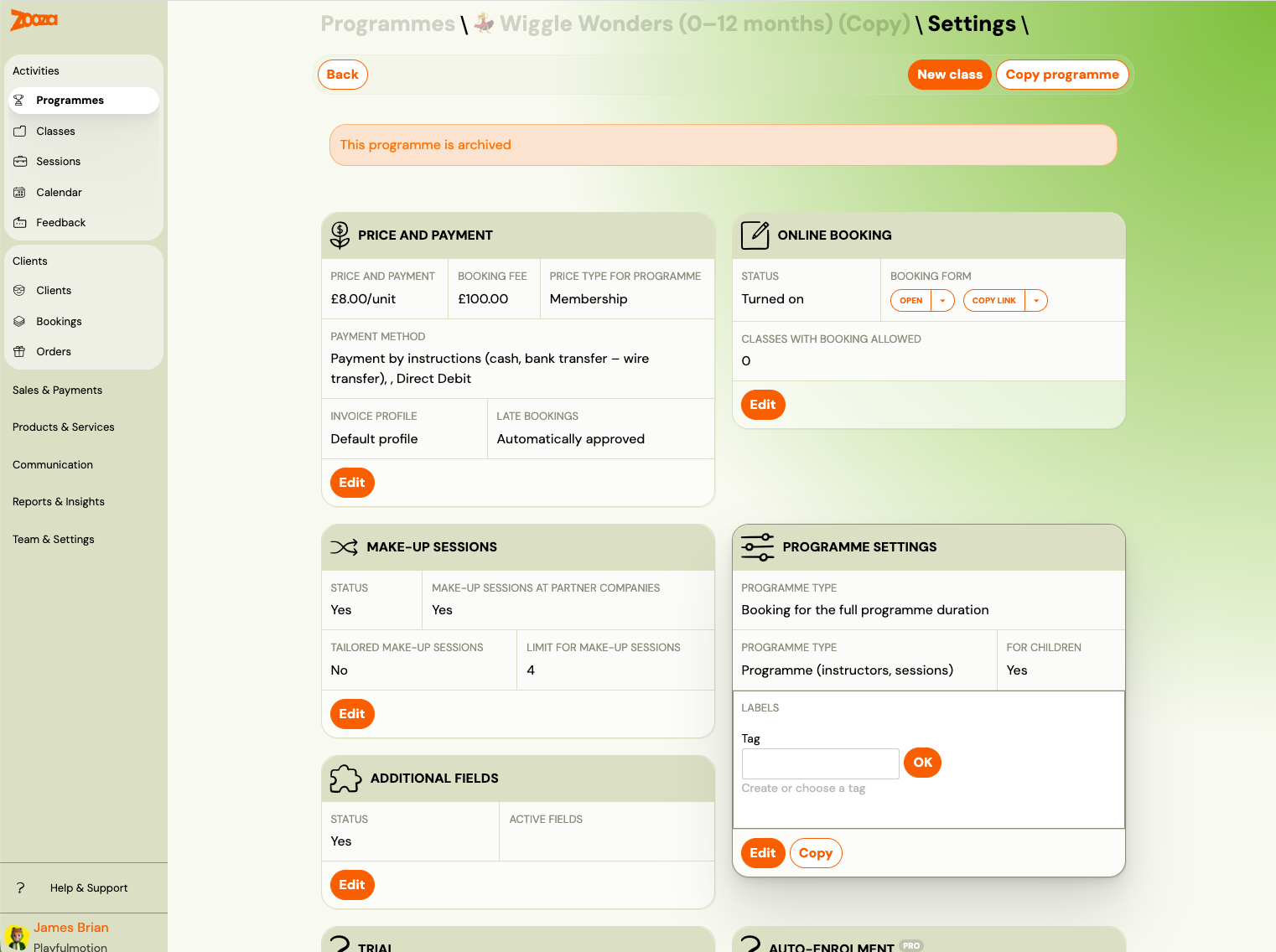
Open the archived programme — it displays an "This programme is archived" banner at the top. Go to Settings → Edit, uncheck the Archive box, and click Save. The programme returns to the active list.
Labels and colours
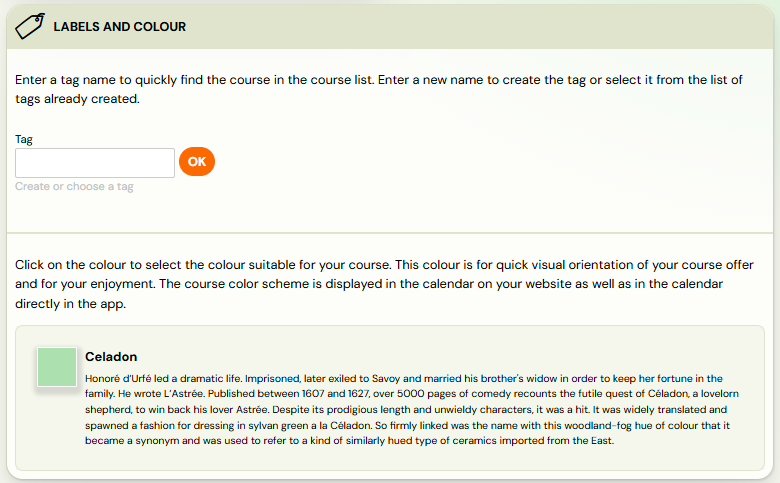
- In the Tag field, you can optionally enter a category name for the programme. Tags are for your internal use only and help you organise and filter your programmes more easily. To save the tag, click OK next to the field. For more details on using tags, see the Labels guide.
- You can also assign a programme colour (if it wasn’t set during the programme creation wizard) to help clients easily identify your programmes. For example, a programme for 3–4-year-olds could be set to “Zooza Orange,” making it instantly recognisable on the calendar, such as on Tuesdays and Thursdays.
The colour will not save
Two separate things cause this, and both look like the setting is broken.
There is no Save button on the settings page. The programme Settings page is a dashboard of tiles. Nothing there is editable until you click Edit on the tile you want — only then does a Save button appear. If you changed the colour and found nowhere to save it, you were not in the editor yet.
The first colour you pick is ignored. This is a known bug. Pick any other colour first, then pick the one you actually want, and save — every selection after the first registers correctly.
So the reliable sequence is: Edit on the tile → pick a throwaway colour → pick your real colour → Save.
A fix is planned, but you do not need to wait for it — the workaround above works today.
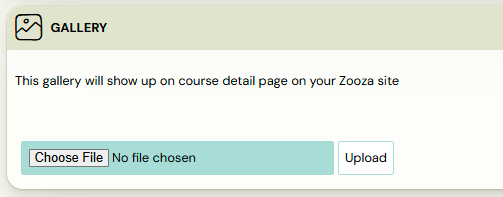
Gallery
At the bottom of Course settings tile you have a ready-made gallery that will appear in the programme details on your Zooza website. For information on how Zooza Sites work and how to set them up click here.