Labels
Labels are custom tags you can attach to programmes, classes, and bookings. They help you organise your data, filter lists quickly, and — when marked as public — let clients filter your offering on the booking widget.
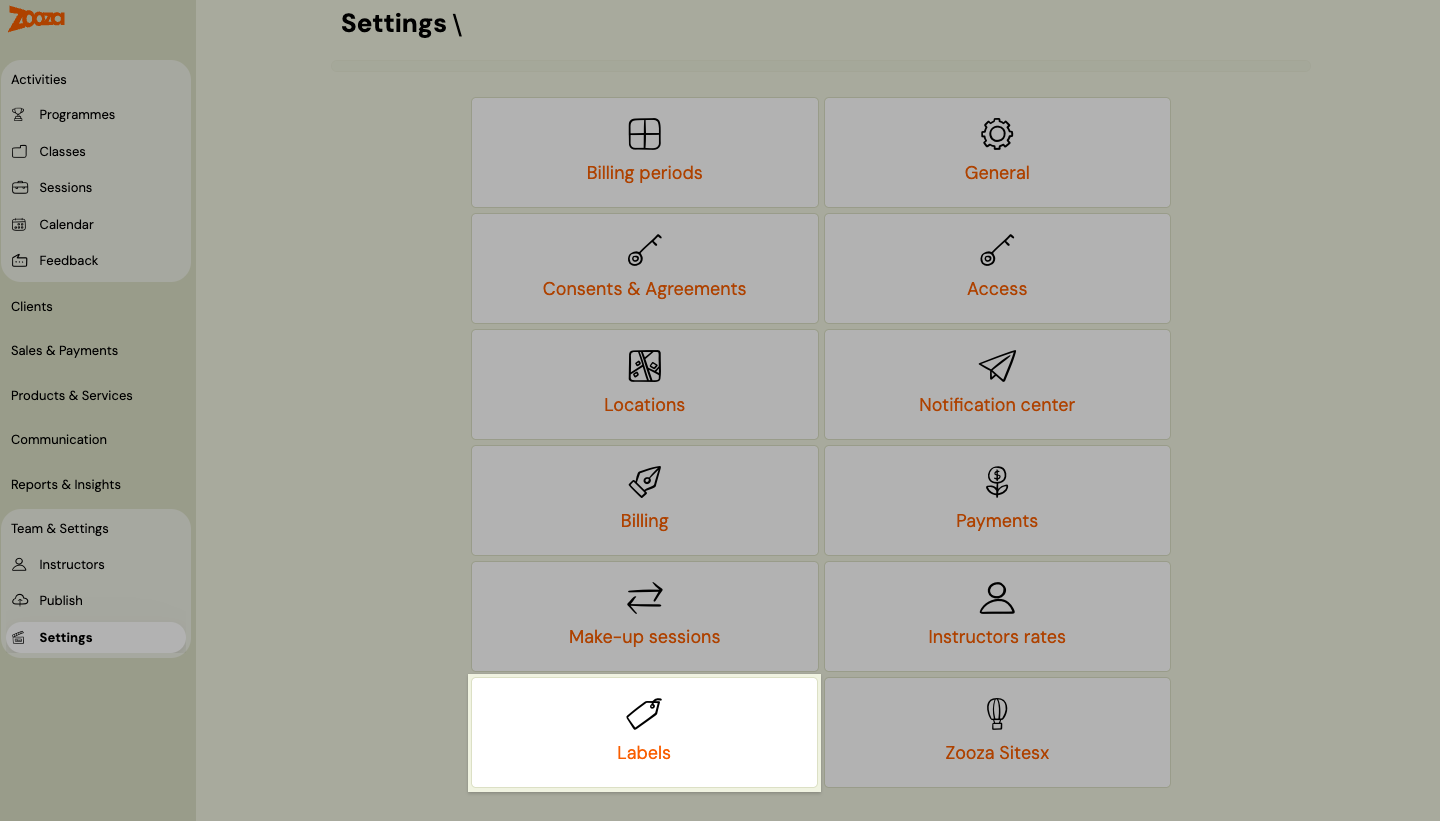
Navigation: Go to Team & Settings → Settings → Labels.
How labels work
Labels exist at three levels:
| Level | Where you assign them | What they do |
|---|---|---|
| Programme | Programme settings → Programme Settings tile → Labels | Categorise programmes (e.g., "Swimming", "Dance", "Ages 3–5"). Appear in the Programmes list filter. |
| Class | Class detail → Labels field | Tag individual classes within a programme (e.g., "Monday class", "Advanced"). Appear in the Classes list filter. |
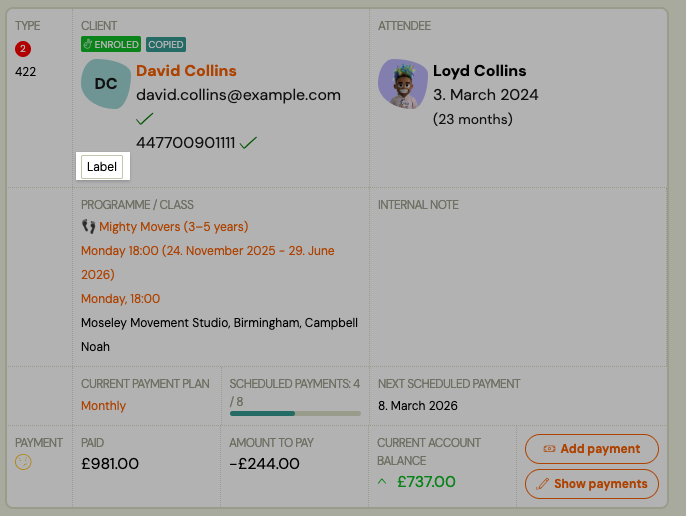
| Booking | Booking detail → Label field | Tag individual bookings (e.g., "VIP", "Sibling discount applied"). Appear in the Bookings list filter. |
Labels are reusable — once created, they appear in dropdown menus across the application.
Creating and managing labels
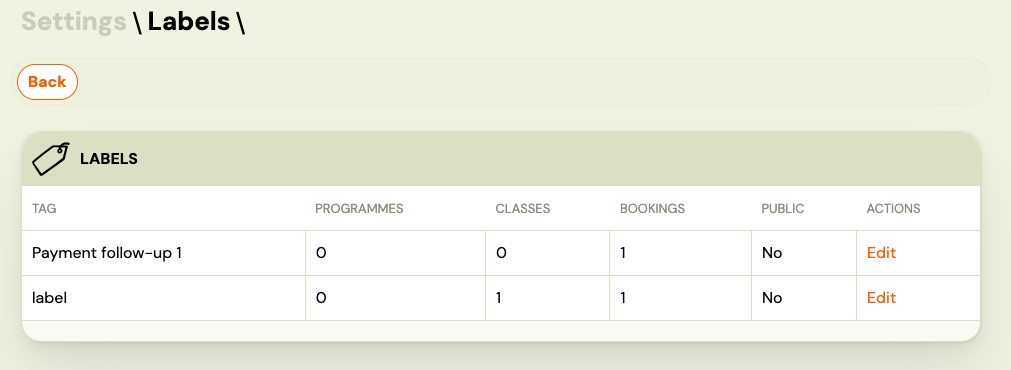
- Go to Team & Settings → Settings → Labels.
- Click Create new label.
- Enter a label name (e.g., "Swimming", "Summer 2025", "Trial").
- Choose the label level: Programme, Class, or Booking.
- Save.
You can edit or delete labels from the same screen. Deleting a label removes it from all items it was attached to.
Assigning labels
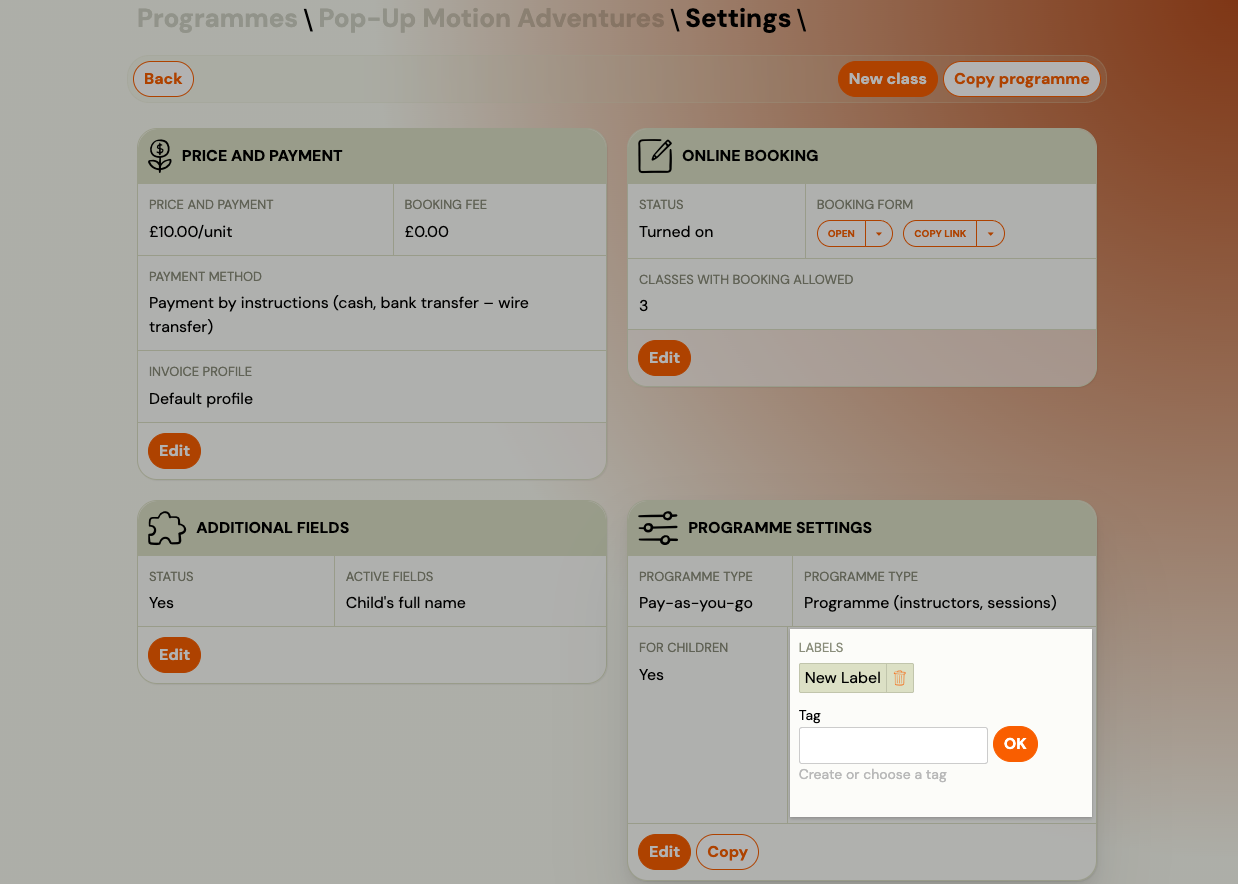
Programme labels
- Go to Programmes → select a programme → Edit Settings.
- Open the Programme Settings tile.
- In the Labels section, select one or more labels from the dropdown.
- Save.
Programme labels appear in the Programmes list and can be used as a filter to narrow down your programme list.
Class labels
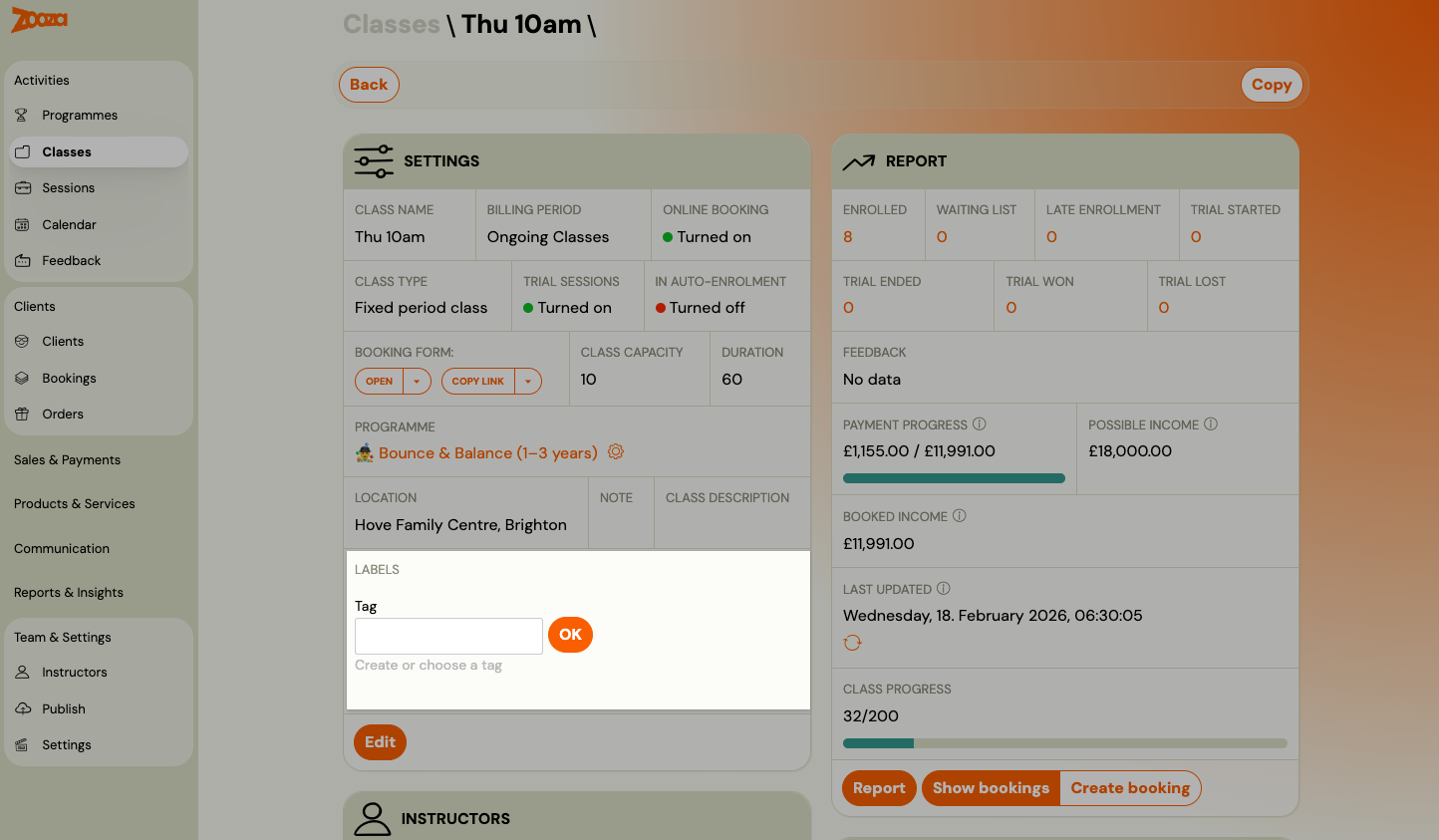
- Go to the class detail page.
- In the Labels field, select a label from the dropdown.
- Save.
Booking labels
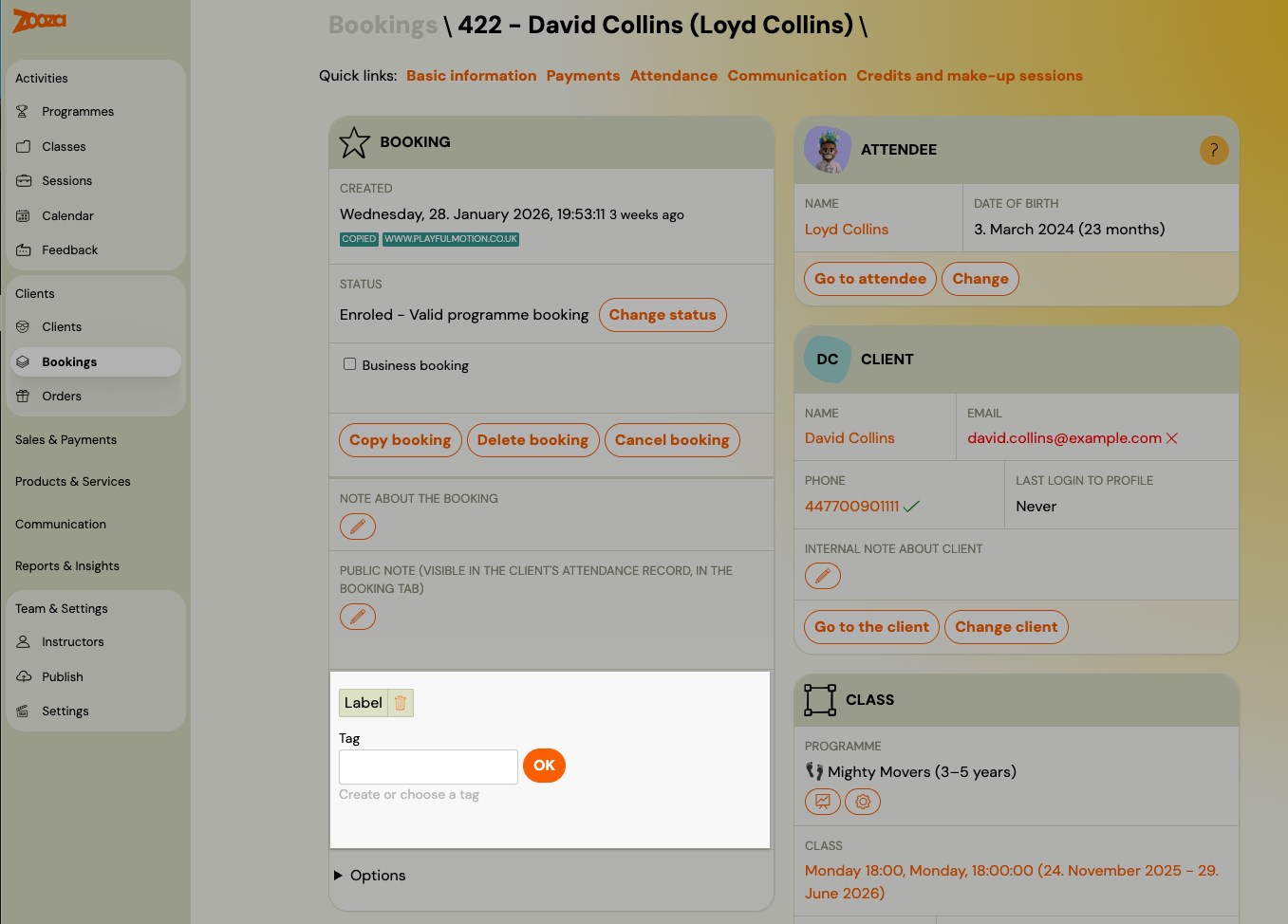
- Open a booking detail.
- In the Label field, select a label.
- Save.
Booking labels are visible in the Bookings list and can be used to filter bookings.
Contact labels
- Open a contact under Clients → Contacts.
- In the Label card, create or choose a tag.
A contact form configuration can also add labels to every new contact it receives. Contact labels are a filter in the Contacts list. See Work with contacts and enquiries.
Public labels (widget filtering)
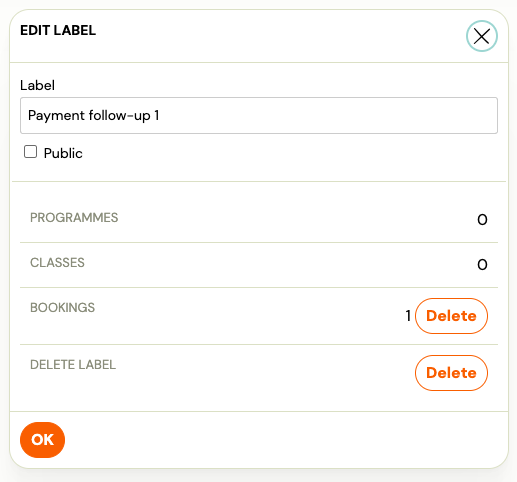
Labels can be marked as public. Public labels appear on your booking widget, allowing clients to filter your programmes before booking. Integration needed. It won't be shown automatically. See documentation.
For example, if you offer swimming, dance, and music programmes, clients can use public labels to show only the category they are interested in.
To make a label public:
- Go to Team & Settings → Settings → Labels.
- Edit the label.
- Enable the Public option.
- Save.
Public labels only work at the programme level. Class and booking labels are internal only.
Using labels to filter
Labels appear as filter options in several views:
- Programmes list → filter by programme labels.
- Classes list → filter by class labels.
- Bookings list → filter by booking labels.
This is especially useful when managing a large number of programmes or classes across multiple locations or age groups.
Labels in reports and exports
Labels are included in data exports and Power BI reports. The Labels table in Power BI contains all labels with their associations. For details, see Power BI Data description.
Related
- Programme settings tile — assigning labels and colours to programmes.
- Customizing widgets — configuring the booking widget appearance.
- Programmes List — filtering the programme list.