Tell enrolled clients the rules of your course
Every provider has the same set of questions arriving by email all term: what should she bring, which door do we use, can I park there, who do I tell if we cannot come. Since late October 2026 there is a place to answer them once — a tab on the programme screen in the Client Profile, visible to clients who are enrolled.
It holds whatever you want: what to bring, where to go, house rules, who to contact, your own FAQ.
Who sees it: enrolled clients, in their Client Profile, on the screen for that programme. It does not appear on the booking form or in emails, so it is for people who have already joined — not a sales page.
Set it up
Go to Settings → General → Programme info tab.
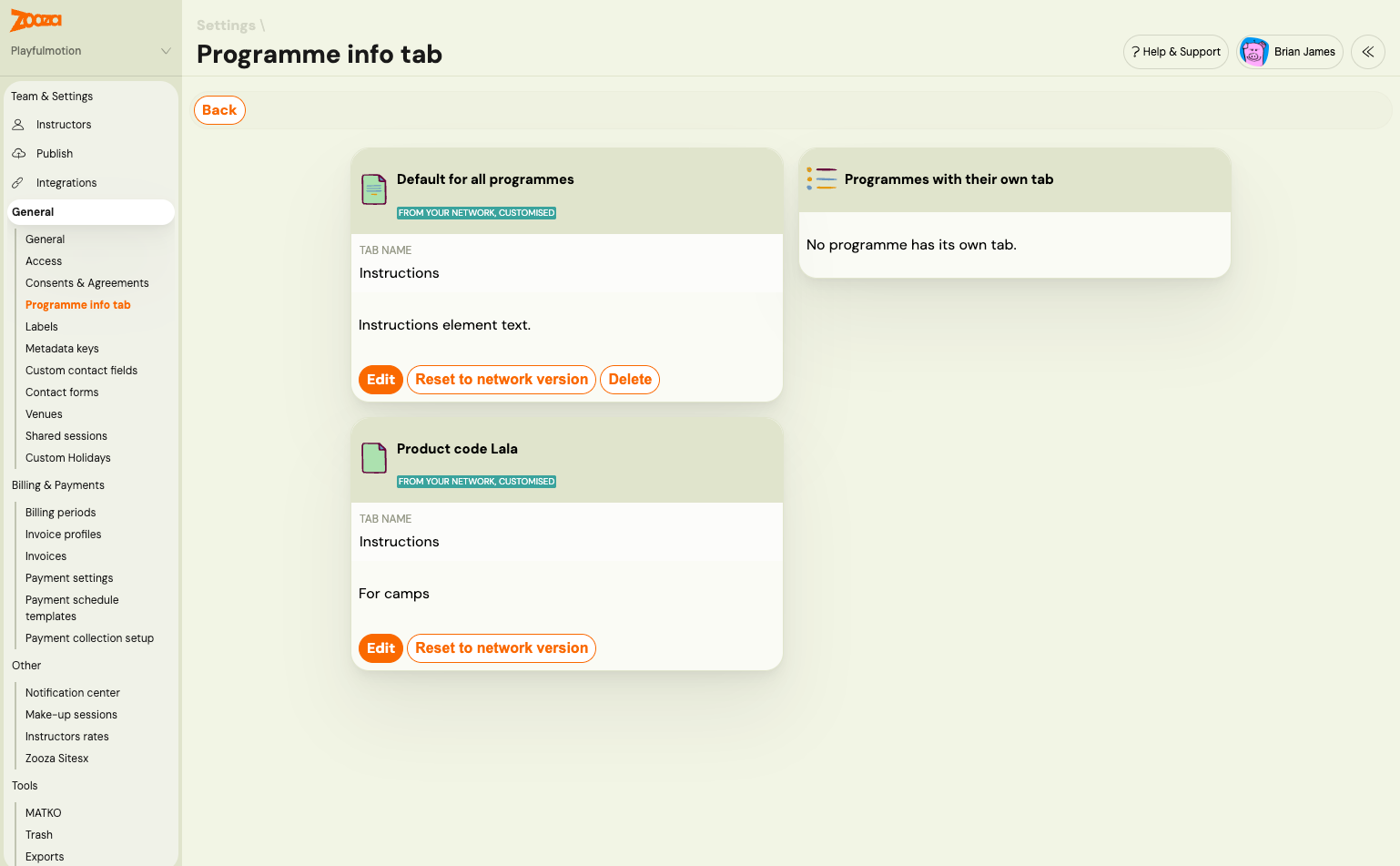
The page is a set of cards, one per piece of content you have:
- Default for all programmes — the one every programme uses unless told otherwise.
- A card per product code, where you use product codes. Product code Lala, Instructions, "For camps" — so all your camps share wording that your weekly classes do not.
- Programmes with their own tab — the exceptions, listed so you can see at a glance which programmes have drifted from the default. It says "No programme has its own tab" when there are none.
Each card holds a Tab name — the word the client clicks, with Contacts, Information and Instructions ready to pick, or type your own — and the Content, written in a normal editor with headings, bold, lists, links and images.
Edit opens it, Delete removes it. Set nothing at all and clients see no tab.
Different wording for one programme
Most providers need one default and a couple of exceptions — the swimming course needs a towel and a cap, the camp needs a packing list and a pickup time.
On the programme itself, Settings → Info tab shows which of these applies and lets you change it:
| What the card says | What it means |
|---|---|
| Uses the company default | The default above, unchanged |
| Custom for this programme | This programme has its own wording |
| Hidden for this programme | No tab here, even though a default exists |
| No info tab for this programme | Nothing is set anywhere |
The actions are Create for this programme, Customise for this programme (start from the default and edit), Hide for this programme, Show again, and Use company default to throw away the custom version and fall back.
Back in Settings, Programmes with their own tab lists every exception with its tab name and status, so you can see at a glance which programmes have drifted from the default.
Deleting a tab removes it from clients' view. The confirmation says so plainly; there is no draft state.
Worth writing in it
A short list beats a long one — this is read by a parent on a phone, usually the evening before the first session.
- What to bring, in the order they will pack it.
- Where exactly to go — not just the address. Which entrance, which floor, where to wait.
- How to tell you they cannot come, and by when. Point them at the cancel button in their own profile rather than asking for an email.
- Who to contact and how fast you answer.
- The two or three rules you repeat most. Shoes, food, siblings, phones.
What not to put here: anything about money or dates that is already on the booking. Those screens are generated from the real data and will always be right; a paragraph you typed in March will not be.
If you run a network
A network HQ can write this content once and have it appear in every unit, which is the reason the feature exists in this shape.
- One network-wide tab, or one per product code — so a franchise can give its Baby course one set of instructions and its Toddler course another, across every branch.
- Each piece of content is either enforced or customisable. Enforced means the unit can read it but not change it: "Your network sets the programme info tab for all your programmes. You can view it here but not change it."
- A customisable one can be edited locally, and then shows as From your network, customised.
- Reset to network version replaces your wording with the network's latest. It sits on the card itself, next to Edit.
- Restore previous brings back what you had before the network replaced it. Content a unit wrote is kept, not destroyed — which is the point of having both buttons.
While a network-wide tab is enforced, a unit's own programme tabs are kept but not shown: "Your network's info tab is enforced for all programmes. These programme tabs are kept but are not shown to clients while it is enforced." Nothing is lost; turn the enforcement off and they come back.
What the HQ sees
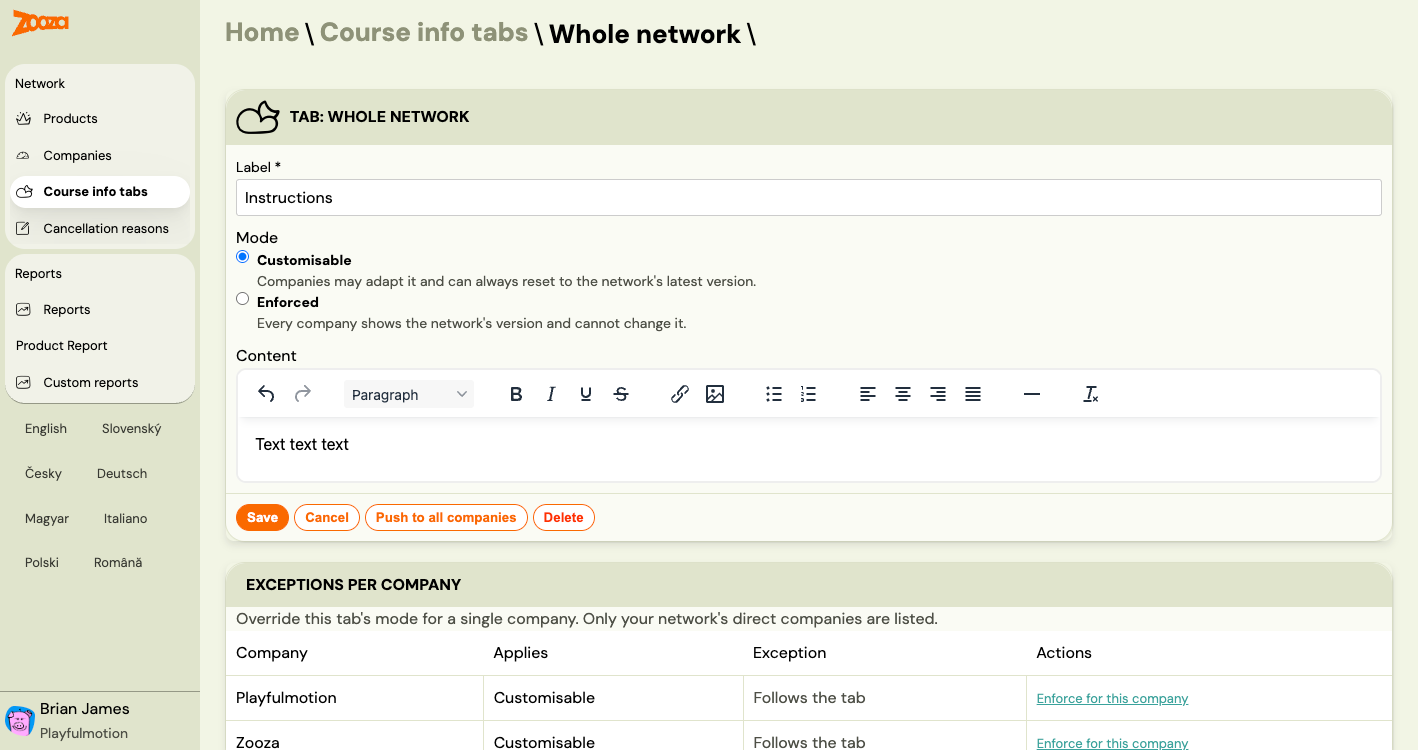
In the network app it is Course info tabs, with one entry for the whole network and one per product code. Each has a Label, a Mode — Customisable ("Companies may adapt it and can always reset to the network's latest version") or Enforced ("Every company shows the network's version and cannot change it") — and the Content.
Push to all companies is the deliberate override: it replaces what every company currently has, including their own edits, with this version. Save on its own leaves existing copies alone. The difference matters — one is publishing a new version for anybody who has not customised it, the other is overwriting everybody.
Underneath, Exceptions per company lets you override the mode for a single direct company: the table lists each one with what applies to it and an Enforce for this company action. So a network can stay customisable in general and pin one branch that keeps going off-message.
One language per network. There are no language variants, so a network spanning markets needs to decide which language this content is in — or leave it customisable and let each unit write its own.
Related
- Client Profile 101 — what else the parent sees there
- Programme settings
- Settings hub