Settings
The Settings screen is the central configuration hub for your Zooza account. It provides access to all system-wide settings organized as navigation tiles.
Navigation: Go to Team & Settings → Settings.
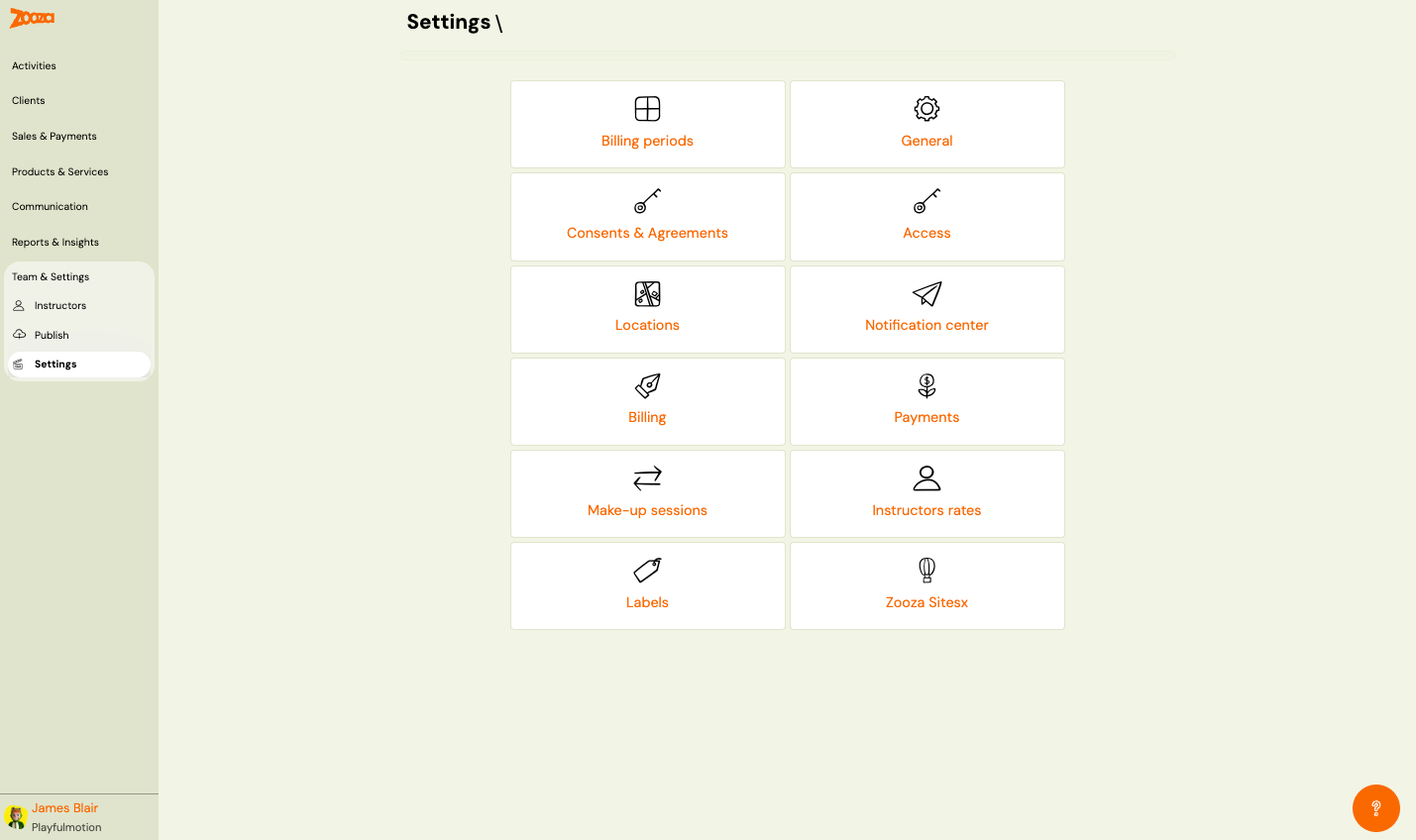
Settings Tiles
| Tile | Description |
|---|---|
| Billing periods | Manage billing periods (semesters, terms) to organize classes and bookings. See Billing Periods. |
| General | Account details, programme settings, session settings, calendar settings. See General. |
| Consents & Agreements | Manage consent forms and agreements for clients. |
| Access | Manage user accounts and permissions. |
| Locations | Manage venues and locations for classes. |
| Notification center | Configure notification preferences. |
| Billing | Manage invoice profiles and billing settings. |
| Payments | Configure payment templates and methods. |
| Make-up sessions | Configure make-up session rules. |
| Instructors rates | Manage instructor pay rates. |
| Labels | Create and manage labels for organizing programmes, classes, and clients. |
| Zooza Sites | Manage Zooza Sites (micro-sites). |
| Custom Holidays | Create and manage company-specific holiday periods used for session scheduling and cancellation rules. See Custom holidays. |
| Metadata keys | Define custom key/value pairs that can be attached to programmes and surfaced to the booking widget. |
| Custom contact fields | Your own questions for people who enquire through the contact form on your website, reusable on any contact form. See Custom contact fields. |
| Contact forms | What the contact form on your website asks, which consents it shows, and what happens with each enquiry. Every company has a default configuration. See Set up a contact form. |
| Shared sessions (beta) | Combine classes that run in the same room at the same time so the room's real capacity is respected. See Shared sessions. |
Tools
Navigation: Settings → Tools.
The Tools section contains diagnostic and recovery utilities for owners and assistants. It is not visible to the instructor or receptionist roles.
| Tool | Description |
|---|---|
| MATKO | Diagnose why a specific session is not visible to a client as a make-up option. Runs 19 eligibility checks and shows exactly which one is failing. See MATKO — Diagnose why a make-up session is not showing. |
| Where to find things | A quick reference for locating any screen in Zooza. See Where to find things. |
| System messages | Activity Zooza raises for you — see System messages. |
| Trash | Recover sessions, classes, and registrations deleted in the last 30 days. After 30 days, items are permanently removed. See Recover deleted sessions, classes, and registrations. |
Billing Periods
Navigation: Settings → Billing periods.
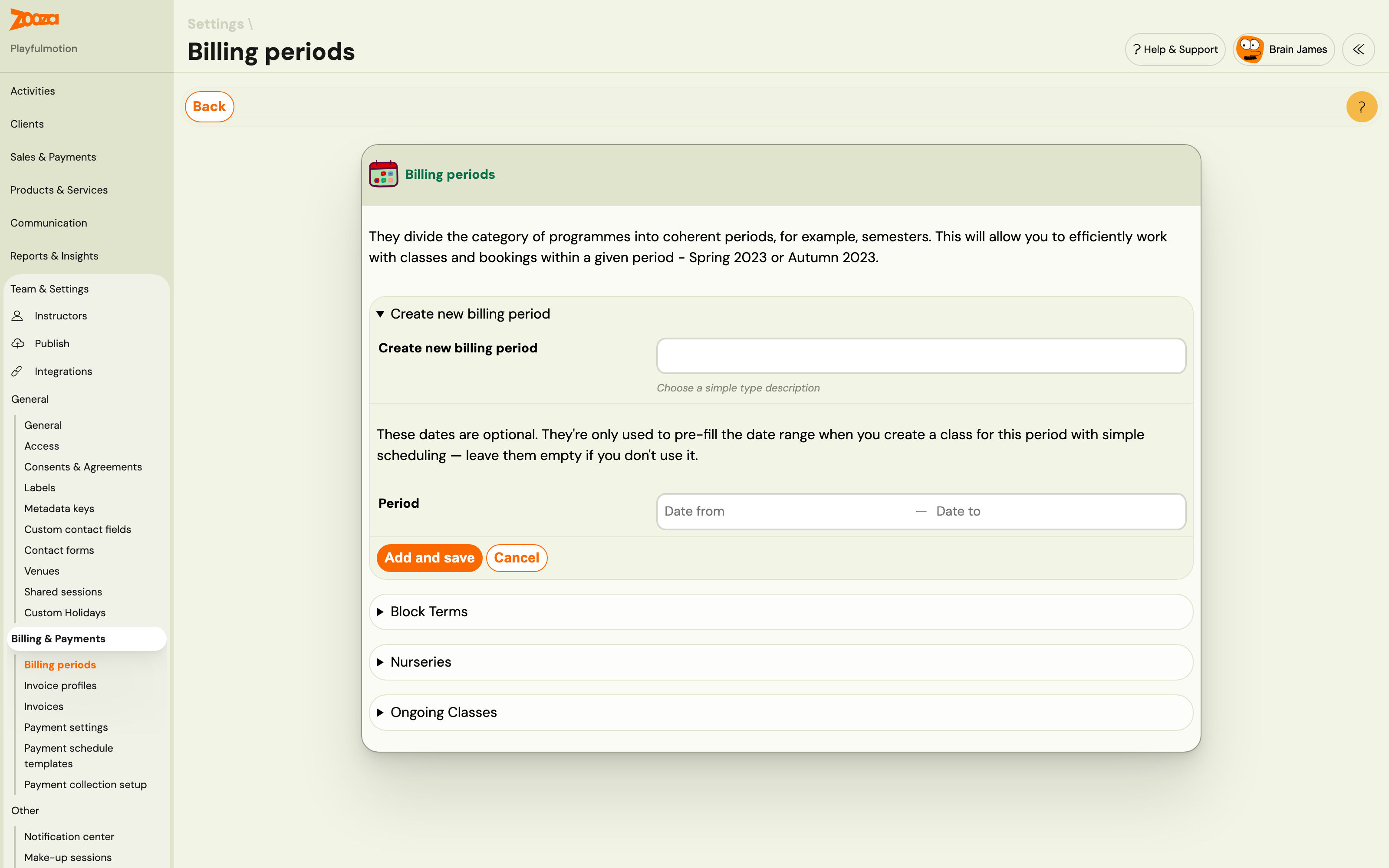
Billing periods divide programmes into coherent periods (e.g. semesters: Spring 2023, Autumn 2023). This lets you work efficiently with classes and bookings within a given period.
| Field | Description |
|---|---|
Billing period name | Name of the period (e.g. "Ongoing Classes"). |
Active billing period | Check to set as the active period. The active period is displayed throughout the application. |
Actions: Edit icon (rename) and X (delete).
Button: Create new billing period.
General
Navigation: Settings → General.
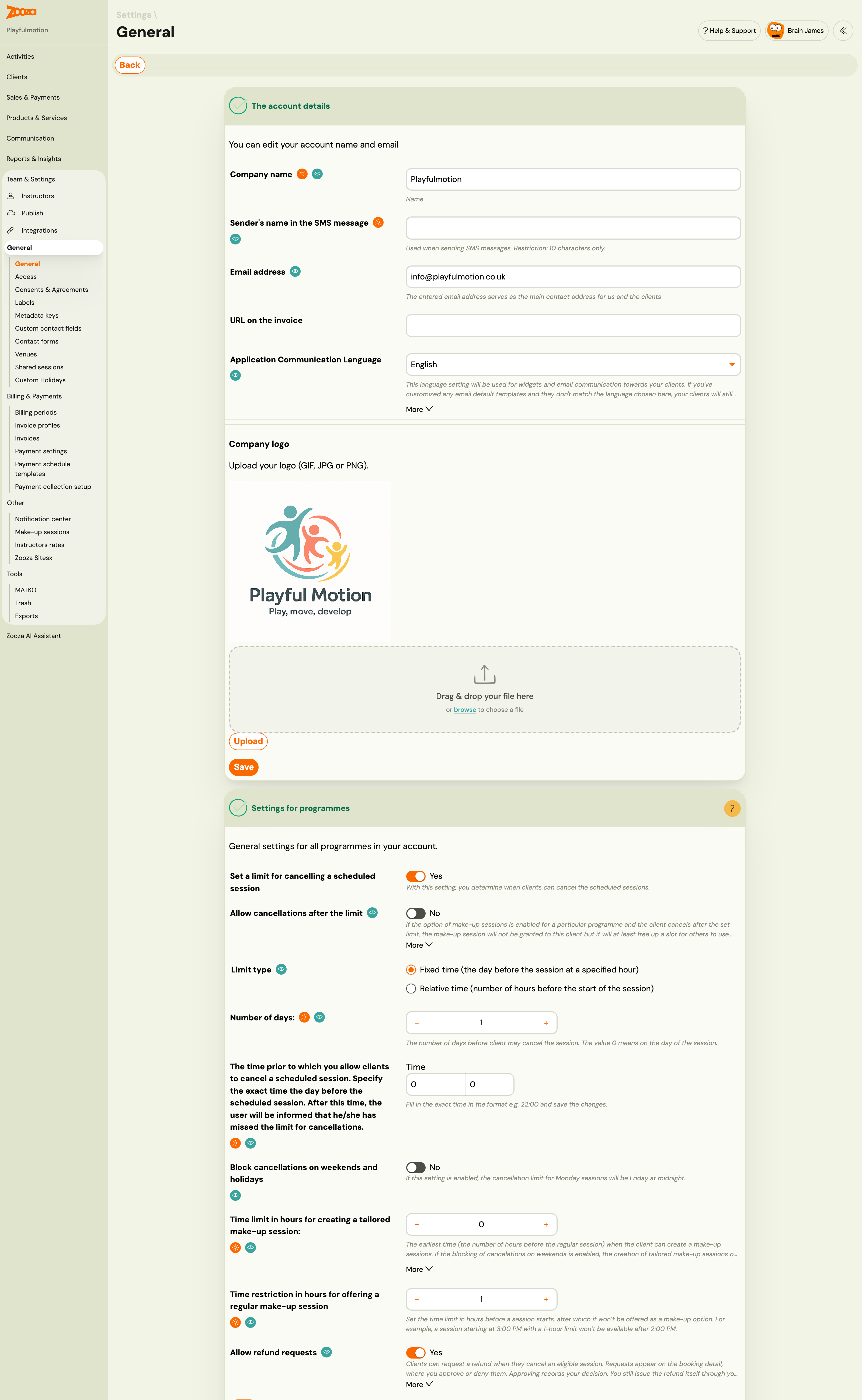
The Account Details
| Field | Description |
|---|---|
Company name | Your business name. |
Sender's name in the SMS message | Name shown when sending SMS. Restriction: 10 characters only. |
Email address | Main contact email for you and your clients. |
URL on the invoice | Website URL displayed on invoices. |
Application Communication Language | Language for widgets and email communication to clients. If customized templates don't match this language, clients still receive the customized versions. |
Company logo | Upload logo in GIF, JPG, or PNG format. |
Settings for Programmes
General settings for all programmes:
| Field | Description |
|---|---|
Set a limit for cancelling a scheduled session | When enabled, clients can cancel scheduled sessions within the defined limit. |
Allow cancellations after the limit | If make-up sessions are enabled and the client cancels after the limit, the make-up session is not granted but a slot is freed for others. Attendance record shows "Did not attend". |
Limit type | Fixed time (the day before at a specified hour) or Relative time (number of hours before the session). |
Number of days | Days before the session when client may cancel. 0 = on the day of the session. |
The time prior to which you allow clients to cancel | Exact time on the cancellation day. After this time, the user is informed they missed the limit. |
Block cancellations on weekends and holidays | If enabled, the cancellation limit for Monday sessions will be Friday at midnight. |
Time limit in hours for creating a tailored make-up session | Earliest time (hours before the regular session) when clients can create make-up sessions. If zero, default of 24 hours is used. |
Time restriction in hours for offering a regular make-up session | Time limit in hours before a session starts, after which it won't be offered as a make-up option. |
Sessions
| Field | Description |
|---|---|
Require instructors to complete summaries of sessions for their clients | When enabled, if the instructor does not complete the summary, a reminder is sent the next day. |
Automatically cancel a session if it is empty | When the last client cancels, the session is automatically changed to "Cancelled" status. |
Automatically close attendance | Number of days after which attendance is automatically closed for all participants in "Will be present" status. Set to 0 to disable. For one-off sessions, attendance is closed only for logged-in participants at closing time. |
Custom Customer ID | Format template for client IDs. Allowed values: Unique ID (U), sequence number (1–10 minimum length). Each symbol needs curly braces. |
Regenerate all customer IDs | Regenerate all IDs based on the current format. |
Online meeting instructions | Rich text editor for instructions shown in clients' profiles for online sessions. |
Instructor permissions
| Field | Description |
|---|---|
Attendance management settings for instructors | Full report — instructors can set any attendance state (attended, did not attend, cancelled) and choose a make-up session for a client. Limited — instructors only get attended / did not attend; a client's own in-time cancellation (and the make-up credit it created) is not theirs to overwrite. Use Limited if instructors keep turning cancellations into no-shows — see Make-up Sessions FAQ. |
Availability management settings for instructors | Full — instructors manage their own working hours and absences. Restricted administration — instructors can create availability and absences but any change, including deleting a wrongly entered absence, must be approved by the owner. Absences only — instructors can only request absences. If an instructor reports that the delete button on an absence is missing, this setting is why. See Instructor working hours. |
Calendar
| Field | Description |
|---|---|
Show unscheduled/cancelled sessions | Show or hide cancelled sessions in the calendar. |
For instructors: Show only those sessions for which they are listed as instructors | If checked, instructors only see sessions they're assigned to. If unchecked, they also see other sessions for classes they're listed on. |
Calendar time slot display options (each can be toggled Yes/No):
Programme nameClass nameSession nameAttendanceInstructorLocationTime and duration
Notifications Center
The Notifications Center sends automatic alerts to you or your colleagues when specific events happen in Zooza — for example when a new booking is created, a payment is received, or a client is imported.
To set up a notification:
- Go to Settings → Other → Notification center.
- Click Add new notification.
- Select the notification type from the list.
- Enter the email address you want the notification sent to.
- Click Create Notification.
Each notification entry supports one email address. To send the same notification to multiple addresses, create a separate notification entry for each.
Related
- Locations and Venues FAQ — common questions about locations.
- Holiday Settings Guide — how to configure holidays.
- Custom Holidays — create company-specific holiday periods.