Stay on top of activity with system messages
System messages are admin-only notifications that appear automatically when key events happen in your account — a new booking comes in, a payment is received, a session is cancelled, or a client sets a make-up. You do not need to configure them; they are always on for all admin users.
System messages appear in two places:
- Right sidebar — a compact notification panel accessible from anywhere in the app, updated in real time.
- System messages screen — the full view at Reports & Insights → System messages, showing the complete history with filters.
The right sidebar
The notification panel on the right side of the app shows the most recent system messages. Click any item to open the related record (booking, client profile, session) directly. The sidebar updates in real time — new events appear without refreshing the page.
To open the full history, click Open in full view at the top of the panel.
Turning off the notification sound
New events — a new booking, a new payment — play a short sound. If it is going off all day, mute it in your browser, not in Zooza. There is no in-app setting for it, because the sound is played by the page like any other web audio.
Chrome / Edge: click the icon to the left of the address bar → Site settings → find Sound → set it to Block (or Mute site directly from the tab's right-click menu).
Firefox: right-click the Zooza tab → Mute Tab. For a permanent setting, use the padlock icon → Connection settings → autoplay/sound permissions.
Safari: Safari → Settings for This Website → set Auto-Play and audio permissions, or click the speaker icon in the address bar to mute the tab.
The setting is per site, so muting Zooza does not affect anything else you have open. The events themselves keep arriving in the sidebar — you just stop hearing them.
This is worth knowing before you go looking for a toggle in Zooza. Admins on a busy account often assume the sound is a notification preference; it is not, and there is nothing to switch off on our side.
The System messages screen
Navigation: Go to Reports & Insights → System messages.
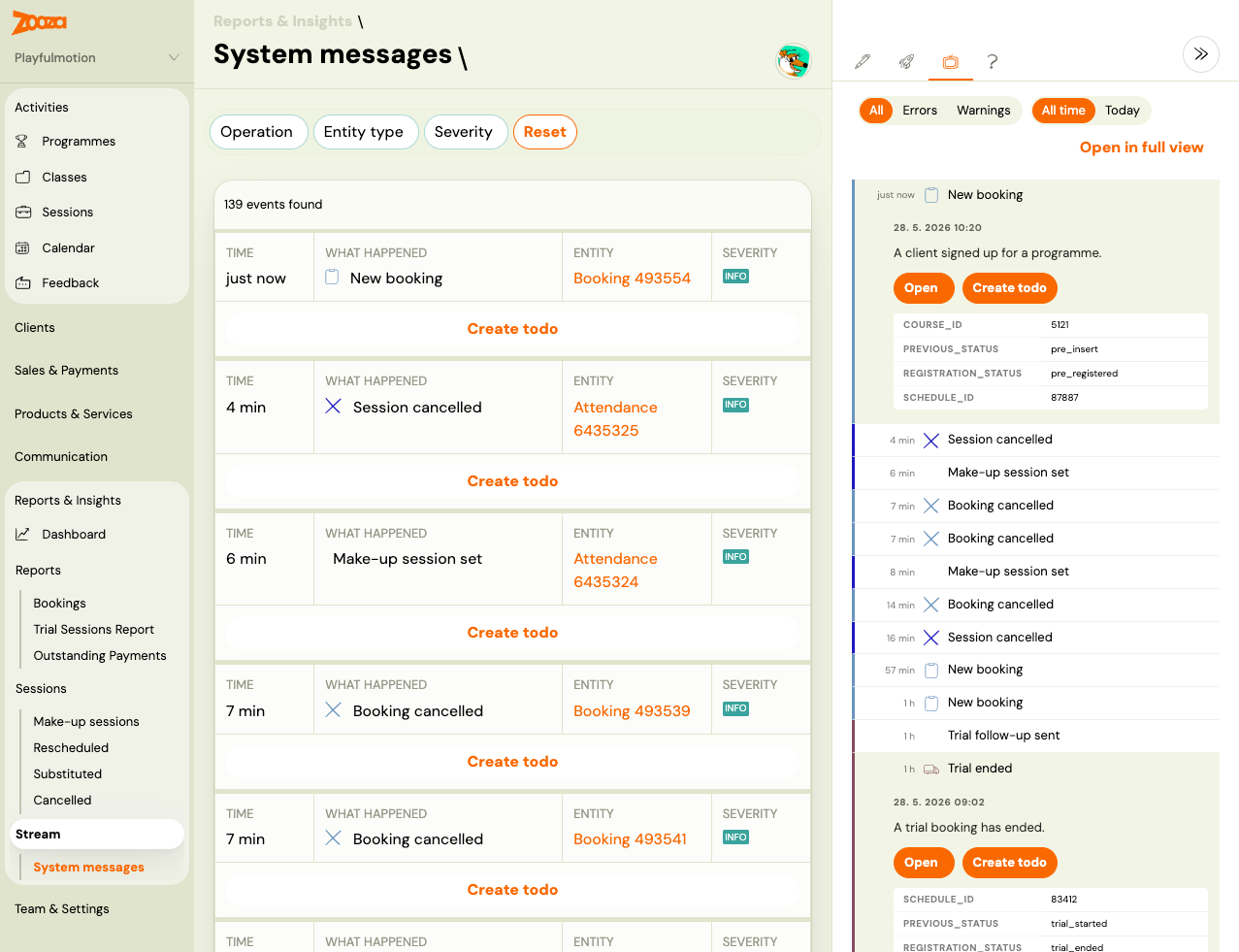
The screen shows a chronological list of events. Each row includes:
| Column | Description |
|---|---|
| Time | How long ago the event happened (e.g. "4 min", "1 hour") |
| What happened | Event type and a short description |
| Entity | The related booking or class (clickable link) |
| Severity | Visual tag — e.g. INFO |
| Create todo | Quick action to create a follow-up task directly from the event |
Filters
| Filter | Options |
|---|---|
| Operation | Filter by event type (New booking, Session cancelled, Make-up session set, Booking cancelled, …) |
| Entity type | Filter by the type of entity the event is about |
| Security | Filter by severity level |
| Today / Yesterday | Quick date shortcuts |
| Reset | Clear all filters |
Event types
| Event | When it appears |
|---|---|
| New booking | A client completes a registration through the widget |
| Session cancelled | A session is cancelled in the admin app |
| Make-up session set | A client selects a make-up session after a cancellation |
| Booking cancelled | A registration is cancelled |
| Trial booked | A trial session is booked |
| Trial follow-up sent | An automated trial follow-up message was sent |
| Payment received | An incoming payment (Stripe, GoCardless, or bank transfer) is paired to a booking |
| Scheduled payment dispatched | A batch of payment reminders was sent to clients |
| Attendance replacement set | A make-up replacement is confirmed |
Who sees system messages
System messages are visible to all users with admin access (owner, main member, member, and similar admin-equivalent roles). Customer-only accounts do not have access to this screen or the sidebar panel.
System messages created by your own actions are marked as already seen — you will not get notified about changes you made yourself.
Creating a to-do from a system message
Each row has a Create todo button. Use this to create a follow-up task linked to the event — for example, to call a client after a cancellation or to confirm a make-up booking. Todos are visible in the Todos section of the app.