User roles

For adding additional Zooza users, you have a choice of different roles that are set according to how much data about your clients they can see and edit.
Add instructor
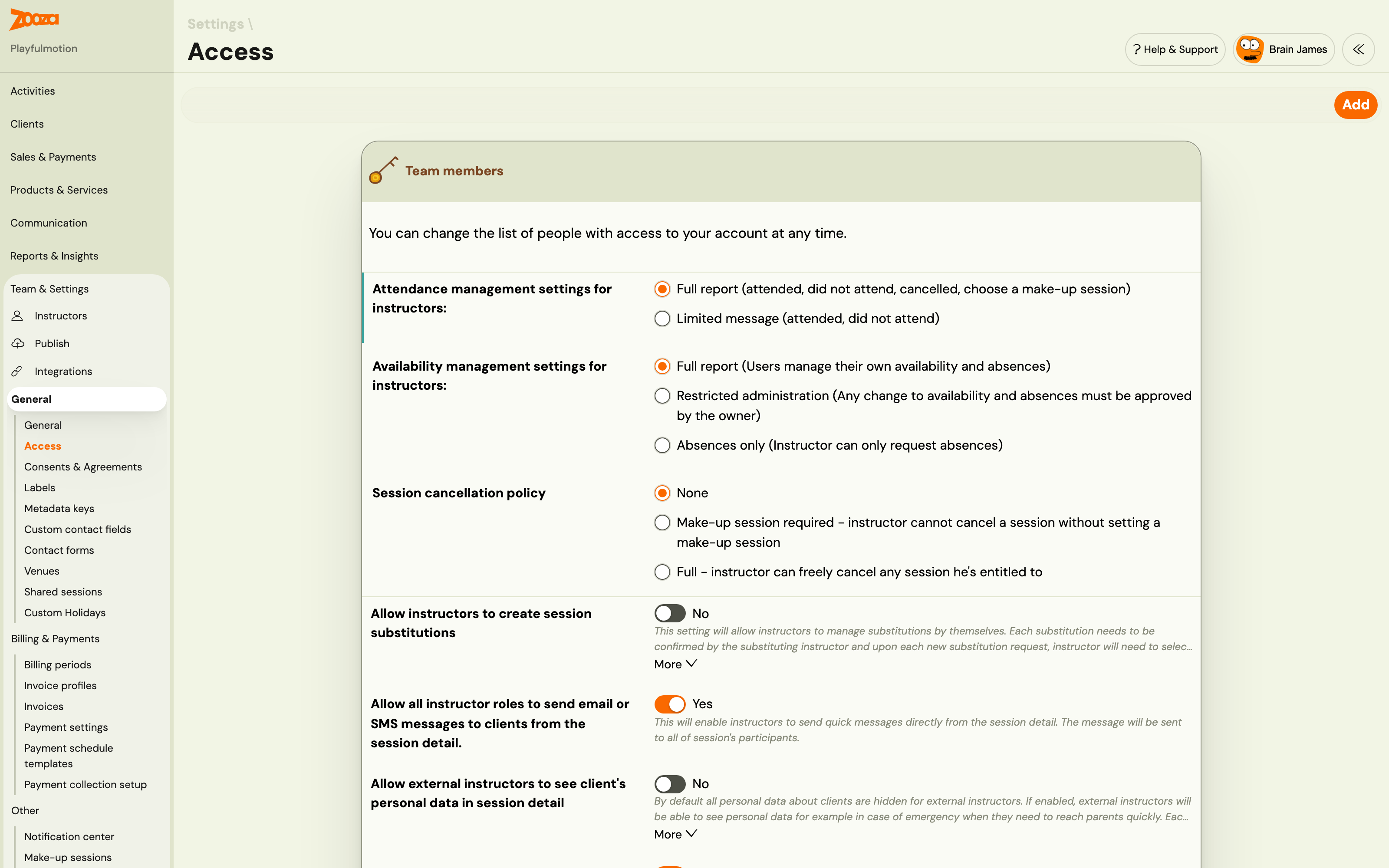
The process of adding a instructor is very simple. Under Settings, open the Access icon and click the Add button. Then fill in all the details that are required.
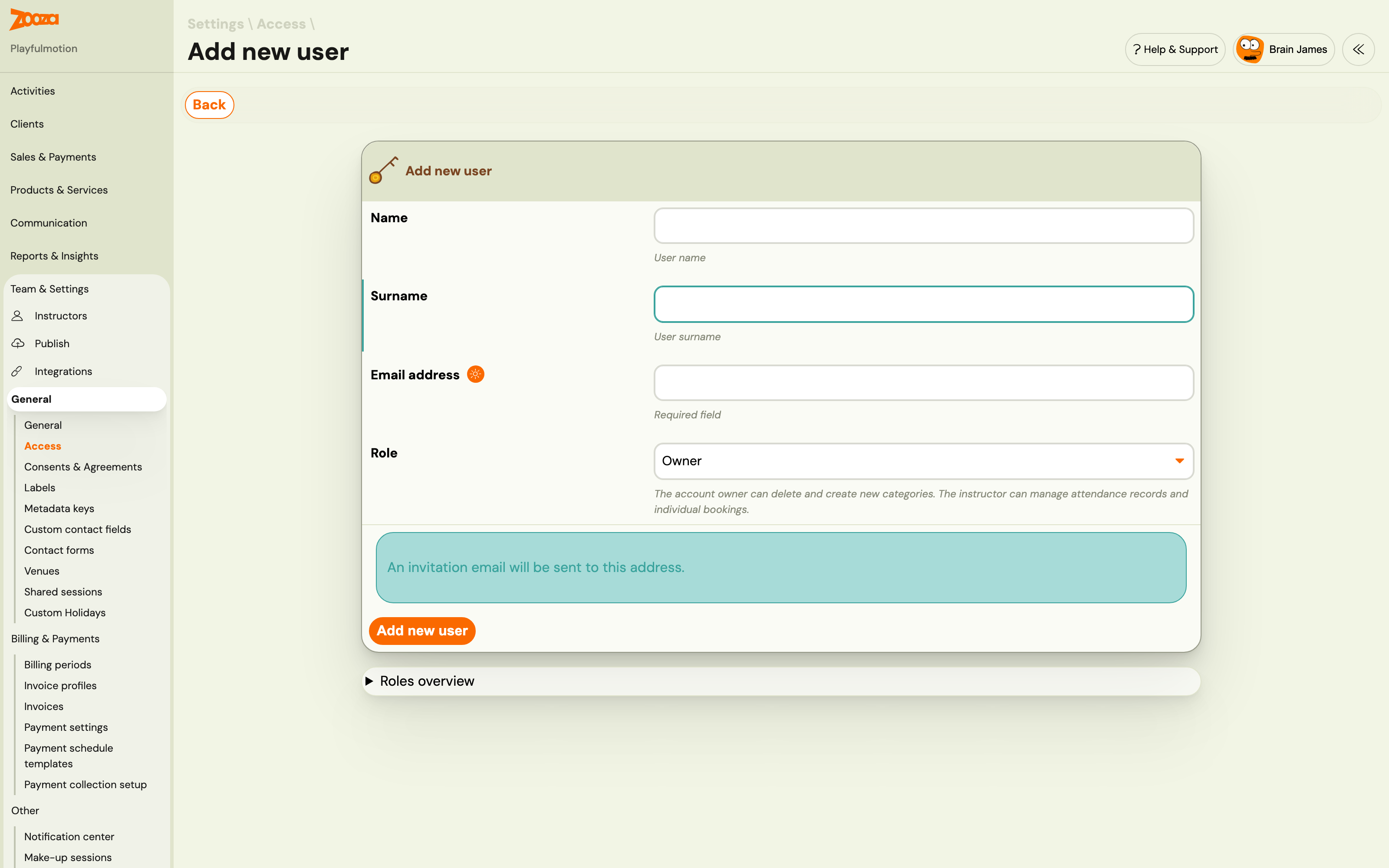
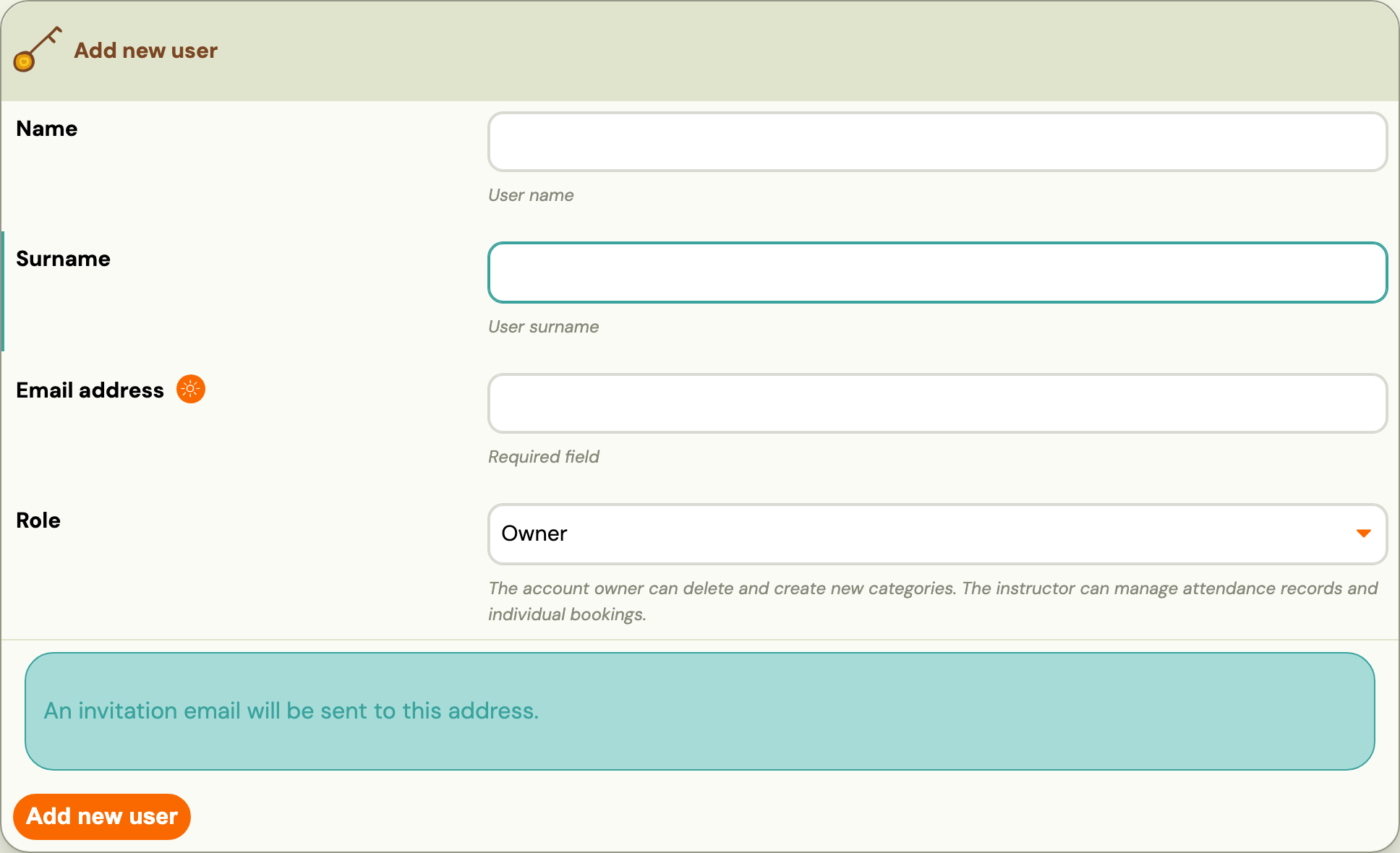
Warning! When filling in the Email field, enter ONLY functional email addresses. If you fill in an address such as demo@example.com, it may happen that such an account is actually active and in use and this user will be able to get into your Zooz account, thus compromising data security. If you want to test a role/feature, we recommend using an email address that you have not yet registered with Zooza to ensure your security.
The last field to select is the user role, you can choose from the following:
- Owner
- Assistant
- Main instructor
- Instructor
- External instructor
- Receptionist
For all the differences between these roles, please refer to the table below the form in the application or read later in this manual.

Click the Add New User button to save your settings.
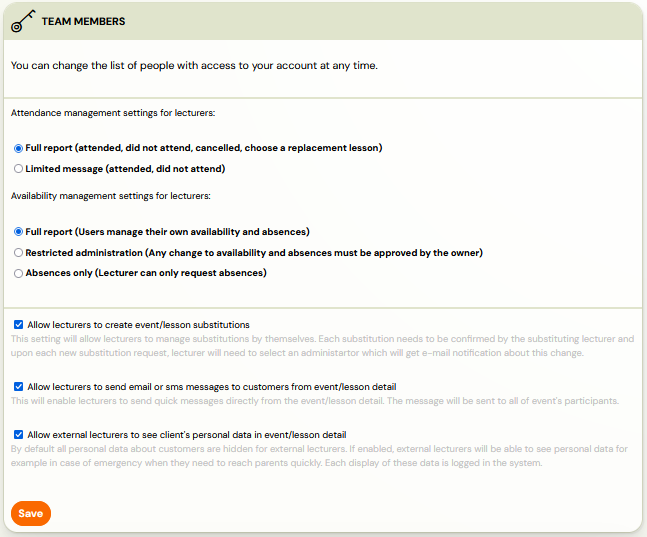
Team members
Setting the basic view for individual team members will make it easier for you to specify some of the features available for instructor roles according to your needs. You decide how a instructor should see the attendance report, how they can manage their own availability, whether instructors can see client details or send messages to clients in term details. Last but not least, you have the option to allow instructors to create substitutions on appointments for easier administration. You can find out all the information on how to set up the substitution and how it works in this manual.
Owner
Owner role has a full ownership of the application and can access all functionalities and settings available in Zooza.
Assistant
The Assistant role is intended for someone who helps you manage programmes and clients. It has broad access across the application.
- Sees today’s sessions on the dashboard. Does not see owner-level statistical reports.
- Full attendance management — can mark Arrived, Signed Out, Did Not Arrive, and set an alternate session for the client. This applies regardless of the company-wide trainer attendance setting (which affects Instructors only, not Assistants).
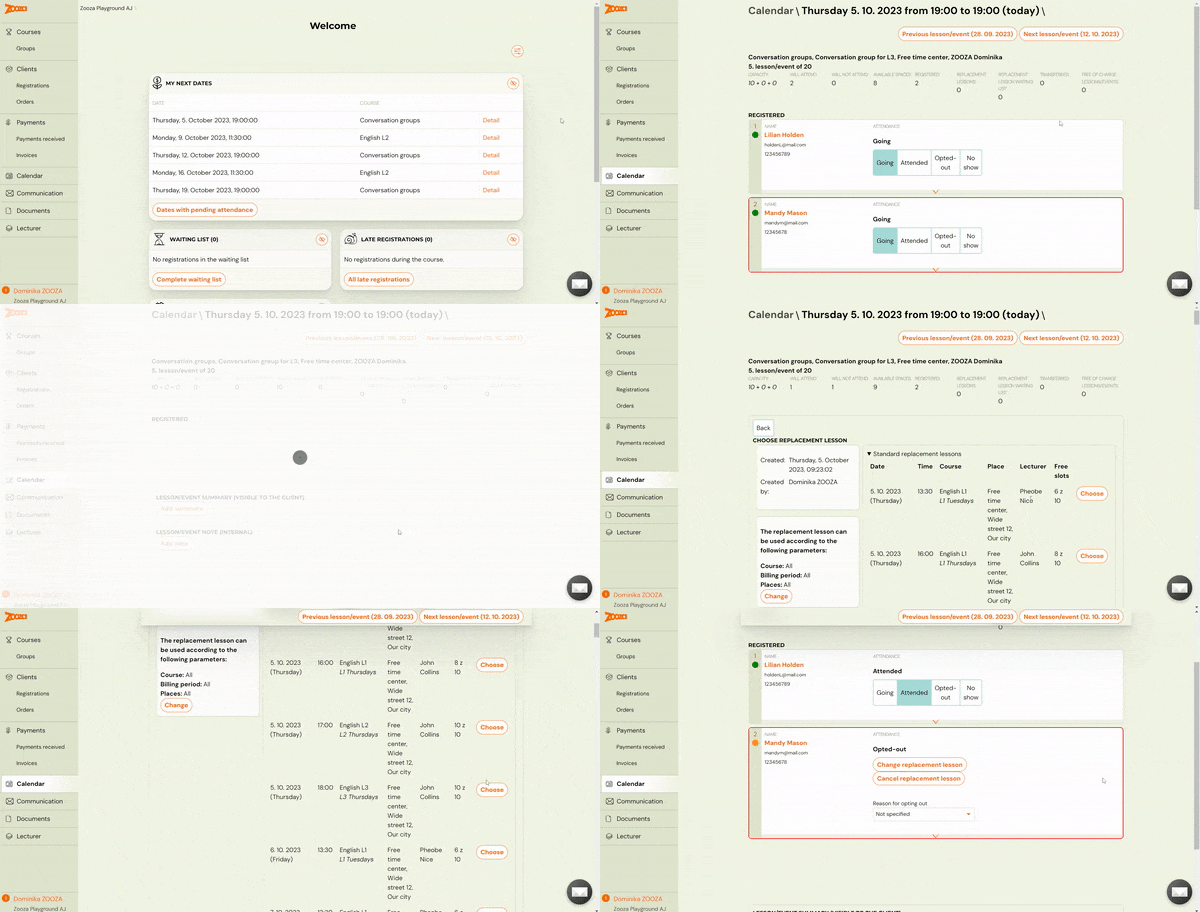
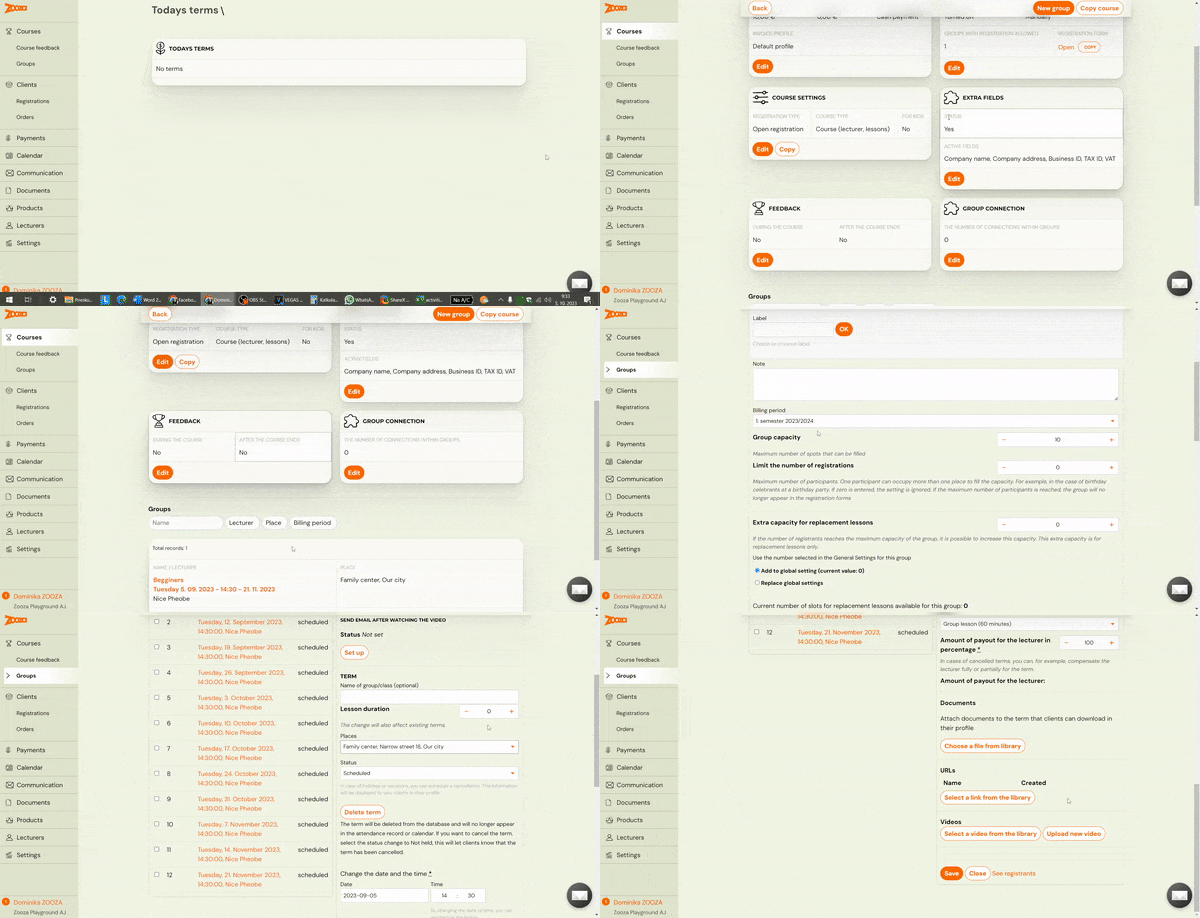
- Can create programmes, change their settings, create or copy classes, and add sessions. In classes, can edit settings and modify existing sessions — change the time, change the instructor, or cancel the session and notify clients.
- Can communicate with all clients via email and SMS — to a booking, a class, or all clients. Can use existing email templates but cannot create or edit them.
- Can add a payment on a booking. Cannot grant discounts, change the amount due, or issue refunds.
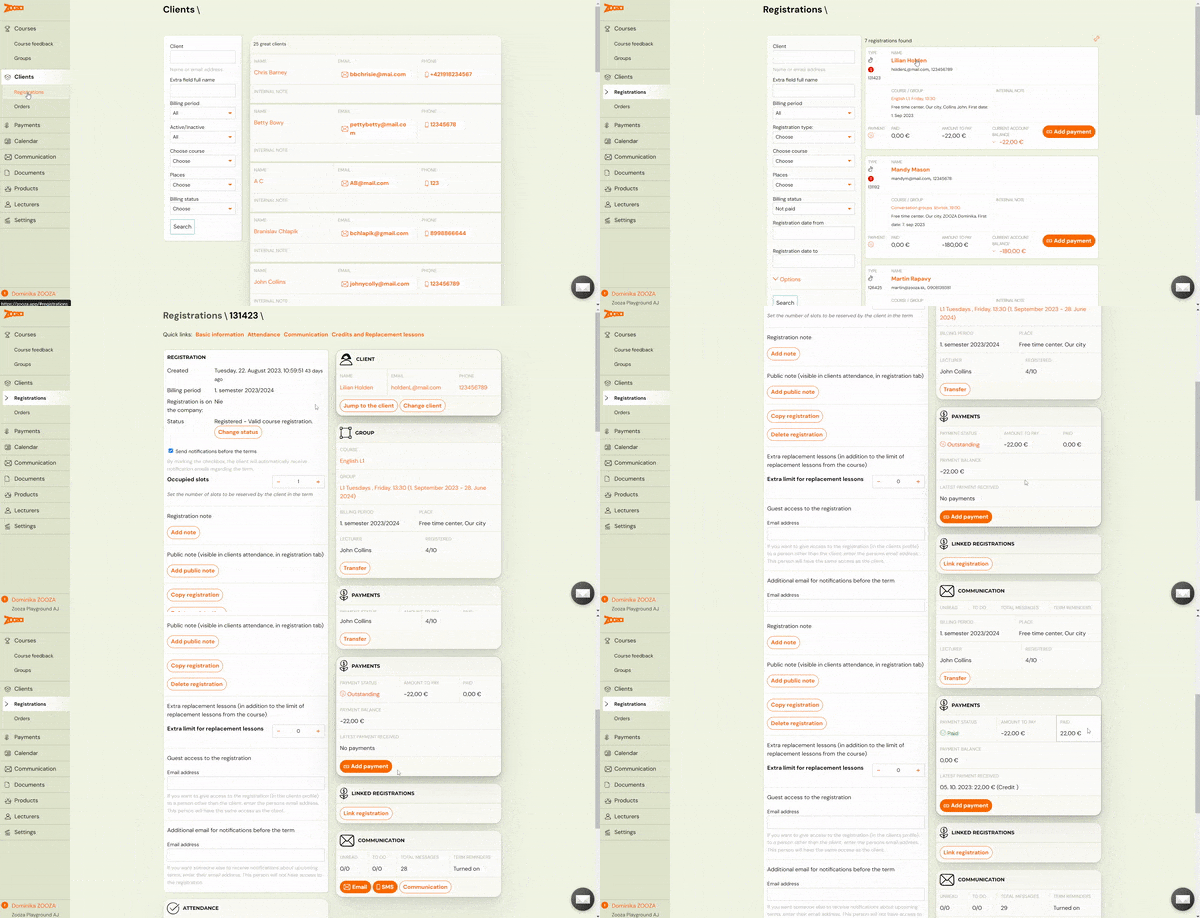
- Can do all booking edits — change booking status, copy, move, edit client name and extra fields.
- Has access to the Payments section — can view payment overview and payment details, and can pair unmatched payments. Cannot do imports, cannot see or issue invoices.
- Sees the full Calendar with all instructors’ classes.
- Can add Documents and Products and assign them to classes.
- In the Instructors section, can see all team members, manage their personal data, view and edit pay rates, enter working hours, and download trainer reports.
- Has access to Settings — can add team members, locations, and billing periods. Cannot edit Payment Templates.
Main instructor
The main instructor is the instructor who has more competences than the instructor. In addition to taking attendance, it has the authority to adjust the dates of all classes. Assign dates to other instructors or make other changes to dates. He has the ability to upload documents and videos and add them to classes.
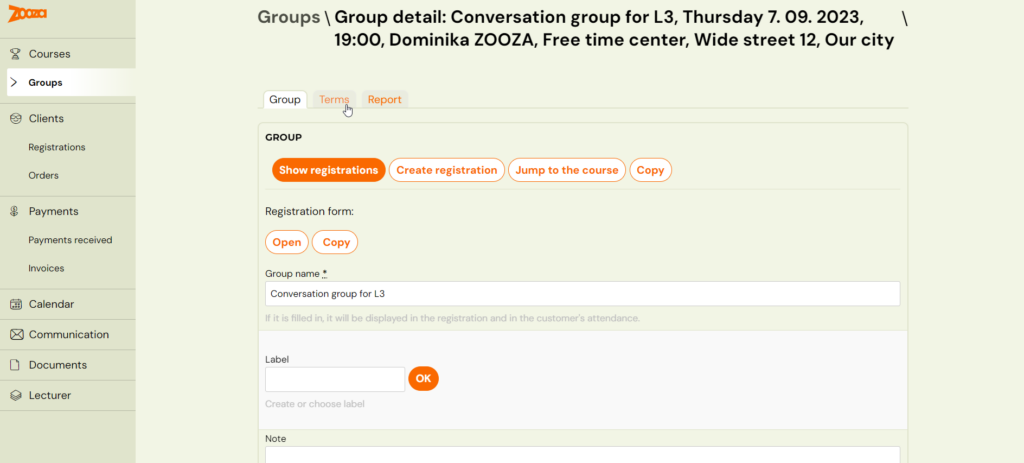
- Cannot see Programmes and Programme Settings, so can’t edit them in any way
- He sees all the classes of all the instructors, he can make changes in them
- So he can make changes even on dates – change of instructor, time, place…
- He can only see their clients, bookings and orders.
- Sees payments, payments received and invoices
- Has the right to manage client payments
- He can see the whole calendar with all the dates, he can record attendance
- Has the ability to communicate to their clients
- Has the ability to upload documents and videos and add them to classes and appointments
- Does not have access to settings (locations, access, billing periods, billing profiles, payment templates…)
Instructor
The main task of the instructor is to fill in the attendance in his classes, in the Calendar section. In the Instructors section he can enter his working hours and absences as set by you / the owner in the general settings. And they can see the Clients and Bookings subpages – but only their clients. Also has a Communication option for their clients
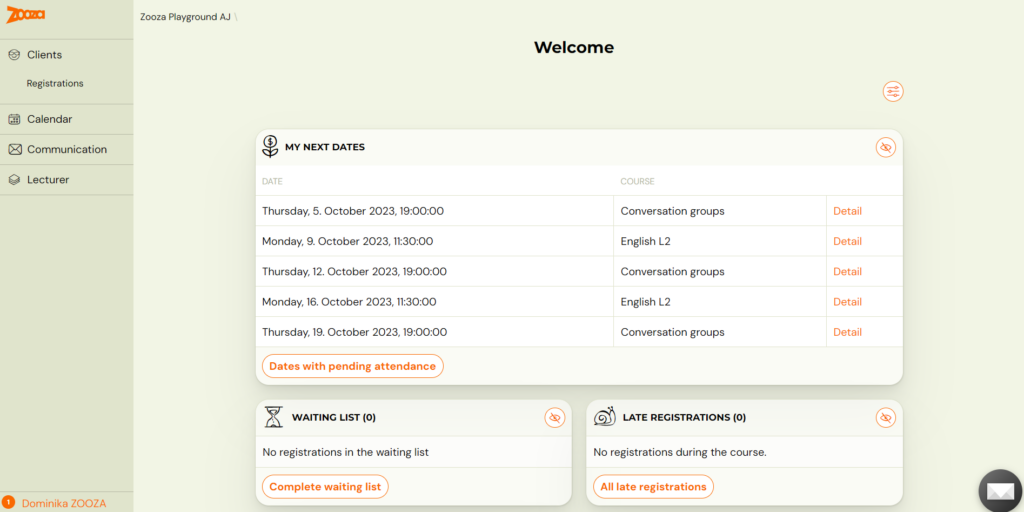
- Taking attendance – in the Calendar section they can see all their appointments and the appointments of other instructors, if their are assigned to them (as a substitute or as a second instructor). They can also see today’s dates on the home page / dashboard.
- They have a full report or a limited report to fill out the attendance form – depending on your preference. Attendance management settings for the instructor are made by the owner in the general settings.
- They can search under Bookings and Clients. The client’s booking card is visible in its entirety. They can see the contact details, have the option to move, copy, delete the booking. They can edit the child’s name or other data from the extra fields.
- They can Add Payment and also have the right to assign a payment template (such as one with a sibling discount) to bookings, provided you have made the payment template visible to instructors. It can also modify payments – enter a discount, refund a payment, modify the amount owed or the registration fee.
- They have the right to communicate, send email and SMS, but only to their clients.
- It does not have access to other parts of the administration.
External instructor
A instructor you trust a little less or don’t want to burden him with any additional tasks. His only job is to fill out the attendance.
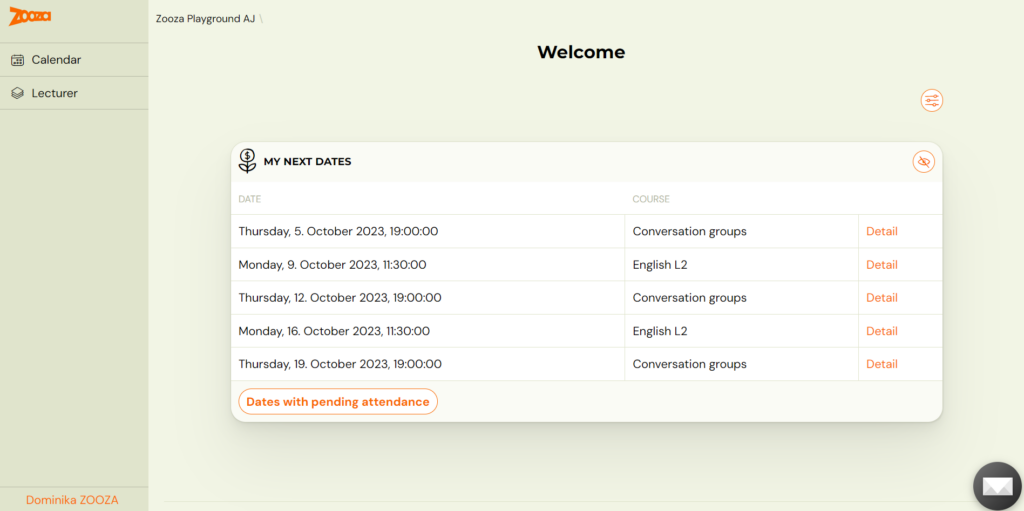
- On the initial dashboard, they can see today’s dates so they can quickly record attendance.
- If they need to look at the dates of other days, they can access the Calendar. Of course, they can see all the dates on which they appears – their own, those on which they are assigned as a 2nd instructor, or those on which they are assigned only to a specific date as a substitute.
- When they open a booking through a specific date in the calendar, they are presented with a view of the Client Booking Card, which has limited functionality. They do not see the client’s contact details, they do not have the right to move or copy the booking. They can only edit data from extra fields (Child’s name, age, address…)
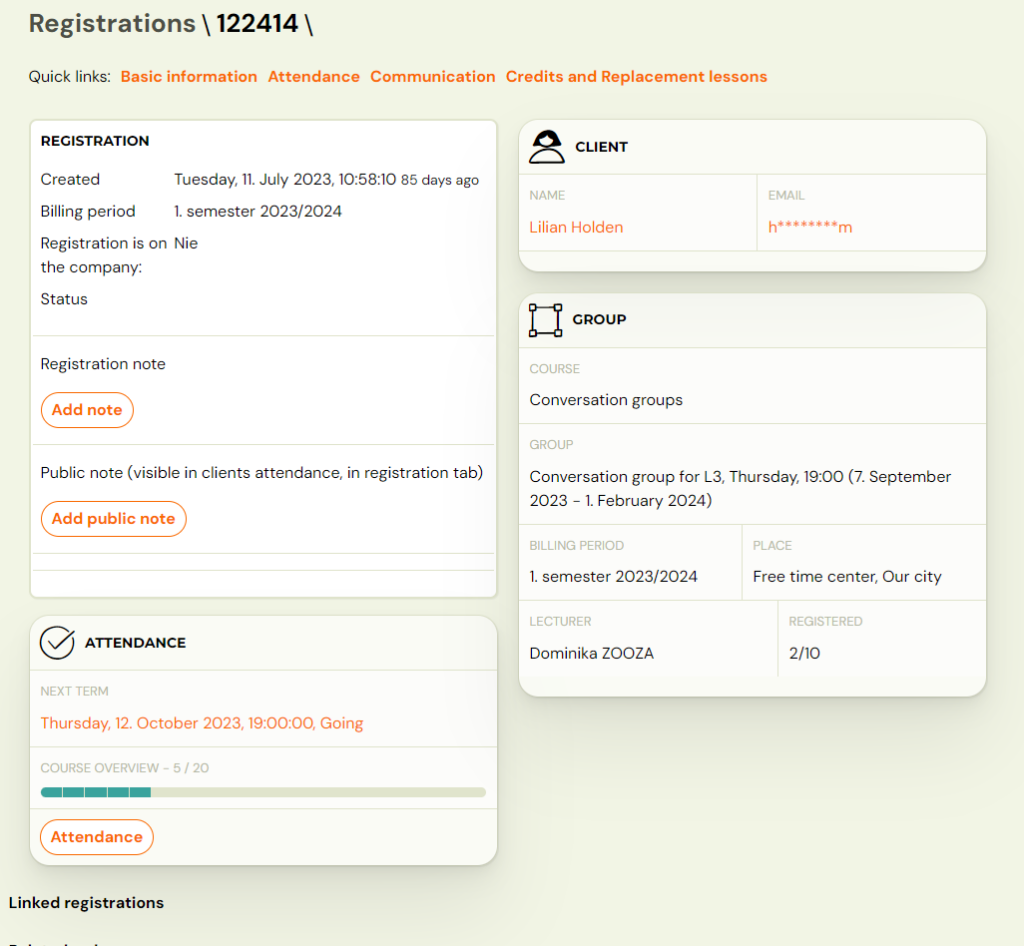
- They do not have the right to add payment or work with payments in any way.
- He can write an internal note in the session/session details.
- If it is set that instructors can send messages, he will be shown the option to send email/SMS in the session/session detail.
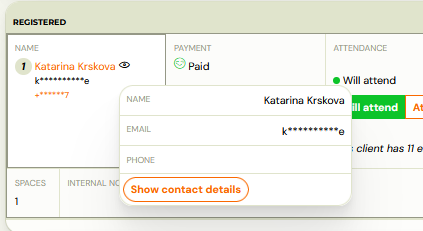
- He can also view personal details if required by clicking on the eye.
Inactive instructor
Marking a user as an inactive instructor will prevent access to the administration, but at the same time you won’t lose the data where the user was listed as a instructor.
Receptionist
This role is for receptionists who work at your organisation’s reception in the sense of – temporary worker, student. They therefore have very limited rights and basically just take attendance or add cash payment.
- They see the dates of the current day. They have them immediately on the dashboard/homepage. If they are on a different page, they can go back to the home page by clicking on the Zooza logo in the top left
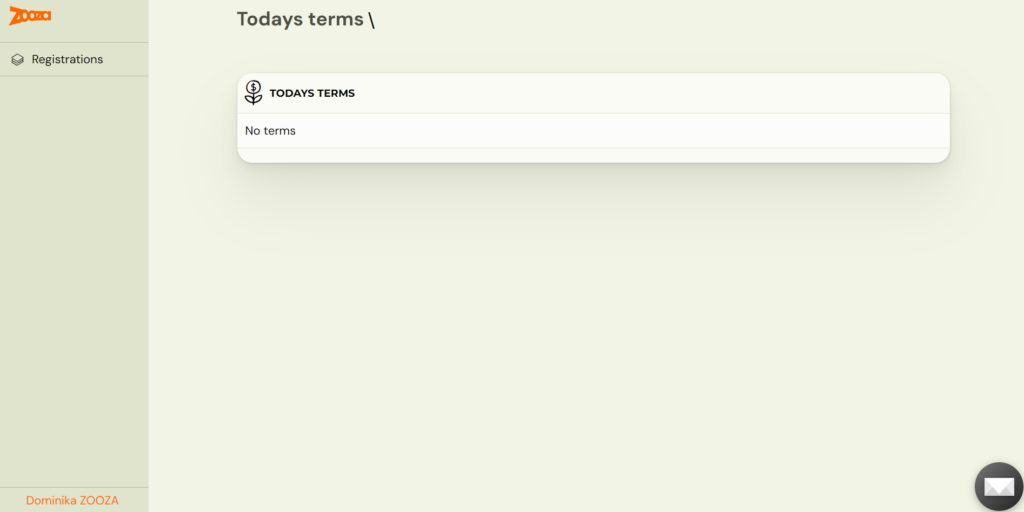
- They can open the date of the current day by clicking on Detail. They will see the list of those logged in for the day and can record attendance Arrived / Did not arrive
- Cannot see client contact details (email, phone number)
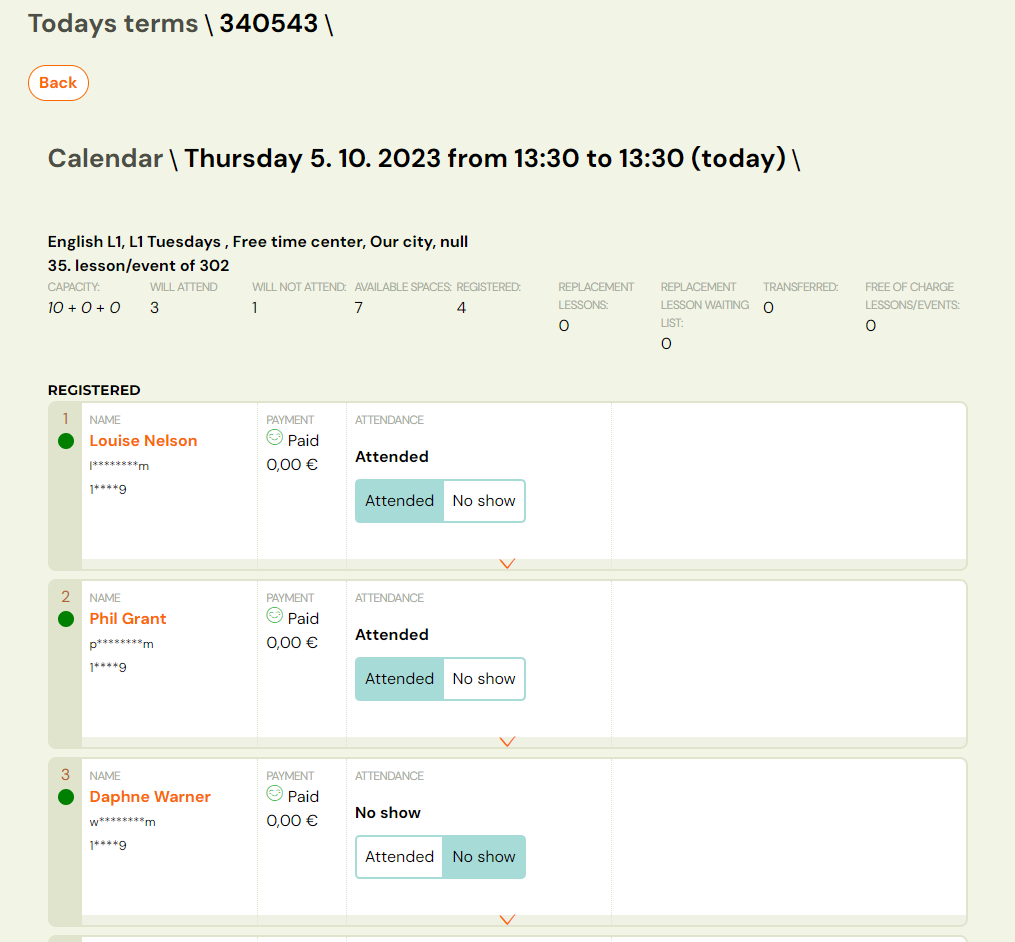
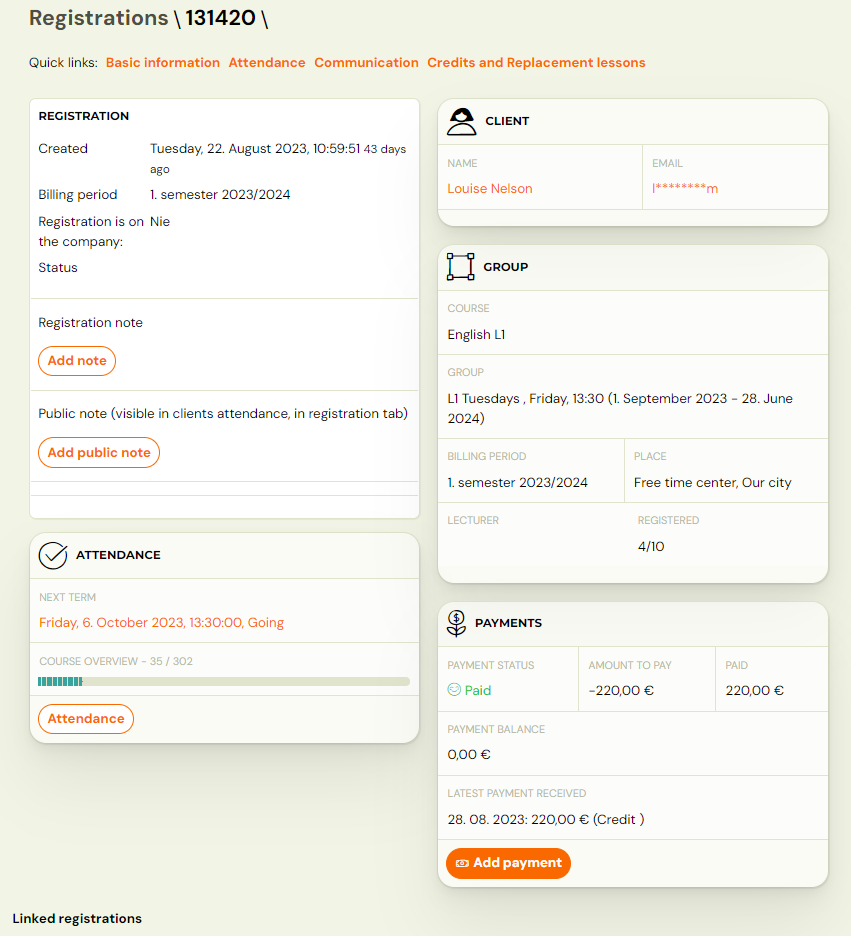
- They can open the client’s booking card by clicking on the orange Client Name. They have limited options here:
- Cannot copy/move booking
- Cannot delete booking
- Can add a note and a public note
- Can see attendance, can mark present/absent, but can’t select an alternate session for the client
- Can see payments – can add a payment. Cannot change payments, refund, enter discount, etc.
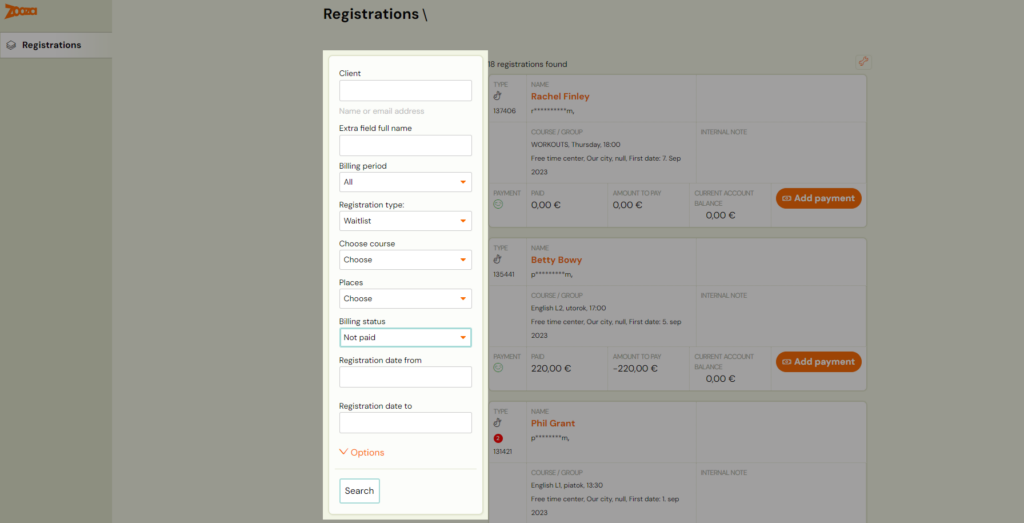
- When the user clicks on the bookings tab, he/she will see all the bookings in which he/she can search by using the filter. So add payment to all bookings (even outside of today)
- For the programme type – Pay-as-you-go programme, the receptionist can register the client for the date.
- It does not have access to other parts of the administration. It does not have the right of communication to clients.
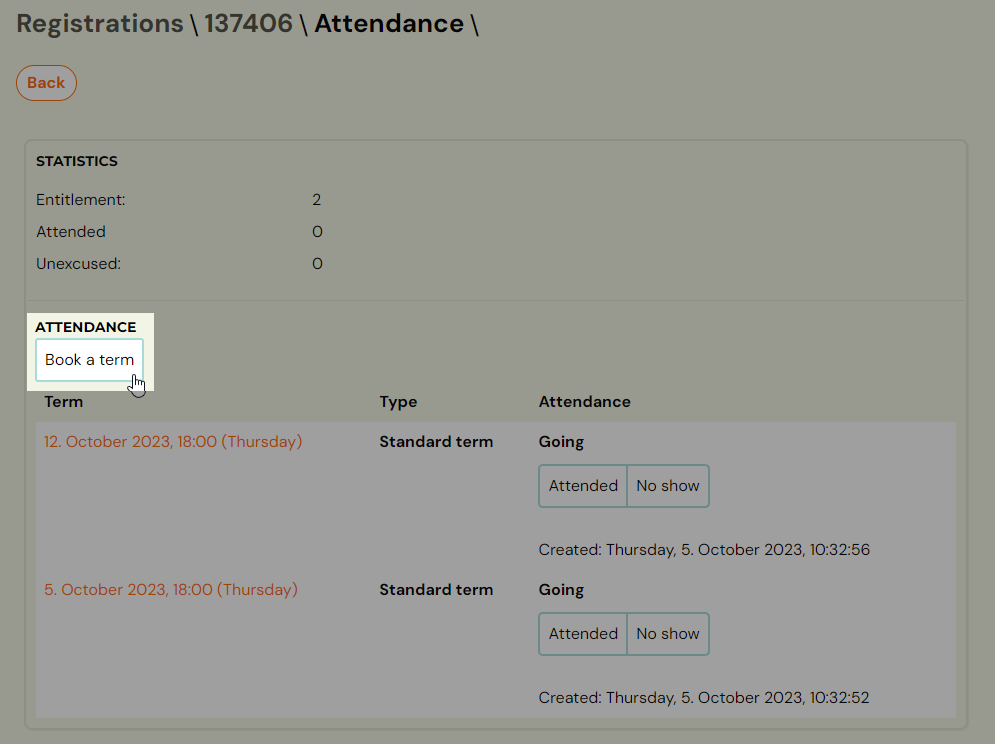
Example: I offer Pilates as a Pay-as-you-go programme – clients sign up for individual sessions at their own discretion. If the client does not manage to book himself in the profile, he just arrives, the receptionist can also add him to the term
Menu visibility by role
Each role sees a different set of items in the left-hand navigation menu. The table below shows which main menu sections are visible for each role.
| Menu item | Owner | Assistant | Main instructor | Instructor | External instructor | Receptionist |
|---|---|---|---|---|---|---|
| Dashboard | Yes | Yes | Yes | Yes | Yes | Yes |
| Calendar | Yes | Yes | Yes | Yes (own sessions) | Yes (own sessions) | No (daily view on Dashboard only) |
| Programmes | Yes | Yes | No | No | No | No |
| Classes | Yes | Yes | Yes | Yes (own only) | No | No |
| Sessions | Yes | Yes | Yes | Yes (own only) | Yes (own only) | No |
| Bookings | Yes | Yes | Yes (own clients) | Yes (own clients) | No | Yes |
| Clients | Yes | Yes | Yes (own clients) | Yes (own clients) | No | No |
| Orders | Yes | Yes | No | No | No | No |
| Payments | Yes | Yes (limited) | Configurable | No | No | No |
| Communication | Yes | Yes | Yes (own clients) | Yes (own clients) | Configurable | No |
| Documents | Yes | Yes | Yes | No | No | No |
| Products | Yes | Yes | No | No | No | No |
| Instructors | Yes | Yes | No | Own profile only | No | No |
| Reports | Yes | No | No | No | No | No |
| Settings | Yes | Yes (limited) | No | No | No | No |
Key points:
- The Receptionist does not see the Calendar page. They see only the current day's sessions on the Dashboard.
- The External instructor accesses sessions through the Calendar and Dashboard only. They do not see separate Bookings, Clients, or Classes menu items.
- The Main instructor does not see the Programmes menu. This is by design. If a team member needs to manage programmes, assign the Assistant role instead.
- The Payments menu for the Main instructor role can be shown or hidden via Settings --> Team --> Settings.
Controlling pay rate visibility
Pay rates and payout reports are visible only to the Owner and Assistant roles. Other roles cannot see colleague pay rates in the Instructors section or in reports.
Which roles can see pay rates?
| Role | Can see pay rates | Can see payout reports |
|---|---|---|
| Owner | Yes | Yes |
| Assistant | Yes (can also edit rates) | Yes |
| Main instructor | No | No |
| Instructor | No | No |
| External instructor | No | No |
| Receptionist | No | No |
Workaround: instructor who must not see pay rates
If you need a team member who teaches classes but must not see pay rates, use the External instructor role. This is useful for freelance or contract instructors.
The Main instructor role has broader access than the regular Instructor role (editing all sessions, uploading documents, viewing all classes). However, neither the Main instructor nor the regular Instructor can see pay rates.
If you need someone who can both manage sessions across instructors and see pay rates, the only option is the Assistant role. There is no way to grant pay rate visibility to instructor-level roles.
Keeping client money off instructors' screens
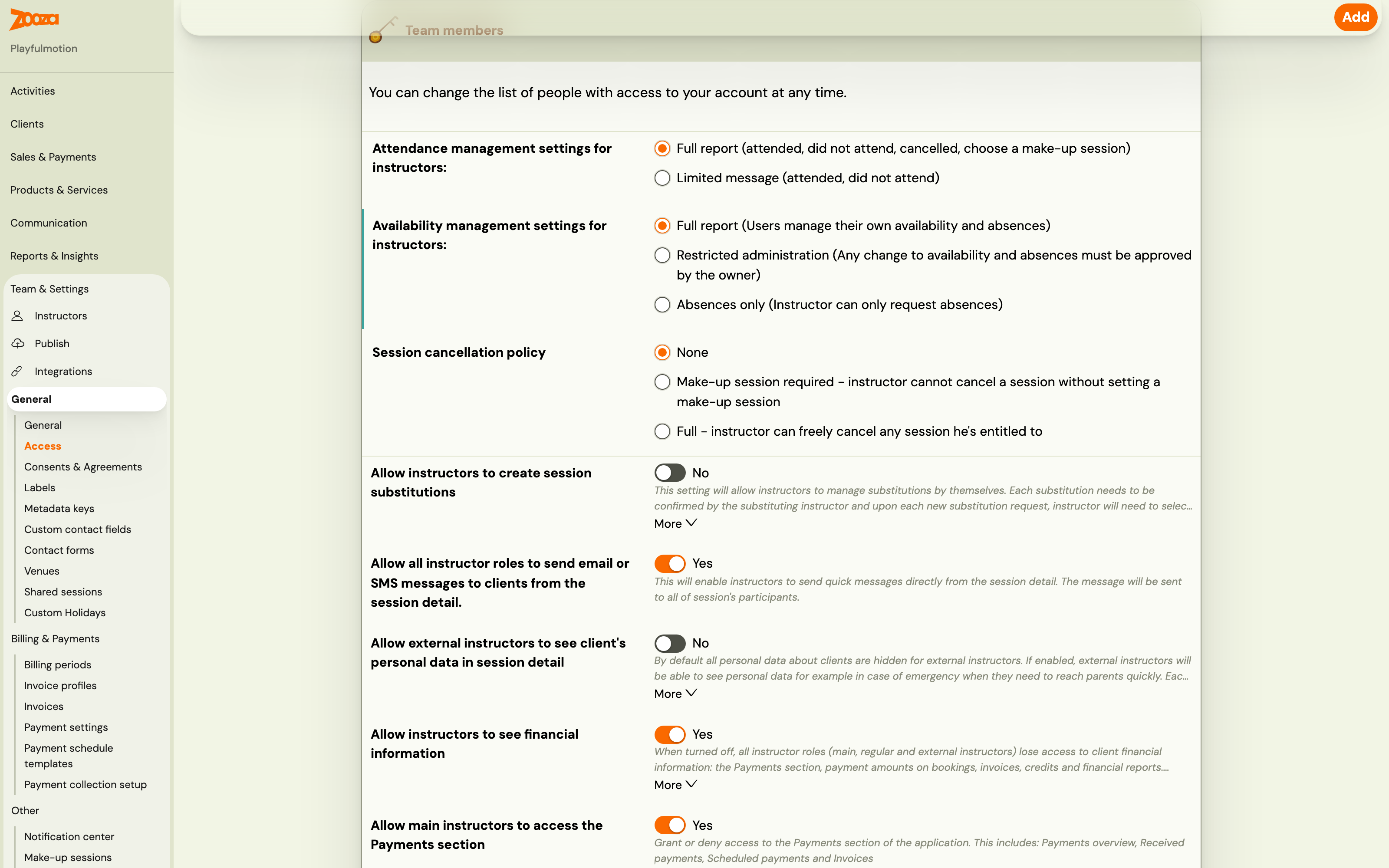
Settings → General → Access → Allow instructors to see financial information. On by default. Turn it off and all three instructor roles — main, regular and external — stop seeing client money anywhere:
- the Payments section leaves their menu
- the Payments card, the payment-plan summary and the refund history come off the booking detail
- the payment screens on a booking return a "not allowed" page rather than the figures
- amounts stop being rendered in the bookings list and on the booking itself
Owners, assistants and receptionists keep everything.
It is withheld, not hidden. The figures are kept out of the data the app receives, so there is no view, export or pasted link that gets to them.
It is not the setting under it. Allow main instructors to access the Payments section governs exactly one thing — whether the top-level Payments menu opens for main instructors. It never covered the amounts shown on a booking, which is why money stayed readable for someone who had that switched off. This new toggle is the one that covers everything.
Available since 8 September 2026. This is a company-wide setting: it applies to every instructor at once, unlike the per-person options in Add instructors and manage their access.
Quick-reference: role capabilities comparison
The table below provides a side-by-side summary of key permissions across all roles.
| Capability | Owner | Assistant | Main instructor | Instructor | External instructor | Receptionist |
|---|---|---|---|---|---|---|
| See full dashboard statistics | Yes | No | No | No | No | No |
| See today's sessions on Dashboard | Yes | Yes | Yes | Yes | Yes | Yes |
| Full calendar (all instructors) | Yes | Yes | Yes | Own only | Own only | Daily only |
| Create / edit programmes | Yes | Yes | No | No | No | No |
| Create / edit classes | Yes | Yes | Edit all | Own only | No | No |
| Edit sessions (time, instructor, cancel) | Yes | Yes | All sessions | Own only | No | No |
| View bookings | Yes | Yes | Own clients | Own clients | Limited | No move/copy |
| View client contact details | Yes | Yes | Own clients | Own clients | No | No |
| Mark attendance | Yes | Yes | Full report | Configurable | Record only | Arrived / absent |
| Select alternate session for client | Yes | Yes | Yes | Configurable | No | No |
| Add payment | Yes | Yes | Yes | Yes | No | Cash only |
| Adjust price / grant discount / refund | Yes | No | No | Yes | No | No |
| Send email / SMS | Yes | All clients | Own clients | Own clients | Configurable | No |
| Create / edit email templates | Yes | No | No | No | No | No |
| Upload documents and videos | Yes | Yes | Yes | No | No | No |
| See instructor pay rates | Yes | Yes | No | No | No | No |
| Access Settings | Yes | Limited | No | No | No | No |
| Access Reports | Yes | No | No | No | No | No |
| Register walk-in client (pay-as-you-go) | Yes | Yes | Yes | Yes | No | Yes |
For help choosing the right role, see the Role Selection Guide. For common questions, see the Roles and Permissions FAQ.