Instructor substitution
Instructor substitution is a functionality in which an unavailable instructor is replaced by another one. This feature is available as a setting that, when activated, applies to all instructor roles and accesses. Its main goal is to simplify the substitution process by allowing instructors to manage schedule changes themselves without the need for administrator interaction.
Once activated, instructors have the flexibility to set up a substitute on a selected term when they are unavailable, increasing their independence and efficiency in organising teaching. The administrator does not need to manually interfere with the process, which saves time and streamlines schedule management. The function is designed to facilitate coordination between instructors and ensure smooth running of programmes even in case of unplanned changes (illness,...).
Setting up substitution of instructors
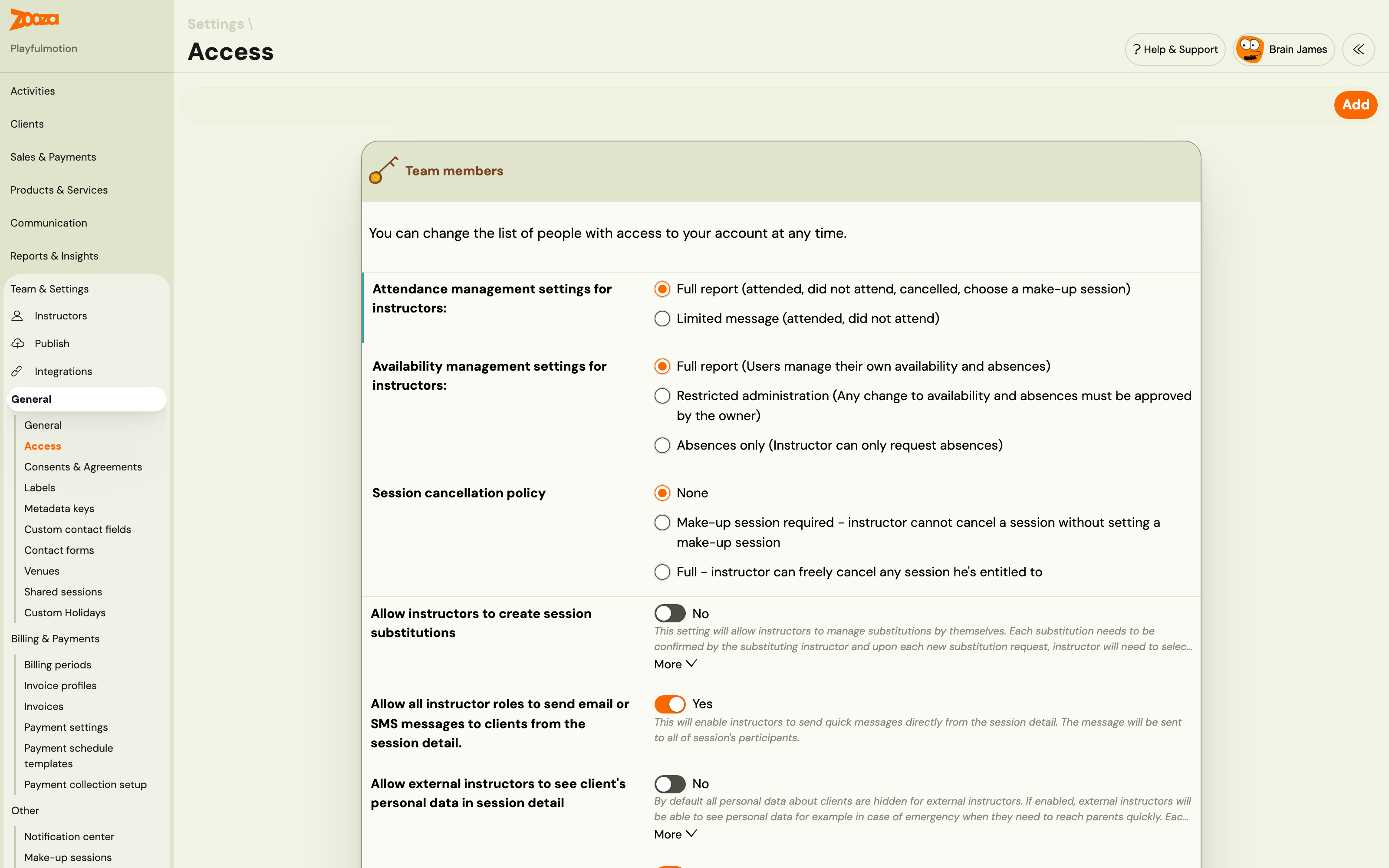
- This feature is set in the Settings category under Access section, where you just need to turn on Allow instructors to create session substitutions. This setting is visible in the attendance on the session for all instructor roles (main, instructor, external instructor).
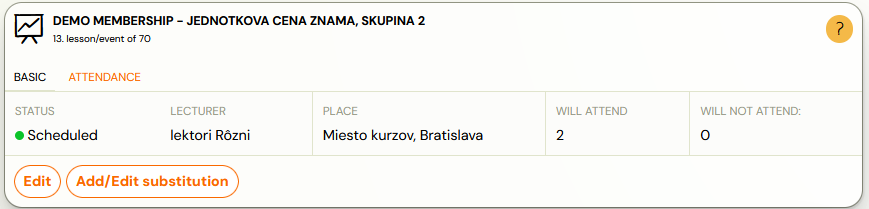
- In the session details, open the Attendance tile to access the list of enroled clients. In this section you can add/edit substitutions.
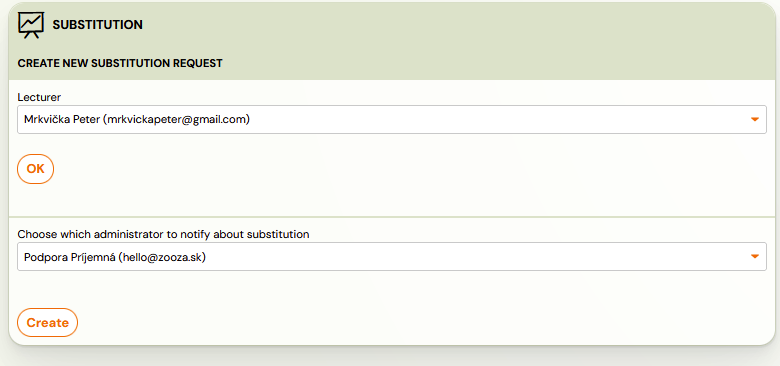
- Select a instructor from the list to cover the session. If the substitution is set by an administrator, Zooza will not offer a dropdown list with administrator notification.
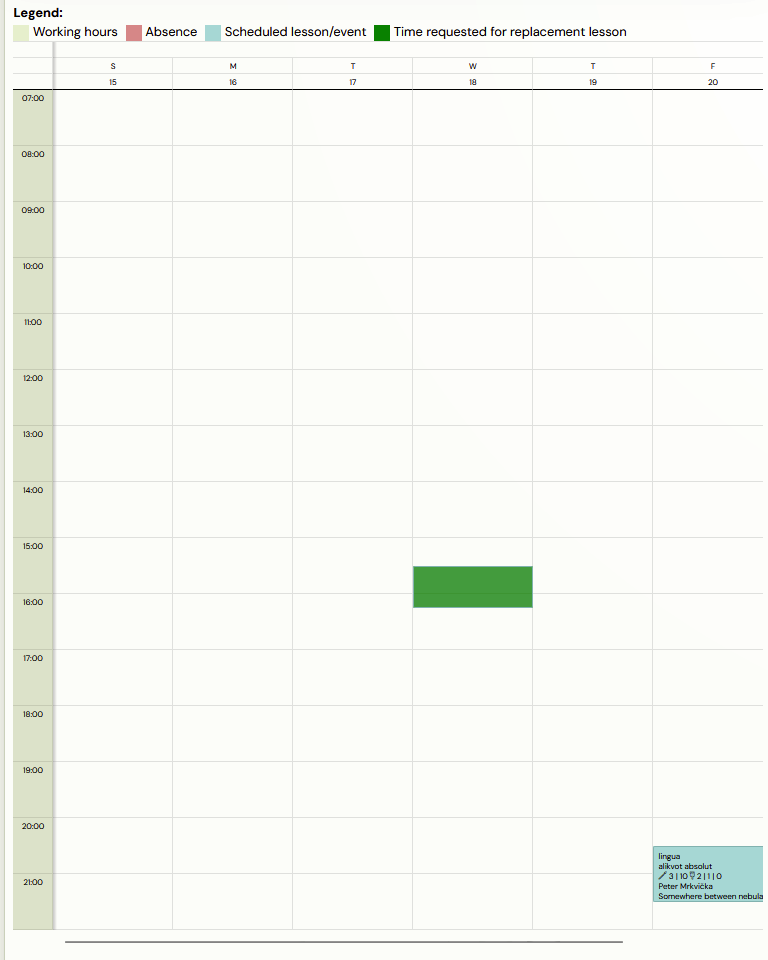
- After selecting a instructor, a window will open with the availability of the substitute instructor. As long as the instructor has filled in their office hours and scheduled sessions, they will show up in their schedule and you will be able to see if you can send them a substitution request.
 Note: If a substitute is set up by an administrator, the request will automatically be approved. The substituting instructor can still change it by creating a new request or cancel it.
To cancel a substitution as an administrator, open the session detail — the same screen where attendance is managed — and remove the substitution there. There is no separate substitutions list to go through.
- Click Create to send the request to the instructor's email.
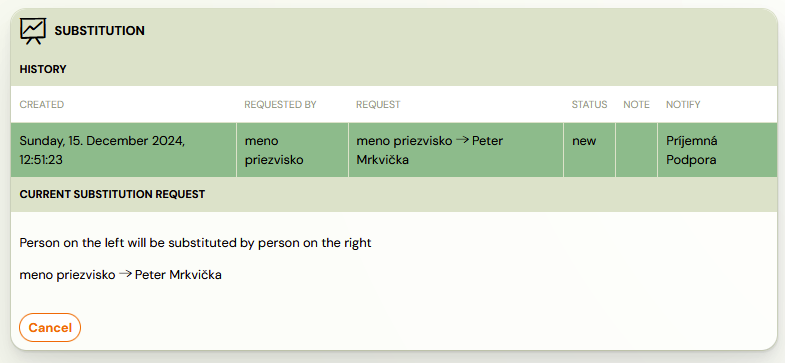
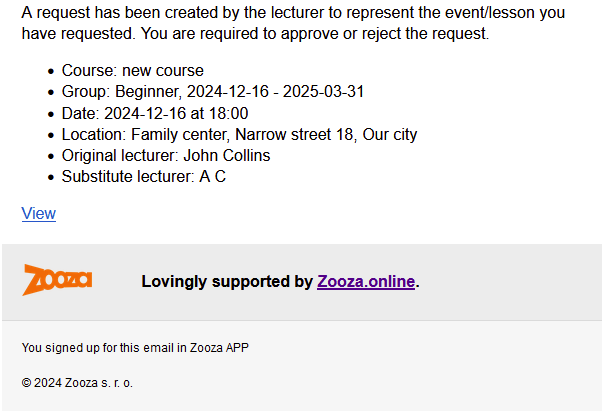
- The substituting instructor is required to click on View to approve or cancel the substitution request.
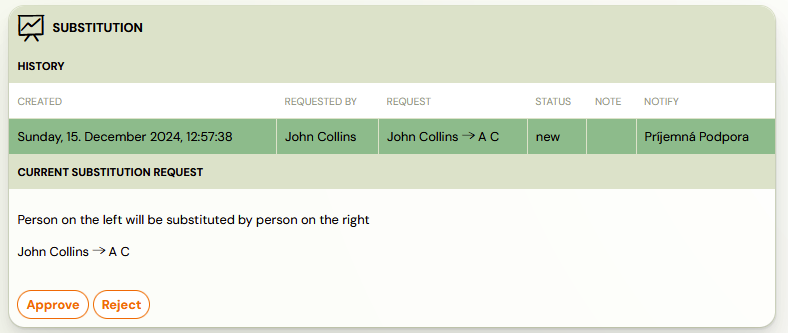
Warning! In case the substituting instructor agrees to the given session, this change will not be sent to the clients by email notification, it will only be visible in the profile next to the session. In the application, the change is also visible in the session details.
Note: If a instructor rate is used, it will automatically be calculated on the substitute instructor as well. A instructor who is unable to attend a given session and requests a substitute will not have that session reported in the instructor report.