Recover deleted items: registrations, classes, sessions, and payments
Deleted items are not immediately gone. Zooza keeps them in Trash for 30 days, after which they are permanently removed and cannot be recovered. During those 30 days you can restore any item with a single click.
Access: Settings → Tools → Trash. Requires
delete_coursespermission (owner role).
Cancelled vs. deleted vs. permanently removed — what is the difference?
This is the most common source of confusion. A registration (or class) can be in one of three states that look similar but behave very differently:
| State | What happened | Where to find it | Can it be undone? |
|---|---|---|---|
| Cancelled | The registration was cancelled — client is no longer attending, but the record still exists | Registrations list with status filter set to Cancelled | Yes — change status back to Active manually |
| Deleted (in Trash) | The registration was moved to Trash | Settings → Tools → Trash | Yes — within 30 days |
| Permanently removed | 30 days have passed since deletion, or it was hard-deleted | Nowhere — it is gone | No |
If you cannot find a registration in the main list, check in this order:
- Registrations list → change the status filter to All or Cancelled — it may still be there as cancelled.
- Navigate directly to
#registrations?status=deletedin your browser URL (add?status=deletedto the registrations page URL) — deleted registrations are viewable indefinitely via this path, even beyond the 30-day Trash window. - Settings → Tools → Trash — to restore a deleted registration, it must be within the 30-day window.
Note: The Deleted status filter was removed from the Bookings list UI. The only way to view deleted registrations is via the URL path above or via Settings → Tools → Trash. Deleted registrations are not permanently gone after 30 days in terms of visibility — they remain viewable via the URL path. However, they can only be restored within 30 days of deletion.
What can be restored
| Type | What it is |
|---|---|
| Session (event) | A single session within a class |
| Class (schedule) | An entire class with all its sessions |
| Registration | A client's booking on a class |
| Cancelled payment | A scheduled payment that was cancelled via bulk cancel or the cancel action on a booking |
Items deleted more than 30 days ago are permanently gone and cannot be recovered from here.
Why is the Restore button greyed out?
The Restore button is inactive when one of these conditions is true:
- The class the registration belonged to no longer exists. A registration cannot be restored if its parent class has been permanently deleted. Restore the class first, then restore the registration.
- The item's 30-day window has expired. The record is visible temporarily in some views but can no longer be recovered.
- You do not have the required permission. Restore requires the
delete_coursespermission (owner role). Ask your account owner to restore the item for you.
Restoring a single item
- Go to Settings → Tools → Trash.
- Use the Type filter or the search field to find the item.
- Click Restore on the row.
- Confirm the action in the dialog.
The item is removed from the Trash list and restored to its original location in the app.
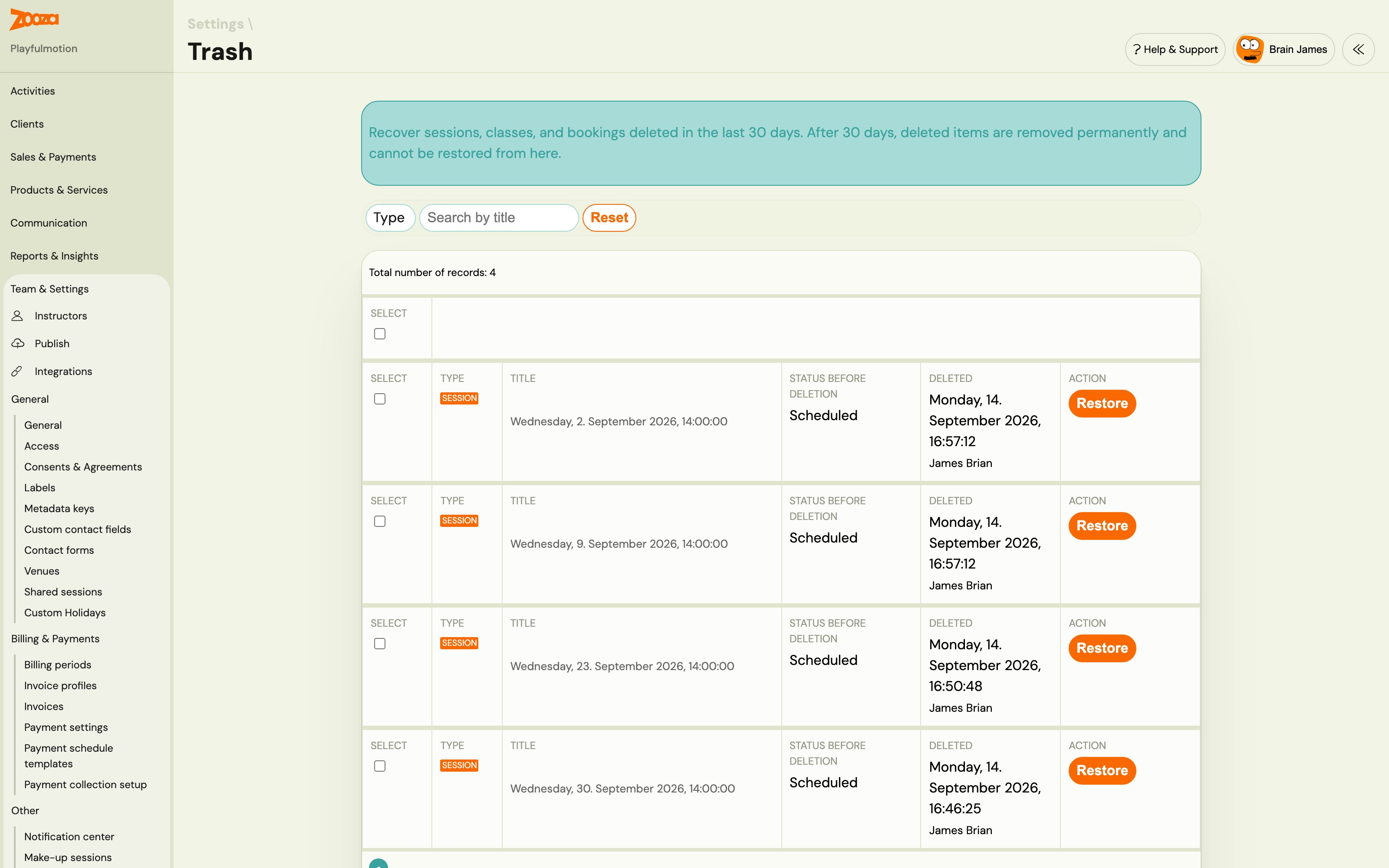
Note: Restore is a database-level operation. It does not re-send notifications, re-trigger integrations, or cascade to dependent records. For example, restoring a class does not automatically restore registrations that were on it — restore each type separately if needed.
Restoring multiple items at once
- Check the boxes next to the items you want to restore. Use the header checkbox to select all items on the current page.
- The bulk action bar appears above the table showing the count.
- Click Restore selected.
- Confirm in the dialog.
The system processes each item independently. If some succeed and others fail, you get a success count plus individual error messages for the failures. Successfully restored items are removed from the list; failed items stay so you can retry or investigate.
The bulk restore is capped at 100 items per action.
Filtering the list
| Filter | Options |
|---|---|
| Type | All, Session, Class, Registration, Cancelled payments |
| Search | Free text — searches by title |
Pagination is standard. Changing pages clears any checkboxes you have selected.
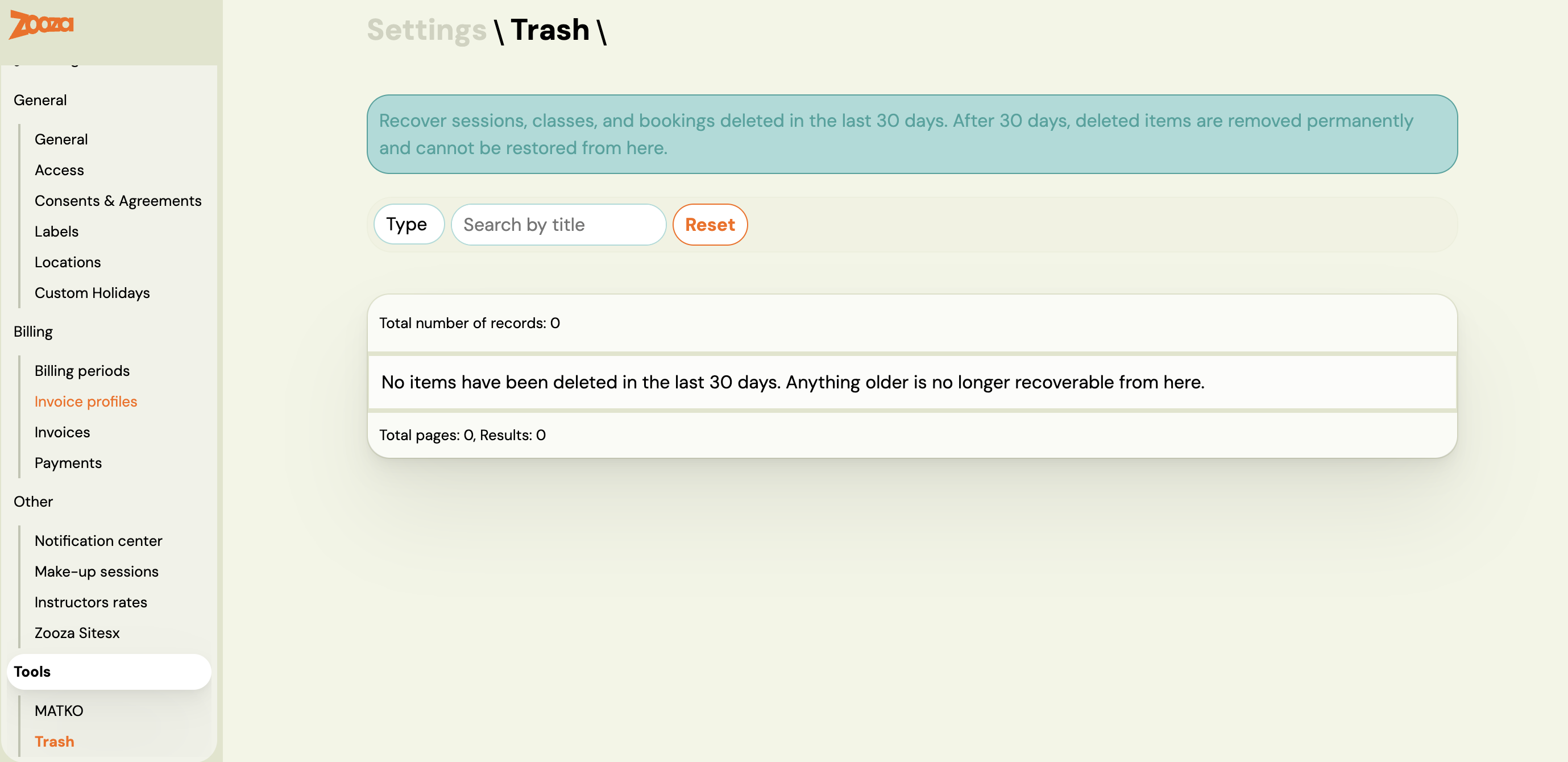
Empty state
If the list shows "No items have been deleted in the last 30 days", there is nothing to recover. Items deleted before the 30-day window are gone permanently.
Bulk-cancelling scheduled payments
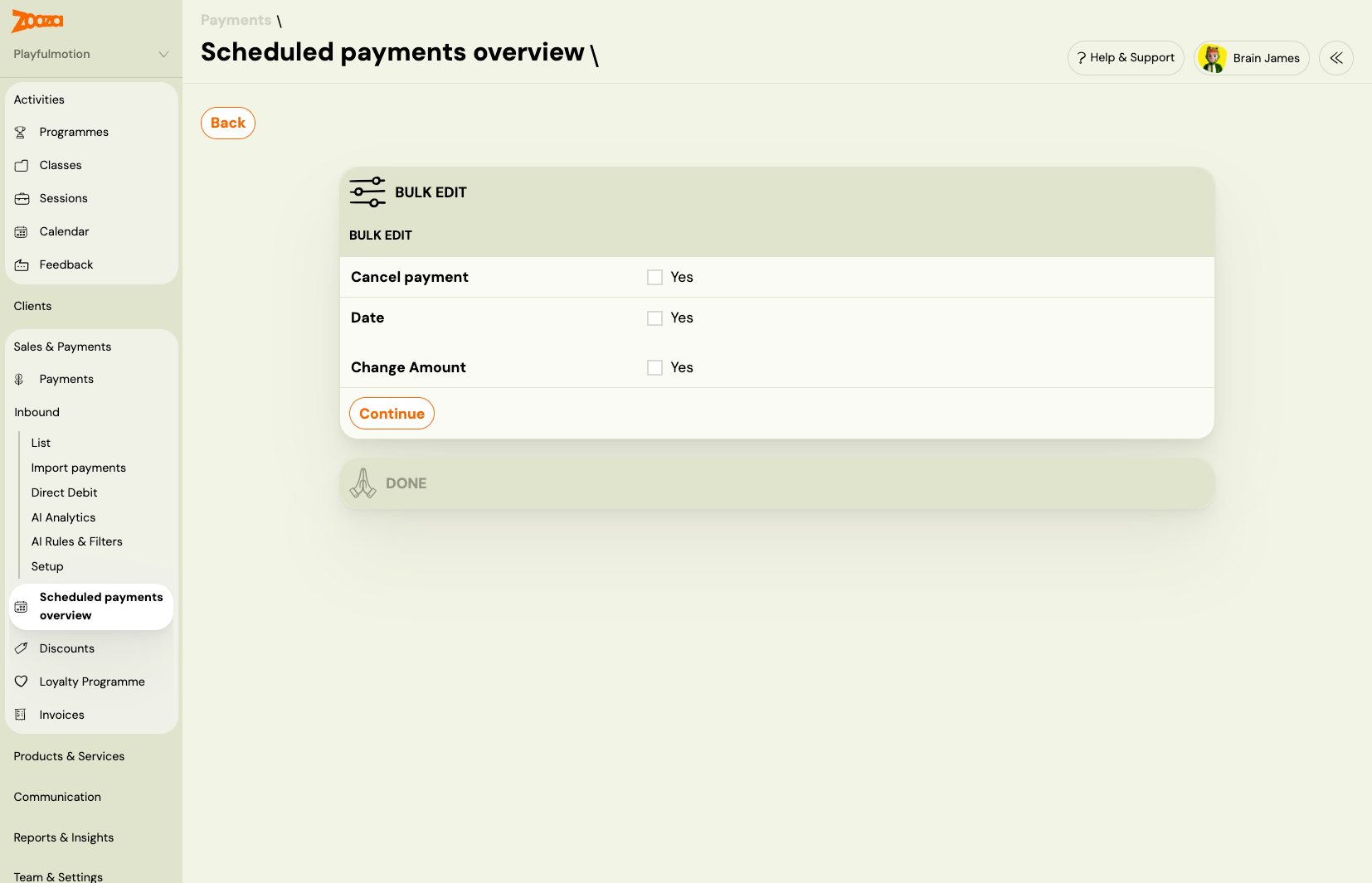
You can cancel multiple upcoming scheduled payments at once from the Scheduled payments overview screen. Cancelled payments go to Trash — they are not deleted permanently and can be restored within 30 days.
Navigation: Go to Payments → Scheduled payments overview. Select the payments you want to cancel, then choose Bulk Edit → Cancel payment → Continue.
After confirming, the selected payments disappear from the Scheduled payments overview. They are moved to Trash under the Cancelled payments type.
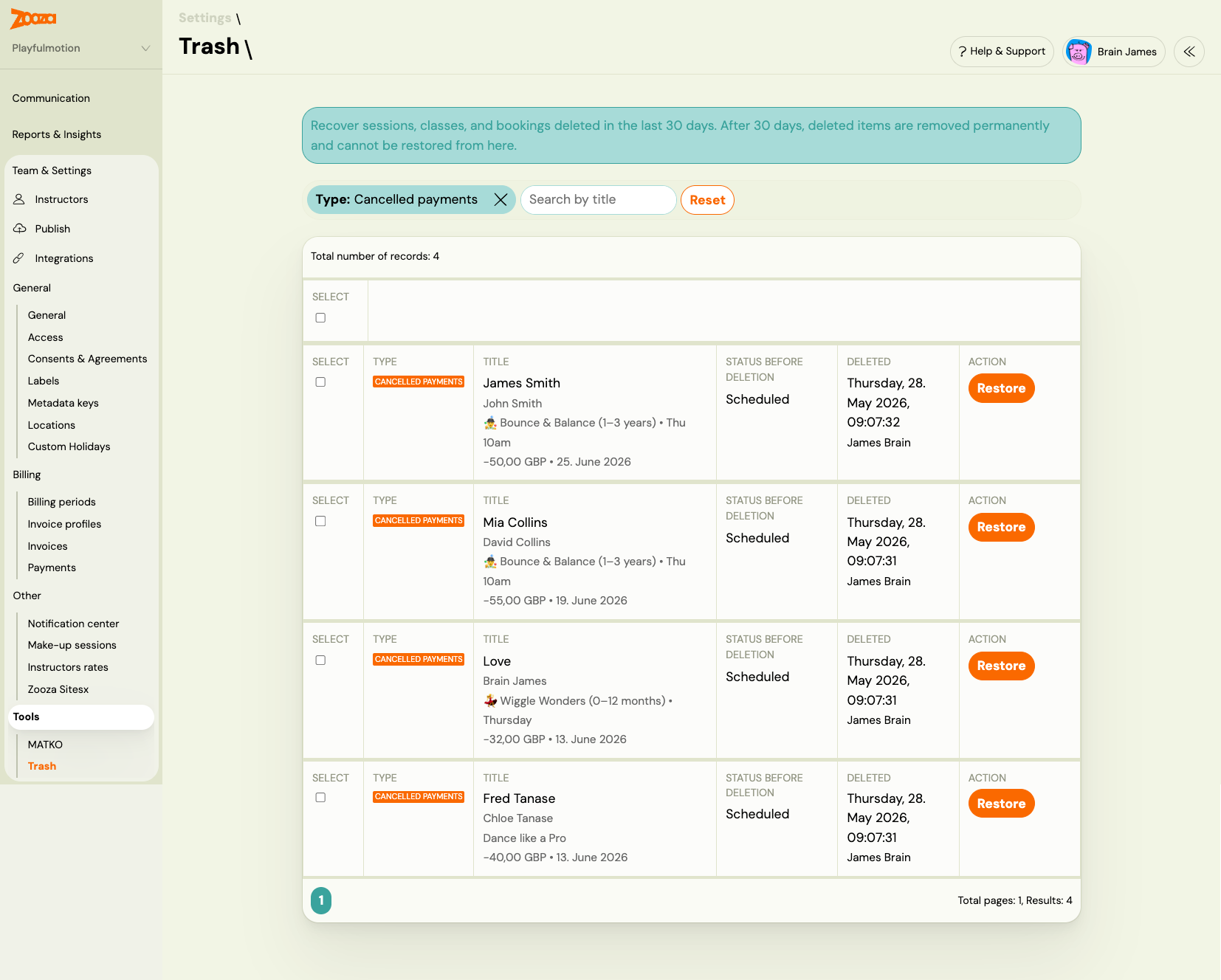
Each row in the Trash list shows:
- Title — client name and class
- Status before — the original status (always Scheduled)
- Deleted — date and time of cancellation, and who performed the action
- Restore button — active for 30 days from the cancellation date
Restoring a cancelled payment sets it back to Scheduled. The client's outstanding balance is updated immediately. No payment notification is sent on restore.
What restore does not do
- No notification to clients. Restoring a registration does not send a confirmation email to the client.
- No cascading restore. Restoring a class does not restore the registrations that were on it. Restore each record type separately.
- No integration triggers. GoCardless mandates, Stripe charges, and invoicing integrations are not re-triggered.
- No undo for permanent deletions. Items deleted more than 30 days ago cannot be recovered from Trash or by Zooza support.
Related
- Archive or delete a programme — how to safely deactivate programmes
- Settings — overview of all settings sections