Instructors working hours
In the *Instructors *section, instructors can manage their working time. If they define their working hours and possible absences, this data will then be taken into account by the system when scheduling terms.
Example: Alice works Tuesdays to Fridays from 9:00 to 16:00 with an hour lunch break.
1. Setting working hours
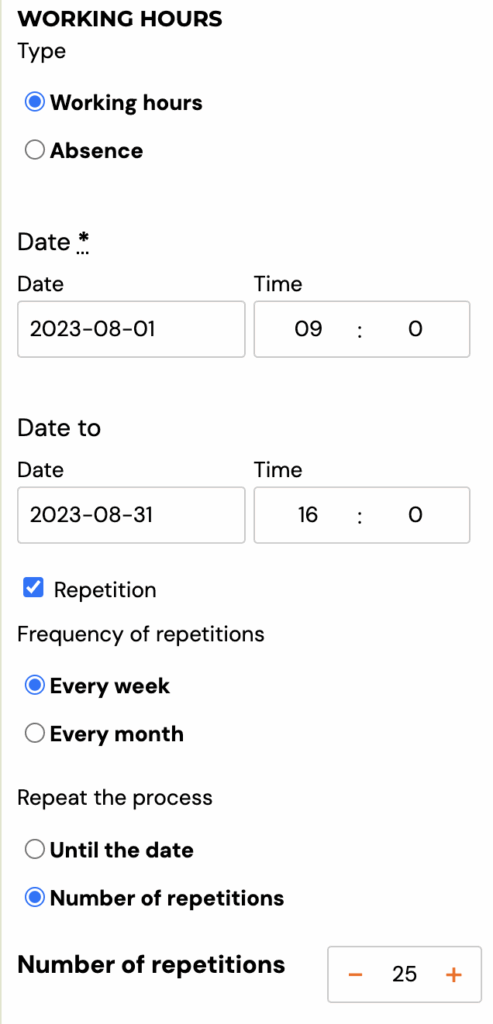
- In the application, she clicks on the Add Availability button
- As the type selects Working Hours
- Selects a date range. In our example we choose 4th. January to 7th. January.
- As the time range selects 9:00 to 16:00
- She activates repetition at a weekly frequency. Depending on how long such working hours will be valid, the number of repetitions will be chosen.
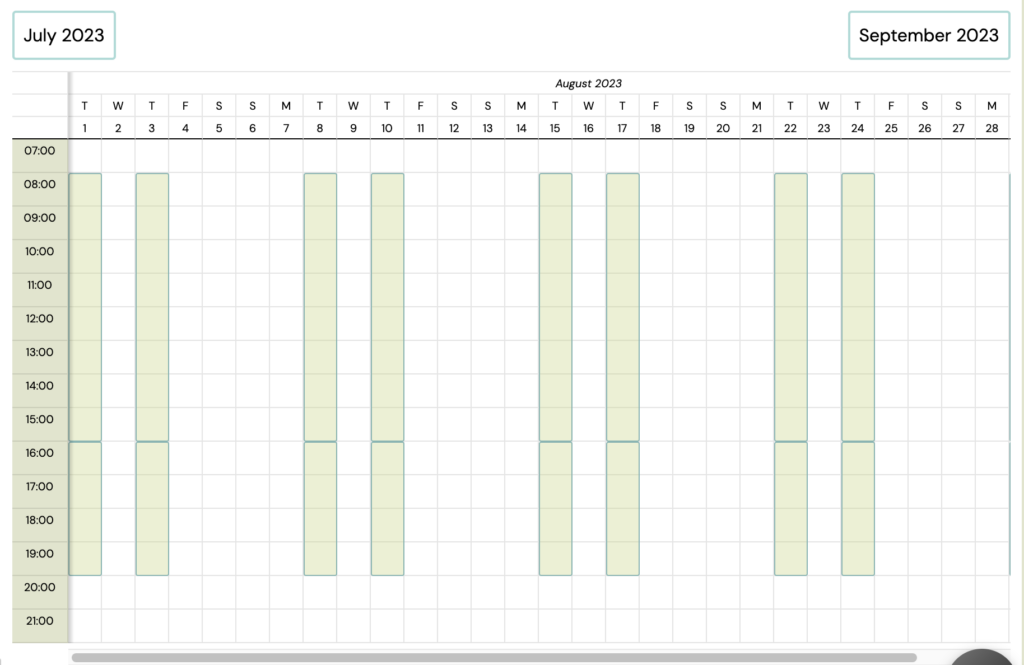
- On the calendar in the app, availability will be displayed as follows:
Step 2 - Lunch break
- Since Alice goes out for lunch in the middle of the day, she needs to tell the system that she doesn't work then.
- Again clicks the Add Availability button
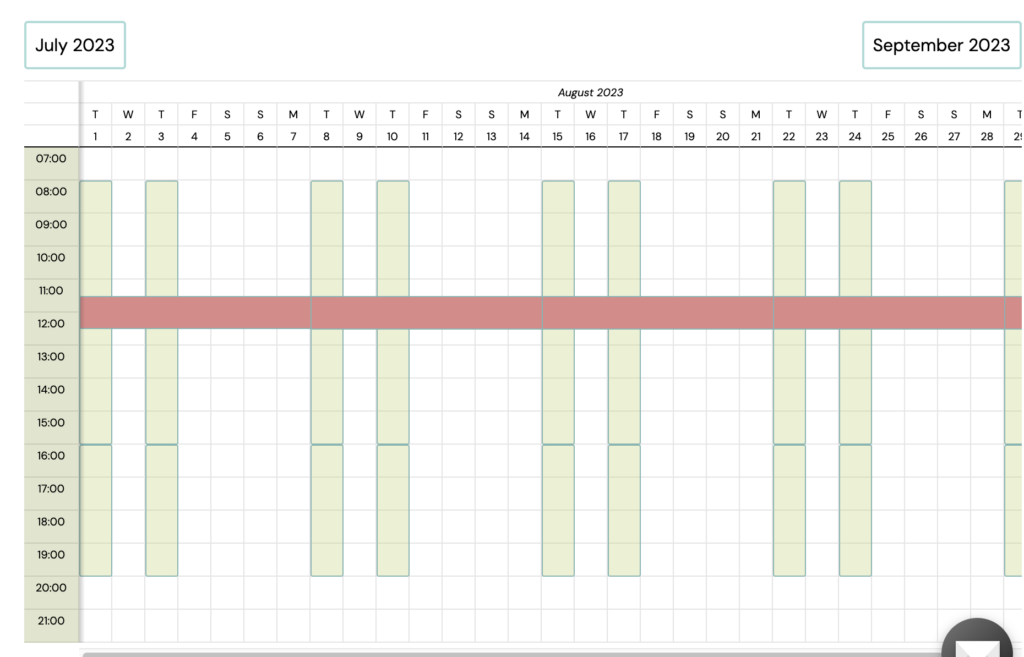
- This time she selects the Absence option and enters the same data as before, except that the time period will be from 11:30 to 12:30
- She chooses the name of this absence: lunch break.
- The resulting calendar will look like this:
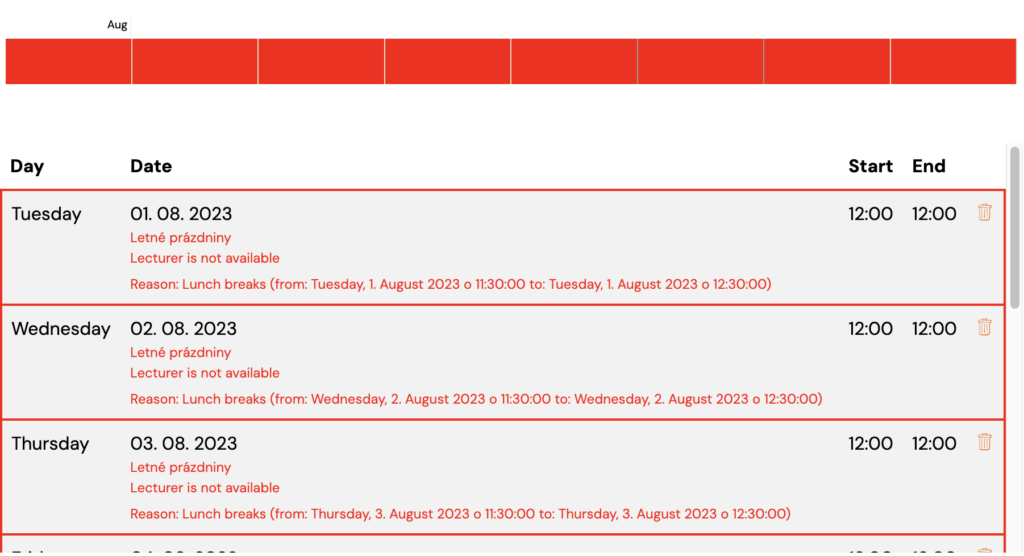
How availability works when creating terms
From now on, when scheduling terms, the app will inform the admin that Alice is unavailable for appointments at lunchtime.
An instructor's holiday is not a company holiday
These are two different settings and choosing the wrong one is a common mistake.
| What you want | Where it goes |
|---|---|
| One instructor is away (holiday, illness, a term abroad) | Instructors → their profile → Working hours → add an Absence for that date range |
| Your whole business is closed (summer break, public holiday, a company event) | Team & Settings → General → Custom Holidays |
An Absence only removes that person from scheduling. Sessions still exist and other instructors can still be assigned to them.
A Custom holiday blocks the dates for everyone, and only affects sessions generated after it is created — see Custom holidays.
If an instructor asks how to register their summer holiday, send them to their own Working hours, not to Settings. Instructors do not usually have access to the company holiday settings, and even if they do, entering their personal holiday there would close the business for everyone.
Marking an instructor unavailable for a whole semester
Recording an absence is only half the job, and this is where people get stuck: an absence does not move sessions that already exist. It tells Zooza the instructor is unavailable when you schedule new sessions. Anything already in the calendar keeps their name on it.
So it is two steps, in this order:
- Record the absence. Go to Instructors → their profile → Working hours and add an absence covering the dates. Future scheduling will now route around them.
- Reassign the sessions that already exist. Open the sessions list for the affected classes, select the sessions in that date range, and change the instructor in bulk. See Change an instructor.
If the cover is temporary and you want the instructor to arrange it themselves, use a substitution request instead of reassigning — the session keeps its original instructor and records who covered it.
Doing only step 1 is the usual mistake. The absence looks recorded, the calendar still shows the absent instructor on every session, and it appears the setting did nothing.
Mass deleting of availability/absences
Since the availability of instructors can change frequently in the application, you have the option of mass deletion. This allows you to edit faster.
- In the instructor's details under Working hours, click Activate.
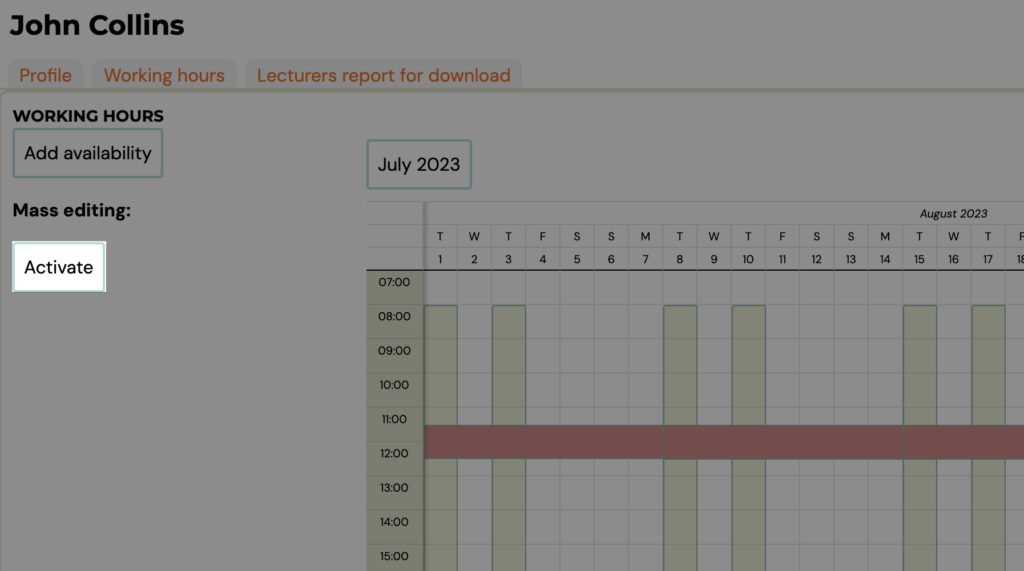
- Select the availability/absences you want to delete by clicking on them and click on the Delete selected availability button.
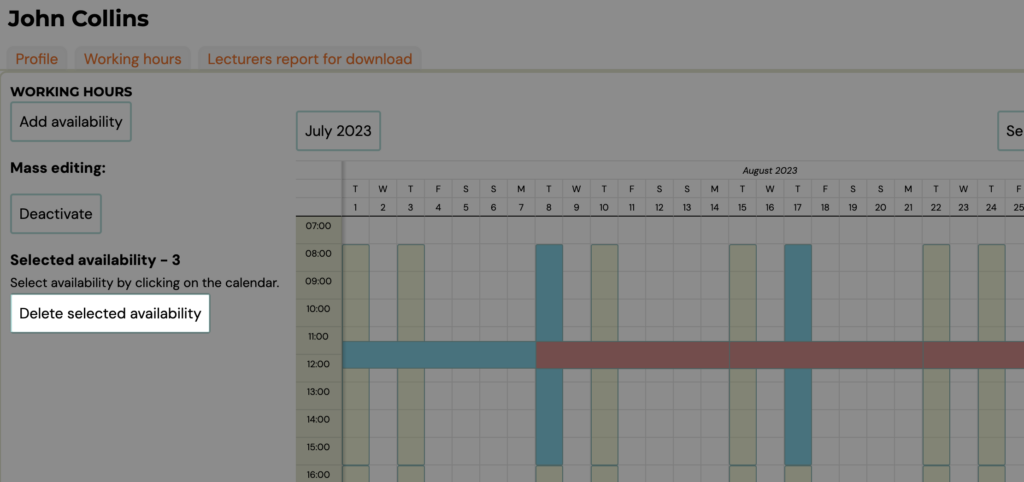
Note: You can only do a mass deletion within one month. If you move to the next month, your previous withdrawal will be cancelled
Who may change availability at all
Whether an instructor can edit or delete their own availability and absences is decided by Settings → General → Access → Availability management settings for instructors:
- Full — instructors manage their own working hours and absences, including deleting a wrongly entered one.
- Restricted administration — instructors can create availability and absences, but every change must be approved by the owner — they cannot edit or delete what they have entered themselves.
- Absences only — instructors can only request absences.
So "I clicked the absence and there is no delete button" is usually this setting, not a fault. Check it before reporting a problem.