Using Zooza on mobile
Zooza runs as a web app — there is no separate iOS or Android app to download. Open zooza.app in your phone’s browser and use it directly, or add it to your home screen for quicker access.
Parents can do the same with their profile. The steps below work for any page, so a parent can put their own profile on their home screen — they just start from your profile page address instead of
zooza.app. See Sending parents to their profile below.
Add to home screen
- Open zooza.app in the browser on your phone.
- Open the share/options menu:
- Android — tap the 3-dot menu (top right).
- iPhone — tap the square icon with an arrow (bottom centre).
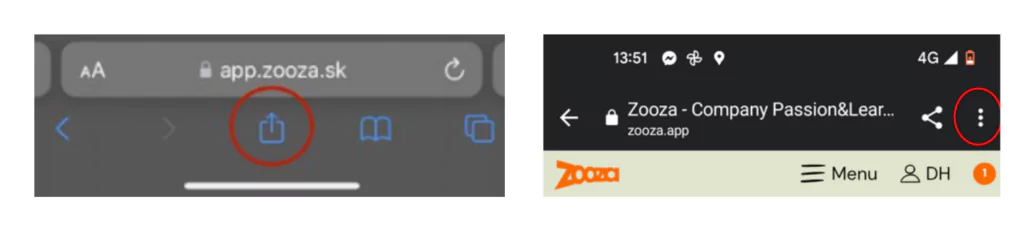
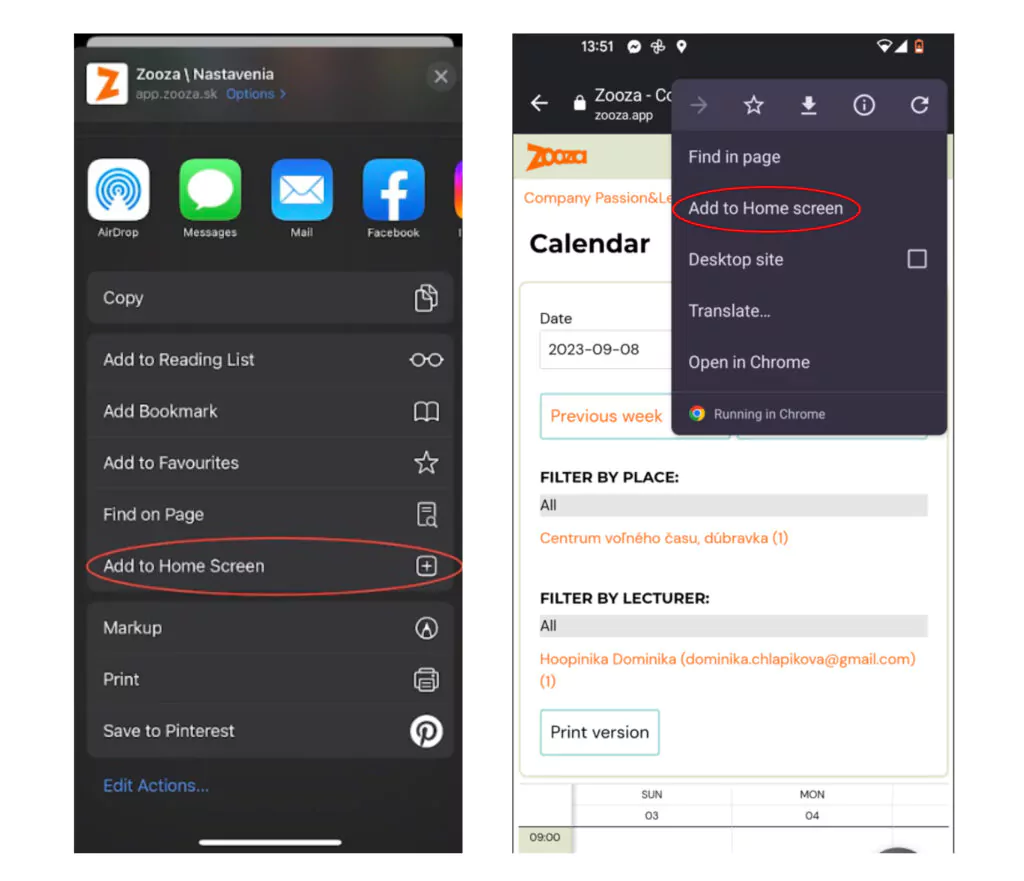
- Select Add to Home Screen.
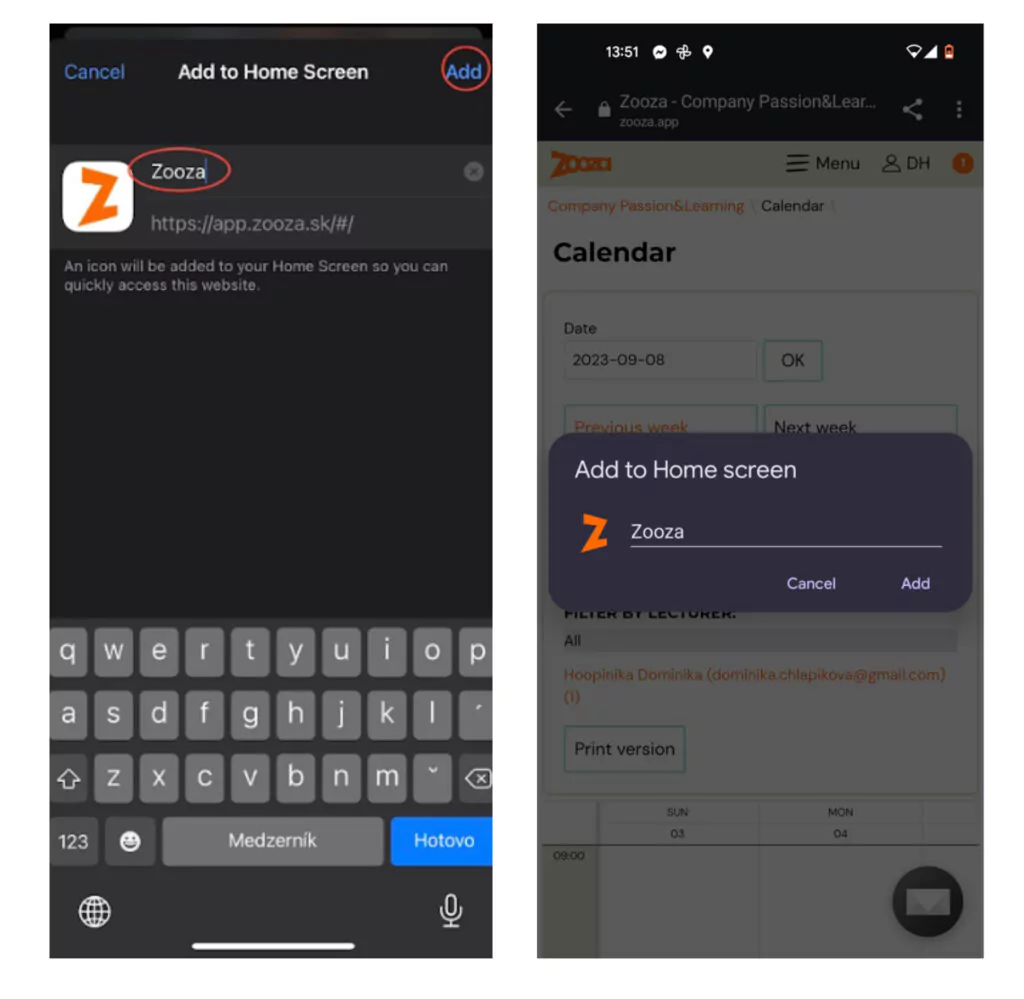
- Enter the name for the shortcut and tap Add.
Tip for instructors: If you use Zooza mainly for taking attendance, open the Calendar section first and then add that page to your home screen. The next time you tap the icon, the calendar opens directly — no extra navigation needed.
Parents: adding their profile to the home screen
Parents often ask for "an app". Before explaining how to add one, it is worth saying why most of them never need it.
Zooza is built around notifications, not around a parent opening it. Almost every scenario reaches the parent by email at the moment it matters — the booking confirmation, each payment request and reminder, session reminders, changes to a session, and anything you send from Communication. Those emails carry links that open the right page directly. A parent who reads their email is never required to go looking for their profile.
So the honest answer to "is there an app?" is usually: you do not need one, everything comes to you. Parents who ask are often really asking whether they are missing something — and they are not.
If they still want quick access, send them their profile address — the page on your website where the profile widget lives — and the three steps above. What they get is a bookmark that opens full-screen with your icon. Close enough to an app for most people, and it puts their bookings and payments one tap away.
Zooza does not send push notifications
There are none, and none are planned. Adding a page to the home screen creates a bookmark — a shortcut that opens full-screen with an icon. It does not install anything and it does not send anything. Nothing appears on the lock screen.
What Zooza does send:
| Channel | Used for |
|---|---|
| Booking confirmations, payment requests and reminders, session reminders, anything you send from Communication | |
| SMS | Messages you send from Communication |
| Conversations and templates, if you have the integration — see WhatsApp integration |
If a parent wants to be told about sessions and payments on their phone, WhatsApp or SMS is the answer, not a push notification.
Log out on mobile
- Tap your avatar or initials in the top-right corner of the screen.
- Tap Account.
- Tap Log out.
Switch between company accounts
If you have access to more than one company (e.g. you manage multiple Zooza accounts), you can switch without logging out:
- Tap your avatar or initials in the top-right corner.
- Tap the company name or the Switch account option.
- Select the company you want to work in.
If you don't see the option to switch, your user account is linked to only one company. Contact the owner of the other account to request access.