Client Profile 101
The Client Profile is a self-service dashboard where clients manage their bookings, sessions, payments, benefits, and orders in one place. It works on both mobile phones and computers and does not require remembering any password.
For admins: The Client Profile reduces support requests — clients can check payment status, find invoices, book make-up sessions, and view their benefits without contacting you.
Logging in
- The client opens the Client Profile URL (embedded on your website or sent via email).
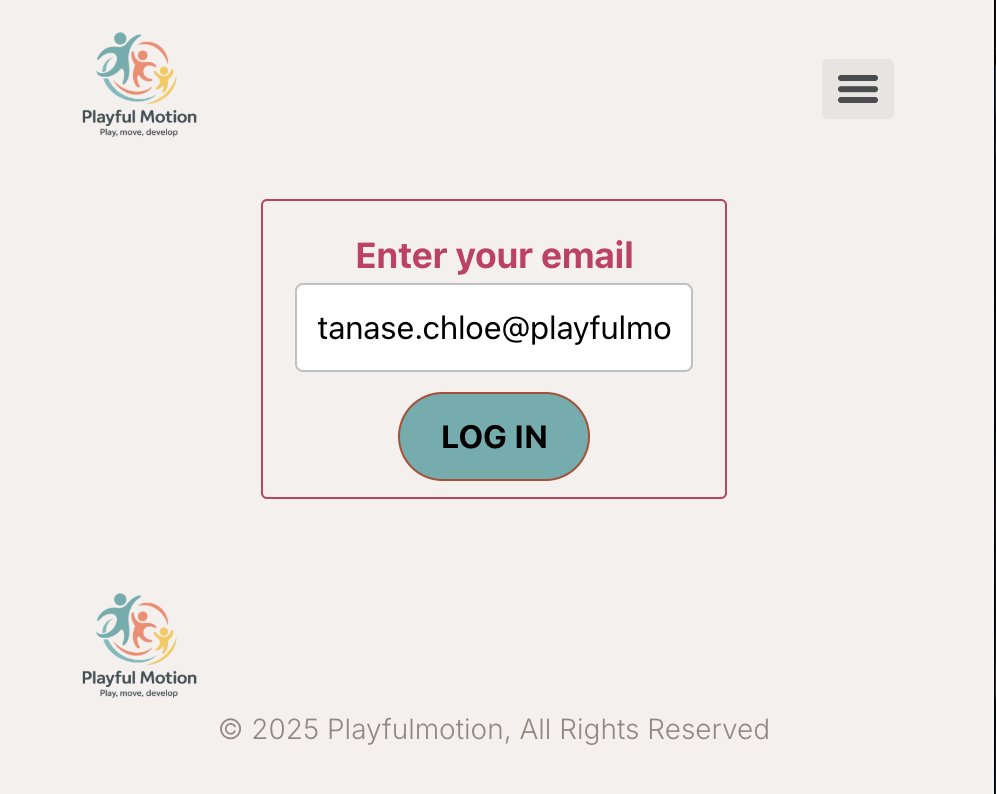
- They enter the email address used during booking.
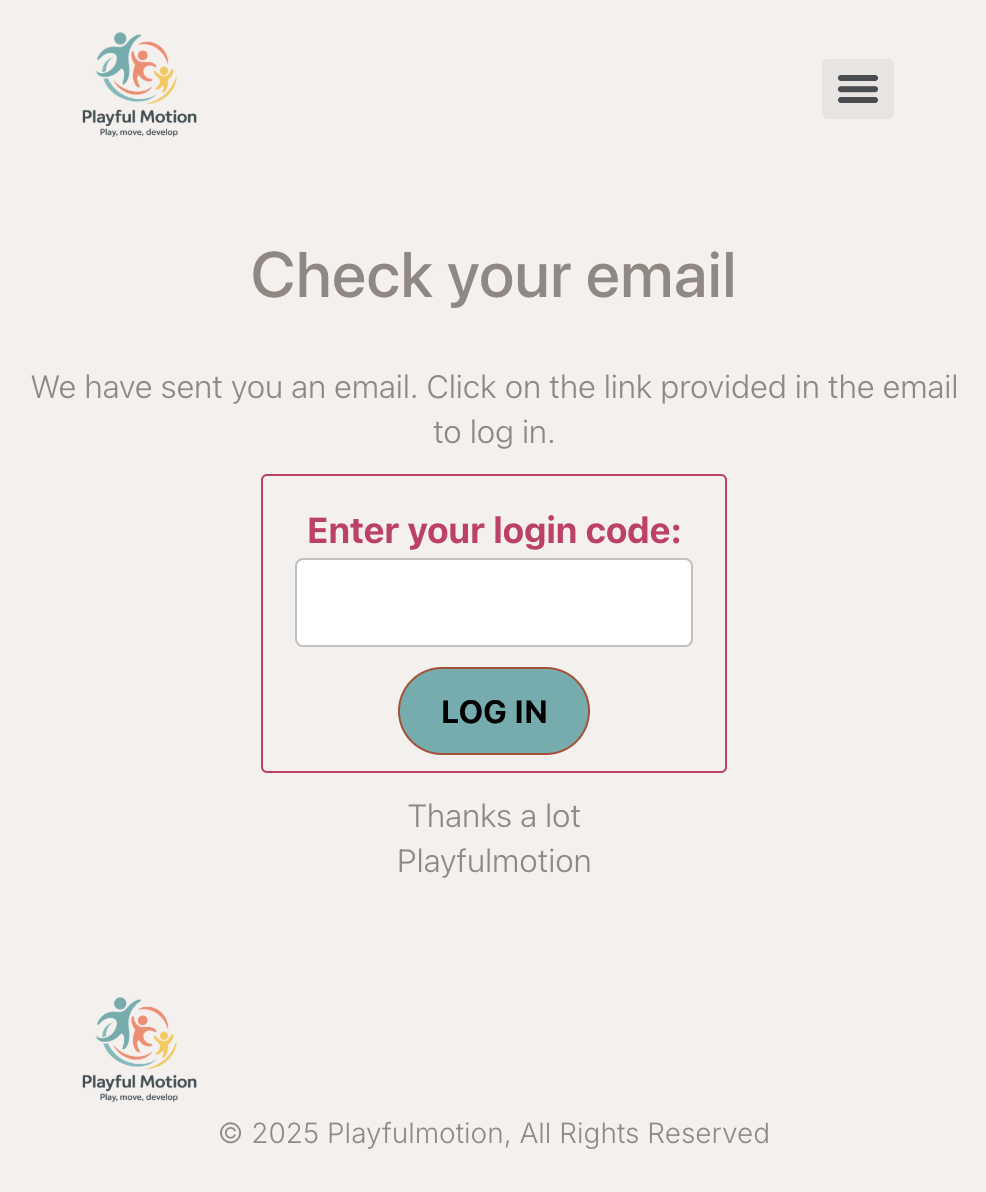
- They receive a one-time login code or a secure login link by email.
- Clicking the link or entering the code logs them in automatically.
There is no password to create or remember. Each login sends a fresh email.
2. No passwords needed
Tip for admins: Use the
WIDGET_PROFILE_URLdynamic tag in your email templates to automatically insert the correct Client Profile URL for each client.
Testing the profile without seeing your own data
The Client Profile URL is the same address for everybody — what a person sees depends on who is logged in in that browser. So if you open a link you sent to a client while your own client account is still logged in on that computer, you see your own profile, not theirs. Two consequences worth knowing:
- Test in a private window, or log out first. Otherwise you are looking at your own bookings and payments and concluding that every client sees them.
- An unpaid order of yours — a leftover test purchase, a gift voucher you never paid for — then shows up as an outstanding payment, and it is easy to believe the whole customer base is seeing it. They are not: an outstanding item appears only in the profile of the client whose order it is. Delete obsolete test orders under Orders so they stop appearing in yours.
If you need to be certain what one client sees, ask support to check that client's profile view rather than clicking the link yourself.
Home page overview
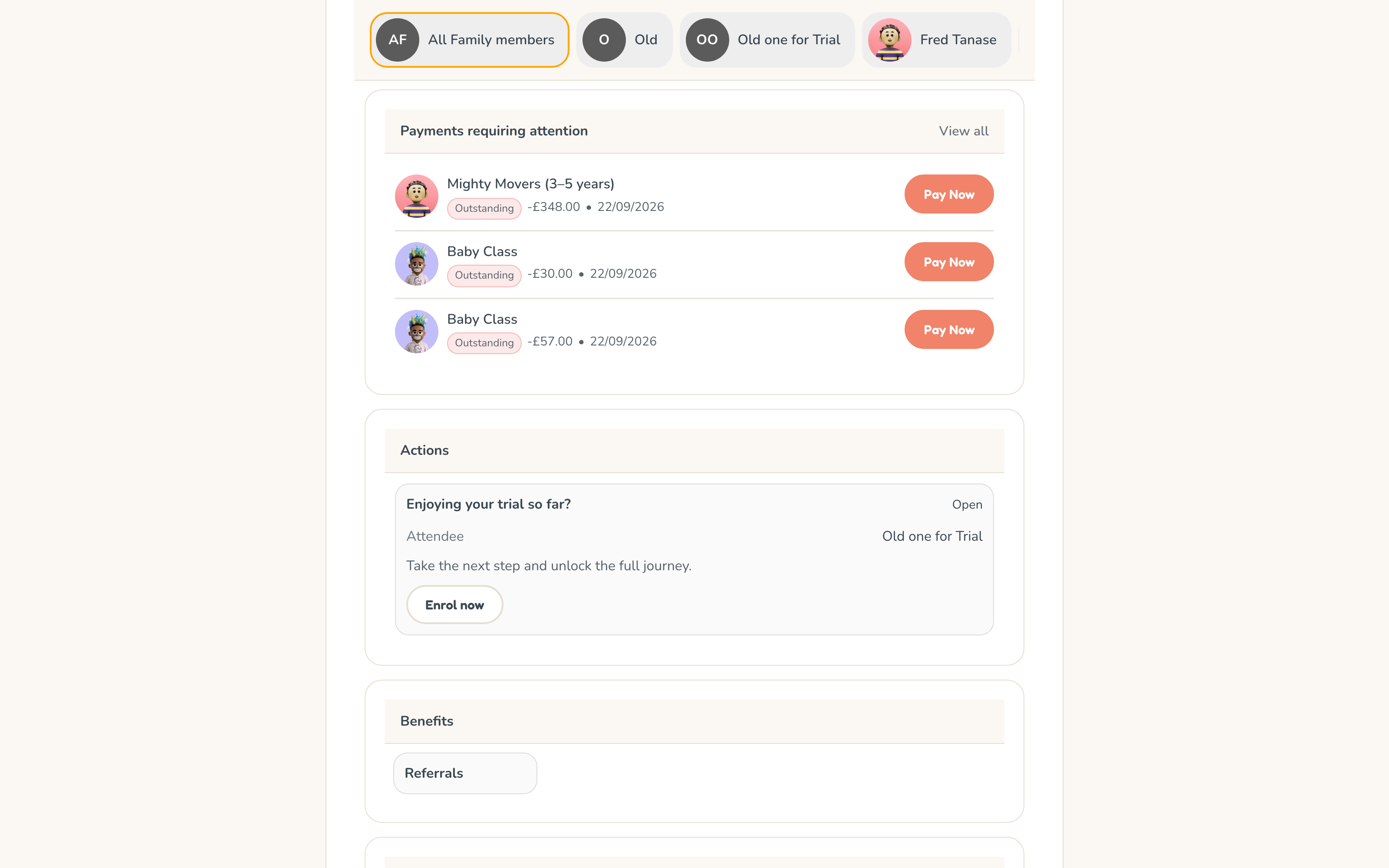
Once logged in, the client sees their home page with:
- Family members — switch between children (or attendees) at the top.
- Active and past bookings — all bookings in one place.
- Quick actions — pay, book make-ups, view sessions.
Between terms, the home page says so
When a client has nothing running — the summer gap, or the weeks between one term and the next — the Current programmes card does not go blank. It says "You have no programmes running right now." and offers View your past programmes, which opens their booking history.
This matters because the previous behaviour read as data loss. A parent with four finished bookings opened the app and saw the same generic no data for this view message as somebody who had never booked anything, while their bookings sat one tap away. For a seasonal business that was the normal state for months.
The card only appears for clients who actually have past bookings. A genuinely new client, with nothing behind them, sees no card at all. Live since 2 September 2026.
Switching between family members
If a client has multiple children enrolled, they can switch between them by clicking a name or avatar at the top. Some sections (like orders or family-level discounts) are shared and do not change when switching.
Bookings and programme overview
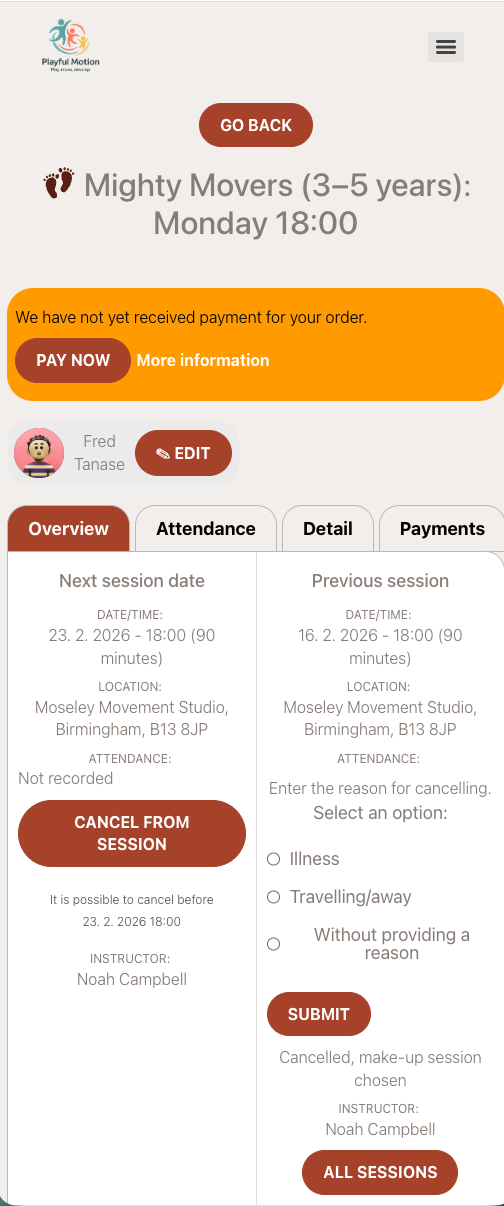
Opening a booking shows the programme dashboard:
- Upcoming sessions — what is next.
- Programme details — key information about the programme.
- Quick actions — access to sessions, payments, and benefits.
Sessions
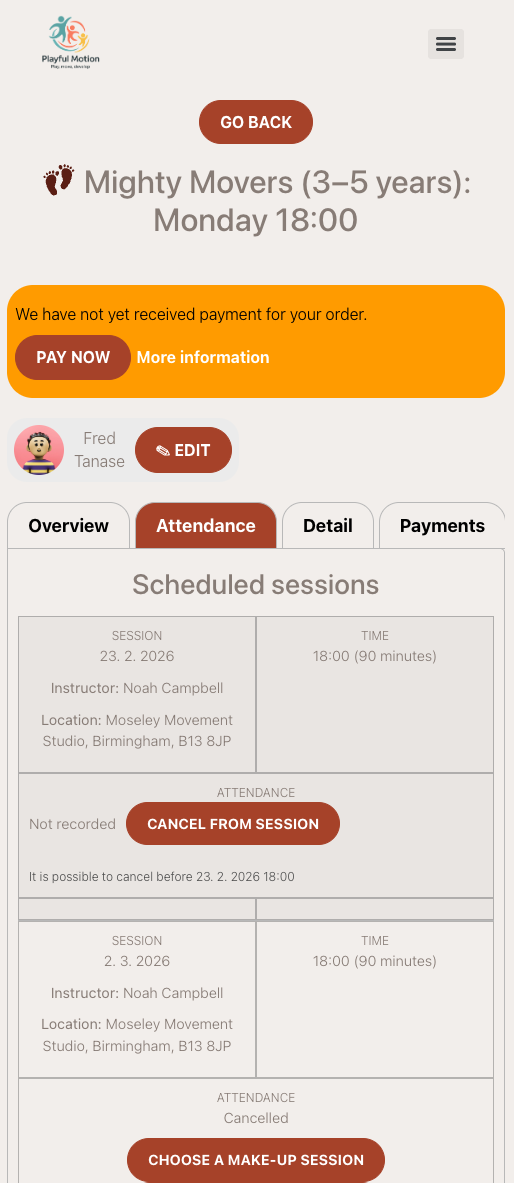
In the sessions tab, clients can view:
- All scheduled sessions.
- Attended sessions.
- Cancelled or missed sessions.
The list stays up to date automatically. If the provider uses online sessions, a livestream link may appear here.
Payments and invoices
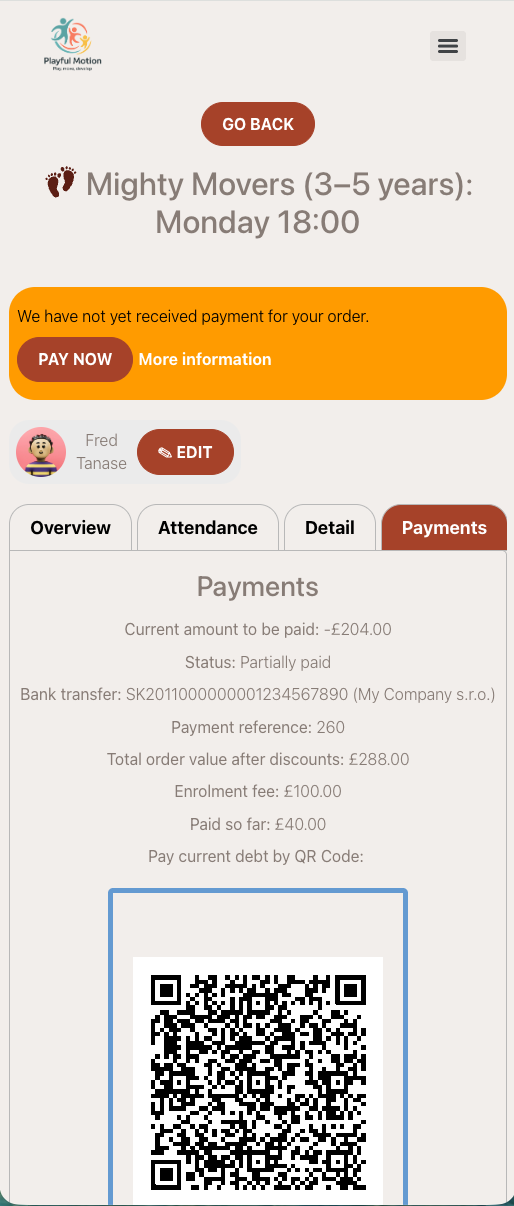
In the payments section, clients can:
In the Attendance tab, you can view:
- See which payments are unpaid and which are paid.
- Pay online — open the unpaid item and continue to the payment gateway (if online payment is enabled) or view payment instructions (for bank transfer).
- Download invoices or receipts (if the provider enables invoicing).
The payment status updates automatically after payment.
Make-up sessions
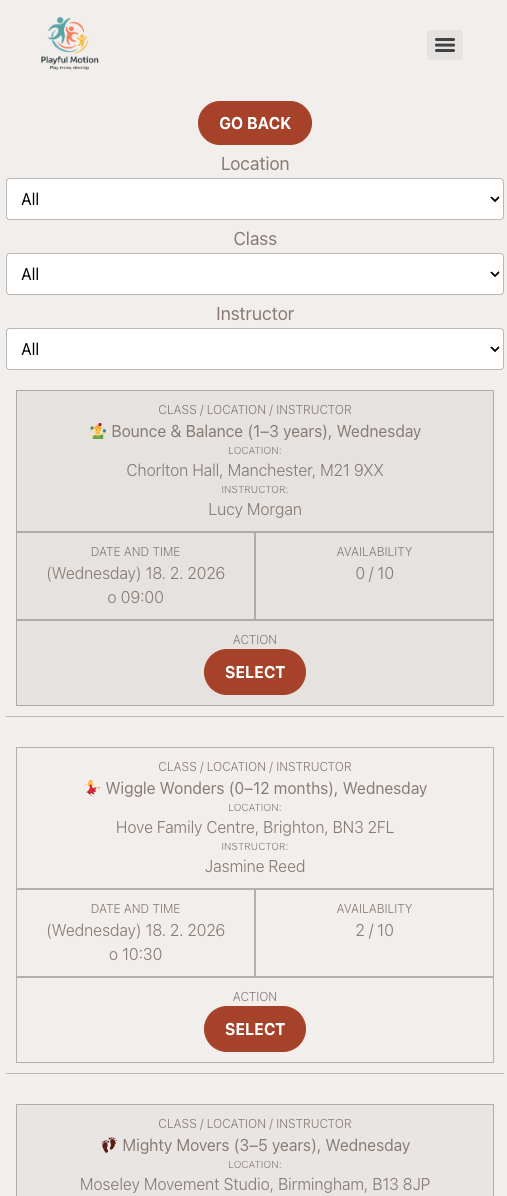
If a client cancels a session or misses it, and the provider allows make-ups, the client can:
- See available make-up sessions in their profile.
- Select a make-up session from the available options.
- Confirm the make-up directly.
Make-up availability depends on real capacity — if no suitable session with space is available, the option does not appear. Clients receive email or WhatsApp reminders about available make-ups.
Benefits
The Benefits section classes all "extras" in one place:
| Benefit type | What the client sees |
|---|---|
| Make-ups | Available and used make-up sessions (with history). |
| Discounts | Available and expired discounts. Some discounts are family-level. |
| Entry passes | Prepaid visit passes — remaining entries, expiration date, status. See Entry pass — client view. |
| Credits | Prepaid credit balance, where and when credits were used. |
This helps clients answer their own questions: "Do I still have a make-up?", "How many entries are left on my pass?", "Where did my credit go?"
Orders
The orders section shows:
- Unpaid orders — number and details.
- Paid orders — history of completed orders.
Clients can open an order to see its details, including items purchased, payment status, and entry pass entries.
Sharing a booking
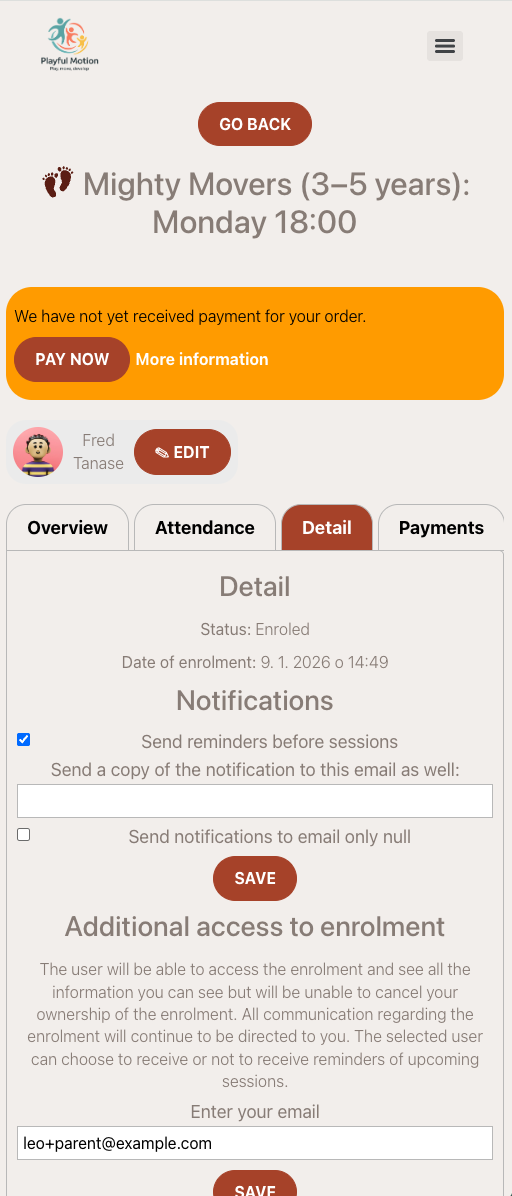
In the booking details, clients can share access with another person — for example, another parent, a grandparent, or an older child. The shared person receives:
- Notifications and updates related to the booking.
- Full access to all documents attached to the booking — files, videos, and URLs at any level (booking, class, programme, or session). They can view and download everything the original buyer can see.
For admins: You can also set up shared access from the admin side. See Client Management FAQ for details on giving a second parent access.
My data & consents
Clients can view all consents and agreements they have ever given — including Zooza platform agreements and your company's own terms — in one place. Each entry shows whether they accepted or declined it, the version, and when it was given.
From this section, clients can also Download PDF to get a self-contained PDF summary of their full consent history on demand. The PDF includes the full text of each agreement alongside their response.
See How clients view and download their consent history for details.
Bottom navigation menu
On mobile, a quick navigation menu at the bottom lets clients jump directly to a section (Bookings, Benefits, Orders) without scrolling.
Related
- Client Profile FAQ — common questions about the Client Profile.
- Client profile dashboard — overview of the client-facing self-service profile.
- Client Management FAQ — admin-side client management.
- Entry pass — client view — how clients see and use entry passes.
- Customizing widgets — embedding the Client Profile on your website.