Entry pass — client view
This guide explains how clients see and use entry passes in their profile. It is intended for admins who want to understand the client experience, and for clients who need help navigating their passes.
For instructions on creating and configuring entry passes, see Creating entry passes.
Entry pass status on the home page
After purchasing an entry pass, the client sees its status directly on the home page of their profile. The pass card shows:
- Pass name — the product name you configured.
- Remaining entries — how many sessions are left on the pass.
- Expiration date — when the pass expires.
- Status — active, expired, or fully used.
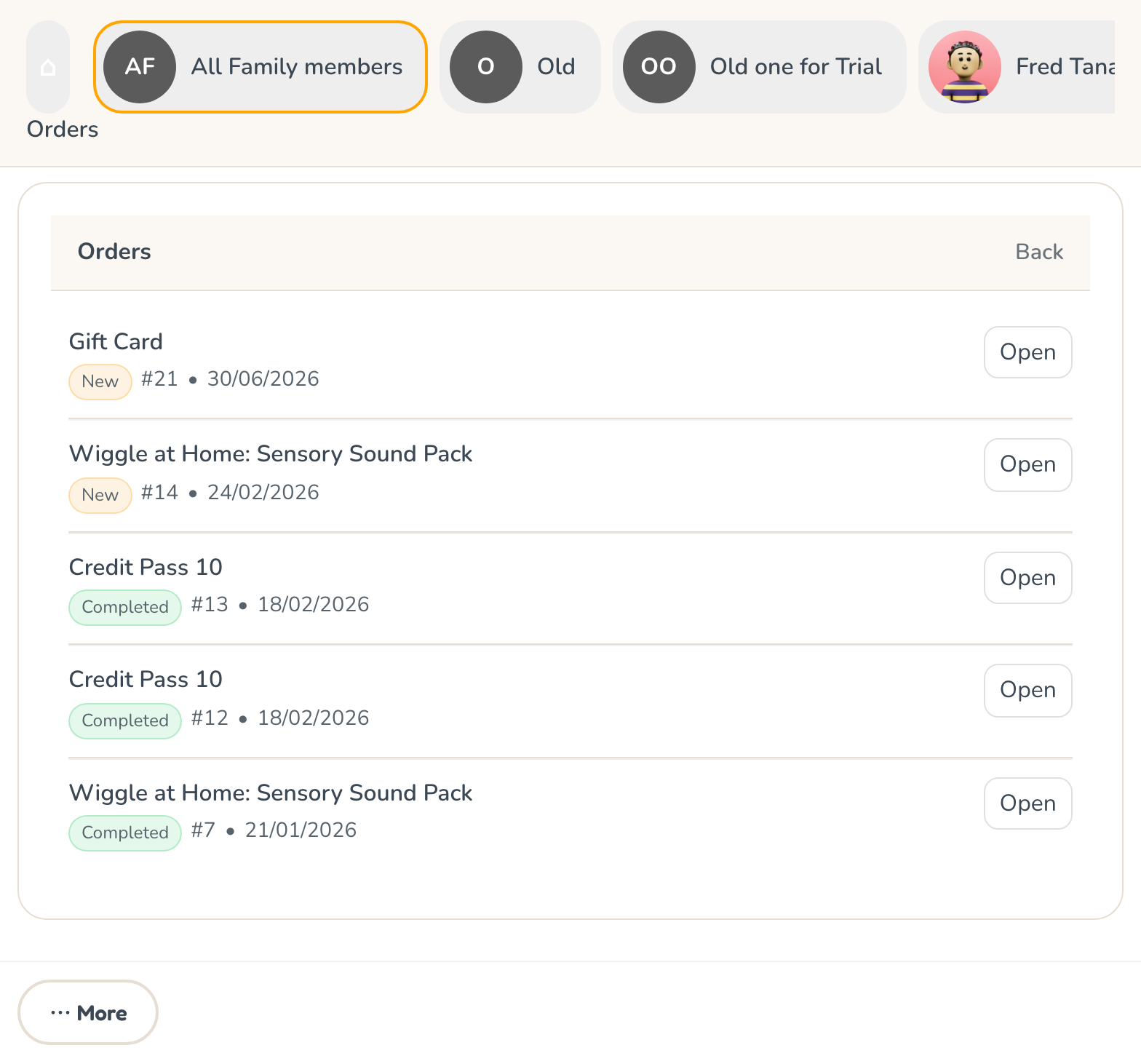
This gives clients a quick overview without having to navigate deeper into their profile.
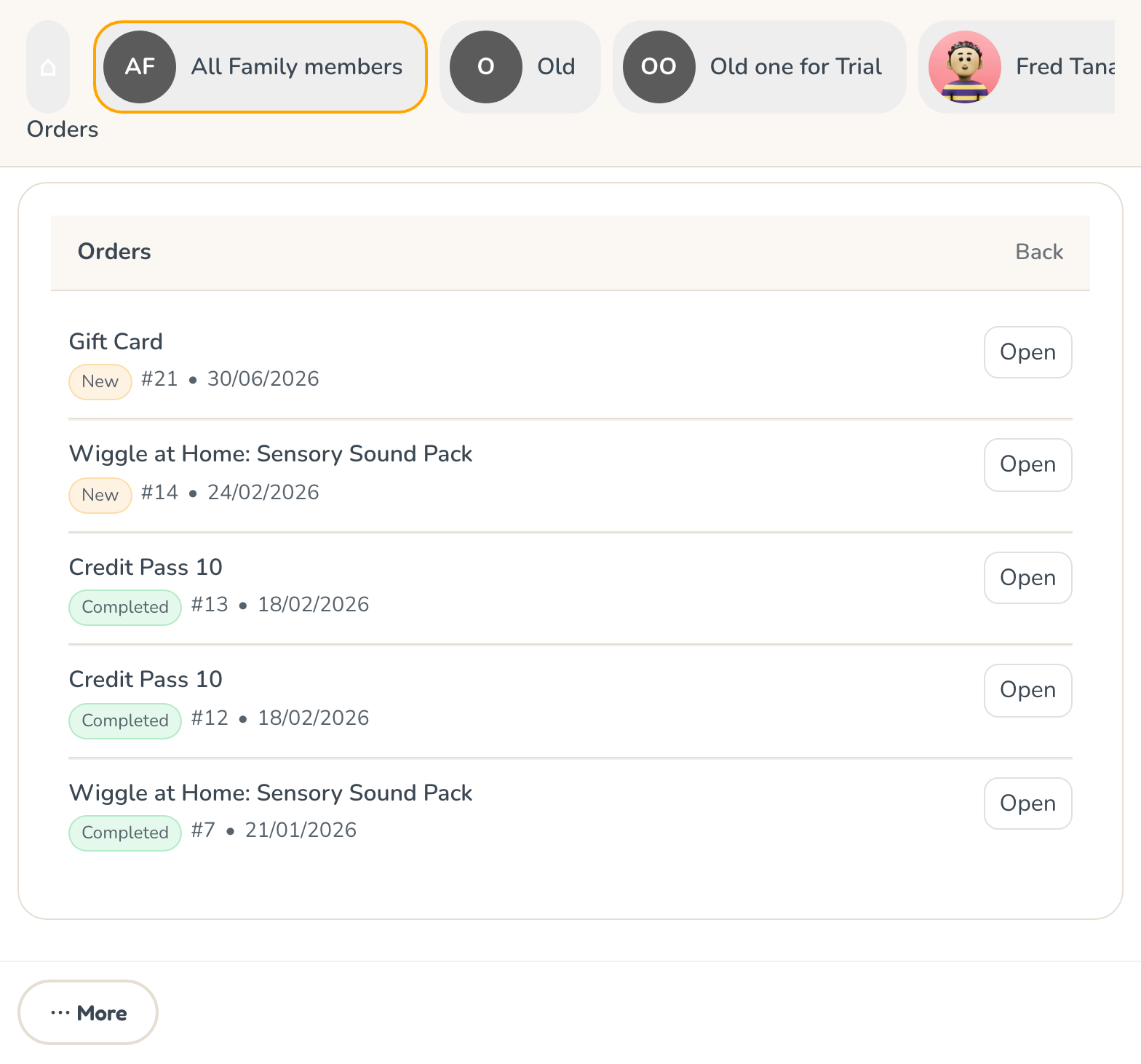
How clients purchase an entry pass
Where a pass is offered is set by you, on the pass itself — Sold through, per programme. See Creating entry passes.
From the Parent Zone
The quickest route, and the one most parents use. On the Parent Zone dashboard the Benefits card carries Buy entry passes, next to their payments and upcoming sessions. They do not need an existing booking in a particular programme to get there.
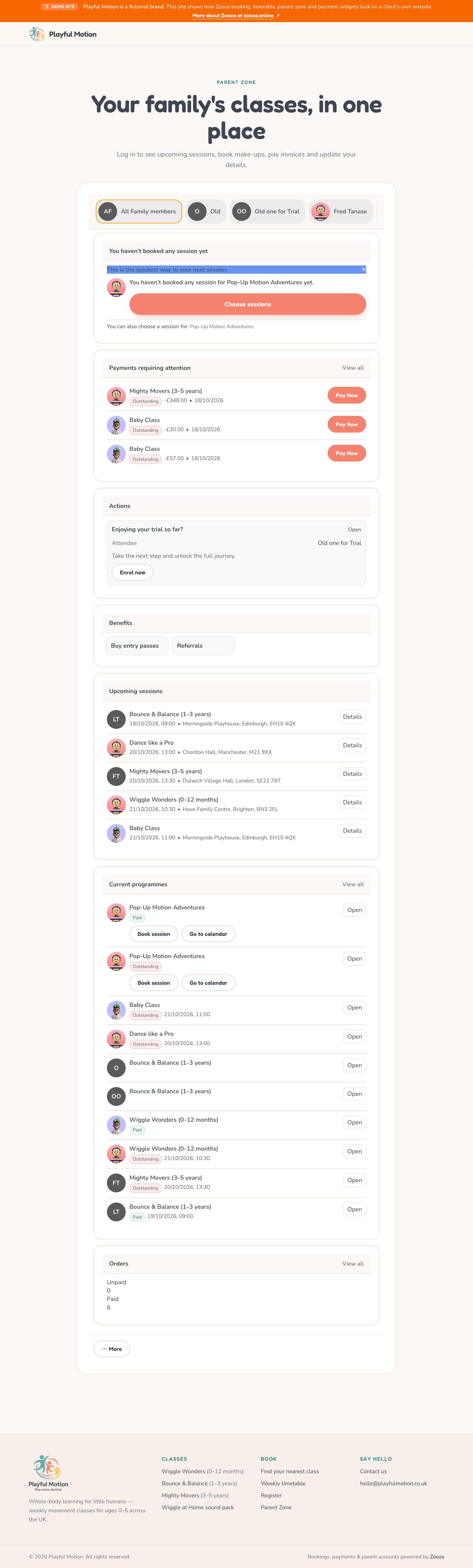
The three routes below depend on how you configured availability.
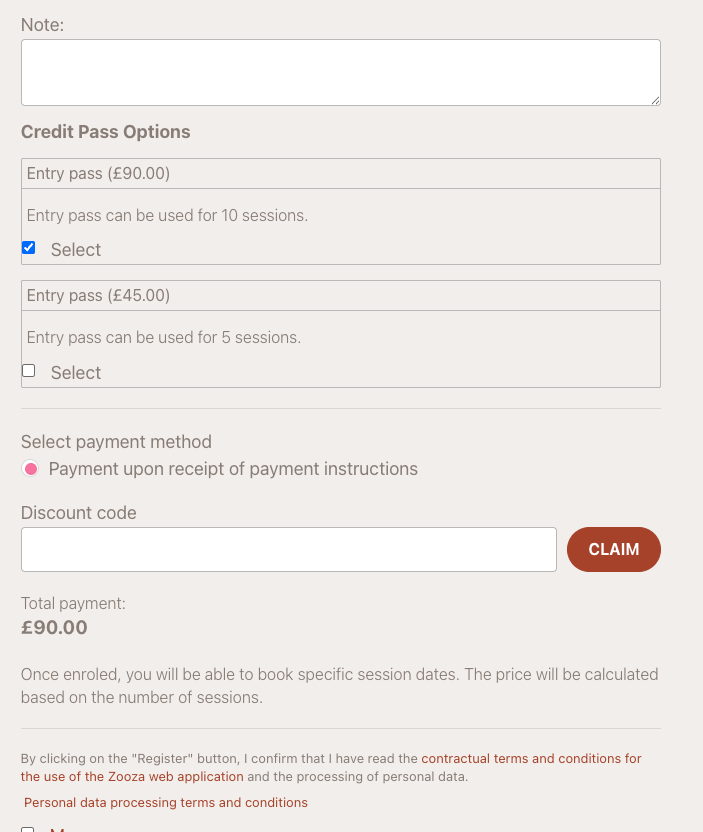
From the booking form
When the client registers for a Pay-as-you-go programme, the entry pass is offered directly in the booking form. The client selects the pass they want and pays during registration.
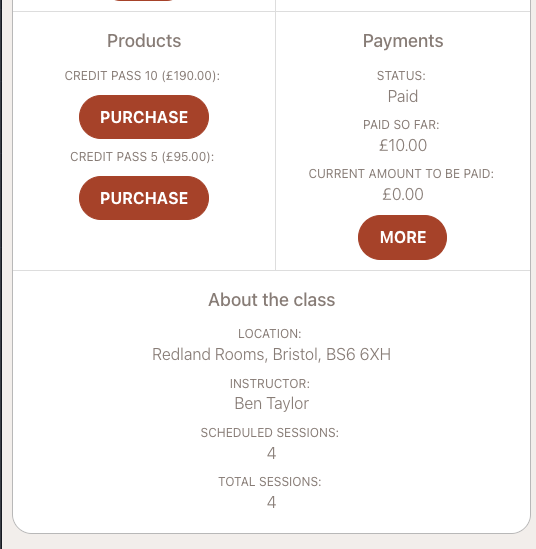
From the client profile
After the client has an active booking in a programme, the available entry passes appear in their profile under the booking detail. The client can browse the pass options and choose the one that suits them.
From the order form (widget)
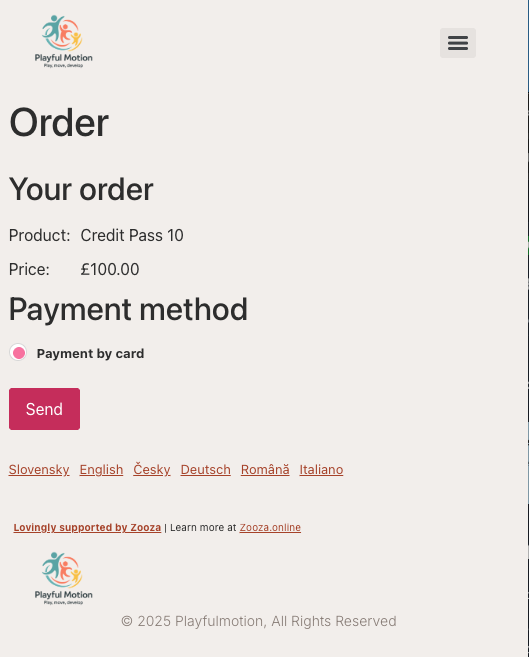
If you have the order form widget deployed on your website, clients can purchase entry passes directly from there without needing an existing booking first.
How the client books sessions
From 25 September 2026 the client picks several sessions at once.
- They open the session picker — from their dashboard, from the programme, or straight from a link in a reminder email.
- They tick every session they want. Nothing is booked yet.
- A bar along the bottom keeps count as they tick: how many entry passes the selection will use and how much, if anything, is left to pay.
- They confirm once. All the sessions are booked in one step.
- If anything is owed, they are taken to payment — card there and then, or the payments tab of their profile for a transfer.
They get one confirmation email listing every session they booked, not one per session.
A client registering for the programme for the first time is carried into the picker automatically: the confirmation screen counts down five seconds and then continues, and clicking anywhere stops it if they want to read the screen first. They are signed in on the way, so there is no login code to type and no dashboard to hunt through.
A client who holds valid passes but has booked nothing sees a prompt on their dashboard rather than having to find the booking button inside a programme row.
And if a client picks a session in your calendar widget before they have registered, that session is remembered through registration and is waiting pre-selected in the picker afterwards. It is not held for them — somebody else can still take the last place while they are registering.
How entries are deducted
Each time a client books a session in a Pay-as-you-go programme, one entry is deducted from their pass. The process is automatic:
- The client selects the sessions they want in the picker.
- The system checks the client's passes (non-expired, with remaining entries).
- One entry is deducted per session booked.
- If the client cancels the session, the entry is returned.
Entries come from the client's own pool of passes at your company — not from a particular booking — and Zooza always spends the entry that expires soonest.
Note: What happens when a client has no pass depends on the programme's How clients pay for sessions setting — passes only (booking refused), payment only, pass first then payment, or client chooses each time. See Pay-as-you-go programme. This replaced the old "Require a valid entry pass" switch on 25 September 2026.
Viewing the pass on a booking
When a client has an entry pass, the booking detail shows the linked order. The payment and individual entries of the pass are managed separately on the order — not on the booking itself.
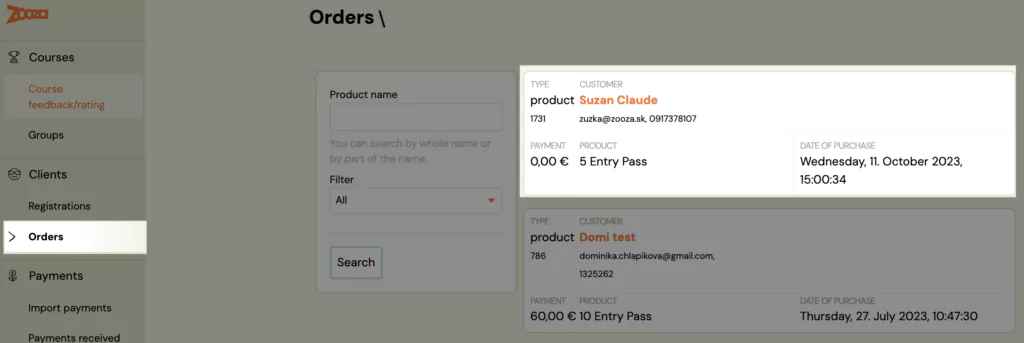
The admin can access the client's order via the booking detail or separately via Orders in the left menu.
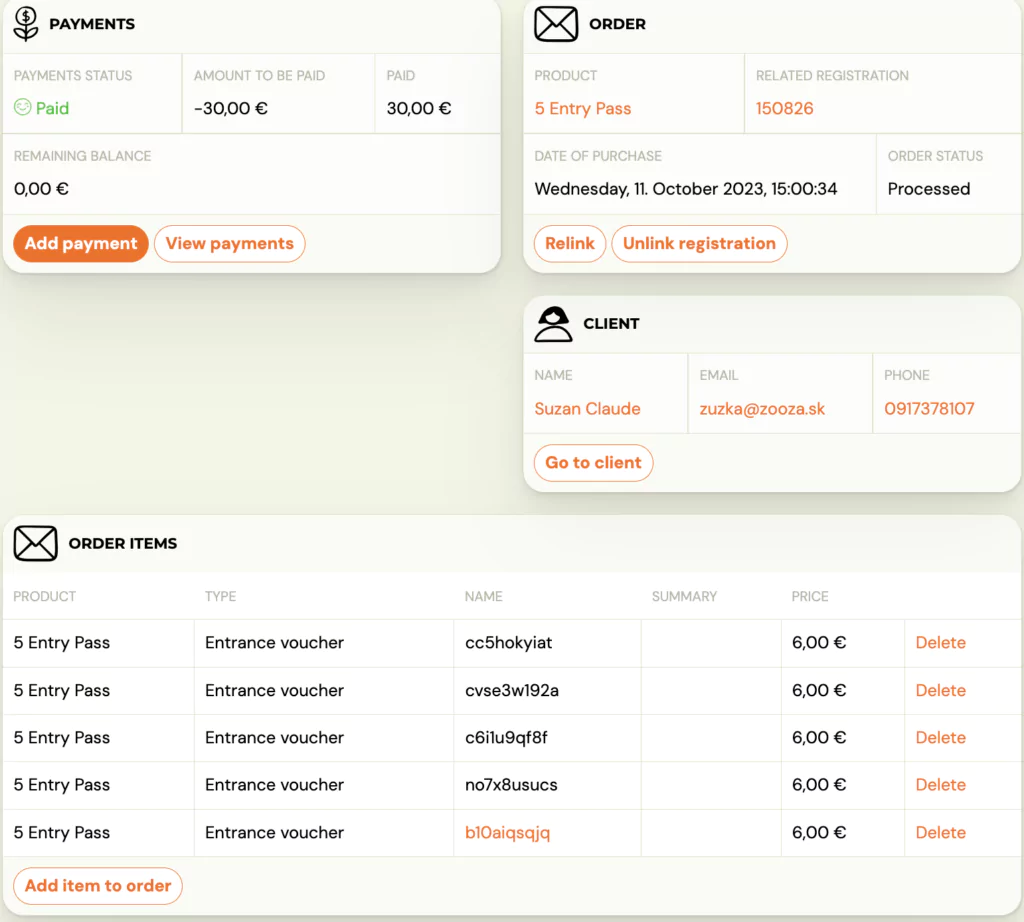
Order detail — managing entries
The order detail shows the full state of the entry pass:
- Entries used — which sessions the client has booked.
- Entries remaining — how many sessions are still available.
- Expiration — when the pass expires.
- Payment status — whether the pass has been paid.
From the order detail, the admin can also manually adjust entries if needed (e.g., add bonus entries or extend expiration).
Adding passes to a booking yourself
Passes reach a booking one of two ways: the parent buys them from their profile, or you add them from the admin side. Use the second when somebody paid you in person, paid before the programme was finished, or when you are giving passes away.
- Open the booking and click Buy — the products card sits on the right-hand side of the booking detail.
- Tick the payment method and confirm. This creates an order attached to the booking.
- What happens next depends on the product:
- Passes are mandatory on it — Zooza has already put them on the order.
- The parent normally picks an option at booking — then nothing was picked for them. Open the order, click Add item to order, and work through the wizard.
- Go back to the booking and click Add payment to record that the client has paid.
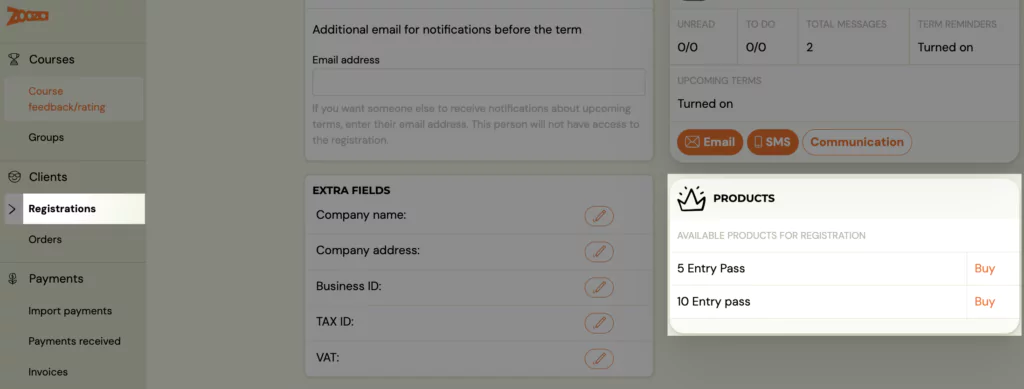
Step 4 is not bookkeeping — it is what releases the passes. The entries are created at the moment the order is marked paid. Until then the parent has nothing to book with.
"Adding passes only made the balance worse"
That is the usual way this goes wrong, and it is a half-finished procedure rather than a fault. Adding passes creates an order; an unpaid order raises the amount outstanding on the booking. If the client has already paid you, the balance stays up until you record it with Add payment — then it drops back to zero and the passes appear in the parent's profile.
So a parent who paid before the programme was properly set up does not need a refund and a fresh booking. Create the order, add the item if the product expects a choice, mark it paid, and the booking settles at zero with the passes live.
Tip: If you do not see the desired payment method, return to the product settings and activate it there.
What happens when a pass expires or runs out
| Scenario | What the client sees |
|---|---|
| All entries used | The pass shows as fully used. The client needs to purchase a new pass to continue booking sessions (if entry pass is required). |
| Pass expired | The pass shows as expired. Remaining unused entries are lost. The client needs a new pass. |
| No valid pass, entry pass required | The client cannot book sessions. They see a message that a valid pass is required. |
| No valid pass, entry pass not required | The client can still book sessions and pay per session at the unit price. |
Related
- Creating entry passes — how to create and configure entry pass products.
- Pay-as-you-go programme — the programme type that uses entry passes.
- Client Profile 101 — full guide to the Client Profile including benefits, payments, and sessions.
- Pay-as-you-go FAQ — common questions about entry passes.