Orders
The Orders screen lists all product orders placed by clients. Use it to track order status, manage payments, and add items to existing orders.
Navigation: Go to Clients → Orders.
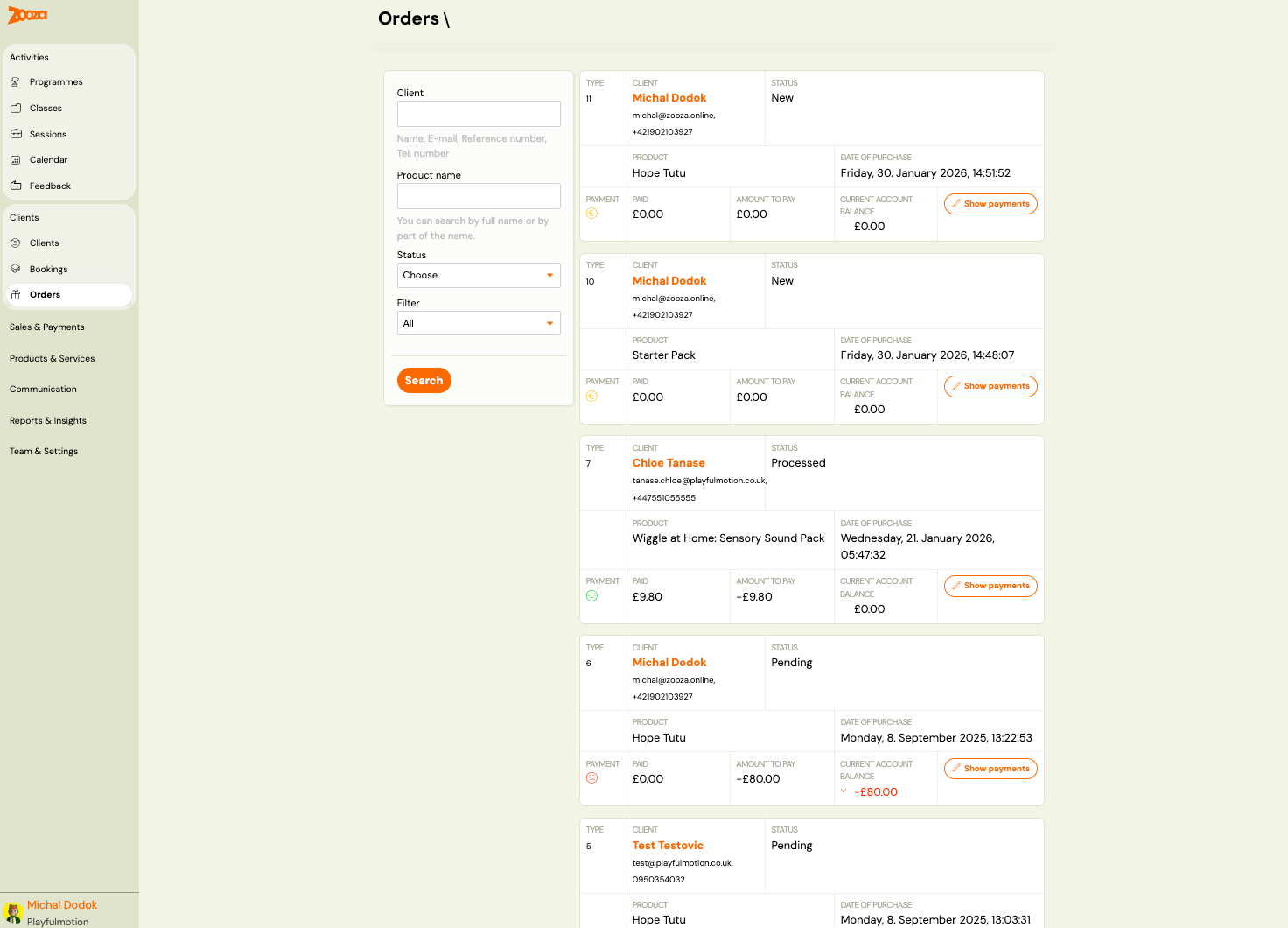
List View
Each order card shows:
| Field | Description |
|---|---|
Type | Order number. |
Client | Client name, email, and phone number. |
Status | Order status — "New", "Pending", or "Processed". |
Product | Product name (e.g. "Hope Tutu", "Starter Pack"). |
Date of purchase | Timestamp of the order. |
Payment | Payment status icon (green = paid, red = overdue). |
Paid | Amount paid. |
Amount to pay | Outstanding amount (negative = owed). |
Current account balance | Client's running balance — red if negative. |
Each order has a Show payments action button.
Filters
The left sidebar provides filters:
- Client — search by full name or part of the name, email, reference number, or phone.
- Product name — search by product name.
- Status — dropdown to filter by order status.
- Filter — additional filter dropdown (default: "All").
Click Search to apply filters.
Order Detail
Click an order card to open the detail page.
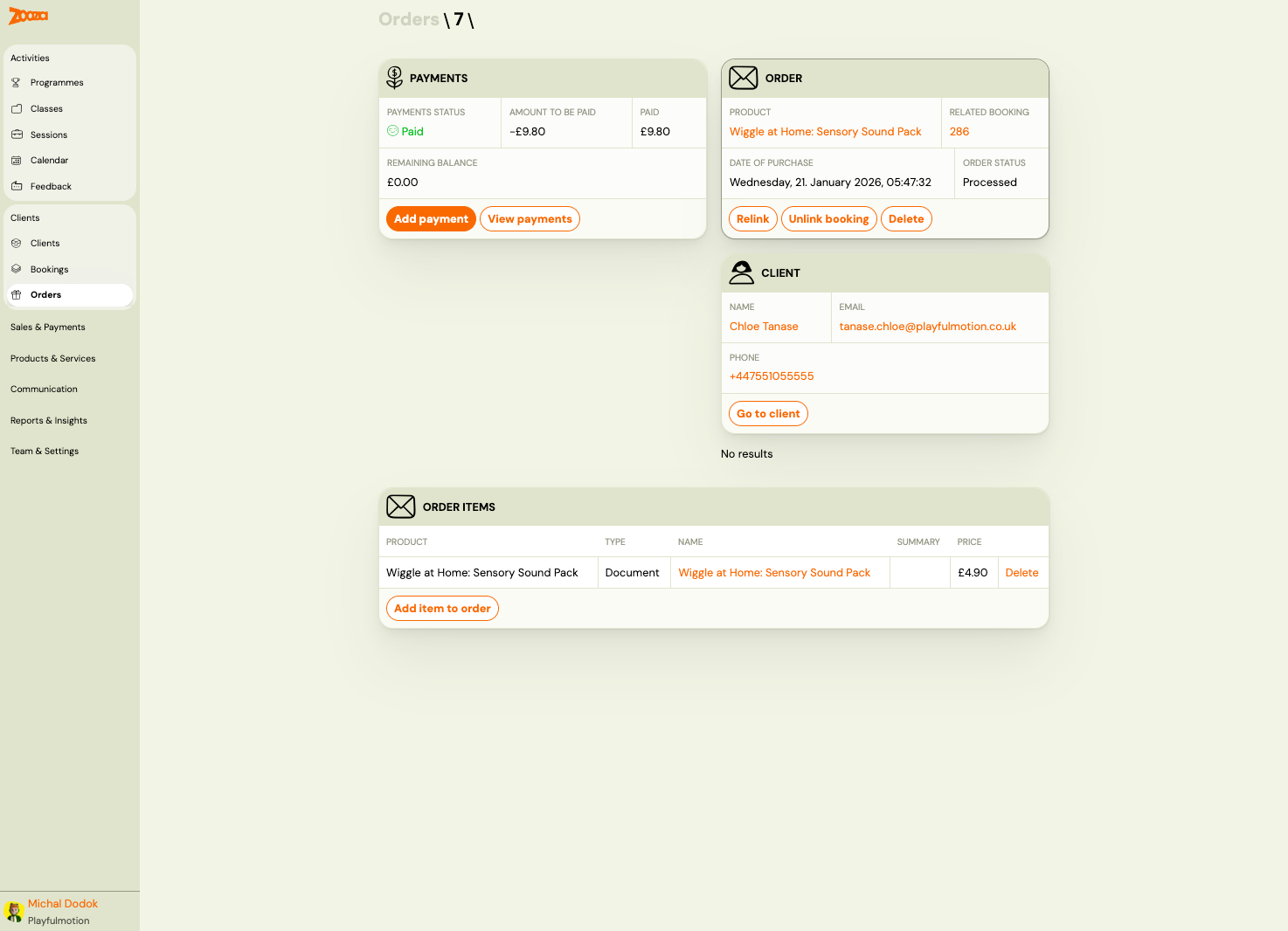
Payments Card
| Field | Description |
|---|---|
Payments status | Status icon with label (e.g. "Paid"). |
Amount to be paid | Outstanding amount. |
Paid | Total amount paid. |
Remaining balance | Remaining balance after payments. |
Buttons: Add payment and View payments.
Order Card
| Field | Description |
|---|---|
Product | Product name (clickable link). |
Related booking | Linked booking number (clickable link). |
Date of purchase | Timestamp. |
Order status | Current status (e.g. "Processed"). |
Action buttons:
- Relink — link the order to a different booking.
- Unlink booking — remove the booking association.
- Delete — permanently delete the order.
Client Card
| Field | Description |
|---|---|
Name | Client name (clickable link). |
Email | Client email address. |
Phone | Client phone number. |
Button: Go to client — opens the client profile.
Order Items
Table listing all items in the order:
| Column | Description |
|---|---|
Product | Product name. |
Type | Item type (e.g. "Document"). |
Name | Display name (clickable link to the product). |
Summary | Item summary/description. |
Price | Item price. |
| Delete | Remove the item from the order. |
Button: Add item to order — opens the add item wizard.
Add Item to Order
Navigation: Order detail → Add item to order.
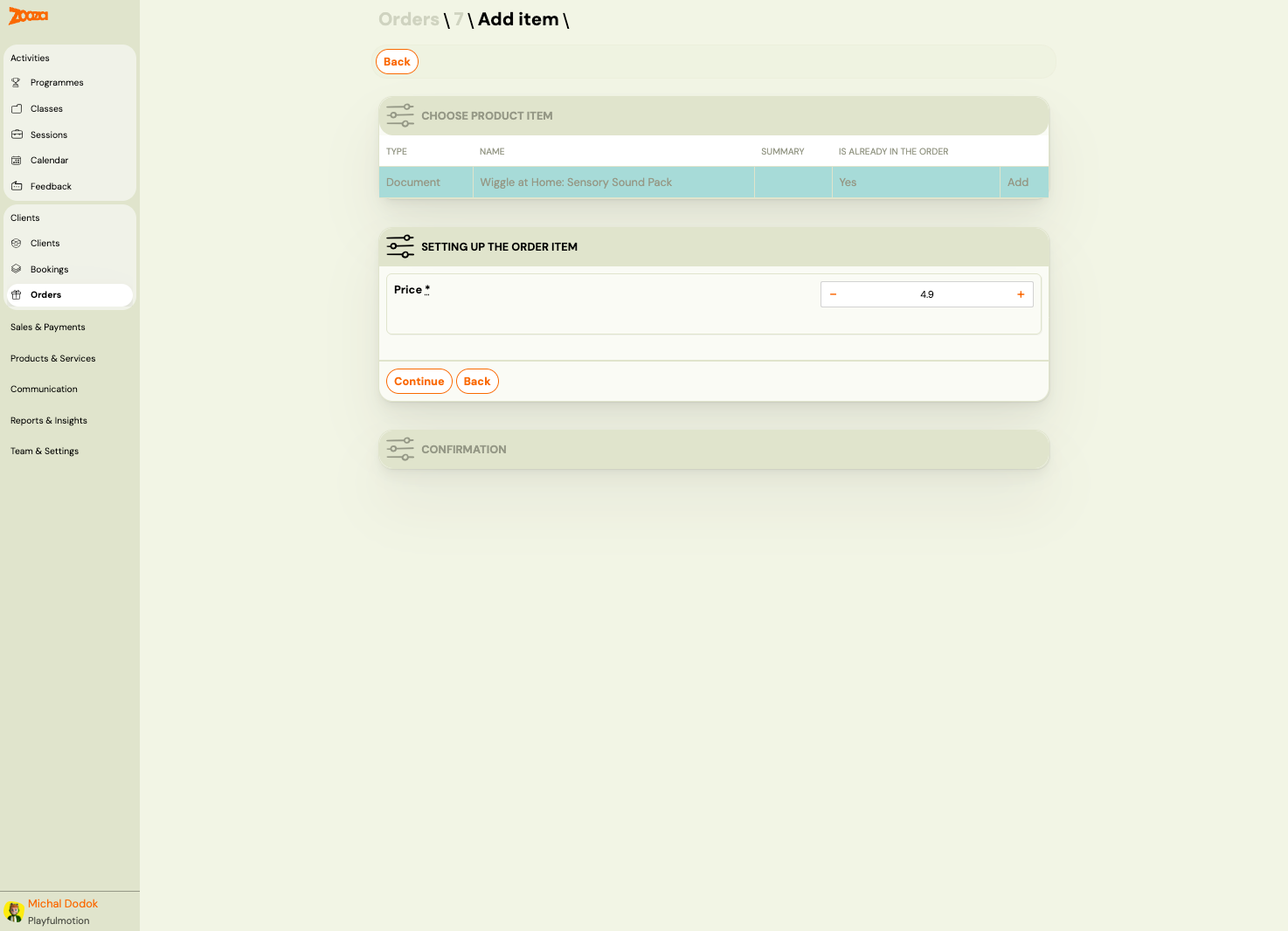
Step 1: Choose Product Item
Table showing available products:
| Column | Description |
|---|---|
Type | Product type (e.g. "Document"). |
Name | Product name. |
Summary | Product description. |
Is already in the order | "Yes" if the item is already added. |
Click Add to select a product.
Step 2: Setting Up the Order Item
| Field | Description |
|---|---|
Price | Item price with +/- controls to adjust. |
Click Continue to add the item, or Back to return.
A final Confirmation step completes the process.
Related
- Selling Products During Booking — how to offer products at booking time.
- Orders and Products FAQ — common questions about orders and products