Pay-as-you-go FAQ
What is a Pay-as-you-go programme?
A Pay-as-you-go programme is a flexible membership where clients register once and then pick individual sessions to attend. They only pay for the sessions they book. It is ideal for fitness studios, leisure classes, and any offering where clients want to choose their own schedule.
See the full guide: Pay-as-you-go programme.
How does pricing work?
The unit price is the price per session. When you create the programme, you set a default unit price. You can also override it per class if different classes have different rates. Each time a client books a session, a payment obligation equal to the unit price is created.
Can a client register for the same session twice?
No. Duplicate bookings for the same session are blocked by the system. A client can only be registered for a given session once.
How does a client book a session?
Clients book sessions in two ways:
- From their profile — After logging in on your website, they go to their programme, click Book date, and select from available sessions.
- From the calendar widget — If you have a calendar widget on your website, clients can browse and book sessions directly.
What happens when a client cancels a session?
When a client cancels a session:
- The session is removed from their attendance.
- The payment obligation for that session is cancelled (debt is reset to zero).
- If they used an entry pass, the entry or credit is returned.
The client receives a notification email confirming the cancellation.
What is an entry pass?
An entry pass is a prepaid product that gives clients a set number of visits. Each time they book a session, one entry is deducted. Entry passes are created as products and assigned to programmes or classes.
See the full guide: Creating entry passes. For how clients see and use passes in their profile, see Entry pass — client view.
What is the difference between an entry pass and prepaid credit?
- Entry pass — Visits-based. The client buys a number of entries (e.g. 10 sessions).
- Prepaid credit — Money-based. The client buys a credit amount (e.g. 50 EUR), and the session price is deducted from the balance each time.
Both work the same way during booking. Choose based on whether you want to sell by visit count or monetary value.
Do I need entry passes for Pay-as-you-go?
No. Entry passes are optional. Without them, clients simply pay per session at the unit price. Entry passes are useful when you want to offer bulk discounts (e.g. 10 sessions for the price of 8) or when you want clients to prepay.
Can I give an existing client a permanent discount on passes?
Not automatically. Discount codes work on course bookings, not on entry passes, so there is no way to attach a standing discount to a pass for returning clients.
What you can do instead is add the entries by hand: open the client's order and add the entries there. It is a manual step per client, but it puts them in the same position a discount would have.
A proper discount on passes is planned as part of a wider rework of entry passes.
What replaced "Require a valid entry pass"?
A four-way setting called How clients pay for sessions, on the programme's Attendance settings card (25 September 2026): use entry pass first then payment, entry pass only, payment only, or client chooses each time. Your old setting was converted automatically. See Pay-as-you-go programme.
It applies to clients booking online. Booking somebody in yourself from the attendance screen still asks whether to use their pass.
What did the old "Require a valid entry pass" do?
This is an attendance setting on the programme. When enabled, clients must have a valid (non-expired, non-exhausted) entry pass to book a session. Without a valid pass, the system blocks them from registering for sessions.
Can an entry pass be used if the order is unpaid?
Yes, if you enable the Redeem if unpaid setting on the programme. This allows clients to use their entry pass even before they have paid for it. This is useful for clients who pay by bank transfer where payment confirmation takes time.
How do I offer entry passes in both the client profile and the booking form?
Tick both boxes on the same product. When you assign a pass to a class you get Available in the client's profile (ticked by default) and Make available in the booking form (not ticked). They are independent — one product can be sold in both places.
You only need a second product when the two places should differ: a different price, a registration-only bundle, or a pass you do not want clients to see at all. See Creating entry passes.
A client on an open programme has nothing to buy in their profile — why?
The pass product has to be attached to the class, not just created. Open the class, add the product under the products card, and make sure Available in the client's profile is ticked. Until then the client's profile has nothing to offer them, however many pass products exist in your product list.
Can I use one entry pass across multiple classes?
Yes, if the classes are linked. When you link classes within a programme, a single entry pass covers all linked classes. The client can book sessions from any class in the pool.
See: Linked classes.
How does the client see available sessions?
Clients see available sessions in two places:
- Profile — After logging in, they navigate to their programme and click Book date to see all upcoming sessions with availability.
- Calendar widget — If embedded on your website, the calendar shows all available sessions.
Can a client use one entry pass for two children registered in the same class?
Yes — entry passes belong to the client, not to one registration.
Passes are held per client per company. When a session is booked, Zooza takes the client's next unused entry — the one expiring soonest — whichever registration the session belongs to. So a parent who buys a 10-entry pass and has two children registered separately draws both children's sessions from that same pool of 10.
That is worth saying out loud to parents, because it cuts both ways: ten entries shared between two children is five sessions each, not ten. If you want each child to have their own allowance, sell each of them their own pass — and remember that Zooza will still spend whichever entry expires first, so it cannot keep the two allowances apart for you.
What a pass does not do is decide which sessions a client may book. That is what linked classes are for: linking classes lets one registration book sessions across the whole pool of linked classes. The pass was never limited to a class in the first place.
Can I set up a recurring membership that automatically gives clients a new set of credits on a cycle (e.g. 8 visits every 35 days)?
Zooza does not have a native auto-renewing credit subscription on a custom cycle. There is no built-in mechanism to automatically grant a new entry pass every N days tied to a Stripe subscription.
The closest alternative is an Entry Pass:
- You define a pass (e.g. 8 entries).
- Clients purchase it manually (through their profile or at checkout).
- Entries are deducted each time they book a session.
- When the pass runs out, they purchase a new one.
If you want recurring billing for the pass (so clients are charged automatically on a schedule), this requires setting up a Stripe subscription product that issues the pass on renewal — which is a custom configuration. Contact Zooza support to discuss whether this is possible for your setup.
See Creating entry passes for how to configure entry passes.
Where do I see how many entries a client has left, and when they used one?
On the booking detail, in the Credits card: each entry pass is listed with entries used and remaining, and each redemption shows the session it was spent on. The parent sees the same thing in their profile (Entry pass — client view). There is no separate credits report under Discounts; the booking is the place to look. The expiry date of a purchased pass is not editable in the admin — ask support with the order number if a pass needs extending.
Why does the class say 9 enrolled but nobody is booked for tomorrow's session?
Because those are two different things in a Pay-as-you-go programme:
- Enrolled — the client has a booking in the class. That booking is their key to the client portal; it does not put them in any session.
- Booked on a session — the client has picked that date from their portal (or the calendar). Only these people appear on the session's register.
So a class can show more enrolments than its capacity — capacity is checked per session, not per class — and a session can have zero attendees while the class is "full" of enrolments. When you look at the register for a session, you are looking at session bookings only.
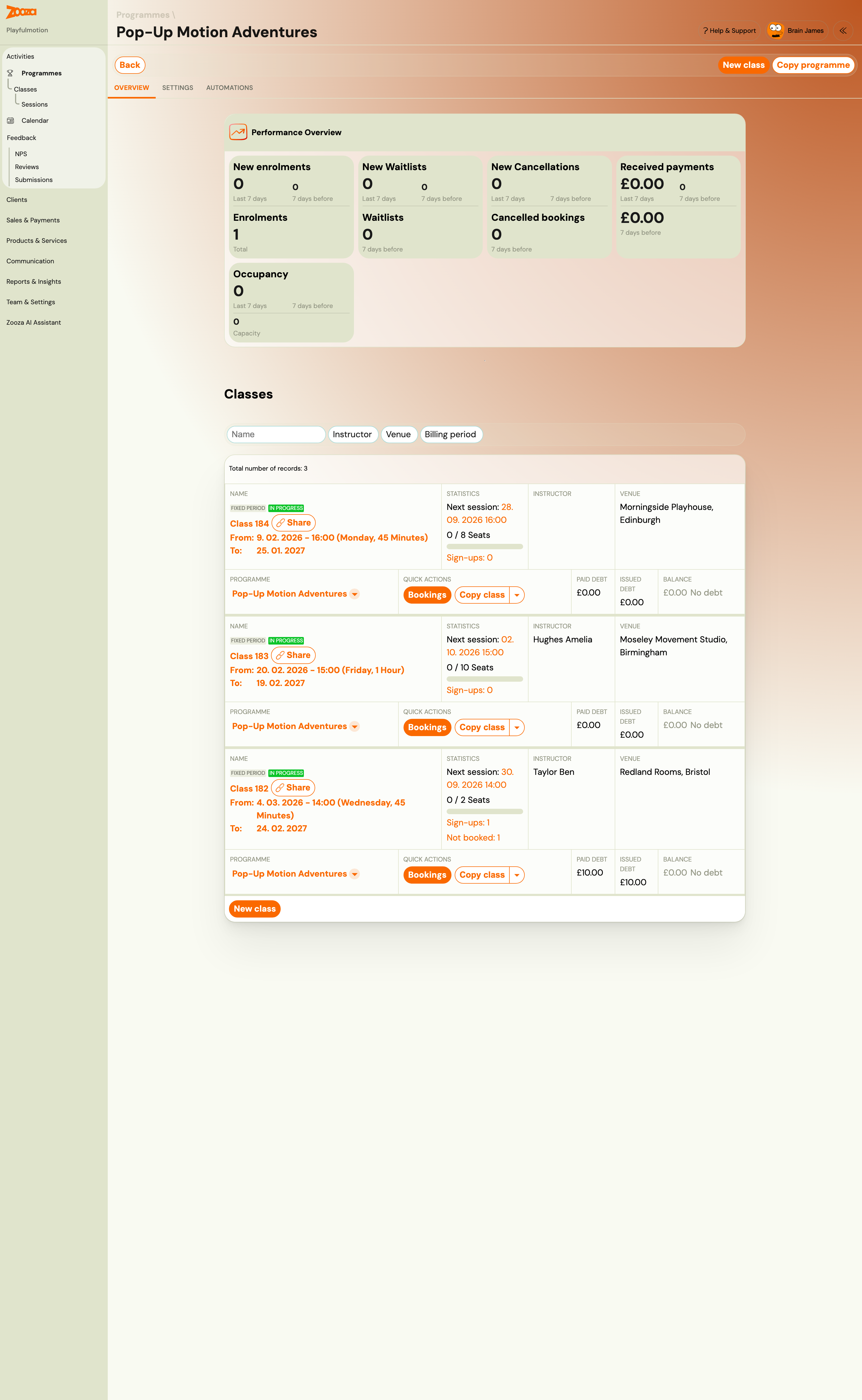
Since 21 September 2026 the class surfaces say this themselves rather than leaving you to work it out. On an open programme:
- The class tile shows how many people are booked on the next session against that session's places, plus the number of sign-ups as a plain count. The old "enrolled / capacity" bar is gone — on an open class it divided sign-ups by a per-session seat limit, which meant nothing.
- Class capacity in the class settings is labelled as what it is: the number of places in one session, not a ceiling on sign-ups.
- The Report card on the class shows the sign-up count and, below it, how many sign-ups have booked no upcoming session.
- A booking's detail says whether that person has any upcoming session booked, and how many.
Which of my sign-ups have not booked anything?
Open the class and look at the Report card: it says how many sign-ups have booked no upcoming session. Click that number — it opens the bookings list filtered to exactly those people, where you can select them and send them a message.
Two things to keep in mind when you read the figure:
- It means has not booked in the near term, not "never booked". Somebody who attended for months and has simply not booked their next session is counted.
- Do not subtract it from the sign-up count. The two figures count slightly different populations — guests appear in the not-booked figure but not in the sign-up count — so "12 sign-ups, 5 not booked" does not mean 7 people are booked.
There is no filter control for this on the bookings list itself; the class is the only way in, which keeps the figure tied to the class it was counted for.
How do I remind enrolled clients to book this week's session?
Zooza already does this by itself. Once a week, every client on this programme with no upcoming booked session gets a reminder built around their own entry-pass balance, suggesting sessions from their usual slot with a Book button for each. It switches off on its own after about four unanswered emails, and starts again as soon as the client books. It is the Upcoming events notifications toggle on the class (Programmes → Online Booking → Edit); see The session booking reminder.
Send your own email when you want to say something the automatic reminder does not, or when you want to reach clients who have already booked as well.
Do not send them the class booking link. In a Pay-as-you-go programme they are already enrolled; opening that link would create a second booking in the same class. They need to book a session, and they do that from their client portal.
- Go to Classes and filter by Programme (tick the programme).
- Click Send email at the top of the list.
- In the body, add a link to the portal using the dynamic tag
*|WIDGET_PROFILE_URL|*— select your link text, click the link icon and paste the tag as the address. Each recipient gets their own link that signs them in without a login code and lands on their dashboard, where the Book session button is. - Save the email as a user template so next week it is one click.
The email goes to everyone with an active booking in those classes, including people who have already booked the session. There is no filter for "enrolled but not booked on a given session" and no report that shows who was invited to which session.
Can I set a booking cut-off for sessions?
No. The Hide from booking form N hours before the programme begins setting exists only for Booking for the full programme duration and One-off event programmes. Pay-as-you-go session bookings have no lead-time cut-off — a client can book a session up to its start. If you need to stop bookings for a particular session, cancel the session or reduce its capacity.
A client paid before I finished setting up — how do I add entry passes to an existing booking?
Two ways:
- The parent buys them from the client portal — this is the normal route when you collect card payments, because the parent has to pay online anyway.
- You create the order from the booking: on the booking detail, find the products card and create an order for the pass product. If the pass is an optional item in the product, open the order and Add item for the pass. When the money has already been received outside the portal, record it with Add payment on the booking — the passes are released the moment the order is paid.
If you are adding the booking itself by hand (Add booking on the class), untick Client is also an attendee when the parent is booking for a child, and expect the manual booking to carry the class price — reset it in Payments if the pass product is what the client actually pays for.
What are linked classes and when do I need them?
Linked classes connect multiple classes within a Pay-as-you-go programme so clients can pick sessions from any of the linked classes. Use them when:
- You offer multiple class types (e.g. yoga + pilates) under one membership.
- You run the same class at different locations or with different instructors.
- You want one entry pass to cover multiple classes.
See the full guide: Linked classes.