Add and fix family relationships on a client profile
Family relationships in Zooza link two client profiles — for example, a parent and a child — so the system knows who the buyer is and who the attendee is across bookings. You can add a new relationship and, in the same step, repair the buyer on any existing bookings where the link was missing or incorrect.
Navigation: Go to Clients → open a client profile → Edit Family Members (top action bar).
When to use this
- New family — you want to record that Person A is the parent of Person B.
- Missing link — a parent booked using their own email but the booking shows no child linked, or the buyer and client roles are swapped.
- Repair after a merge or import — person records were created separately and need to be connected retroactively.
Step 1 — Open Edit Family Members and start a new relationship
- Open the client profile (parent or child — either works as the starting point).
- Click Edit Family Members in the top action bar.
- Click Add new relationship.
- Search for the other person by name or email and select them.
Step 2 — Describe the relationship
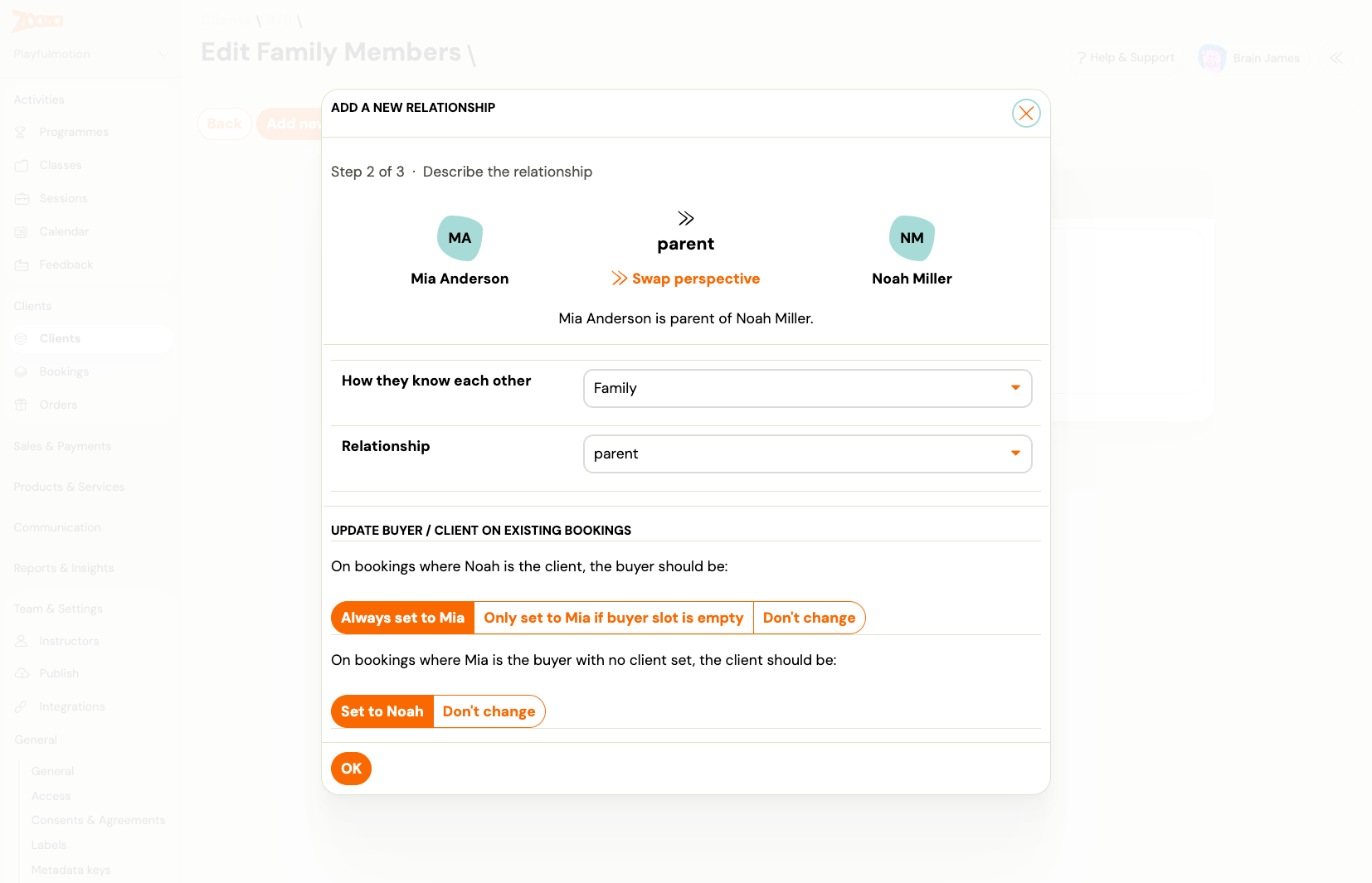
On Step 2 you set two things:
Relationship type
| Field | What to set |
|---|---|
| How they know each other | Category — typically Family |
| Relationship | Specific role — e.g. parent, guardian, sibling |
The direction matters: if you started from the parent's profile, the parent is shown on the left. Use Swap perspective if the direction is wrong.
Update buyer / client on existing bookings
This section lets you fix the buyer or client assignment on bookings that already exist — without touching them one by one.
On bookings where [child] is the client, the buyer should be:
| Option | What it does |
|---|---|
| Always set to [parent] | Replaces the buyer on every booking where this child is the client — even if there is already a different buyer. Use when the parent should always be the responsible party. |
| Only set to [parent] if buyer slot is empty | Only fills in the buyer where none is set. Leaves existing buyer assignments untouched. |
| Don't change | Makes no changes to buyer on existing bookings. |
On bookings where [parent] is the buyer with no client set, the client should be:
| Option | What it does |
|---|---|
| Set to [child] | Fills in the child as the client on bookings where the parent is the buyer but no client is linked. |
| Don't change | Leaves those bookings as-is. |
Tip: If the booking history is clean and you only want to record the relationship going forward, set both to Don't change.
Step 3 — Preview changes and confirm
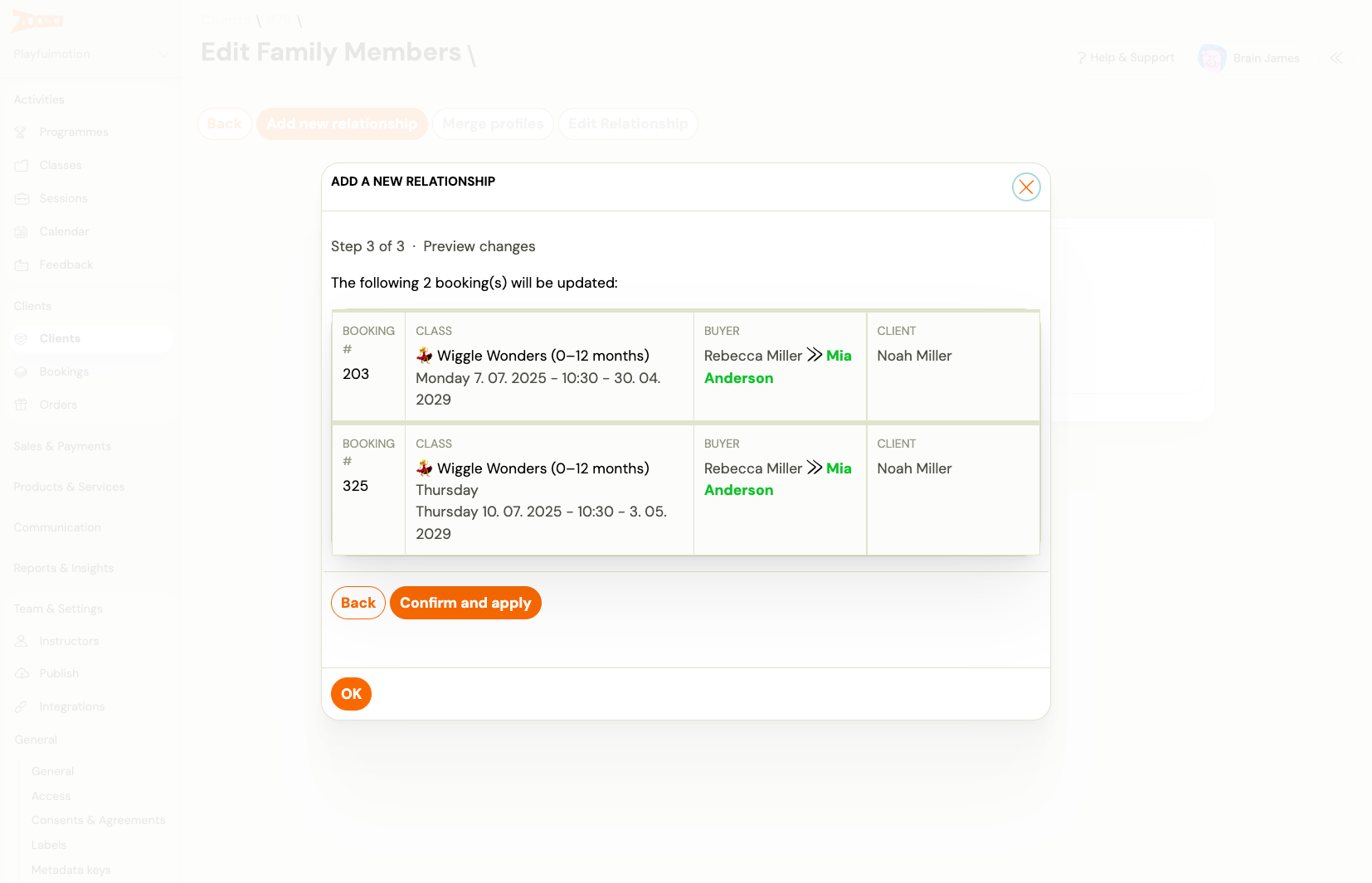
Step 3 shows every booking that will be changed based on your selections in Step 2. For each affected booking you can see:
- Booking number and class name
- Buyer — the old value → new value (highlighted in green)
- Client — current value
Review the list carefully. If a booking should not be changed, go back and adjust your repair options in Step 2.
Click Confirm and apply to save the relationship and apply all booking updates in one operation. The changes are rolled back entirely if anything fails — you will not end up with a partially applied update.
Editing or removing a relationship
From the Edit Family Members screen you can also:
- Edit relationship — change the relationship type on an existing link.
- Delete relationship — remove the link between the two profiles. This does not change any booking data; it only removes the recorded connection.
Notes
- A relationship is directional (A is parent of B). Zooza records one direction per entry — you do not need to add the inverse separately; the system shows the relationship on both profiles.
- The repair options (Always set / Only set if empty) apply only at the time you create the relationship. Changing a relationship type later does not re-run the repair.
- If the same relationship already exists between the two people, Zooza rejects the request and no bookings are changed.