Embed videos — Vimeo setup for client access
You can attach videos to programmes, classes, or individual sessions in Zooza. Clients then watch them through their Client Profile or via the View Videos widget on your website. The most common source is Vimeo — this guide covers the full workflow, including the Vimeo privacy settings that must be correct for clients to see the video.
How video access works in Zooza
Videos are not hosted by Zooza — they are embedded from Vimeo (or another provider) using a URL or embed code. Zooza controls who sees the link; Vimeo controls whether the video plays.
This means:
- Zooza can restrict the video link to enrolled clients only.
- But if Vimeo is configured to block playback, clients will see a "this video is private" error — even though Zooza showed them the link.
Both sides must be configured correctly.
Step 1 — Upload to Vimeo and configure privacy
The most common reason clients cannot watch a video is incorrect Vimeo privacy settings.
Recommended Vimeo privacy setting
Set the video privacy to "Hide from Vimeo / Unlisted" with domain-level access:
- Log in to vimeo.com and open the video.
- Go to Settings → Privacy.
- Under Who can watch this video, select Only people with the private link (sometimes labelled "Unlisted" or "Hide from Vimeo").
- Under Where can this be embedded, select Specific domains.
- Save the settings.
You do not have to fill the domain list in by hand, video by video. Zooza keeps it for you — see below.
Do not set the video to Private — private videos require the viewer to be logged in to Vimeo with an account that has explicit access. Your clients almost certainly do not have Vimeo accounts.
Which websites are allowed to play your videos
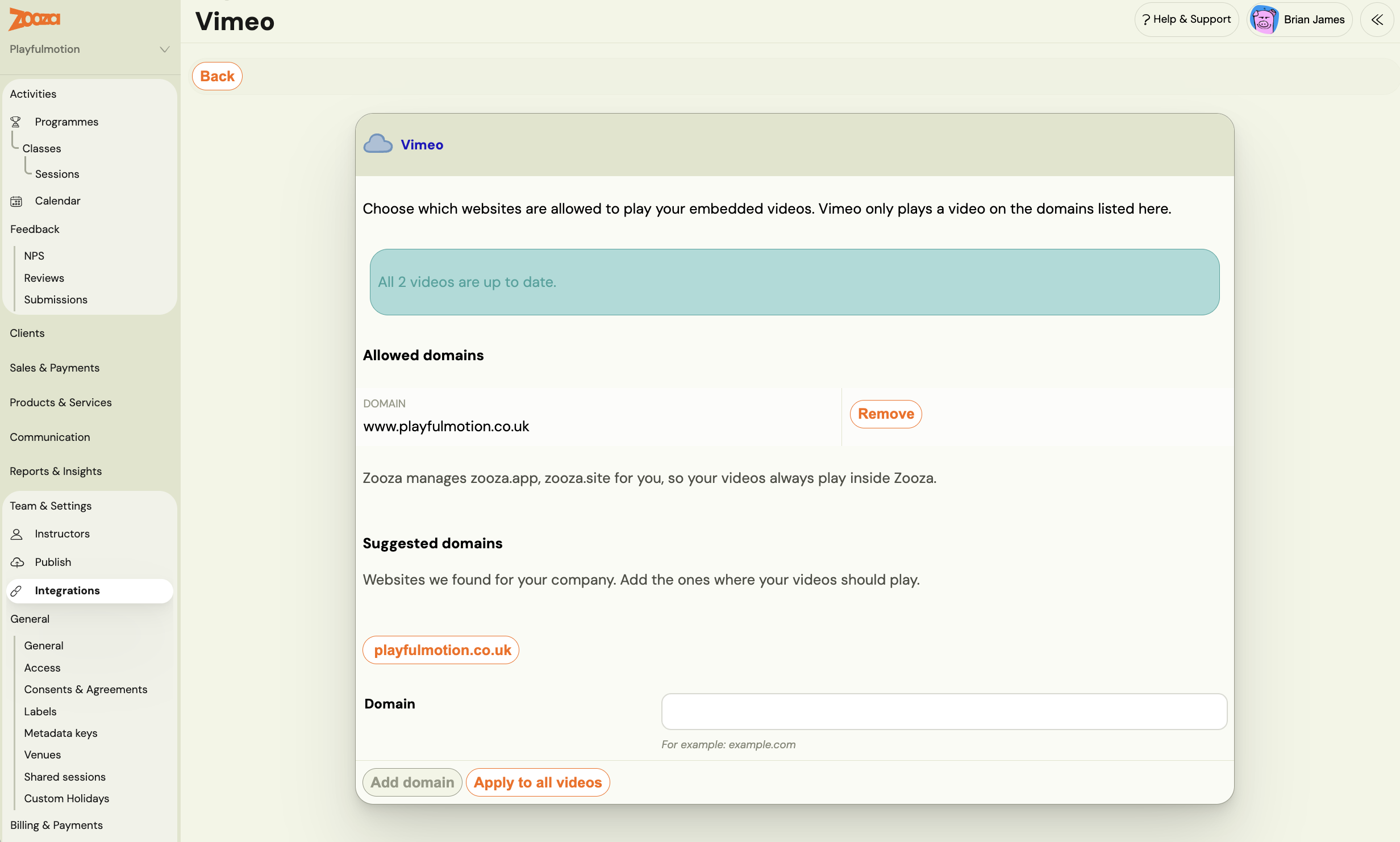
Vimeo plays an embedded video only on the domains on that video's list, and getting that list right is where almost every "the video will not play" report comes from. Since 7 September 2026 the list is managed once, for the whole company, from Settings → Integrations → Vimeo.
The banner at the top reports the state of the last sync — All 2 videos are up to date.
Below it the screen shows Allowed domains — every website your videos are allowed to play on —
plus Suggested domains, which are the sites Zooza already knows about from your
widgets. Add one with Add domain (example.com, no https://), or take one from the
suggestions. Zooza then applies the change across your whole Vimeo library in the
background, and the screen reports progress.
Add every host your videos actually appear on, not just the main one:
- your website, and any second site you still run
- a separate members area on its own domain
- each domain, if your widgets are spread across several
Zooza's own addresses are handled for you and shown as read-only, so videos always play inside Zooza itself.
Videos playing on one of your sites and not another is this, every time. A business that launched a new site but kept the old one, or runs a shop and a members area on different domains, has videos that work in one place and refuse in the other — with no useful error, because Vimeo simply declines to start. Add the second domain and it resolves.
Two warnings before you use the buttons. Removing a domain, and Apply to all videos, both rewrite every video in your Vimeo account — including domains you added in Vimeo yourself, outside Zooza. Anything not on this list is removed. If you have been managing domains by hand in Vimeo, put them on the list here first.
Older accounts: this screen used to be a single URL field, and saving it overwrote your company website address. If your company URL looks wrong and you once used this screen, that is why — correct it in Settings → General → Account information.
Vimeo plan requirements
Domain-level privacy (embedding only on specific domains) requires Vimeo Pro or higher. On a free Vimeo plan, the only options are Public or Private — neither is ideal for client-only content. If you use a free plan, you will need to upgrade or use a different approach.
Step 2 — Add the video to Zooza
Videos can be attached at three levels — choose the one that matches where clients should see it:
| Level | Where clients see it | Use case |
|---|---|---|
| Programme | All clients in any class of this programme | Course overview video, welcome message |
| Class | Clients enrolled in that specific class | Class-specific recordings or materials |
| Session | Clients who attended that specific session | Session recording |
To attach a video:
- Go to the Programme, Class, or Session detail.
- Open the Documents (or Files & Videos) section.
- Click Add → URL (or Video).
- Paste the Vimeo video URL.
- Set visibility: Enrolled clients only (not public).
- Save.
Step 3 — Verify client access
After attaching the video:
- Log in to the Client Profile as a test client (use your own email or a test account).
- Navigate to the programme or session where you attached the video.
- Confirm the video plays without a "private video" error.
If the video shows an error:
- Double-check the Vimeo privacy settings (Step 1).
- Confirm the domain you added in Vimeo matches the domain where your Client Profile is embedded.
- Try opening the video URL directly in an incognito browser window — if it works there, the Zooza-side attachment is correct and the issue is domain configuration on Vimeo.
View Videos widget
If you want clients to access all their programme videos in one place on your website, use the View Videos widget:
- Go to Publish → open your widget.
- In the Embed section, select the View Videos tab.
- Copy the embed code and paste it on your website.
Clients log in to their profile and see all videos attached to their programmes in one place. The same Vimeo privacy rules apply — videos must be configured to allow embedding on your domain.
Troubleshooting
| Problem | Likely cause | Fix |
|---|---|---|
| "This video is private" | Vimeo video is set to Private | Change to Unlisted + add your domain to allowed embeds |
| Video plays for admin but not clients | The client-facing domain is not on the allowed list | Settings → Integrations → Vimeo → add that domain |
| Plays on the new website, not the old one (or the other way round) | Only one of the two domains is on the list | Add both — a business running two sites needs both |
| Plays on your own site, not on the Zooza booking page | Older accounts never had zooza.site whitelisted | Open Settings → Integrations → Vimeo once; Zooza's own domains are now managed for you |
| Video does not appear in Client Profile | Video not attached in Zooza, or visibility set to Admin only | Check Documents section on the programme/class/session |
| Video plays but without audio | Vimeo issue — check the original upload | Re-upload the video to Vimeo |
Related
- Documents and files — attaching files, PDFs, and links to programmes.
- Client Profile 101 — how clients access their content.
- Publish (Widgets) — setting up the View Videos widget.