Priority registration for returning customers
Priority registration opens a term to your existing students first, and to everyone else later — or never. Eligibility is decided by who the person is, not by a link you have to send out.
This is the mechanism for protecting returning students' places before new customers can book.
How it differs from what you may already use
Zooza has two older ways to give existing students a head start. They solve different problems:
| What it does | When it fits | |
|---|---|---|
| Auto-enrolment | Offers each existing booking a place in the next term, which they accept or decline | You know exactly who should continue and into which class |
| Share link | An unlisted link that exposes one class | A small, hand-picked group you can email |
| Priority registration | A window where any eligible customer can book a class that is closed to the public | You want returning students to choose freely, without sending anyone a link |
The practical difference is the last column. With a share link you decide who gets it; with priority registration Zooza decides who qualifies, and the customer browses and books normally.
Setting it up
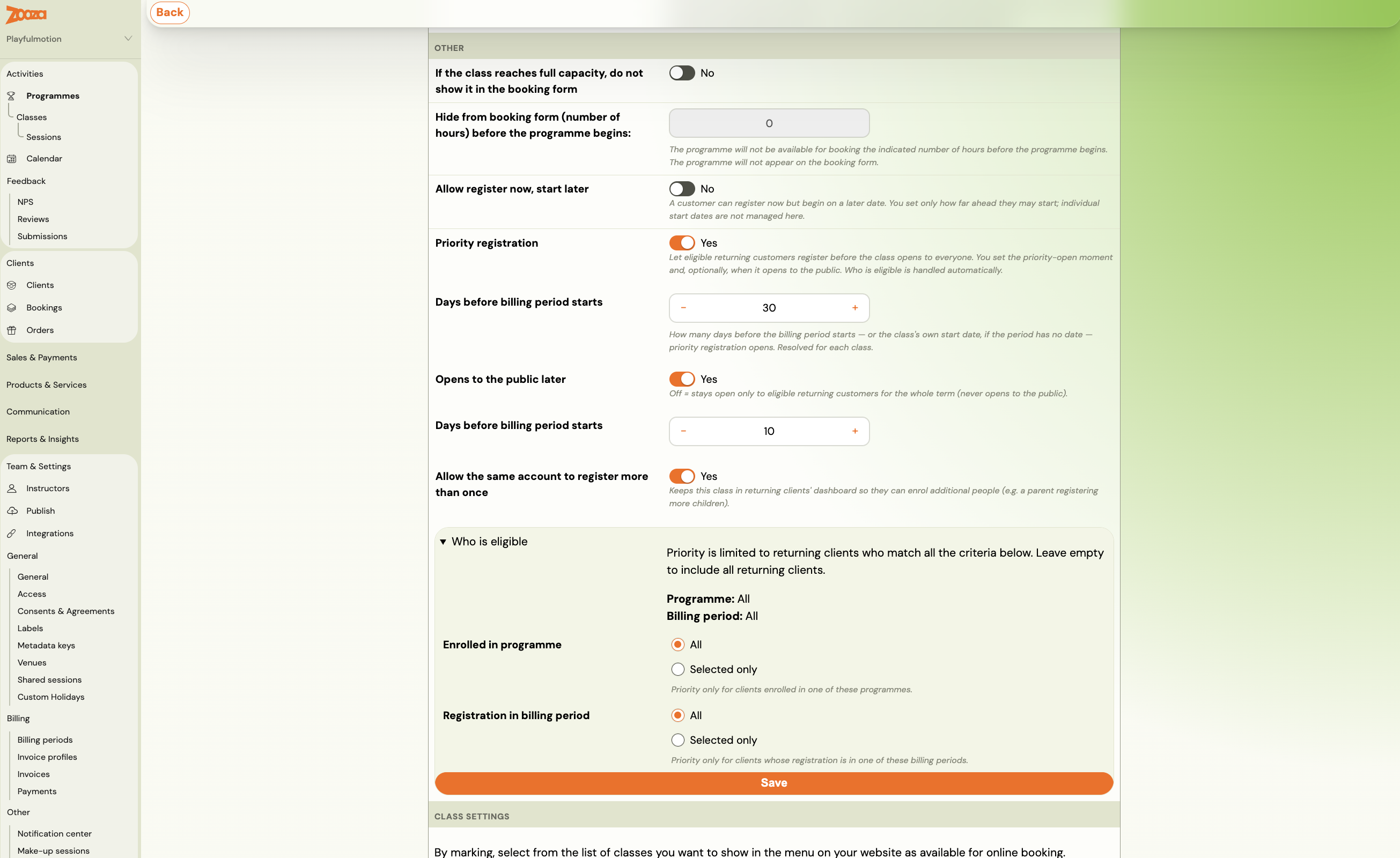
Go to Programmes → the programme → Settings → Online booking, and switch on Priority registration.
- Under Priority open, either enter Days before billing period starts and let Zooza fill in the date, or set Priority opens on directly. The offset resolves against the billing period's start — or the class's own start date if the period has no dates.
- Decide whether it ever opens to everyone. Opens to the public later off means the term stays restricted to eligible returning clients for its whole length. On, you set Days before billing period starts or Public opens on the same way.
- Optionally narrow who qualifies under Who is eligible (see below).
- Click Save.
There is a related switch just below: Allow the same account to register more than once. It keeps the class on a returning client's dashboard after they have booked, so a parent can come back and enrol another child. Without it, the class disappears from their dashboard once they have registered once.
Dates are anchored to the start of the term, not to each class. An offset resolves against the earliest class start in the billing period, so every class in the term opens together. That is usually what you want — a parent with two children in different classes should not face two different opening dates.
Excluding individual classes
A programme with priority registration on does not force it onto every class. Open the class and untick Include in the priority window — it then opens to everyone on the normal schedule, so a class aimed at newcomers can go public while the rest of the term is reserved.
The class also shows which phase it is in: Priority only — never opens to the public, Priority now — opens to the public on the date shown, or Open to the public. Check there rather than working it out from the dates.
Who qualifies
By default: any existing customer of yours who is logged in. Someone who has never booked with you does not qualify, and neither does a visitor who is not signed in.
Under Who is eligible, you can narrow it further. As the screen says, priority is limited to returning clients who match all the criteria — they combine.
There are two, and each is either All or Selected only:
| Criterion | What it limits priority to |
|---|---|
| Enrolled in programme | Clients enrolled in one of the programmes you pick |
| Registration in billing period | Clients whose registration falls in one of the billing periods you pick |
Leave both on All and every returning client qualifies.
Setting both narrows twice over: a client would have to be in one of the chosen programmes and in one of the chosen terms.
Eligibility is worked out by Zooza, not by the booking form. There is no setting that lets a visitor claim eligibility for themselves.
What customers see
Before they log in, a class in its priority window does not appear on the booking form at all. It is not shown as full or as closed — it is simply absent.
Once they log in, the list is fetched again and the class appears if they qualify. Logging in happens inline on the booking form, without leaving the page — see the login step.
Eligible customers also see the open window on their profile dashboard, with a button to register — so they do not have to remember to check.
When the class opens to the public
If you set a public date, Zooza flips the class overnight on that date. You can also open it early by hand.
The flip happens once and in one direction. Once a class is public it stays public; nothing reverts it to the priority window.
If you set no public date, the class stays restricted to eligible customers for the whole term.
Troubleshooting
A parent says the class is not on the list. Ask whether they are logged in. This is the most common report, and it is the feature working as designed — the class is invisible to anonymous visitors.
A returning customer is logged in but still cannot see it. Check the audience conditions on the programme. They combine, so a customer who attended the right programme but at a different venue will not qualify.
The class did not open to the public. Check that a public date is set. A programme configured before priority registration existed is not managed by the nightly flip, so a class from an older term will not open on its own.
Related
- Booking widget FAQ — the login step on the booking form.
- Auto-enrolment responses — offering places directly instead.
- Share a class link — an unlisted link for a hand-picked group.
- Delayed start — letting clients join a term late rather than waitlist them.
- Shared sessions — when the returning-student and newcomer classes share a room.