Automatically cancel unpaid registrations
When a registration stays unpaid beyond a configured number of days, Zooza can automatically cancel it. The cancellation is not instant — the system first schedules it for a future date, giving the client a window to pay and have the cancellation revoked automatically.
This is different from payment reminder emails, which only notify the client. Auto-cancel actually removes the registration if the client does not pay.
"How do I make payment mandatory so unpaid bookings are not confirmed?"
You do not. Zooza works the other way round, and this pairing is the answer to that question.
Every booking gets a grace period in which the client can pay. Auto-cancel then removes the ones that stay unpaid when it expires. So instead of blocking the booking at the door, you accept it, give the client a defined window, and let the system clear up after.
The reason it works this way is that a blocked booking is a lost lead. A parent who cannot complete a form at 21:00 because their card is upstairs usually does not come back; a parent with an unpaid booking and a reminder in their inbox usually pays.
To set it up:
- Set the grace period — see Automatic payment reminders.
- Configure reminders so the client is actually told during that window.
- Enable auto-cancel below, so unpaid bookings do not accumulate.
Changing payment methods does not make payment mandatory. Leaving only online card payment enabled still produces bookings that can complete unpaid — it just removes the other ways to settle up afterwards.
How it works
The auto-cancel flow has two stages:
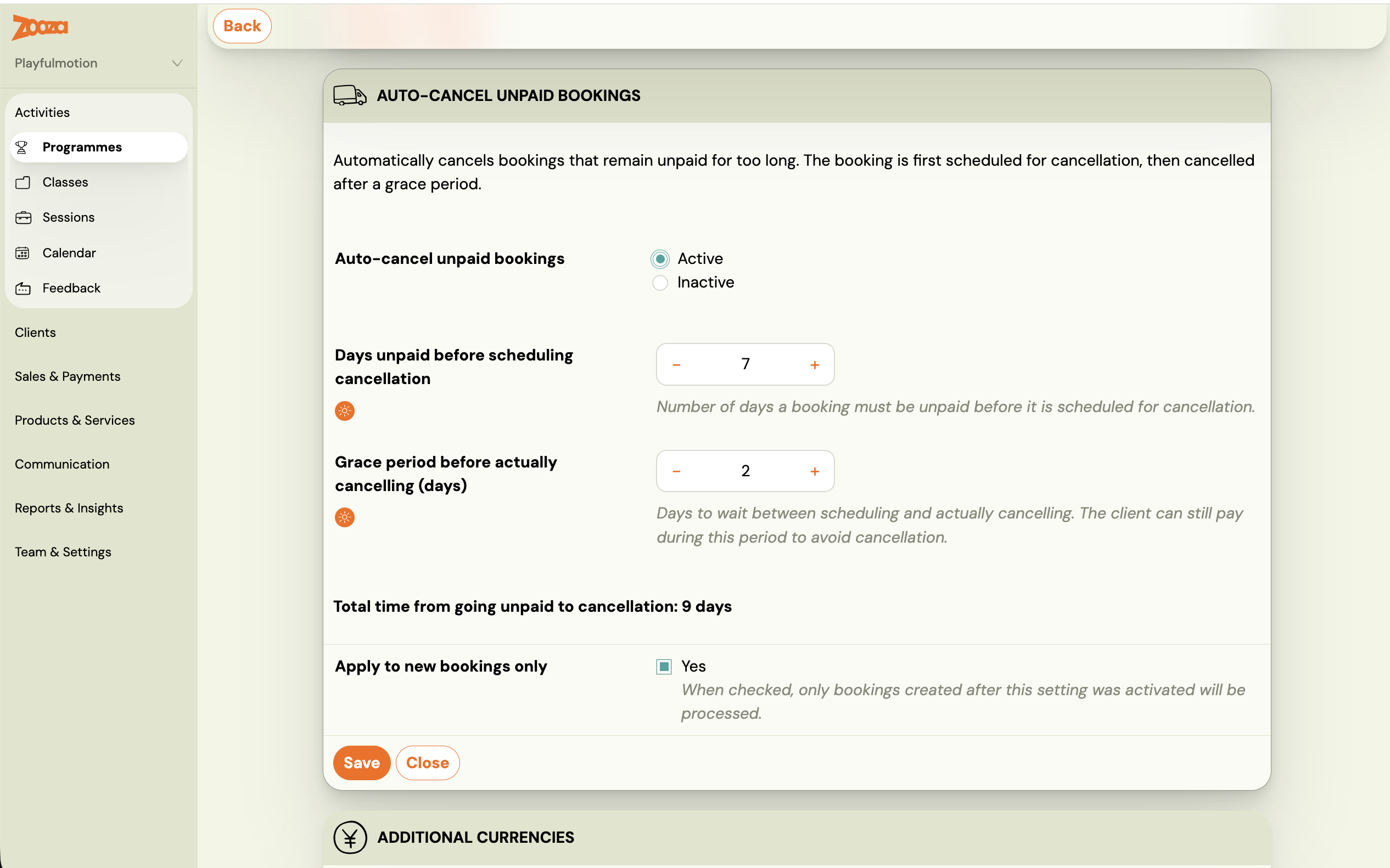
- Trigger — After a registration has been unpaid for the configured number of days (
cancel_after_days_unpaid), the system schedules a cancellation for a future date. - Lead time — The cancellation is set
cancellation_lead_daysdays into the future. During this window, the existing cancellation confirmation email is sent to the client, and the registration shows as pending cancellation. - Resolution — If the client pays before the cancellation date, the scheduled cancellation is automatically revoked and the registration remains active. If no payment arrives, the registration is cancelled when the lead-time window expires.
Only applies to new registrations. The feature affects registrations created after it is enabled on a programme. Existing registrations at the moment of activation are not retrospectively affected.
Where to configure
Auto-cancel is configured per programme, in the Payment Reminder Settings section of the programme's Price and Payment tile.
- Open the programme and go to Settings.
- Click Edit on the Price and Payment tile.
- Scroll to Payment Reminder Settings and click Change.
- Set the following fields:
- Cancel after N days unpaid — how many days a registration may remain unpaid before the cancellation process starts.
- Cancellation lead time (days) — how many days in advance the client is notified before the cancellation actually takes effect.
- Save.
What happens after cancellation
When a registration is cancelled by this process, it receives the status Auto-unenrolled. The client receives the standard cancellation confirmation email.
To find all auto-cancelled registrations for a programme, go to Bookings and filter by Status: Auto-unenrolled.
Outstanding payments report
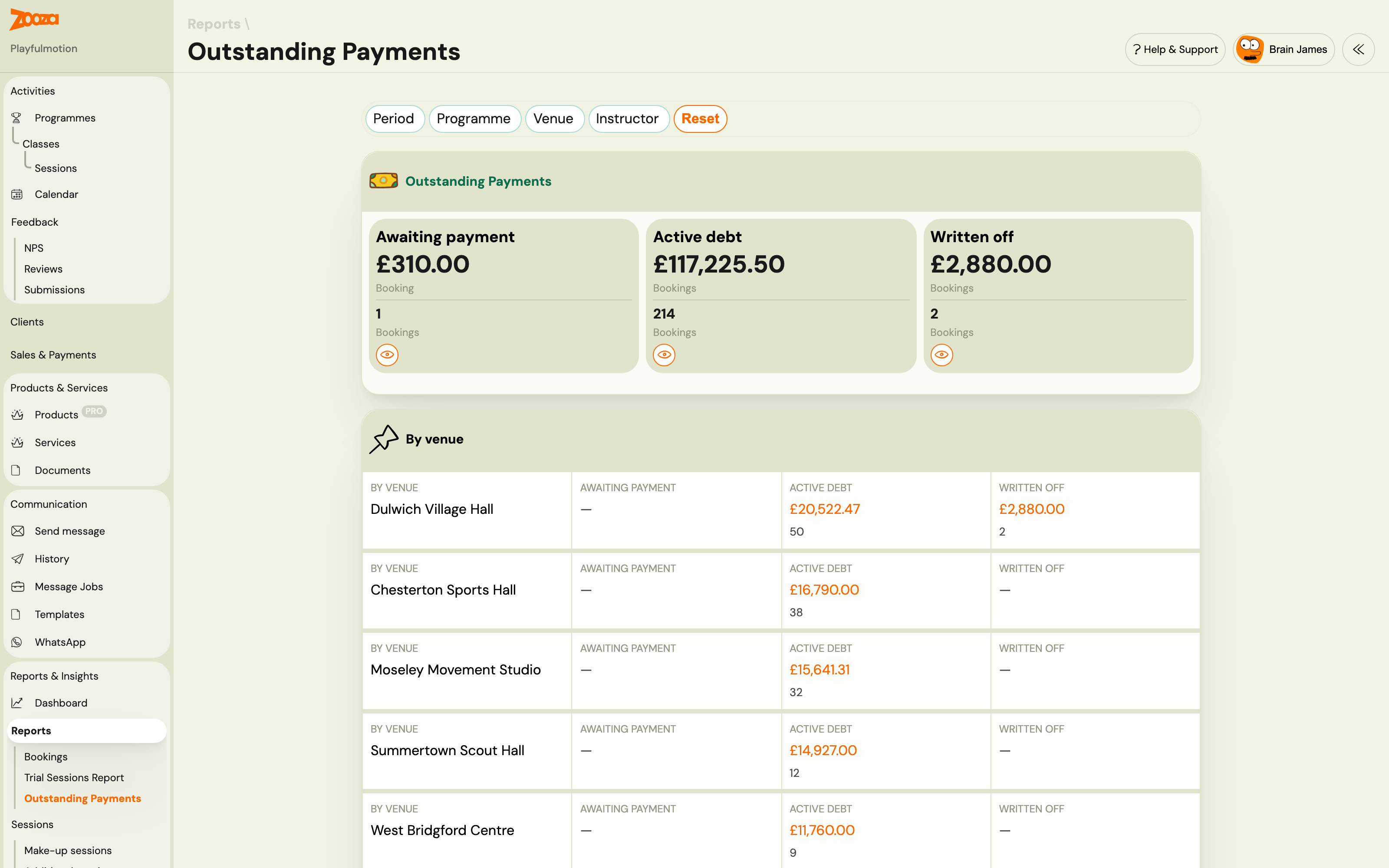
Go to Reports & Insights → Reports → Outstanding payments to see an overview of unpaid registrations grouped into three cohorts:
| Cohort | What it shows |
|---|---|
| Awaiting payment | Registrations with an outstanding balance still within the payment grace window |
| Active debt | Registrations past the grace window with unpaid debt — auto-cancel may be scheduled |
| Written off | Registrations that were auto-cancelled (status: Auto-unenrolled) |
Use this report to monitor which clients are approaching the cancellation threshold and decide whether to intervene manually before the cancellation fires.
Related
- Automatic payment reminders — email reminders and grace period settings (a separate, complementary feature).
- Registration statuses — full list of registration statuses including Auto-unenrolled.