Importing bank payments via CSV
CSV import lets you upload a bank statement export directly into Zooza to match payments against bookings in bulk. Zooza reads the file and automatically pairs each transaction to a booking using the payment reference number.
When to use CSV import:
- Your bank does not support live integration (GoCardless or email notifications).
- There was an outage in your live integration and payments from a specific period are missing in Zooza.
- You prefer to review and confirm payment batches manually rather than using automatic matching.
Before you start
Export the transaction list from your bank as a CSV file. Zooza cannot process PDF statements or Excel files — CSV only.
Most internet banking systems have an "Export transactions" or "Download statement" option. Look for the CSV or text format.
Tip: Export a complete, non-overlapping period — for example, from the day after your last import to yesterday. Avoid exporting "up to today" if you plan to run another import later; overlapping rows are caught as duplicates, but every one of them lands in your unpaired list for you to clear.
Step 1 — Go to the import screen
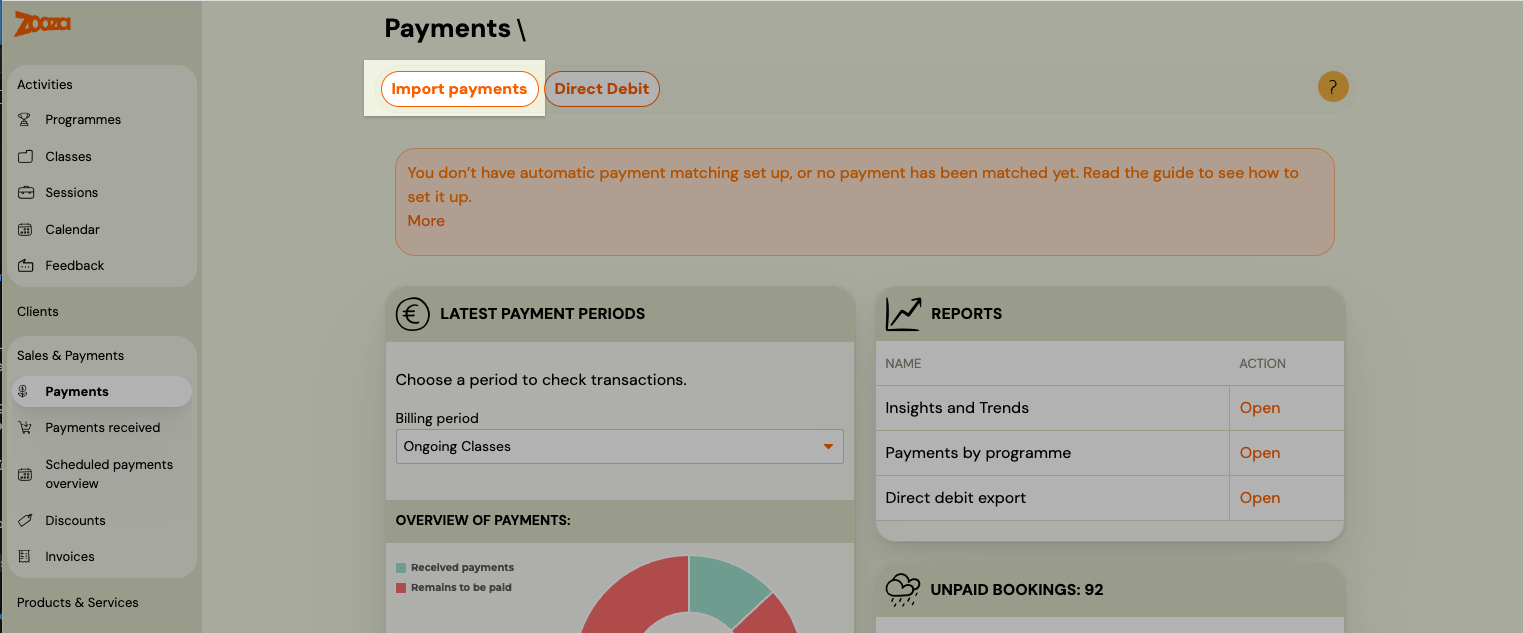
Go to Sales & Payments → Payments → Import.
Step 2 — Select your bank
From the list, select the bank the CSV file came from.
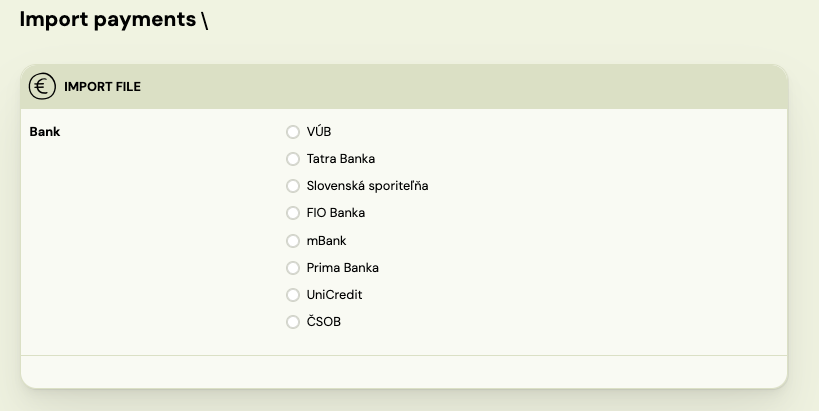
If your bank is not in the list, contact Zooza support and attach your CSV export. The team will review the format and, if possible, add your bank to the list.
Step 3 — Upload the file
Click Upload and select your CSV file. Zooza reads the file and displays a list of transactions.
Step 4 — Review matched and unmatched transactions
Zooza automatically matches each transaction to a booking using the payment reference number (variable symbol). When a matching reference is found and the booking is in a valid status for payment, the transaction is paired automatically — no manual action needed for those rows.
- Matched — a booking was found with a matching payment reference. These are ready to import.
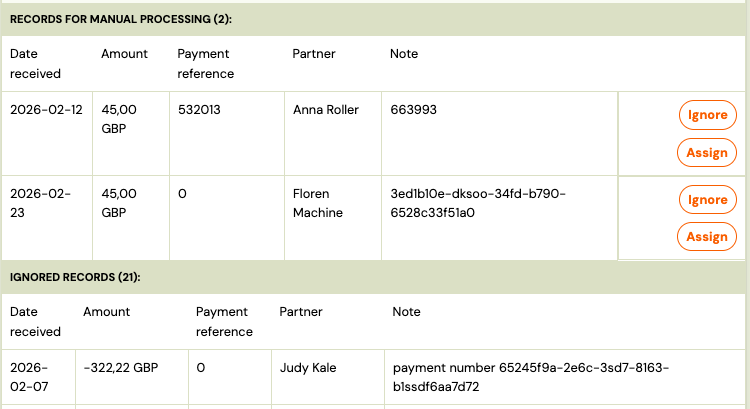
- Unmatched — no booking was found. This typically happens when the client sent the wrong or missing reference.
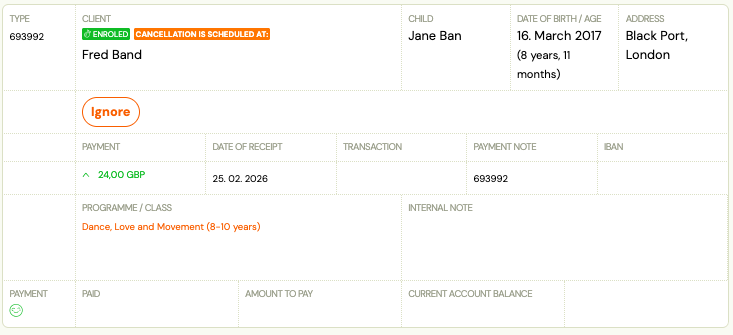
For unmatched transactions you have two options:
- Match manually — search for the correct booking and assign the transaction to it.
- Ignore — skip the transaction. It will not be imported. You can import it later if needed.
Note: If you manually assign a transaction to a booking in an unusual status (already fully paid, cancelled, or otherwise ineligible), the system flags it for manual review rather than applying the payment silently.
Step 5 — Confirm the import
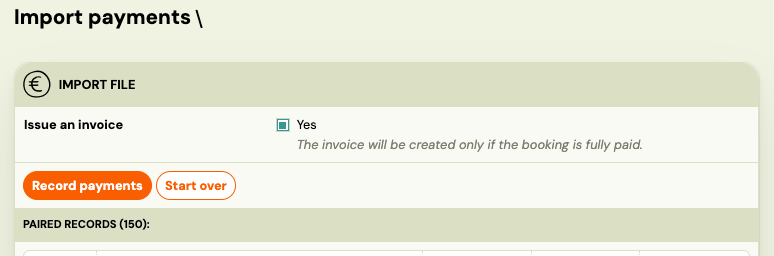
Once you have reviewed all transactions, click Confirm import.
At this step you can also choose to generate invoices for all imported payments in one action — this saves you from having to generate them one by one per booking.
After confirming, each matched payment is applied to the corresponding booking. The client receives a payment confirmation notification.
Note: You can disable the payment confirmation notification in Settings → Billing & Payments → Payment settings if you do not want clients to be notified after a CSV import.
What happens if you import the same payment twice
Imported rows go through the same pairing and duplicate checks as payments read from your bank. A row that matches a payment Zooza already knows — same variable symbol, same date, same amount — is not paired again. It ends up in the unpaired (new) or ignored list instead, so a booking is not credited twice.
That protection is also why re-importing overlapping statements makes a mess of a different kind: every overlapping row lands in Sales & Payments → Payment reconciliation as unpaired, and you are left with hundreds of rows to sort through. A company importing whole-month statements every two days ended up with over 400 "unpaired" payments this way — none of them real.
To keep imports clean:
- Import often — every couple of days is fine — but export from the bank only the days since your last import, never the whole month again.
- Keep a record of which date ranges you have already imported, and never overlap them.
- When in doubt, export up to yesterday, not up to today.
- Do not combine CSV import with automatic bank reading (email notifications, GoCardless bank feed) for the same account. If the account is read automatically, the import only produces duplicates for you to clear.
If a booking balance does look doubled, contact Zooza support rather than deleting payments yourself.
Related
- Set up how Zooza collects money from clients — configure automatic bank statement reading so imports are only needed as a fallback
- Payment Pairing for Bank Transfers — overview of all pairing methods.
- Email-notification payment matching — faster alternative that doesn't require manual file exports.
- GoCardless Integration FAQ — automatic pairing via GoCardless.
- Edit payment on booking — how to manually adjust or correct a payment on a booking.