Sibling Discount
Beta feature. Part of the Loyalty Program.
Pay-as-you-go programmes: The sibling discount is designed for subscription, instalment, and one-off payment plans. It is not recommended for Pay-as-you-go (pay per session) programmes — the discount counting logic may not behave as expected. If you run Pay-as-you-go programmes and want to use a sibling discount, contact us and tell us how you'd like it to work.
The sibling discount automatically rewards families who register more than one child. When the same parent registers a second, third, or fourth child, Zooza applies the discount at booking — no manual codes needed.
Why offer a sibling discount?
Families with multiple children are a high-value segment. When parents weigh the cost of registering siblings, the total price can become a barrier. A sibling discount:
- Removes the hesitation — a visible discount makes the decision easier for parents.
- Increases retention across siblings — once a family commits to multiple bookings, they are less likely to drop out.
- Sets you apart — not every provider offers automatic family pricing.
A typical setup: 10% off for the 2nd child, 15% for the 3rd child, 20% for the 4th child or more. You configure the tiers to match your pricing strategy.
How it works
When a parent completes a booking, Zooza counts how many qualifying registrations already exist under the same email address. The current booking counts as the Nth child.
Qualifying registrations means bookings with Registered status. Waitlist and trial bookings are not counted.
The system then finds the discount rule with the highest child threshold that is still ≤ N, and applies that discount.
Example: Rules set to 2nd child: 10%, 4th child: 20%. Parent registers their 3rd child → the 2nd-child rule applies (10%), because 3rd child is ≥ 2 but < 4.
The count is taken once, at booking
Deleting a registration does not recalculate the discount on the others. Nothing re-runs; the discount that was applied stays applied.
This surfaces on parent-and-child programmes, where a family sometimes creates two separate bookings — one for the adult, one for the child — and the second is counted as a sibling. Delete the surplus booking and the discount on the survivor is still there, usually showing as an overpayment.
Put it right on the booking itself: open the instalment and correct the amount. See Session payment adjustments.
Set up the sibling discount
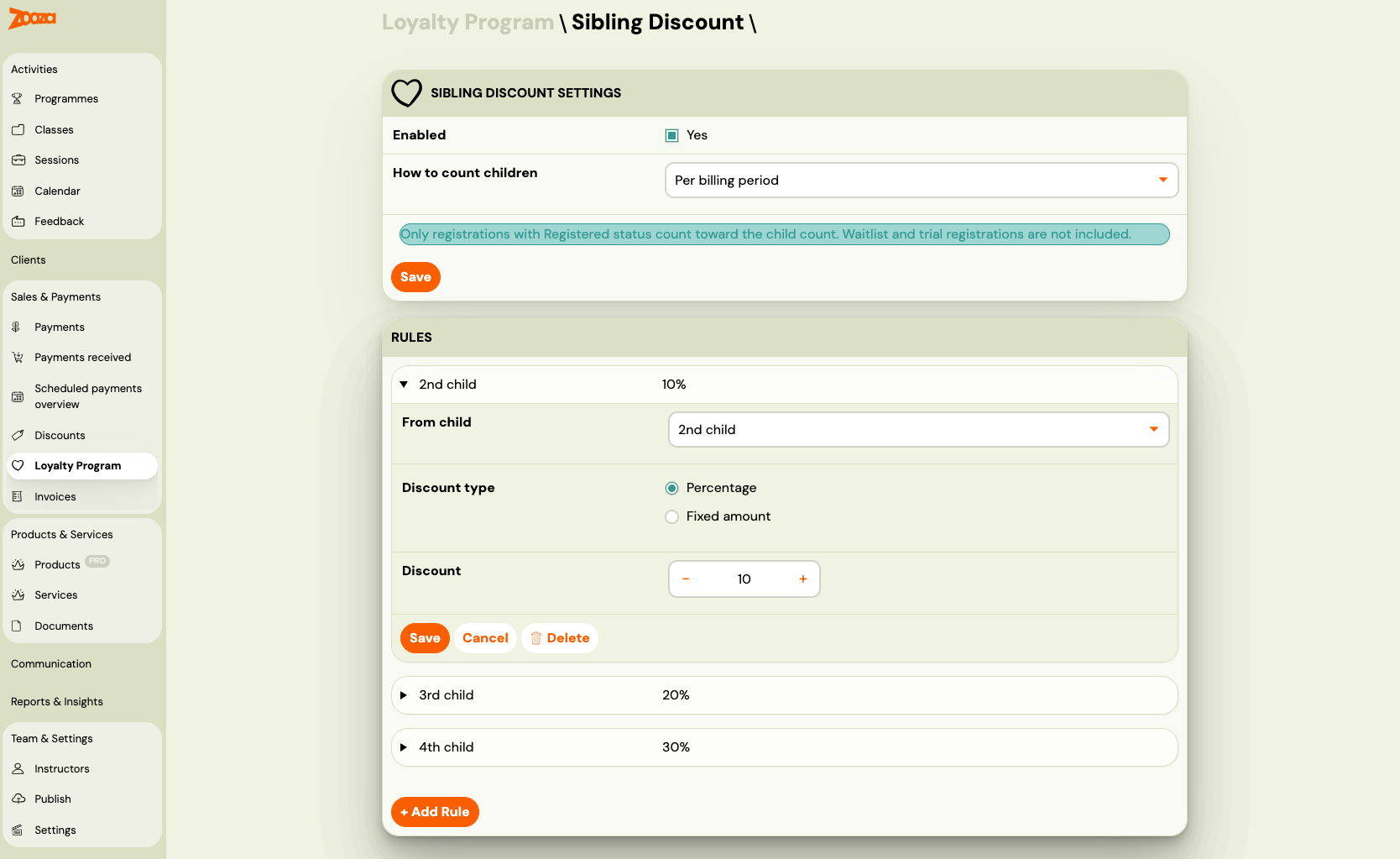
Go to Sales & Payments → Loyalty Programme → Sibling Discount.
Step 1: Choose how children are counted
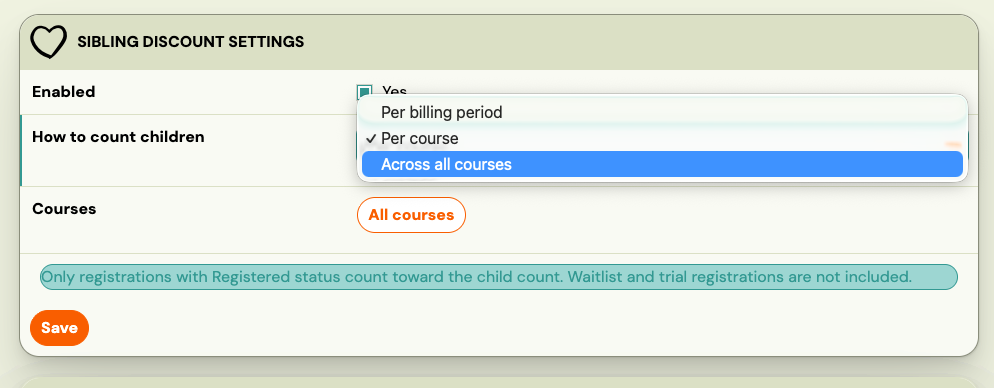
The counting scope determines what registrations count toward the child number.
| Scope | What it counts |
|---|---|
| Per billing period (default) | Registrations within the same billing period across all programmes. |
| Per course | Registrations in the same programme only. Both children must be registered in the same programme. |
| Across all classes | All registrations regardless of programme or period. |
When you select Per course, a course picker appears so you can choose which programmes participate.
Step 2: Add discount rules (tiers)
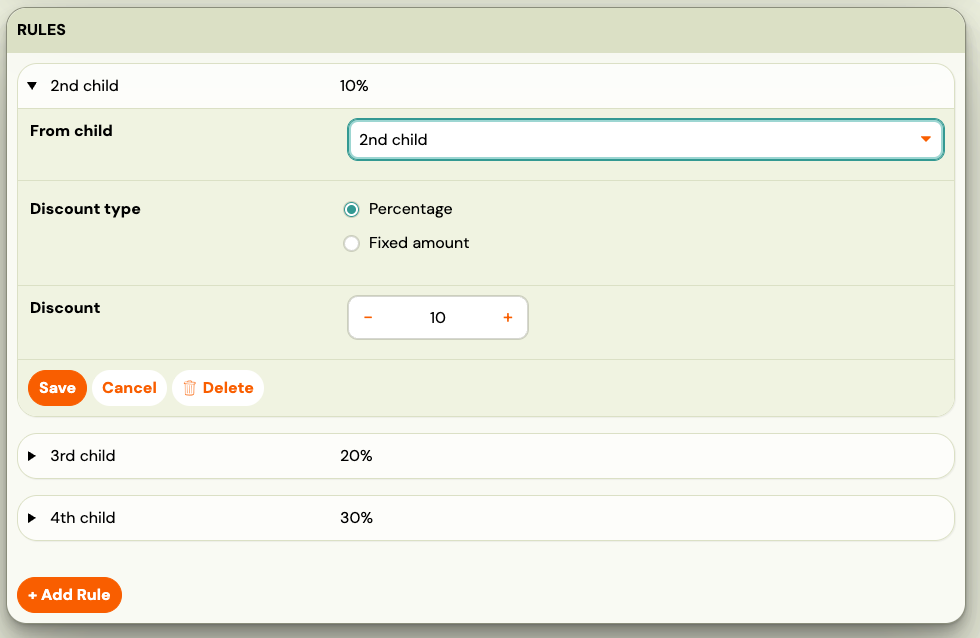
Each rule defines the discount for a specific child threshold. You can add up to four rules — one for each of: 2nd, 3rd, 4th, and 5th child.
Click + Add Rule. A rule form opens with the first available child number pre-selected.
For each rule, set:
- Name — an optional label for this rule (e.g. "2nd child discount"). Useful when you have multiple rules and want to identify them at a glance.
- From child — which child number this tier starts at (2nd, 3rd, 4th, or 5th)
- Discount type — percentage or fixed amount
- Discount value — the amount to deduct
Click Save Rule. Repeat for each tier.
Tips:
- You do not need to define a rule for every child number. A single rule for the 2nd child applies to all subsequent children unless you add a higher tier.
- Rules with a lower child number automatically cover all children above them if no higher rule exists.
- Each child number can only be used once across all rules.
Step 3: Enable the discount
Once you have at least one rule, the Enabled toggle becomes active. Check it and click Save Settings.
The sibling discount is now live. Zooza applies it automatically at the next qualifying booking.
Discount rules in detail
Which programmes are eligible?
By default (counting scope: Per billing period or Across all classes), the discount is evaluated across all your programmes. No additional programme filtering is needed.
When Per course scope is selected, you choose specific programmes via the course picker. Only bookings in those programmes count toward the child number, and only those programmes receive the discount.
Tier evaluation logic
Rules are evaluated by child threshold from highest to lowest. The highest rule that still applies wins.
| Rules | Booking scenario | Applied discount |
|---|---|---|
| 2nd child: 10% | Registering 2nd child | 10% |
| 2nd child: 10%, 4th child: 20% | Registering 3rd child | 10% (2nd-child rule is the highest applicable) |
| 2nd child: 10%, 4th child: 20% | Registering 4th child | 20% |
| 2nd child: 10%, 4th child: 20% | Registering 1st child | No discount |
Fixed amount vs percentage
Both discount types are supported. Fixed amount discounts are displayed with your currency (e.g., €10.00) in the rules list.
When stacking discounts across models (see Loyalty Program — combination mode), each discount is calculated from the original price before any other loyalty discount is applied.
How discounts apply to payment plans
| Payment plan type | How the sibling discount is applied |
|---|---|
| One-off | Deducted from the total in a single discount row. |
| Instalments | Distributed proportionally across all scheduled payments. |
| Membership | Applied on every billing cycle renewal for as long as the membership is active. |
| Pay per session | Applied individually to each session. |
Applying discounts to manual registrations
The sibling discount is applied automatically only when a client books through the booking widget. When you create a registration manually from the admin panel, the loyalty discount is not applied automatically.
If you want to apply a family discount to a manually created registration, you have two options:
Option 1 — Payment plan with a built-in discount
Assign a payment plan that includes a percentage discount (configured in Programmes → Settings → Price and payment → Payment plans). This is the cleanest way to apply a consistent discount to a specific registration.
Option 2 — Discount code
Create a one-time discount code and apply it to the booking. Discount codes work independently of the loyalty program and are a valid way to apply a sibling discount manually when needed. See Discount code.
Both options are complementary to the loyalty program — they do not replace it and do not interfere with automatic discount evaluation on online bookings.
Known limitations while the feature is in beta
A misspelled name can be counted as a second child. Zooza matches children by their recorded details. If a parent registers the same child twice with the name spelled differently — without diacritics, with a nickname, or with a typo — the system sees two children and grants the sibling discount to a family that has only one. The discount is real money and it is applied automatically at checkout, so you find out afterwards.
This is the main reason to think before switching the discount on mid-season:
- Put a clause in your terms allowing you to withdraw a discount that was granted in error. Without it you have no clean way to correct the charge.
- Watch the first weeks after enabling it. Registrations with a single child but a discount applied are the ones to check.
- Restricting the discount to logged-in clients removes the problem, because a logged-in client's children are already known records. The trade-off is real: parents arriving from a direct booking link do not log in first, so you will lose discounts you meant to give.
Automatic de-duplication is being worked on. Even so, no automatic matching will catch every case — a parent who enters a nickname instead of a name is indistinguishable from a second child by any method.
The discount applies to the second person onward, not the first. A client enrolling themselves alongside their child is not covered by a sibling rule, because the rule rewards the additional registration rather than the family as a whole.
Disable or delete the sibling discount
To disable without losing your rules: uncheck Enabled and click Save Settings. The rules are preserved and you can re-enable later.
To delete a rule: open the rule by clicking its summary row, then click Delete in the rule form. If you delete the last rule, the model is automatically disabled.
Frequently asked questions
Does the 1st child ever get a discount? No. The sibling discount starts from the 2nd child. The first child always pays the full price.
What if a parent registers 5 children but I only have a rule for 2nd and 3rd child? The 3rd-child rule applies to all children from the 3rd onward (4th, 5th, etc.) unless you add a higher tier.
Does the discount apply if one child is on the waitlist? No. Waitlist and trial registrations do not count toward the child number.
Can siblings be in different programmes? Yes, when counting scope is Per billing period or Across all courses. When scope is Per course, both children must be in the selected programme(s) for the count to apply.
Can I offer a sibling discount on only some programmes? Use the Per course scope and select the programmes you want to include.
What happens if I change my rules after existing bookings? Existing bookings are not affected. The new rules apply only to bookings made after the change.
For more, see Loyalty Program FAQ.