Payments and Billing FAQ
Where do I find invoices?
There are two different types of invoices in the Zooza context:
Client invoices — invoices generated for your clients (for their bookings): Go to Sales & Payments → Invoices. You can filter by date, search by client, and download individual invoices or the full batch as a ZIP.
Zooza subscription invoices — invoices for your own Zooza subscription (what you pay Zooza): Go to Settings → Subscription → Manage subscription → Details → Invoices. This opens the billing portal where past invoices can be downloaded.
A client asks for a payment link — what do I send?
For a booking, the payment link is the link to the client's profile. There is no separate one-off payment URL per instalment. The client opens their profile, sees what is outstanding and pays there — and the same link keeps working for the next instalment, so you are not issuing a new one every month.
The dynamic tag is *|WIDGET_PROFILE_URL|*. Drop it into any
email or message template and each recipient gets their own.
It signs the holder in. The link carries a token, so anyone who opens it is inside that client's profile. Send it to the client, not into a group chat, and do not paste one client's link into a template as fixed text — use the tag, which fills in the right link per recipient.
Products are the exception. A gift voucher or entry pass sold on its own has its own checkout link, copied from the product itself — see Share a course or class registration link.
"Send them an invoice" — do you mean the document, or the money?
Worth separating, because the same sentence covers two different jobs and only one of them involves an invoice.
| What you actually want | What to do |
|---|---|
| The client should pay what they owe | Send a message with the profile link — see above. Or let the automatic payment reminders do it: Automatic payment reminders. |
| The client needs the document, for their records or their employer | Generate or resend the invoice — below. |
On an outstanding booking it is nearly always the first. People say "send them an invoice" meaning "tell them they owe us and make it easy to pay", and an invoice PDF on its own does neither particularly well: it is a record of a charge, not a prompt, and it carries no link to pay.
How do I resend an invoice to a client?
When you generate an invoice, it is automatically emailed to the client. If you need to resend it (for example, after making a correction):
- Open the booking.
- Click the pencil icon next to the invoice.
- Check Send invoice to client via email.
- Save.
The updated invoice is sent to the client's email address on record.
How do I export payments or refunds to Excel?
Go to Sales & Payments → Transactions → Export. The export includes received payments.
To export refunds specifically, use the same section and apply the refund filter before exporting. The export reflects whatever is currently visible in the list — so filter first, then export.
How do I download all invoices at once?
Go to Sales & Payments → Invoices. Apply any filters you need (date range, etc.), then click Download all. This downloads all filtered invoices as a single ZIP file.
For bulk XML export or API-based access, use the Zooza API (GET /v1/customer_invoices and GET /v1/customer_invoices/download). Contact support or see the developer documentation for details.
What does a negative balance mean on a booking?
In Zooza, the balance shows what the client still owes (positive) or what they have overpaid (negative).
- Positive balance (e.g. €50) — the client owes money. The outstanding amount has not been paid.
- 0 — fully paid.
- Negative balance (e.g. −€30) — the client has credit. They paid more than they owed, or a refund or manual credit was applied. You may owe them a refund, or the credit can be left on the account to offset future invoices.
Important: A negative balance means the client has credit, not that they owe money. This is the opposite of what many people intuitively assume. If you see −€30, the client is €30 ahead, not €30 in arrears.
The figure is not always shown with a sign. In some places the amount appears bare, so an overpayment looks identical to a debt. Before chasing a client for a number you do not recognise, open the bookings behind it — an unexplained total is often two bookings that were paid twice over, not money owed. A dance school saw "1,300 Kč" on a class overview, searched for unpaid bookings and found one for 325 Kč; the 1,300 was two bookings that had overpaid.
Balance figures are being relabelled with a state word — Overpaid, Outstanding or No debt — precisely so that the direction no longer depends on reading a sign. Where you see the word, trust it over the sign. The booking detail is always the authority; list and tile figures are recalculated in the background and can lag it by minutes to half an hour.
The booking shows more debt than this month's fee — why?
Because the next instalment already exists. A scheduled payment is created a set number of days before its due date — by default 15 — and is added to the booking's balance the moment it is created, not on the due day.
Example: a membership of €71 a month with a €25 registration fee in the first month. On 16 September the booking shows €167 outstanding: September's €96 (still unpaid) plus October's €71, which is due on 1 October and was therefore created on 16 September.
The number of days is the "days due" value in Settings → Billing & Payments → Payment settings; leaving it at 0 keeps the 15-day default. Shorten it if you would rather parents not see next month's instalment so early — bearing in mind that the "upcoming payment" and "payment created" notifications count from the same creation date (see Automatic payment reminders).
Can I make payment compulsory at booking — set the grace period to 0?
You can set the grace period to 0 (Settings → Billing & Payments → Payment settings, the first field; also per programme under Price and Payment), and you probably should if you do not want an "Awaiting payment" window. But be clear about what it does and does not do.
What it does: a booking with an outstanding balance is marked Unpaid straight away instead of sitting in Awaiting payment.
What it does not do: it does not force anyone to pay. The booking is still created. Card payment happens after the booking exists — that is the order of events everywhere online — so a parent who closes the tab, has no card to hand, or whose card is declined still leaves you a booking with nothing paid. Nothing cancels it automatically unless you switch on auto-cancel of unpaid bookings, and most providers would rather talk to the parent first.
For a subscription this matters more than it looks. The card is only stored once the client has made the first payment themselves, so until they do, there is nothing to charge and no future instalment can be collected. In Stripe those bookings show as incomplete. The fix is to get that first payment made: send them to their client profile (the WIDGET_PROFILE_URL tag makes a personal link), and make paying as easy as possible — having Apple Pay and Google Pay switched on in Integrations → Stripe measurably helps.
Why a payment is scheduled weeks before it is due
A payment plan shows two dates per instalment and they are not the same thing:
- the scheduled date — when Zooza raises the payment and, on direct debit, hands it to the provider
- the due date — when you expect the money to be on your account
Zooza raises each instalment a number of days before its due date, taken from Days before booking is marked unpaid in Settings → Billing & Payments → Payment settings. With the field left at 0 that number is 15, which is why a payment due on 6 October appears as scheduled on 21 September.
The gap exists for direct debit. On the scheduled date the collection begins, and GoCardless needs several working days to take the money and confirm it has cleared. The gap is the buffer that lets that finish before the due date. Shorten it too far and payments still work, but more of them confirm after the due date and show as overdue in the meantime; somewhere between 5 and 10 days is comfortable.
To stop a payment, the scheduled date is the one that matters, not the due date. Once the scheduled date passes and the payment has gone to the provider, it is on its way. A client who cancels a week before the scheduled date can be stopped cleanly.
Changing the number affects new instalments only. Payments already sitting in an existing plan keep the dates they were given. And remember the same field also governs the Awaiting payment grace window, so shortening it tightens both.
Can I split one payment between two bookings?
Not in halves. A received payment can be moved to another booking, but only as a whole. When a parent pays for two children with one transfer against one child's variable symbol:
- Open the booking that received the payment, find the transaction in the payments list and choose Edit payment (correction). Set the correction to the amount that belongs to the other child — half, if they split it evenly. The first booking now shows only its own share.
- Open the second child's booking and Add payment for the other half, with a note saying where the money actually arrived.
Do not use Refund for this — nothing is being returned. See Payment correction vs refund.
A client clicks "pay" and is asked to book all over again
The parent has an unpaid balance, goes to settle it, and lands on a booking form instead of a payment. Two different things cause this and they need different fixes.
You sent them the booking link. A booking page is for new registrations. An existing parent opening it does not get their outstanding balance — they get a fresh booking, and now you have two. Always send a parent with something to pay to their client portal, not to a class booking page. The portal recognises them, lists the bookings they already have and takes them to what is owed. The WIDGET_PROFILE_URL tag puts a personal link to it straight into an email.
Or the portal address configured for your widget is wrong. If the parent reached the portal by themselves and the pay button there still throws them into a booking form, the profile URL stored in your widget settings is pointing at the wrong page. It is set under Team & Settings → Publish on the widget. If you cannot see what is wrong with it, send support the registration where it happened — this is a configuration fault, not something the parent is doing.
Dedicated booking pages for individual programmes keep working alongside the portal; they are for marketing and for new customers, and nothing needs changing about them.
What is the difference between "Awaiting payment" and "Unpaid"?
Both statuses mean the client owes money, but they indicate different urgency:
- Awaiting payment — the client has an outstanding balance and is still within the allowed payment window. The deadline has not passed. This is a normal, expected state for a booking that was just created.
- Unpaid — the payment window has closed. The balance is overdue.
The length of the grace window is set in Settings → Billing & Payments → Payment settings under Days before booking is marked unpaid (Slovak: Počet dní pre vystavenie splátky). If this is set to 20, every new booking with a balance enters Awaiting payment for 20 days from registration, then automatically becomes Unpaid.
The default value is 0, and 0 does not mean the same thing everywhere — this is the single most common source of confusion about this field:
| Where it applies | What 0 does |
|---|---|
| The Awaiting payment window on a booking | No grace window. A booking with a balance goes straight to Unpaid. |
| When a scheduled payment is raised ahead of its due date | Treated as 15 days, not as "no gap". See Why a payment is scheduled weeks before it is due. |
| The due date written on an invoice | The invoice is due immediately. |
So a provider who sets the field to 0 expecting instalments to be raised on the day they fall due still sees them appear a fortnight early. Put an actual number in to change that.
Why are my bookings showing "Awaiting payment" when they used to show "Unpaid" immediately?
If you have a non-zero value in Settings → Billing & Payments → Payment settings → Days before booking is marked unpaid, your bookings will now enter Awaiting payment for that number of days before becoming Unpaid.
Before May 2026, this setting only affected bookings with a payment schedule (instalments). From May 2026, it applies to all bookings with an outstanding balance.
If you want bookings to go straight to Unpaid (the original behaviour), set the field to 0.
What is the "tolerance period" (or grace period) for payments?
The tolerance period is the same as the "Awaiting payment" window described above. The field controlling it is called Days before booking is marked unpaid in Settings → Billing & Payments → Payment settings.
Two important clarifications:
- It is a grace window, not a due-date shift. Setting 14 days means a booking stays in "Awaiting payment" for 14 days before Zooza marks it as overdue ("Unpaid"). It does not change the scheduled due dates on a payment plan — those are set independently per instalment.
- It does not postpone instalment collection. If a client has a payment plan with a fixed due date, that due date is unaffected by the tolerance period setting. The tolerance period only controls when the status changes from "Awaiting payment" to "Unpaid".
Since 7 September 2026 it also sets the due date on your invoices. That is new: the setting used to govern booking status and nothing else, while each invoicing engine invented its own due date — Faktury Online applied its own 14 days, Fakturoid, Xero, ABRA Flexi and Oblio used 30, SuperFaktura and SmartBill used the issue date, and Zooza's own invoices had none at all. Nine engines, five different answers, none of them the number you had typed into the setting.
They all read it now. If your invoices have been going out with a due date you did not choose, this is where it came from, and this is where you change it.
Instalment due dates on a payment plan are still set per instalment and are not affected.
Does "Awaiting payment" status automatically send reminder emails to clients?
No. The Awaiting payment status is for your internal tracking only — it does not trigger any emails.
To send email reminders to clients with outstanding balances, you must configure a Payment Reminder action on the programme under Programme → Settings → Price and payment → Payment Reminder Settings. Without this action, bookings will silently move from Awaiting payment to Unpaid when the deadline passes — no notification is sent.
See Automatic payment reminders for full setup instructions.
What happens when a client registers but does not pay?
The booking is created even if the payment fails or is skipped. This ensures you still capture the lead. The parent can complete the payment later via their Client Profile.
Depending on your Days before booking is marked unpaid setting, the booking will be in Awaiting payment (if a grace window is set) or immediately in Unpaid (if the setting is 0).
You can configure payment reminders per programme to automatically follow up with clients who have not paid. After a set number of reminders, the system can auto-remove the booking.
How do payment reminders work?
Payment reminders are configured per programme under the payment settings. You set:
- How many reminders to send.
- The interval between reminders.
- Whether the system should automatically cancel the booking after all reminders expire.
Go to Programme → Settings → Price and payment → Payment Reminder Settings to configure this. For a full walkthrough, see Automatic payment reminders.
How do I issue a refund?
Refunds are handled directly in Zooza:
- Go to Bookings → Detail → Payments.
- Select the transaction.
- Click Refund (full or partial).
The refund is processed through Stripe automatically. You do not need to log into Stripe separately.
How does monthly billing (aliquot) work?
When a parent joins mid-month, the system can calculate a prorated first payment based on the remaining sessions in that month. This is called aliquot billing.
- Aliquot ON: First payment is adjusted for the number of sessions remaining. Subsequent months are the full fixed amount.
- Aliquot OFF: Every payment is always the same fixed monthly amount, regardless of when the client joins.
Choose the option that fits your business model. Most clients prefer aliquot OFF for simplicity during launch, and turn it ON later.
Can I retrospectively generate invoices?
Yes. You can disable automatic invoice generation during launch, accept bookings and payments, and then generate invoices later once your accounting settings (e.g., VAT rates in Xero) are fully configured.
How do I handle a client who forgot to use a discount code?
The client can usually apply it themselves. Send them back to their profile to pay the outstanding balance — the payment screen has a discount code field. See applying a code after booking for what they will see and when the field appears.
If that is not possible — the booking is already paid in full, or the code no longer applies — reduce the next instalment by the discount amount and send the client a note explaining the adjustment. That is simpler than editing past payments.
How do I mark a booking as paid when payment was received outside the system?
If a client paid by direct bank transfer or you credited them manually, you can adjust the payment status in their booking detail. Go to Bookings → Detail → Payments and record the manual payment to clear the outstanding balance.
When should I use "Edit payment" vs "Refund"?
Use Edit payment for corrections — for example, when the amount is wrong or a payment was assigned to the wrong booking. Use Refund only when you are actually returning money to the client.
Using Refund incorrectly (e.g., to zero out a manual entry) creates phantom transactions that appear in your financial reports and distort totals. If you need to correct or move a payment between bookings, a debt correction is the preferred approach.
Do I need a separate payment template for every programme?
No. This is the most common source of confusion when setting up payments.
A payment template defines when and in how many parts a client pays — monthly, quarterly, annually, after N sessions, or a fixed number of instalments. It does not contain the price. The amount comes from each programme's own price setting, and any discount on the template is calculated as a percentage or fixed sum off that price.
So if you run six programmes and want to offer monthly, quarterly and annual payment on each, you create three templates, not eighteen. You create them once under Settings → Billing & Payments → Payment schedule templates, then switch them on for each programme under Programmes → programme → Settings → Price and payment → Payment Frequency.
Each programme keeps its own price. The same "Monthly" template produces different instalments for a €300 programme and a €450 one.
You only need more templates when the terms differ — for example a 5% early-payment discount on one group of programmes and 10% on another, or a sibling discount variant. Different prices alone never require a new template.
See Payment templates creation for the full setup.
What happens to payment schedules when I copy bookings to a new term?
Payment schedules are not automatically carried over when you copy bookings to a new term. Because the client did not go through the booking form and select a payment template, the system does not assign one.
After copying bookings, you must manually apply the correct payment template to each booking. Without this step, the system calculates the price as the base rate multiplied by the number of sessions, which may differ from the expected instalment amount.
How does pro-rata (aliquot) pricing work for late bookings?
When a client registers after the term has started and aliquot pricing is enabled, the system calculates the price as:
remaining sessions ÷ total sessions × full price
This adjusted price is then split according to the active payment template (e.g., monthly instalments). Zooza supports four calculation methods — session-based, day-based, no value, and full price — each suited to different business models.
For full configuration details and common scenarios, see Late bookings (pro-rata management).
Why does the payments dashboard only show 10 unpaid bookings?
The Unpaid Bookings widget on the Payments dashboard displays only the first 10 unpaid bookings as a quick overview. It is not intended to show every outstanding balance.
To see the full list of unpaid bookings:
- Go to Bookings.
- Use the status or payment filter to show only unpaid or partially paid bookings.
- The filtered list shows all matching bookings with full pagination.
How do I set up a Netflix-style recurring membership?
For ongoing memberships where clients pay monthly and stay enrolled indefinitely (e.g., football club, dance studio, gym), use the Membership price type with automatic late booking approval.
- Set the programme price type to Membership.
- Under Late bookings, select Automatically confirmed.
- Set
Aliquot price calculationto Full programme price. - Uncheck
Include Initial Full Scheduled Paymentso new joiners are not charged a full instalment immediately on top of their first scheduled payment. - Create a monthly payment template with
Day of the month when the payment is dueset to 0 (charges on the same day each month that the client joined).
For the full step-by-step guide, see Membership Subscription Setup.
Why does the QR code in my payment email not work?
The QR code in payment emails pulls recipient details from your billing profile. If the profile name does not match the bank account holder name, some banking apps will reject or fail to process the QR code when scanned.
To fix this:
- Go to Settings → Billing & Payments → Invoice profiles.
- Open the relevant billing profile.
- Verify that the account holder name and IBAN match your actual bank account details exactly.
- Save and resend the payment notification to the client.
For full details on billing profiles, see Billing and invoicing.
Why is there no QR code at all in my payment emails?
If the QR code is completely absent from payment instruction emails (not just broken when scanned), the most likely cause is a missing IBAN or SWIFT/BIC in the billing profile.
Check these in order:
- Billing profile has no IBAN — Go to Settings → Billing & Payments → Invoice profiles, open the active profile, and confirm that IBAN and SWIFT/BIC are filled in. Both are required for the QR code to generate.
- Programme uses a different billing profile — If the programme has its own billing profile assigned (in Programme → Settings → Price and payment → Invoicing), check that profile's IBAN and SWIFT/BIC too.
- Template does not include the QR code tag — Open Communication → Templates → the relevant payment template. Confirm the template body contains the
*|QR_CODE|*tag. If it was removed or never added, the QR will not appear.
QR payment codes are currently available for accounts based in SK, CZ, and other SEPA markets. If your account is in a different region, the
*|QR_CODE|*tag may not generate an image regardless of the settings.
How do I set up billing profiles and invoicing?
Go to Settings → Billing. There you can enable automatic invoice generation, set up your default billing profile (company name, IBAN, address), and create additional profiles for multi-entity businesses. Each programme can be assigned a specific billing profile. For the full setup guide, see Billing and invoicing.
Can I generate an invoice manually for a single booking?
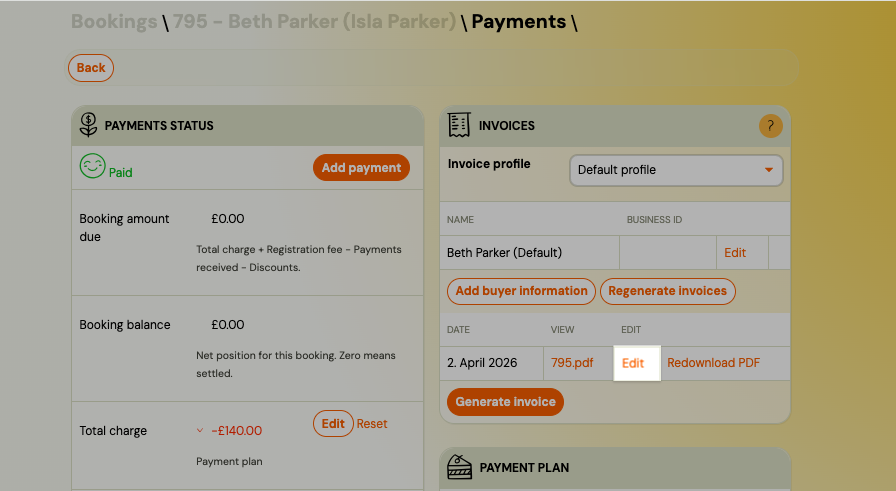
Yes. Open the booking detail, click Show payments, and in the Invoices section click Generate invoice. Select the billing profile to use and confirm. The invoice is generated immediately and emailed to the client. This works regardless of whether automatic invoice generation is enabled.
Warning: Clicking Generate invoice always creates a new invoice. If you need to change the price, discount, or other booking details, use Edit on the booking — do not click Generate invoice again. Clicking it a second time creates a duplicate (including a €0 invoice if the booking has no outstanding balance at that moment).
The booking shows a payment but the invoice leaves it out
Nearly always the invoice's date range, not a missing payment.
An invoice collects the payments that fall inside a period, and when you open it for editing there are two date pickers that set that period. A payment that arrived before the start, or that was moved onto this booking from another one and kept its original date, sits outside the window and is not counted — so the invoice shows a balance still owing while the booking's payment list plainly shows the money.
What to do: open the invoice, widen the two dates until they cover the payment, and save. If every payment is visible on the booking and the invoice still misses one after that, send support the booking — at that point it is worth a look.
This comes up most after moving a client between classes, because the payment travels to the new booking while keeping the date it was originally made.
I accidentally generated a duplicate or €0 invoice — what do I do?
This typically happens when Generate invoice is clicked after a price or discount was already adjusted, or clicked more than once.
Zooza does not delete invoices or generate credit notes. Handle the correction in your invoicing system:
- Fakturoid / Számlázz — issue a cancellation (storno) invoice against the incorrect one, or delete it if it has not been sent yet.
- Xero / Abra Flexi / Smartbill — void or delete the incorrect invoice in that system.
Correcting it in your invoicing system has no effect on the Zooza booking — the payment record and balance stay as-is.
To avoid duplicates: if you need to change a price or apply a discount after a booking is created, always use Edit on the booking — not Generate invoice.
What is the difference between automatic and manual invoice generation?
Automatic — Zooza generates an invoice every time a payment status changes to "paid" on a booking. A single booking can produce multiple invoices if the client pays in instalments. Manual — you generate invoices one at a time from the booking detail. You can use both: leave automatic generation off during setup, and generate invoices manually or enable it later.
Does Zooza support credit notes or debit notes?
- Credit note (reduces the original invoice — e.g. correcting an overcharge, issuing a partial refund on an invoice)
- Debit note (increases the original invoice — e.g. charging an additional amount not included originally)
Zooza does not have a dedicated credit note or debit note button. What is available depends entirely on which invoicing system you use:
| Invoicing system | Fix a wrong invoice | Credit note | Debit note |
|---|---|---|---|
| Zooza built-in | Edit the invoice (date, period, description only) — does not change the payment | Not supported | Not supported — increase the debt on the booking instead |
| Xero | Edit or void in Xero directly; create a credit note in Xero | Supported in Xero | Supported in Xero |
| Abra Flexi | Edit or delete in Abra Flexi | Supported in Abra Flexi | Supported in Abra Flexi |
| Smartbill | Edit or delete in Smartbill | Supported in Smartbill | Supported in Smartbill |
| Számlázz | Cannot modify — issue a cancellation (storno) invoice and reissue a new one | Storno invoice in Számlázz | Not applicable — issue a new invoice |
The client cancelled and wants their money back — in what order?
A refund usually needs three separate things doing, and only one of them happens in Zooza.
- The credit note is raised outside Zooza and sent to the client, per the table above.
- Record the refund on the booking in Zooza. For anything not taken through a payment gateway this is an administrative entry only — no money moves. Put a note on it saying you sent the money back by hand, so the next person reading the booking knows the transfer already happened.
- Then cancel the booking. That frees the seat and stops the automatic emails — the reminders and notifications that would otherwise keep arriving for a client who has left. A cancelled booking still exists and can be reactivated.
Cancel rather than delete. Deleting takes the payment history with it out of your reports, and that history is the record of a refund you have just issued. Deleting is for bookings created in error or duplicated — never for one that carried money. See What does "Cancelled" mean — and is it the same as deleted?.
Important: Changes made to invoices in external systems (Xero, Abra Flexi, Smartbill, Fakturoid, Oblio) do not sync back to Zooza automatically. Use the manual refresh button on the invoice in Zooza to pull the latest state. Zooza always keeps the original invoice reference it generated.
To fix a wrong invoice — general process
- Identify which invoicing system you use (Settings → Billing & Payments → Invoices).
- If using Zooza built-in: click the pencil icon next to the invoice on the booking detail. You can correct the period, date, payment method, and description. This does not change the payment amount.
- If using an external system: open the invoice in that system and apply the correction there (edit, void, credit note, or storno — depending on the system). The corrected version will not appear in Zooza.
- If the payment amount itself needs to change, adjust the debt on the booking in Zooza separately — see Edit payment on booking.
To increase the amount owed (debit note equivalent)
Zooza does not issue debit notes. To charge a client an additional amount:
- Open the booking detail.
- Adjust the outstanding debt manually — see Edit payment on booking.
- If an invoice is required for the additional amount, generate a new invoice for that booking once the additional payment is recorded.
Does Zooza support e-invoicing (e-faktúra)?
Not in the legal sense used by the new government mandates. Zooza generates PDF invoices — through a built-in engine or through your connected accounting system. It does not generate structured EN 16931 / Peppol XML invoices, send them over the Peppol network, or report invoice data to a tax authority. A PDF emailed to a client does not satisfy a structured e-invoicing mandate.
If you do need structured e-invoices, they have to be issued by an invoicing service that supports e-invoicing, connected to Zooza as your invoice engine. Tell us which service you use — if it is not on our list yet, we can look at adding it as an integration.
See Government e-invoicing mandates and Zooza for who the mandates actually cover. Short answers: E-invoicing FAQ.
Slovakia's 2027 e-invoicing mandate — do I need to do anything?
Probably not. From 1 January 2027 the Slovak mandate applies to VAT-registered businesses invoicing other businesses (B2B) or public bodies (B2G). Invoices issued to a parent or participant as a private individual are B2C, which is explicitly excluded. If all your Zooza invoices go to individuals, nothing changes for you.
You do need to plan if you are VAT-registered in Slovakia and invoice companies — corporate training, an employer paying for a place — or invoice schools and municipalities. Those invoices must be issued through a service that supports e-invoicing (an accredited Peppol provider), not through Zooza's built-in invoicing. Tell us which service that is and we can look at connecting it as an invoice engine. Note that from 2027 every Slovak business, including non-VAT payers, must be able to receive an e-invoice.
Full country-by-country breakdown: Government e-invoicing mandates and Zooza. This is general information, not tax advice — confirm your obligations with your accountant.
What happens to a client's scheduled payment when I cancel a session?
It depends on the payment type:
- Pay-as-you-go — the system automatically removes the payment obligation for that session. The client's next scheduled payment is reduced by the session unit price. No action is needed from you.
- Fixed monthly / instalment plan — cancelling a session does not automatically reduce the client's payment. Use Adjust session payments from the Calendar bulk edit to manually credit the affected clients. See Session payment adjustments.
In both cases, the client is not notified automatically when their payment amount changes due to an adjustment.
Can I manually credit or debit a client's scheduled payment?
Yes. Open the booking, go to Payment plan, and click on the specific scheduled payment. In the Adjustments section, enter a positive amount (credit — reduces what they owe) or a negative amount (debit — increases what they owe), add a description, and click Save.
For the full walkthrough, see Session payment adjustments.
Can I credit multiple clients at once after cancelling a session?
Yes, using bulk edit in the Calendar:
- Go to Calendar and select the cancelled sessions.
- Click Bulk edit → check Adjust session payments.
- Select Credit sessions, set the amount, and confirm.
Zooza applies the credit to the next scheduled payment for each affected client. See Session payment adjustments.
What if a client has no upcoming scheduled payment when I apply a bulk credit?
If a client's payment plan has already ended or all their scheduled payments have been processed, the adjustment cannot be applied and is skipped for that client. You will need to handle any compensation for those clients manually (e.g. by recording a manual payment or issuing a refund).
Can I reverse a manual payment adjustment?
Yes. In the Adjustments list on the payment detail, click Reverse next to the adjustment. A new entry with the opposite amount is created. The original adjustment remains visible in the list for the audit trail.
You can only reverse manual adjustments. Automatic adjustments (generated by session bookings or cancellations in Pay-as-you-go) are managed by the system.
Why are payment reminder emails arriving in the middle of the night?
Payment reminder emails (unpaid debt, upcoming payment, missed payment) are sent as part of a nightly batch process. This means they can arrive at any time between midnight and approximately 6:00 AM — depending on the volume of emails being processed that night.
The sending time is not configurable. You cannot set a specific hour for when these emails go out.
What you can do:
- Add a note to the email template acknowledging it was sent automatically overnight, so clients are not alarmed by the timestamp. Go to Communication → Templates, find the relevant payment notification template, and add a line such as "This reminder was generated automatically and sent during off-hours. Please do not reply to this email."
- If the late-night delivery is causing significant client complaints, consider disabling the reminder type entirely and using a different follow-up workflow.
Why is my client receiving a payment reminder before the due date?
Zooza can send an "upcoming payment" notification a set number of days before a scheduled payment becomes due. This is separate from the overdue reminder sent after the due date.
If clients are receiving reminders 1–3 weeks before they need to pay, this is likely the "upcoming payment" notification being triggered.
To turn it off or adjust it:
- Globally: Go to Settings → Billing & Payments → Payment settings and disable or adjust Notify before a scheduled payment is issued. Set the number of days to a smaller value, or turn it off entirely.
- Per programme: Go to Programme → Settings → Price and payment → Payment Reminders and adjust the reminder schedule for that programme.
Note: This setting controls notification at the programme level. You cannot turn off reminders for a single client — only globally or per programme.
Can I change the invoice buyer (orderer) on an existing invoice?
Yes. Zooza stores buyer (orderer) details per client and lets you update them and regenerate invoices without creating duplicates.
To correct the buyer on an existing invoice:
- Open the client's profile in Clients and find the Invoice Buyer Data section.
- Edit the existing buyer profile or add a new one (e.g. to switch from personal name to company name).
- Go to the booking → Invoices, click the edit icon next to the invoice, and select the updated buyer profile.
- Click Regenerate invoices to apply the change.
Supported engines: Invoice regeneration is available for Faktury Online and Xero only. For other engines, update the invoice manually in your accounting software.
A client can have multiple buyer profiles — useful when the same person registers on behalf of different companies. Each registration tracks which buyer profile was used.
For the full workflow, see Invoice buyer data.
The price on the booking page is higher than expected — why?
The most common cause is a misconfigured sessions per month setting in the payment plan. Zooza uses the sessions-per-month count to calculate the monthly fee displayed to the parent. If this number is set too high (for example, 15 instead of 4), the displayed price will be a multiple of your intended monthly amount.
To fix it:
- Go to Settings → Billing & Payments → Payment schedule templates and open the relevant payment plan.
- Check the Sessions per month (or billing sessions) field.
- Correct it to the actual number of sessions per billing period (e.g. 4 for a weekly class).
- Save and verify the price on the booking page.
Note: Changing this setting does not affect existing bookings or payment plans already assigned to clients — only new bookings will reflect the corrected price.
How do I forecast income for the next term?
Use the Payment Insights → Forecast view, not the Scheduled Payments report:
- Scheduled Payments Overview (
Sales & Payments → Scheduled payments overview) — shows payments that are already scheduled and their current status (Scheduled / Processed). This is useful for tracking what has been charged, not for projecting future income. - Payment Insights → Forecast (
Sales & Payments → Payments → Reports → Insights and Trends) — shows a monthly forecast based on active payment templates. This reflects expected income assuming current bookings and payment plans remain unchanged.
Note: The forecast is based on active payment plans only. Trial bookings, pay-as-you-go sessions without a payment plan, and any bookings with no payment template assigned are excluded. The forecast also doesn't account for future cancellations or new enrolments.
Can I use multiple invoice profiles for different programmes?
Yes. Go to Settings → Billing → Invoice profiles and click Add. Each profile is a legal entity with its own company details, bank accounts and invoice numbering. Set a profile on a programme, class or booking in its Invoicing card. If nothing is set, the level above applies, and ultimately the default invoice profile.
How do I download a large number of invoices (e.g. for Pohoda)?
For accounting software imports (such as Pohoda), you need invoices as individual files, not a single combined PDF.
Option 1 — ZIP download from the UI:
- Go to Sales & Payments → Invoices.
- Apply a date filter to limit the batch (e.g. one month at a time).
- Click Download all — this downloads all filtered invoices as a ZIP archive containing individual PDF files.
- Import the PDFs into Pohoda (or your other accounting software) from the ZIP.
Tip: If you have hundreds of invoices, split into monthly batches. Very large single downloads (several hundred invoices at once) can time out in the browser.
Option 2 — API export:
If you regularly need bulk exports, use the Zooza API:
GET /v1/customer_invoices— list invoices with date/status filtersGET /v1/customer_invoices/download— download invoice files
Contact Zooza support or your account manager to get API credentials and documentation.
SK: Na hromadné stiahnutie faktúr (napr. pre import do Pohody) choďte na Predaj a platby → Faktúry, nastavte filter dátumu a kliknite Stiahnuť všetky. Stiahne sa ZIP so samostatnými PDF súbormi. Pri veľkom počte odporúčame stiahnuť po mesiacoch — väčšie dávky môžu vypršať.
Does Zooza support in-person (POS) card payment terminals?
No. Zooza is an online management and payments platform — it does not provide, integrate with, or manage physical card payment terminals (POS devices).
What Zooza handles:
- Online card payments via Stripe (client pays through the booking form or client profile)
- Bank transfer via QR code or reference number (variabilný symbol)
- Manual payment recording (cash, bank transfer, etc. — you record it in the booking, Zooza does not process it)
What Zooza does not handle:
- In-person card terminals (mPOS, standard POS)
- Apple Pay / Google Pay at a physical location
- Cash register software
For SK businesses subject to the cashless payment acceptance requirement (zákon o povinnej bezhotovostnej platbe — effective 1.3.2026):
The obligation to accept cashless payments at a physical location applies to in-person transactions. Zooza's online payment infrastructure (Stripe, bank transfer) fulfils the cashless requirement for online bookings and transactions. However, if you accept in-person payments at a venue (e.g. at the door, at the reception), you need a separate POS solution.
Zooza does not provide or recommend a specific POS provider. Contact your bank or a payment provider (e.g. GP Webpay, Tatra banka mPOS, SumUp, iZettle) for in-person card acceptance.
SK: Zooza nespravuje POS terminály. Pre fyzické platby na mieste (zákonná povinnosť od 1.3.2026) je potrebný samostatný POS terminál cez vašu banku alebo platobného poskytovateľa. Zooza pokrýva len online platby (Stripe, bankový prevod, QR kód).
How do I set up a down payment (deposit) together with a payment plan?
A down payment (deposit) and a payment plan can be used together. The down payment is collected immediately at booking; the remaining balance is then split according to the payment plan you configure.
Setup:
- Go to Programme → Settings → Price and payment.
- Under Price, set your total price and select a payment plan (e.g. monthly instalments).
- Under Down payment, choose Fixed amount or Percentage and enter the value.
- Save.
How it works:
- The down payment becomes due on its own date — see When the deposit has to be paid below. It is not always "immediately".
- The remaining balance is split into instalments according to the payment plan schedule.
- The total charged = down payment + all instalments. Make sure these add up to the full price.
When does the deposit have to be paid?
You choose. The deadline is not fixed to the moment of booking, which is the assumption behind most "why is the deposit already overdue" questions.
In Programme → Settings → Price and payment, under the down payment fields:
| Field | What it does |
|---|---|
| Down payment due date type | Either After booking was created or Before the programme starts. |
| Due days | The number of days. It is counted from whichever of the two you picked. |
So After booking was created + 5 means the deposit is due five days after the parent books. Before the programme starts + 14 means it is due a fortnight before the first session, no matter when they booked — which is usually what you want for a camp or a course people book months ahead.
What the deadline actually controls: until it passes, a booking whose deposit is paid shows Down payment paid. Once it passes with the deposit unpaid, the booking switches to Unpaid.
If you set the deposit as a percentage, the Cap down payment at field puts a ceiling on it in absolute terms. Leave it at
0for no limit — otherwise an expensive programme can produce a deposit larger than you intended.
Unpaid deposits are not cleared up by themselves. If you want bookings that never pay to disappear, that is a separate setting — see Automatically cancel unpaid registrations.
Common problem — double charge on the first instalment:
If the down payment and the first scheduled instalment fall on the same day, the client may appear to owe both at once. To avoid this:
- Set the first instalment start date to a date after the down payment is due.
- Or use a Fixed amount down payment equal to the first instalment, and start the payment plan from the second month.
Common problem — down payment not appearing in email templates:
Use the *|DOWNPAYMENT|* dynamic tag in your booking confirmation template to show the deposit amount. See Dynamic tags.
Can I delete or edit a row in the payment transaction log?
No. The transaction log on a booking (the list of debt and payment movements) is an append-only record. Individual rows cannot be deleted or edited.
The log is visible only to admins — clients see only the final balance, not individual log entries.
If you added a manual correction by mistake and want to bring the balance back to zero, add a second corrective entry (e.g. a refund of the same amount). This is the only way to reverse a manual correction. The original entry stays in the log as an audit trail.
A client has a credit on their booking — what does it mean and what should I do?
A credit on a booking means the client has paid more than the total amount owed (overpayment). The excess amount is stored as a credit on that booking.
Where to see it: Open the booking → Payments → the credit is shown on the payment tile.
What you can do:
- Apply to a future invoice — if the client has upcoming scheduled payments, the credit is automatically offset against them. No action needed.
- Refund manually — if there are no future payments, you can refund the excess amount to the client. Go to Bookings → Payments → Refund and enter the credit amount. For bank transfer clients, process the transfer in your bank separately and record it in Zooza.
- Keep it on account — if the client will have future bookings, you can leave the credit and apply it to the next registration manually.
Note: A booking credit (from overpayment) is different from an Entry pass credit (prepaid session bundle). Do not confuse the two — they are managed in different places.
SK: Preplatok na registrácii znamená, že klient zaplatil viac, ako mal. Kredit sa zobrazuje na platobnej dlaždici v registrácii. Ak nemá ďalšie plánované platby, vráťte preplatok ručne (bankový prevod) a zaznamenajte ho ako platbu v Zooza.
Why does my payment plan only show 3 upcoming instalments?
This is expected behaviour. When Zooza generates a payment plan, it creates a maximum of 3 months of instalments at a time. Each night, the system checks existing payment plans and adds the next instalment when the current one is approaching its due date.
Example: A 7-instalment plan (e.g. 7 × P500) will initially show only 3 instalments. The next instalment is added automatically overnight, so the plan gradually fills in over time. You do not need to do anything — the remaining instalments will appear as the schedule progresses.
If you need to review the full schedule for a specific booking, open the registration detail and click Show payments → Payment plan to see all planned instalments, including those not yet generated.
Where do I create payment plan templates — is it on the programme or on the class?
Payment plan templates (payment schedules with instalments) are created and managed at the programme level, not at the class level.
To create or manage a payment template:
- Open the programme.
- Go to Settings → Price and payment.
- Under Payment templates, create or edit the templates you want to offer.
At the class level, you can only enable or disable which of the programme's payment templates are available to clients booking that specific class. You cannot create a new template from within a class.
Note: Selecting a template on a class ("class → Price & Payments → apply template") only works when the programme already has templates configured. If no template appears to select, go to the programme first and create the template there.
Can I change or cancel the "Awaiting payment" deadline on a specific booking?
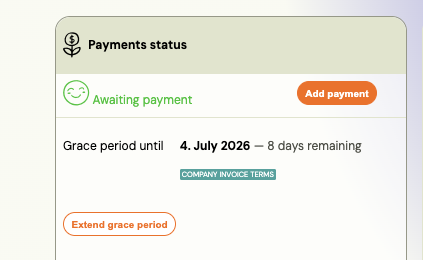
Yes. The "Awaiting payment" period (default: 15 days) can be changed or cancelled per booking:
- Open the registration (booking) detail.
- Go to the Payments section.
- Click the Awaiting payment deadline date.
- Change the date or remove it entirely.
The global default (15 days) is set in Settings → Billing & Payments → Payment settings. Changing it per booking only affects that one booking — other bookings are not affected.
Can different classes within the same programme have different payment plans?
Not independently. Payment plan templates are defined at the programme level and shared across all classes in that programme.
What you can control per class: Enable or disable which of the programme's templates are available for that specific class. For example, Class A can offer "monthly instalment" while Class B offers "full payment" — as long as both templates are already defined at the programme level.
What you cannot do: Define a completely separate payment schedule, amount, or billing cycle per class within the same programme. The template pool is shared.
If two classes genuinely need different payment structures (different price, different billing frequency, or different instalment logic), they should be placed in separate programmes.
Note: Applying a payment template at the class level ("class → Price & Payments → apply template") only selects from existing programme templates. It does not create a new template.
Can I apply a payment plan template to an open course or one-time event?
No. Payment plan templates with scheduled instalments are designed for Fixed Period and Membership course types. They cannot be applied to Open courses or one-time events — these course types expect a single full payment at the time of booking, not an ongoing instalment schedule.
When viewing a payment plan template in Settings → Billing & Payments → Payment schedule templates, the template detail shows a preview of which course types it is compatible with. If your programme is set to an incompatible type, the template cannot be selected.
To offer instalment payments: make sure the programme type is Fixed Period or Membership, not Open course.
What is the "outstanding amount" on a booking?
When a booking is created, an amount owed (debt) is set at that moment based on the programme price. This amount tracks whether the booking is paid or not.
If the programme is free, the outstanding amount is zero. Importantly, the outstanding amount does not change automatically if you later adjust the programme or class price. Changing the price only affects future bookings — existing bookings keep their original outstanding amount. This is intentional: if the amount changed retroactively, historically settled bookings would appear as unpaid even though the client already paid the correct amount at the time.
As a result, the outstanding amount on a booking does not always match the current programme price.
Why does my invoice show a different company than before?
Two things changed when your account moved to the new billing model, and both make previously disagreeing screens agree:
- A booking paid by another booking now invoices under the payer's entity. If a booking's payments are managed by a sibling booking, invoicing and payment instructions follow the booking that actually pays.
- A product's invoice profile is now used for invoicing too. Before, the booking widget honoured the profile set on a product while the invoice quietly used the company default. Now the product's profile wins in both places.
Neither changes anything about payments already received. If the resulting entity is not what you want, set the profile you need on the product, or on the managing booking.
Why did the IBAN in a payment email change?
The IBAN in payment instructions, on the QR code, on the invoice and in bank matching all come from the same place now — the bank account resolved for that booking. Previously these were worked out separately and could disagree, so one of them was showing an account you did not intend.
Check which account applies in the Invoicing card on the booking: it names both the invoice profile and the bank account, and which level each came from.
Why can't I use the same IBAN on two invoice profiles?
Because incoming money has to be attributable to one legal entity. If two entities shared an IBAN, Zooza could not tell which of them received a transfer.
Add the account to the profile that really owns it. If both entities genuinely collect to one account, invoice both under the profile that owns it, or open a second account.
A booking has no invoice profile picker — why?
That booking's payments are managed by another booking, so it does not choose its own entity — the whole group invoices under the profile of the booking that pays. Open the managing booking to change it.
Can I move a booking to another class without changing its invoice profile?
Yes — an explicit invoice profile set on a booking is sticky. Moving the booking to another class or programme does not clear it. If a moved booking invoices under an unexpected entity, check whether it holds its own override in the Invoicing card and reset it to inherit.
Why does my client's payment plan start from their original registration date instead of today?
Payment plans in Zooza are tied to the date the client first registered, not the date the plan was manually created or modified. This is intentional: the plan reflects the client's full payment history for the booking.
If the start date is incorrect for your purposes, you can adjust individual payments manually. Go to the booking detail, open the Payment plan tab, and edit the due dates on the relevant scheduled payments.
What does "Ignored" mean on an inbound payment?
An Ignored inbound payment is one that Zooza received from the bank but deliberately did not process. This happens in two situations:
- Duplicate detection (deduplication) — The payment notification arrived more than once (for example, the bank resent the same notification). Zooza's deduplication agent recognises that it has already processed an identical payment (same amount, same reference, same date) and marks subsequent copies as Ignored to avoid double-matching.
- Manual ignore — An admin explicitly marked the payment as Ignored. This is typically done for payments that arrived in error, need to be handled outside Zooza, or belong to a different system.
An Ignored payment is not lost — it stays in Sales & Payments → Payment reconciliation with an Ignored status and is visible to admins. If an inbound payment was incorrectly marked as Ignored (for example, by a misconfigured AI rule), you can review and reprocess it.
To investigate why a payment was ignored: go to Sales & Payments → Payment reconciliation, find the payment, and check its status details. Also review Sales & Payments → Payment reconciliation → AI rules & filters to confirm no rule is excluding this payment type.
Does the "X days after registration" due date setting apply to payment plan instalments?
Yes, from July 2026. Previously, the "due X days after registration" setting (configured under Programme → Settings → Price and payment → Payment Reminder Settings, mode: after registration) only applied to single-payment programmes. For instalment plans, the first payment's due date was set to the class start date regardless of this setting.
Now the first instalment's due date is set to registration date + X days, matching how single payments already worked. Subsequent instalments follow the payment plan schedule as normal — their due dates are unaffected.
Note: The first payment debt is still created immediately at booking time. Only the due date displayed on the payment plan and used for overdue calculations is affected.
Related
- Stripe payments FAQ — card payment setup, disputes, and Stripe-specific questions
- GoCardless FAQ — direct debit setup and mandate management
- Billing periods — how billing periods work and how to configure them
- Payment labels and drawers — organise payments with labels
- Payment tile on booking — reading and managing the payment tile
- Billing and invoicing setup — invoice generation, numbering, VAT
- Set up invoice profiles and bank accounts — legal entities and the accounts that collect payments
- Choose which invoice profile applies — inherit and override per programme, class or booking
- Government e-invoicing mandates and Zooza — the Slovak 2027 rule, B2C exclusion, and what to do if it applies to you