Set up invoice profiles and bank accounts
An invoice profile is a legal entity — the "From" side of an invoice: company name, address, Business ID, Tax ID, VAT details and invoice numbering. A bank account is one IBAN that belongs to exactly one invoice profile. A profile can hold several bank accounts, and one of them is its default.
This split is what lets one Zooza company invoice under more than one legal entity, and lets one entity collect money to more than one account.
Navigation: Settings → Billing & Payments → Invoice profiles Permission: Owner role (or an assistant with company-editing rights)
How the two pieces fit together
| Invoice profile | Bank account | |
|---|---|---|
| What it is | A legal entity | One IBAN |
| Holds | Company name, address, Business ID, Tax ID, VAT number, invoice numbering, invoice engine settings | IBAN, SWIFT code, account holder name, statement feed |
| How many | One default per company, plus as many as you need | Several per profile, one marked as default |
| Appears on | The "From" block of every invoice | Payment instructions, QR codes, and bank-statement matching |
Zooza resolves both independently for every booking and order — which profile invoices, and which account collects. See Choose which invoice profile applies.
Your invoice profiles
Go to Settings → Billing & Payments → Invoice profiles. The list shows every profile with its Business ID, VAT booking number and Tax ID. The company's own entity carries the Default invoice profile badge.
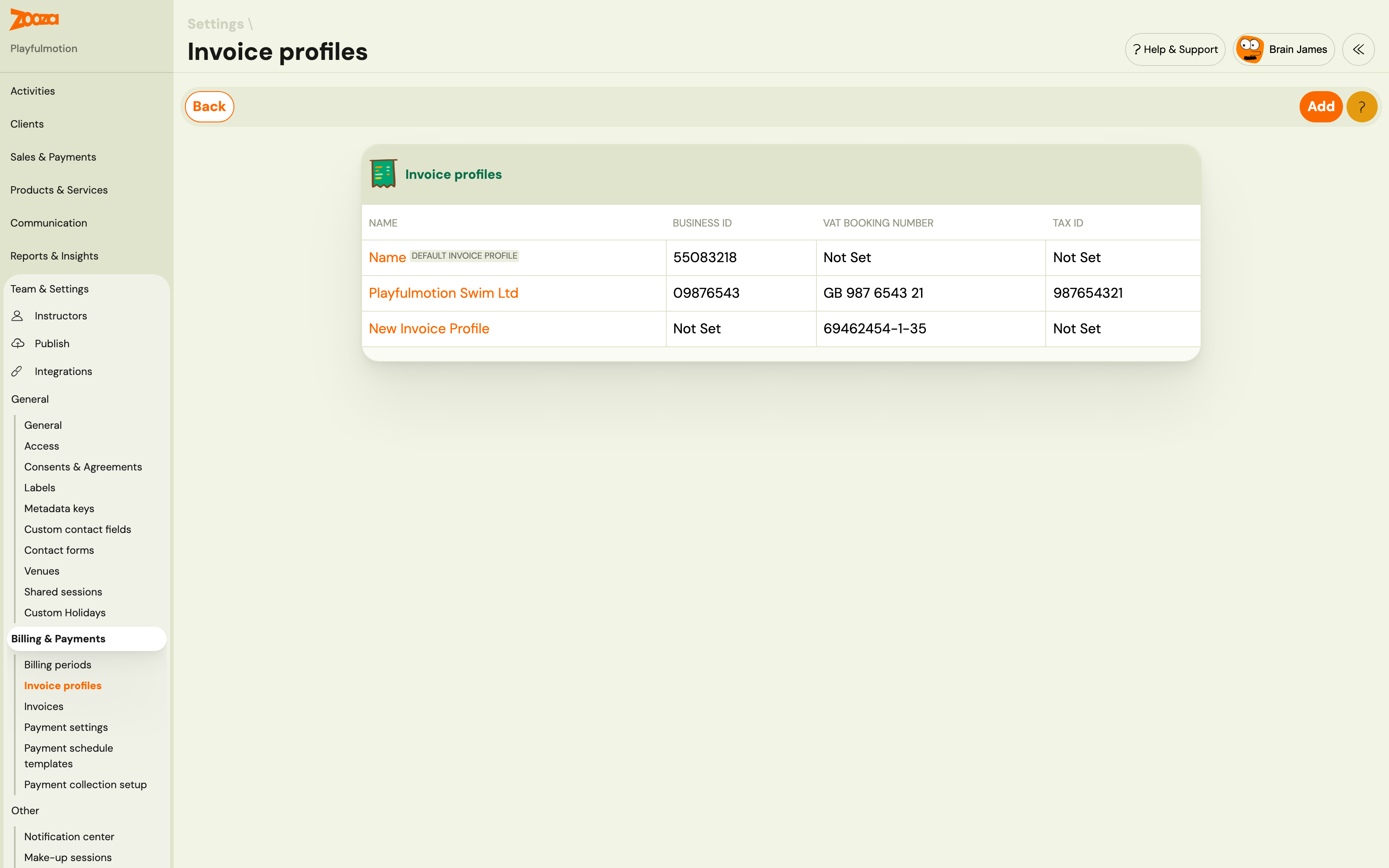
- Click a profile name to open it.
- Click Add to create another legal entity.
- The default profile cannot be deleted — it is the fallback used whenever nothing else is set.
Everything a company invoices under has to exist here first. If you only trade as one company, you will have exactly one profile and never need to think about this screen again.
Bank accounts on a profile
Open a profile and scroll to the Bank accounts card:
Payments for this invoice profile are collected to these bank accounts.
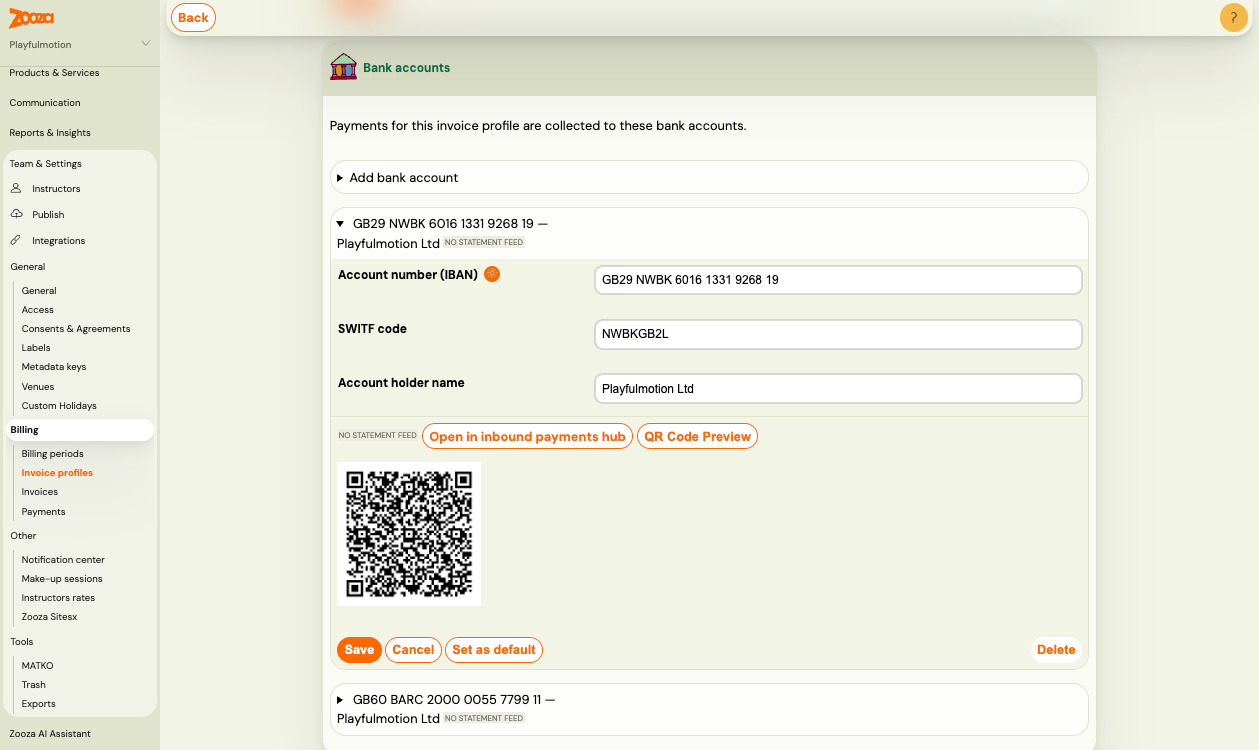
Each row is one account, labelled with its IBAN and account holder. Expand a row to edit it.
Add an account
- Click Add bank account.
- Fill in
Account number (IBAN),SWIFT codeandAccount holder name. - Click Save.
The first account you add to a profile automatically becomes its default.
The account holder name must match your bank exactly. Banking apps verify it when a client scans a payment QR code, and EU instant-payment rules require the name and IBAN to match — a mismatch can make the transfer fail.
Type the IBAN without spaces
Zooza stores an IBAN in machine format — letters and digits, nothing else — because that is the form the QR code, the payment instructions and bank-statement matching all use.
Since 22 September 2026 the bank-accounts card does that conversion for you: paste SK12 3456 7890… and it is saved as SK1234567890…. Before that date a spaced IBAN was stored exactly as typed, and three things then broke quietly:
- the payment QR code would not scan, or scanned to nothing usable,
- incoming payments to that account stopped matching bookings,
- the one-IBAN-one-profile check did not recognise it as the same account.
Existing rows were not converted. If an account was saved with spaces before that date it still holds them, so if QR codes stopped working or payments arrived without pairing, open the bank account, re-save the IBAN, and send one payment email again to check the code.
One IBAN, one profile
The same IBAN cannot sit on two invoice profiles in the same company. If you try to save it a second time, Zooza rejects the change and explains that the account number is already used by another invoice profile. The form keeps what you typed, so you can correct it.
This is what keeps incoming payments unambiguous: when money lands on an IBAN, Zooza knows exactly which entity received it.
If you had the same IBAN on two profiles before your account moved to the new model, that pair keeps working — existing duplicates are not broken retroactively. New ones are rejected.
Choose the default account
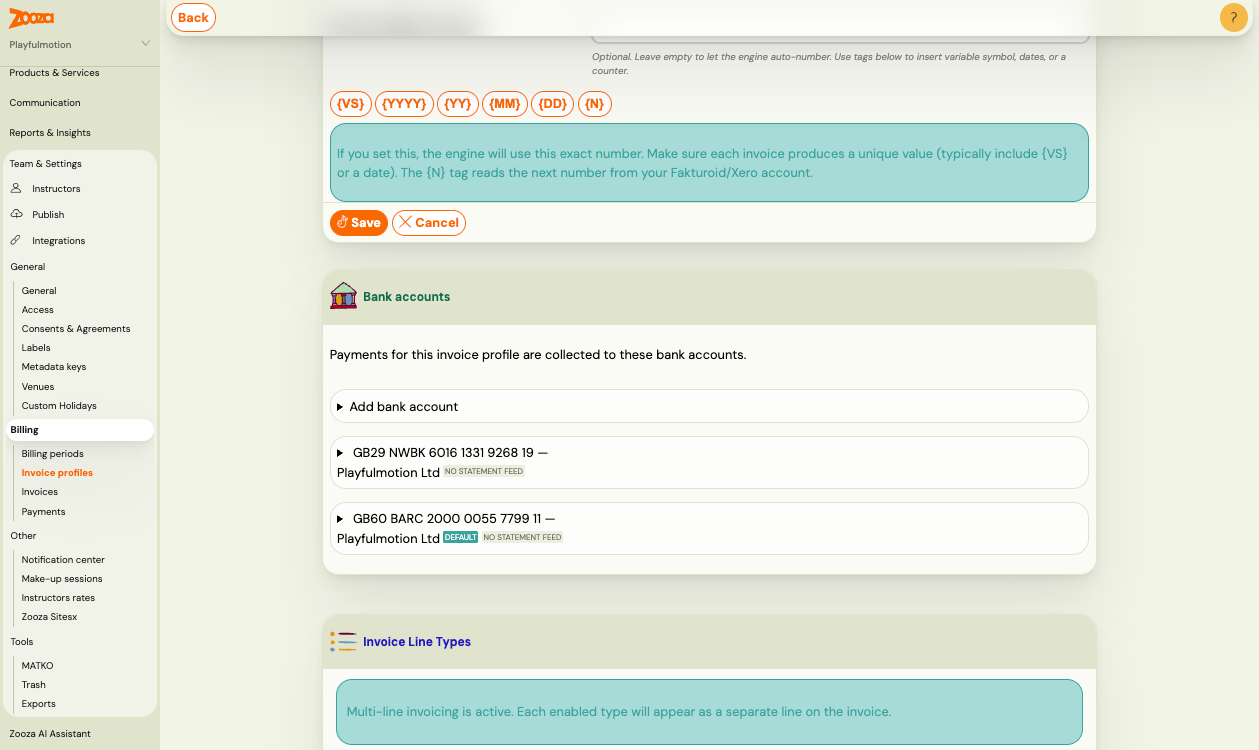
The default account is the one used whenever nothing more specific is set. Expand an account and click Set as default — the Default badge moves to it.
Delete an account
Expand the account and click Delete.
- You cannot delete the default account while the profile has other accounts. Set another account as default first, then delete.
- Deleting a profile's last account is allowed — the profile then simply has no account to collect to.
Preview the QR code
Click QR Code Preview on an account to see exactly the payment QR your clients get for that account. Each account has its own — this is the fastest way to check that a newly added IBAN produces a scannable code.
No account number or QR code on the client's payment
Symptom: a parent opens a payment in their client profile and there is no bank account and no QR code to pay with. Registration otherwise works normally, so it usually surfaces as a parent complaint rather than anything you would notice yourself.
Cause: the invoice profile that applies to that booking has no bank account filled in. The most common way this happens is that someone added a new invoice profile, and the bank account on the default profile was cleared in the process.
Fix:
- Go to Settings → Billing & Payments → Invoice profiles and open the profile that applies to the booking. If you are not sure which one that is, see Choose which invoice profile applies.
- Fill in the bank account —
Account number (IBAN)andAccount holder name. - Fill in the
SWIFT codeas well. The account number will show without it, but the QR code only appears once the SWIFT code is there. This is the step people miss, and it is why an account can be filled in and still produce no QR. - Repeat for every other profile you actually collect money to.
- Reload a payment in the client profile to confirm both the account and the QR are back.
Check this whenever you add a second invoice profile, and check it the same day — until it is fixed, every client sent to pay by transfer has nothing to pay to.
Connect bank statements to an account
Each account can read its own bank statements, so Zooza can match incoming transfers to bookings. The connection lives on the account, not on the profile — a profile with two IBANs has two independent connections.
Click Open in inbound payments hub on an account, or go to Settings → Billing & Payments → Payment collection setup. Full steps: Set up how Zooza collects money from clients.
Where the resolved profile and account are used
Once your account is on the new billing model, the same answer is used everywhere:
- the "From" block and numbering on generated invoices,
- the IBAN and QR code in payment instruction emails,
- the payment details shown in the booking widget,
- matching of incoming bank transfers and direct debits,
- per-entity turnover figures.
Previously these could disagree — a client could see one IBAN on the emailed QR code and a different one on the invoice. They now always agree.
Rollout: companies move to the new billing model one at a time, as their existing data is checked and reconciled. Until your account is switched, your billing screens work exactly as before.
Related
- Choose which invoice profile applies — inherit, override, and where each level is set
- Billing and invoicing — invoice generation, numbering and templates
- Invoicing in Zooza — overview — invoice engines and what Zooza does for you
- Set up how Zooza collects money from clients — payment channels and bank statement reading
- Payments and Billing FAQ