Use Zooza from Slack
Once your workspace is connected to Zooza, team members can create todos without leaving Slack — using the /zooza slash command or the Create Zooza todo message shortcut.
Prerequisite: Your Zooza company must be connected to Slack. Ask your Owner or Assistant to complete the setup in Settings → Integrations → Slack. See Connect Slack to Zooza.
Link your Slack account to Zooza
The first time you use /zooza or the message shortcut, Zooza looks up your Slack email address and tries to match it to a Zooza user in your connected company.
If your Slack email matches your Zooza email: you are linked automatically. No extra step needed.
If your emails are different: the Zooza bot sends you a direct message asking you to verify your Zooza account:
- Reply to the bot message with
/zooza link. - Enter your Zooza email address in the prompt.
- Zooza sends a 6-digit verification code to that email.
- Enter the code in the Slack modal to confirm.
Your accounts are now linked. This verification only happens once.
Create a todo with /zooza
In any Slack channel or direct message, type:
/zooza todo <your task here>
Example:
/zooza todo Follow up with Anna about missed payment
Zooza creates the todo and assigns it to you. You get a confirmation from the bot.
The todo is visible immediately in your Zooza sidebar under To-dos. You can open it in Zooza and assign it to a colleague, add a due date, or link it to a specific booking.
Create a todo from a Slack message
If a message in Slack prompts you to do something, you can turn it into a Zooza todo without retyping it:
- Hover over the message.
- Click the More actions button (⋯).
- Select Create Zooza todo.
Zooza creates a todo with the message text and a link back to the original Slack message. The todo is assigned to you.
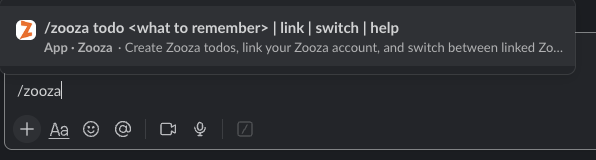
Slash command reference
| Command | What it does |
|---|---|
/zooza todo <message> | Create a new todo assigned to you |
/zooza help | Show available commands |
/zooza switch | Change your default Zooza company (franchise users only) |
/zooza link | Link your Slack account to a different Zooza email |
Working across multiple companies (franchise)
If your Slack account is connected to a workspace shared by multiple Zooza companies (a franchise network), Zooza asks you to choose your default company the first time you create a todo:
- The bot sends you an interactive picker listing all companies you have access to.
- Select the company this todo belongs to.
- Zooza remembers your choice for future commands.
To change your default company at any time, use /zooza switch.
What the Zooza bot can and cannot do from Slack
| Action | Supported |
|---|---|
| Create a todo | Yes |
| Assign a todo to a colleague from Slack | No — open in Zooza after creating |
| Mark a todo as done from Slack | No |
| See your todo list | No — open Zooza |
| Receive a notification when assigned a todo | Yes (if your company has Todos channel configured) |