Sending email/SMS to clients
For effective communication with your clients, you can use the messaging capabilities offered by the application. This method of communication is quick and easy.
The biggest advantage is that you can find every sent and received email/SMS in the client details or in the message overview, so you know exactly what was communicated and when.
Overview of messages
To view the total communication for all your clients:
- Click on the Communication tab and then on Messages Overview.
In the message overview, messages can be filtered by:
- Email or phone number
- Type -- received emails, sent emails, SMS messages
- Templates -- by the name of the message template
- Condition -- unread, to do, solved
You can also sort them from newest or oldest.
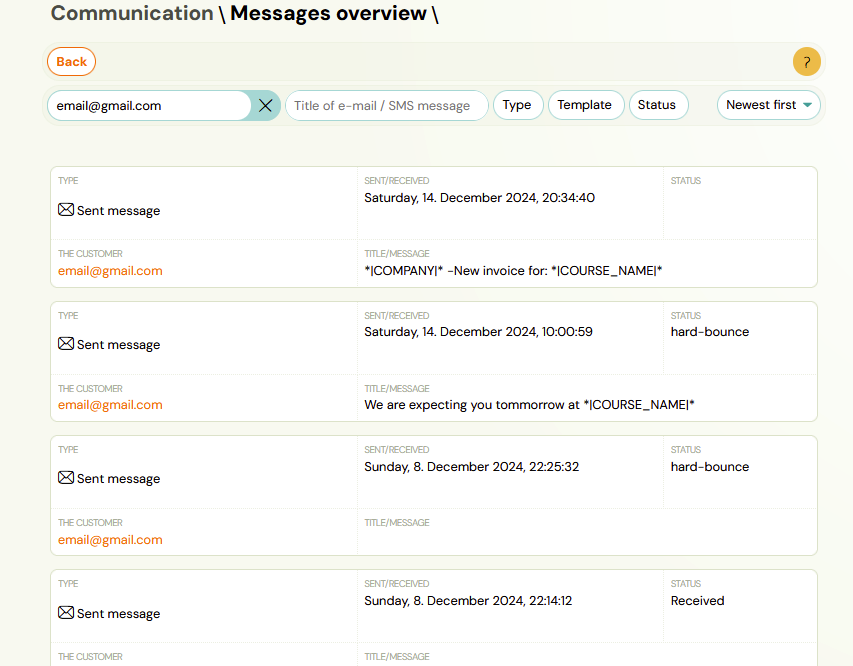
Clicking on the client's email takes you to the communication detail for the selected client.
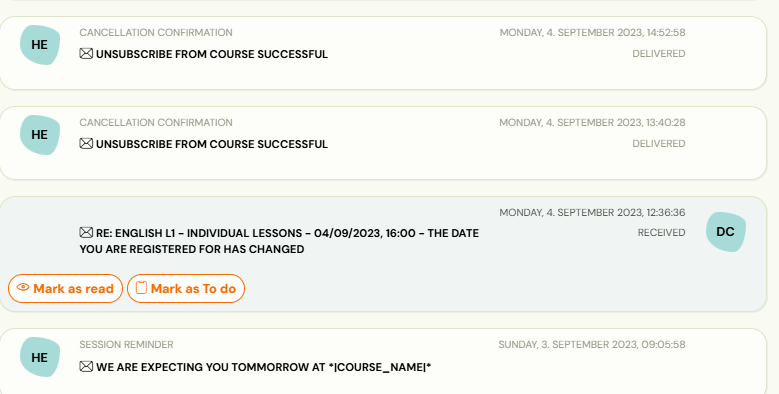
You can also access the communication detail by searching for a specific booking and clicking the Communication button. In this section you can:
- Send a new message
- View the history of sent emails/SMS
- Filter messages
- View the content of sent and received messages
- See whether messages have been read or handled
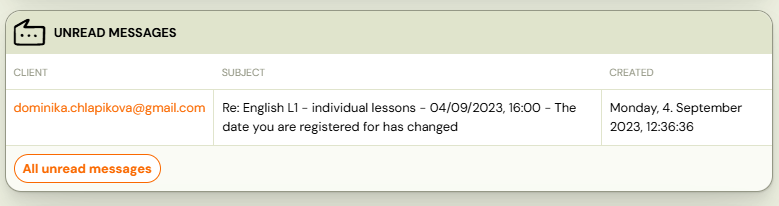
The list of all unread messages can be found on the main dashboard under the list of bookings, where you can click on the email and Zooza will redirect you to the booking communication.
Sending messages
The procedure for sending emails and SMS is the same:
- Click on the Communication tab and then on Send Email or Send SMS.
- Select a Target group.
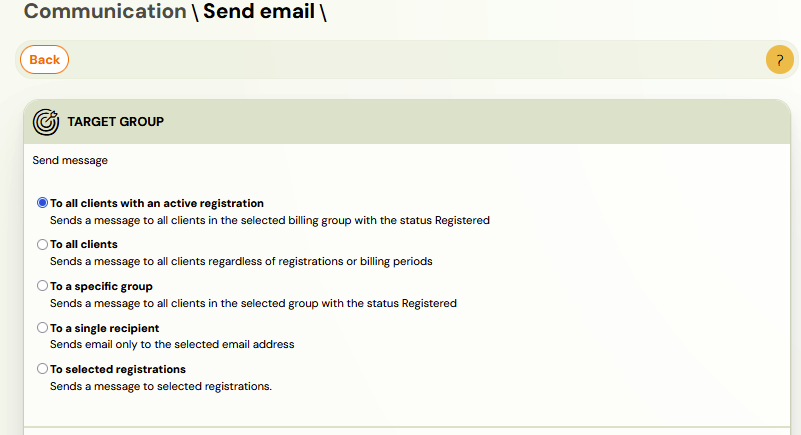
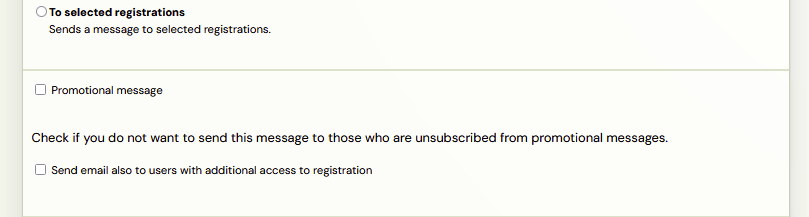
- Check the Promotional message box if your message is promotional. This setting means that if any client has cancel from receiving advertising messages, they will not receive them. If you want to send a message to all clients including those who have additional access to bookings, click the checkbox Send email also to users with additional access to booking.
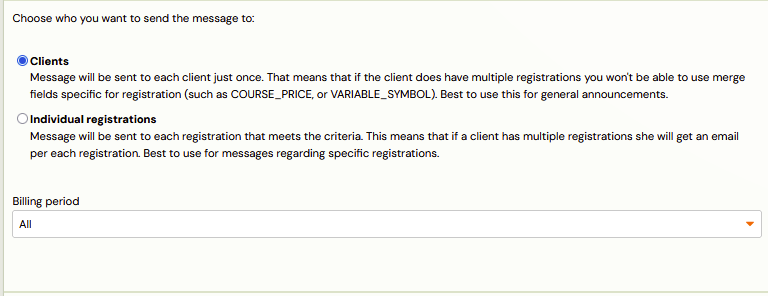
- Choose who you want to send the message to:
- Clients -- if a client has multiple bookings, they receive the email only once.
- Bookings -- if you need to include specific information about each booking; a client with multiple bookings receives more emails.
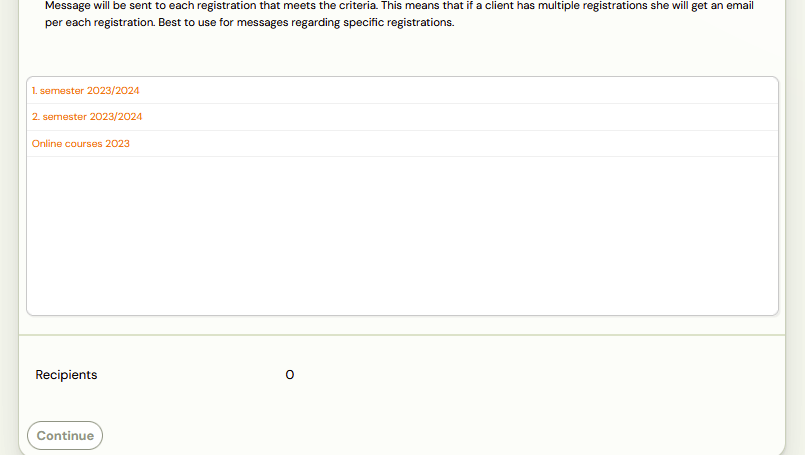
- If you selected a specific class as your target, select the class.
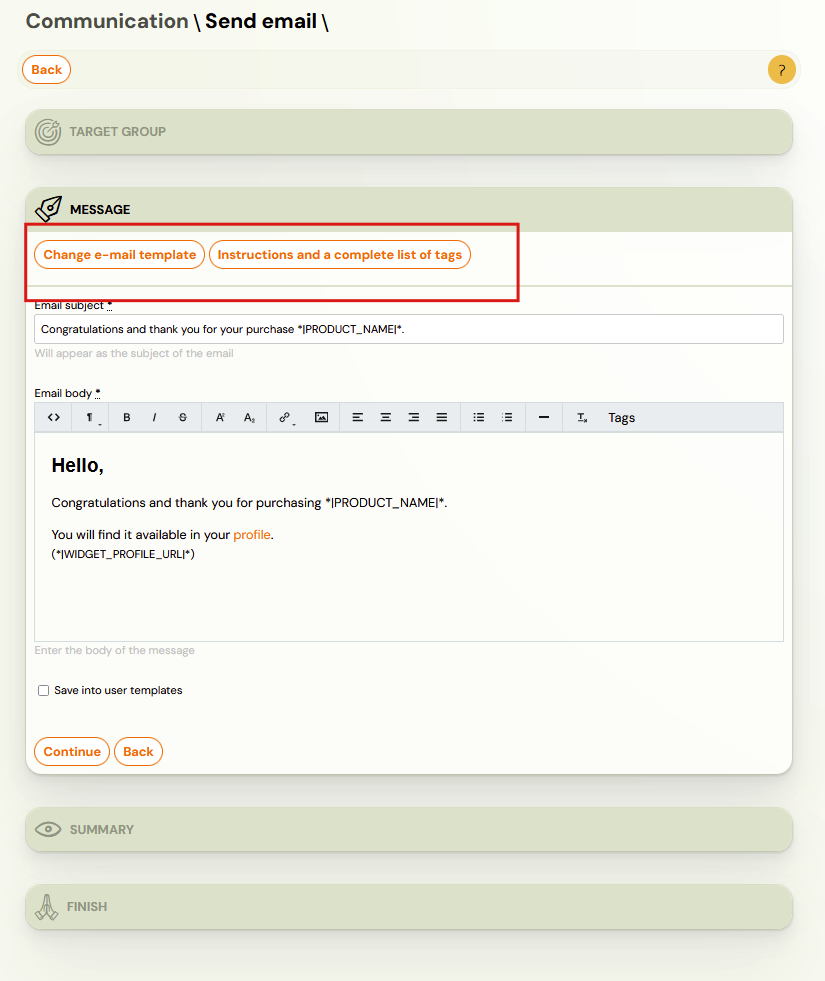
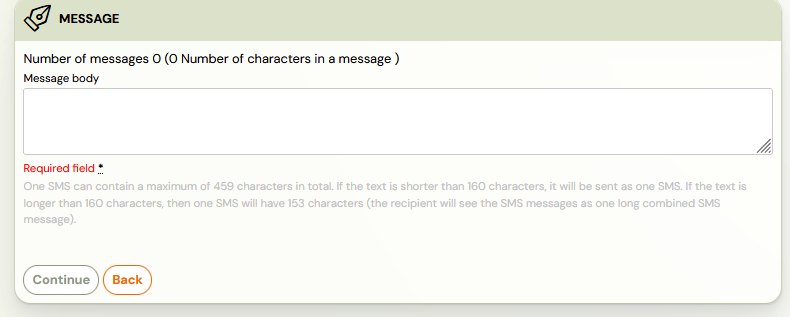
- Choose whether to use a prepared template or create custom text. For custom text, use dynamic tags via the Tags button in the formatting panel.
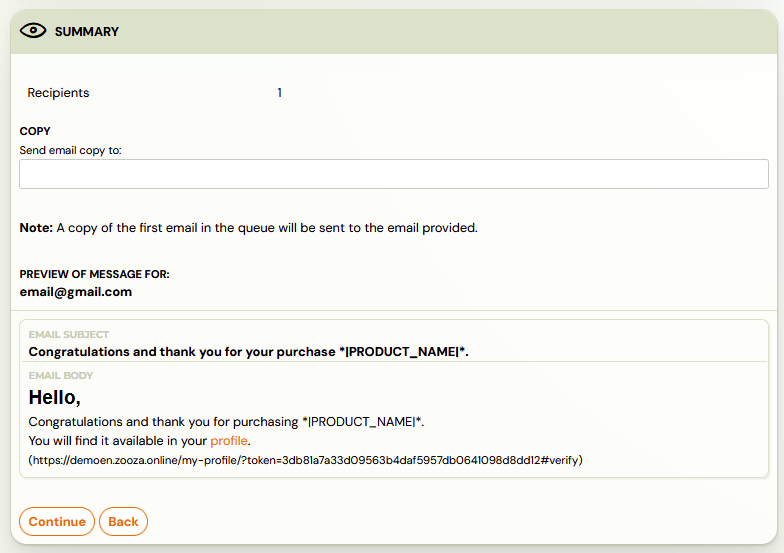
- You will be taken to a summary screen where you can check your selections.
-
Click Continue. Zooza counts the exact recipient list and creates a send job.
- Under 100 recipients: sending starts automatically.
- 100 or more recipients: Zooza shows you the recipient count and waits for your confirmation. Click Approve to start sending.

-
Sending runs in the background. A progress view shows how many recipients have been processed.
If another send for your account is already in progress, the new send is placed in the queue and starts automatically when the first one finishes.
-
You can Cancel the send at any time from the progress view. Emails already dispatched cannot be recalled.
Note: To check each sent email, we recommend that you include your own email address.
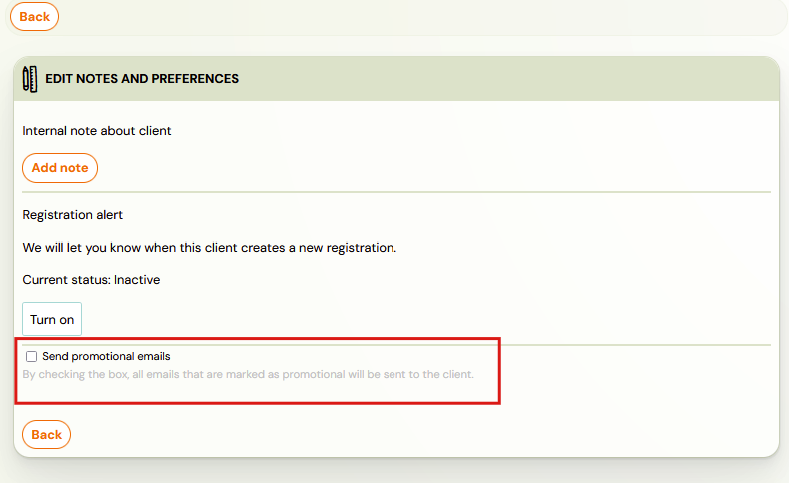
Attention! Zooza does not function as a marketing communications system that allows clients to opt out of receiving marketing/promotional messages. It is also not used to obtain information about how many clients opened the promotional email or responded to links. The Promotional Email / Promotional SMS function is for client information only. If a client wants to cancel from promotional emails, you can do it based on their request:
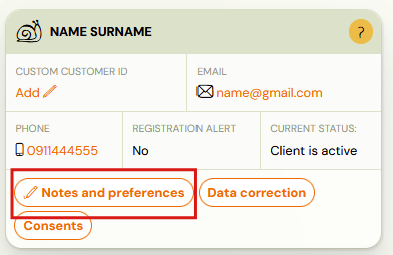
- In the Clients section, open the client account and click on Notes and preferences.
- Untick the Send promotional emails box.
How to send email/SMS to one client
You can also use the procedure above, but it assumes you know the recipient email. When communicating with a specific client:
- In the Bookings tab, click on the name of the client you want to contact.
- In the client booking details, click the Email or SMS button in the Communication section.
The recipient's details will automatically fill in. The rest of the process is the same as described above.
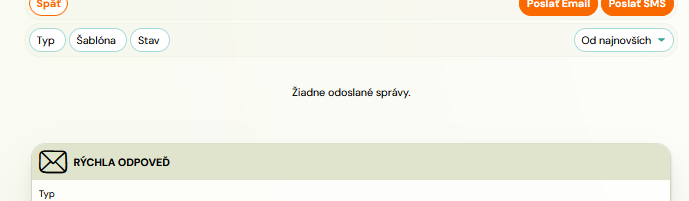
Attention! If no communication has been sent to the client, a notification about this fact will be displayed in the overview of sent messages for the given booking.
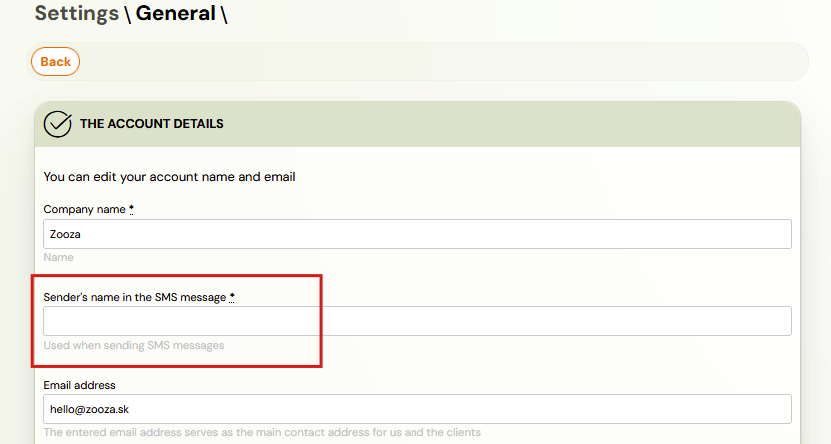
How to set the sender name for SMS
For SMS, you can set the name under which the message appears on the client's phone (the sender name).
To set the name, go to Settings --> General settings.