Communication
The Communication section in the left menu gives direct access to all messaging features — no intermediate hub page. Each item opens its screen directly.
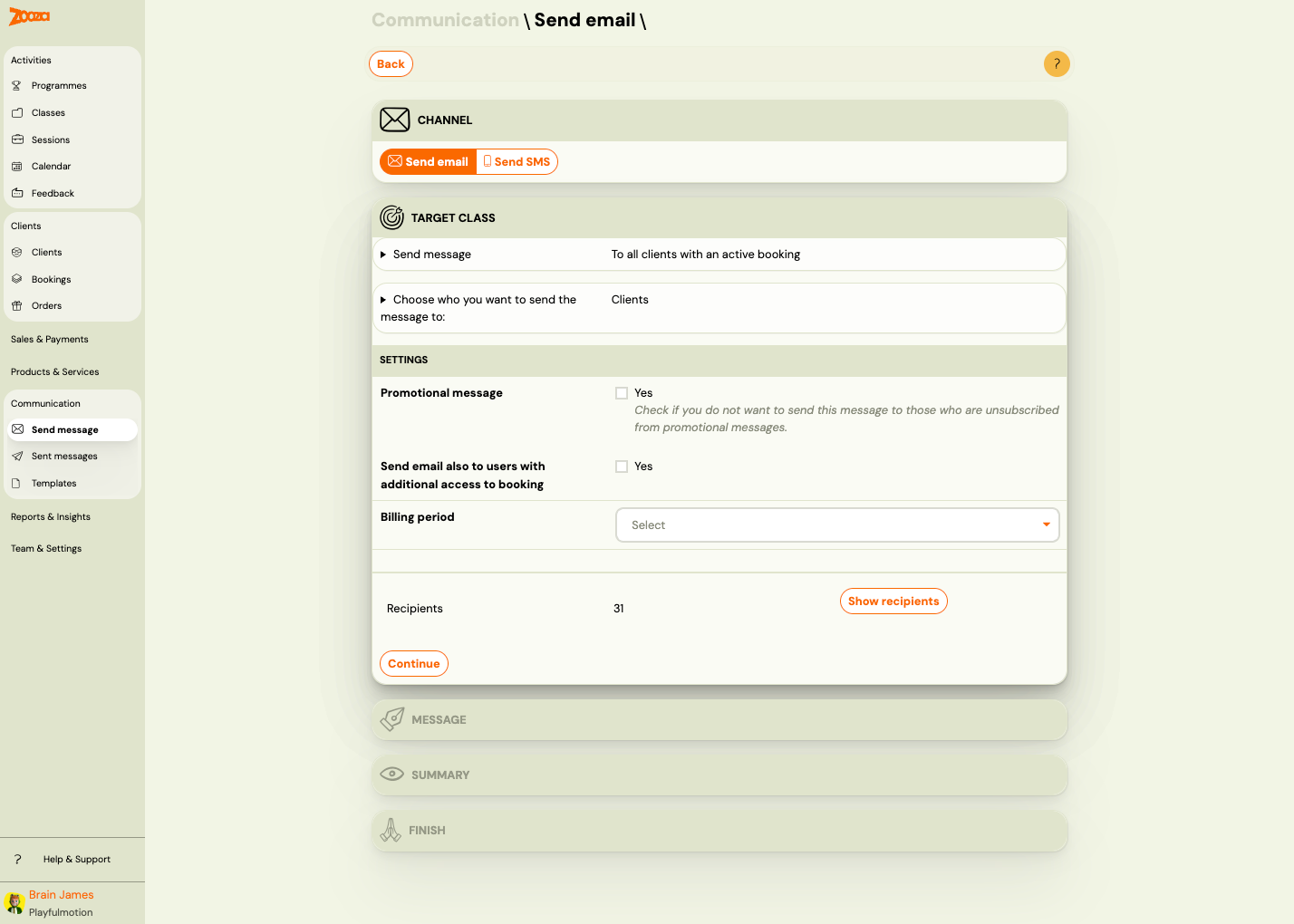
Menu Items
| Menu item | Description |
|---|---|
| Send message | Compose and send an email or SMS to clients. Opens the Send Message screen. |
| Sent messages | View the history of all sent and received messages. See Sent Messages below. |
| Templates | Manage email and SMS templates for automated and manual messages. See Message Templates. |
WhatsApp (PRO plan) and Email Marketing Connections are accessible from within the Send message screen or via Settings.
Sent Messages
Navigation: Go to Communication → Sent messages.
Filters
| Filter | Description |
|---|---|
| Email or phone | Search by recipient email or phone number. |
| Title of e-mail / SMS | Search by message subject or title. |
| Type | Filter by message type (e.g. "Sent message"). |
| Template | Filter by template used (multi-select). |
| Status | Filter by delivery status. |
Active filters show as chips with an X to remove. Use Reset to clear all.
Message List
Each message shows:
| Field | Description |
|---|---|
Type | Message type with icon (e.g. "Sent message"). |
Sent/Received | Timestamp. |
Status | Delivery status — "Received", "Sent", "Failed", etc. |
The customer | Recipient email address (clickable). |
Title/Message | Subject line or message preview. |
Related
- Send Message Reference — compose and send emails or SMS.
- Message Templates Reference — manage templates.
- Email Integrations Reference — Mailchimp and Ecomail setup.
- WhatsApp Reference — WhatsApp conversations and templates.
- Message Templates Guide — how to create and use templates.
- Sending Email/SMS Guide — step-by-step sending instructions.
- Email Communication FAQ — common email questions.