Message Templates
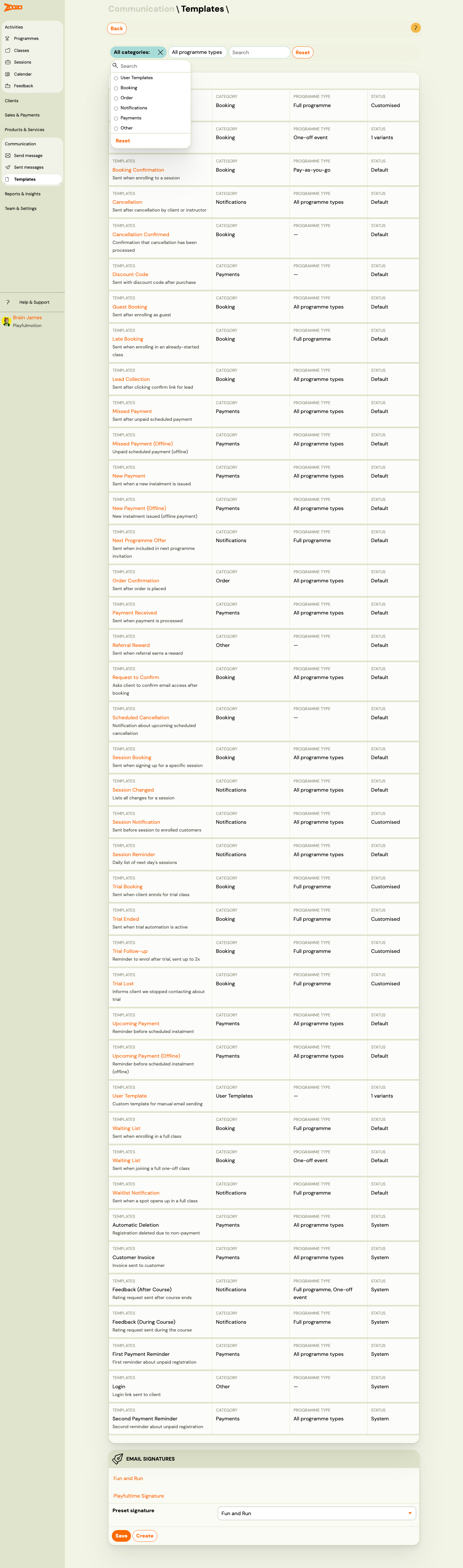
The Templates screen lists all email and SMS templates in one filterable table — both your custom templates and the built-in system templates that Zooza uses for automated communication.
Navigation: Go to Communication → Templates.
Filters
Use the filter bar above the list to narrow down templates:
| Filter | Description |
|---|---|
| Type | Filter by template category (e.g. Booking, Notifications, Order, Other). |
| Name | Search by template name. |
The list updates as you type or select a filter. Click Reset to clear all filters.
Template list
Each row in the list shows one template:
| Column | Description |
|---|---|
| Name | Template name — click to open the template editor. |
| Type | Template category (Booking, Order, Notifications, Other, User). |
| Custom templates | Shows how many custom variants exist for this template. |
| Created | Date the template or its custom variant was created. |
System templates vs. custom templates
System templates
System templates are built into Zooza and are sent automatically for specific events — booking confirmation, payment reminders, cancellations, etc. They cannot be deleted or renamed, but you can create a custom variant to override the default content.
System templates are shown in the list but their row has no edit button — only an Add new template option to create a custom variant.
Custom (user) templates
Templates you or your team have created — either from scratch or as a custom variant of a system template. These can be freely edited, duplicated, or deleted.
To create a new template from scratch, click Add new template at the top of the list.
System template reference
Booking templates
| Template | When it is sent |
|---|---|
| Request to confirm booking | After booking — the client must confirm via email before the booking status can be set to Enrolled. |
| Confirmation of booking (Session programme) | Sent automatically after the client clicks the confirmation link. |
| Trial timetable bookings completed | Sent when a client enrols for the trial timetable. |
| Trial ended | Sent automatically if trial automation is configured in programme settings. Includes the booking link. |
| Trial ended follow-up | Follow-up sent up to two times if trial automation is enabled. |
| Trial lost | Sent if trial automation is enabled and the client has not enrolled. |
| Booking confirmation – Lead collection | Sent after the client confirms a lead collection booking. |
| Waiting list (Continuous programme) | Sent after enrolling in a full class. |
| Late booking | Sent to clients who enrol in a class that has already started. |
| Booking confirmation – Open sessions | Sent after confirming an open session booking. |
| Booking confirmation – One-off session | Sent after confirming a one-off session booking. |
| Waiting list (One-off session) | Sent after joining the waiting list for a full one-off session. |
Order templates
| Template | When it is sent |
|---|---|
| Order confirmation | Sent after an order has been successfully submitted. |
Notification templates
| Template | When it is sent |
|---|---|
| Upcoming session notification | Sent daily at 3:00 AM with a list of the next day's sessions for clients who are not excused. |
| Automatic session reminder | Sent the day before a session to all enrolled clients. |
| Cancellation confirmation | Sent after a cancellation by the client or instructor. |
| Automatic waiting list notification | Sent to waiting list clients for a one-session programme. |
| Next programme offer | Sent when a client is included in the next programme invitation. |
Other templates
| Template | When it is sent |
|---|---|
| System import invitation | Sent to users when they are imported into Zooza. |
| Payment received | Sent when a payment has been processed. |
| Imported booking confirmation | Sent when a client accepts an import invitation. |
| Booking imported | Sent as confirmation when a client is imported. |
| Sign up for an open session | Sent when a client enrols in a Pay-as-you-go session. |
| New payment | Sent as a payment request when a new instalment is issued. |
| Booking as guest done | Sent after a guest enrols in a full programme. |
| Changed session | Notification listing all changes to a session. |
| Upcoming payment | Reminder sent before a scheduled instalment is issued. |
| Missed payment | Sent after a scheduled payment is not paid. |
| Scheduled booking cancellation | Sent when a booking is scheduled for cancellation. |
| Scheduled cancellation confirmation | Sent to confirm a scheduled cancellation. |
Email Signatures
Manage email signatures at the bottom of the Templates screen.
| Field | Description |
|---|---|
| Signature list | Named signatures — click to edit. |
Preset signature | Select the default signature appended to outgoing emails. |
| Save | Save the selected preset. |
| Create | Create a new signature. |
Template editor
Navigation: Templates list → click a template name.
Fields
| Field | Description |
|---|---|
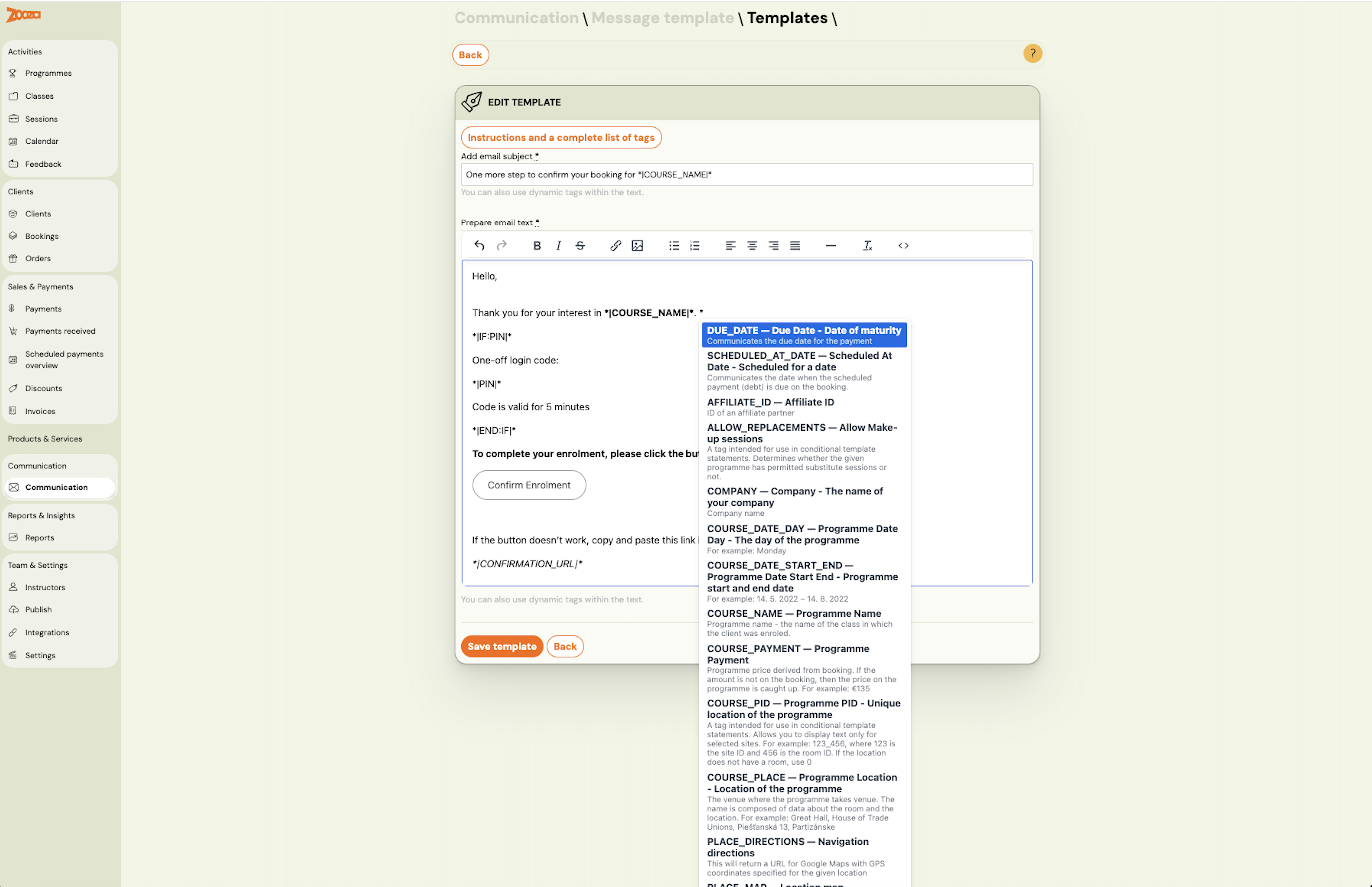
Add email subject | Email subject line. Supports dynamic tags. Required. |
Prepare email text | Rich text editor for the email body. Required. |
Dynamic tags
Dynamic tags automatically insert client-specific data — name, programme, payment amount, booking link — into the subject and body.
Two ways to insert a tag:
- Type
*in the editor — a dropdown appears with tags valid for this template type. Start typing to filter, then click to insert. - Copy from the reference — click Instructions and a complete list of tags below the editor to open the full tag reference.
Tags use the format *|TAG_NAME|* and work in both subject and body.
Note: Not all tags are available in every template. The autocomplete only shows tags valid for the current template type.
Common tags:
| Tag | Description |
|---|---|
*|FIRST_NAME|* | Client's first name. |
*|COURSE_NAME|* | Programme name — class name. |
*|COURSE_PAYMENT|* | Amount the client should pay. |
*|VARIABLE_SYMBOL|* | Payment reference / variable symbol. |
*|CONFIRMATION_URL|* | Link for the client to confirm enrolment. |
*|PIN|* | One-time login code. |
*|IF:PIN|* … *|END:IF|* | Conditional block — only shown if a PIN exists. |
For the full list, see Dynamic Tags Guide.
Actions
| Button | Description |
|---|---|
| Save template | Save changes. |
| Back | Return to the templates list without saving. |
Related
- Communication — Communication menu overview.
- Message Templates Guide — how to create and manage templates.
- Dynamic Tags Guide — full list of available merge fields.
- Sending Email/SMS Guide — how to send messages.