Automatic communication to clients / Message templates
Zooza does most of the work for you by sending information to the client automatically.
Automatic communication includes:
- Invitation to confirm booking
- Confirmation of booking (for programme, one-off, open, lecture, and separate templates for late booking, waiting list booking, class -- Interested)
- Order confirmation (product purchase)
- Automatic session reminder
- Confirmation of cancelling a session
- Confirmation of payment
This automated communication works through templates designed to serve your needs. We do not recommend changing templates as they are based on mass communication standards. If you need to modify a template, we recommend copying the original and editing the copy, or creating a completely new one. This gives you the opportunity to customize the way you address clients, rewrite the text to describe what you do (e.g., letting clients know you look forward to seeing them at practice, or in class, or in a session), and add or remove information.
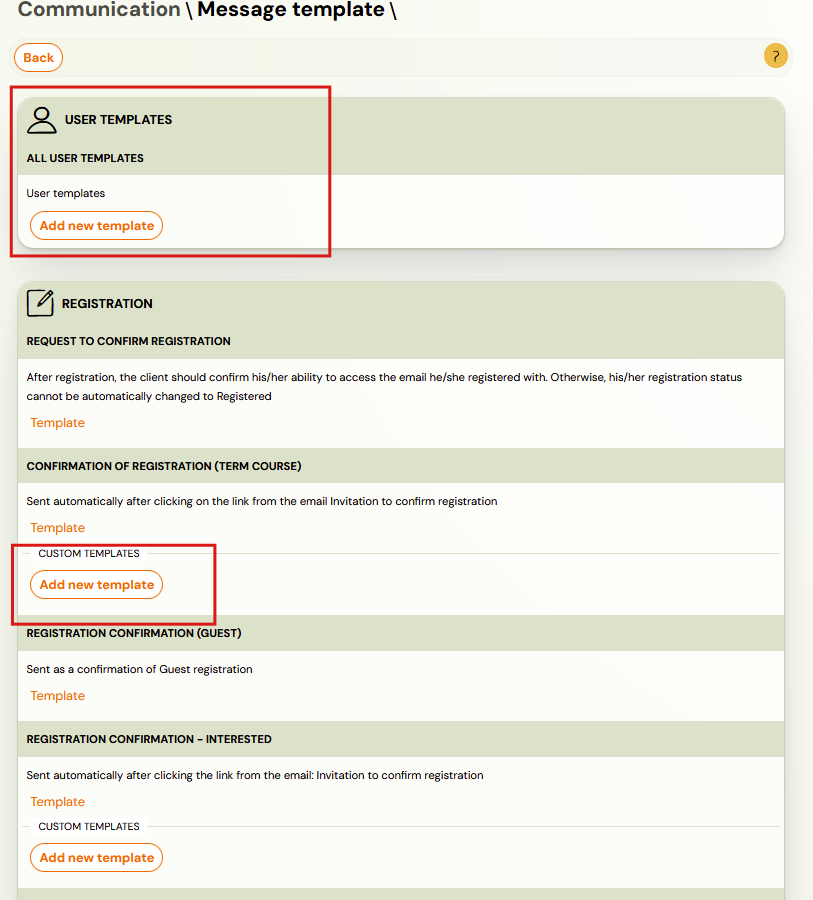
The message templates use dynamic tags, which fill in data from the client's booking, such as first name, last name, variable symbol, etc. Not all tags can be used in every type of template.
Message templates
Message templates can be found under Communication → Templates.
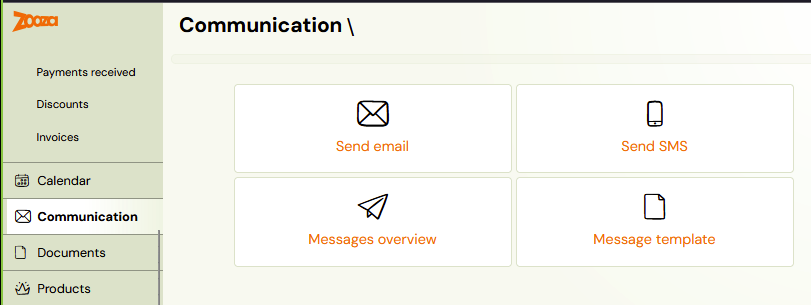
When you open this window, you will see a list of templates. Click on the orange Template sign for the specific template you want to view and edit.
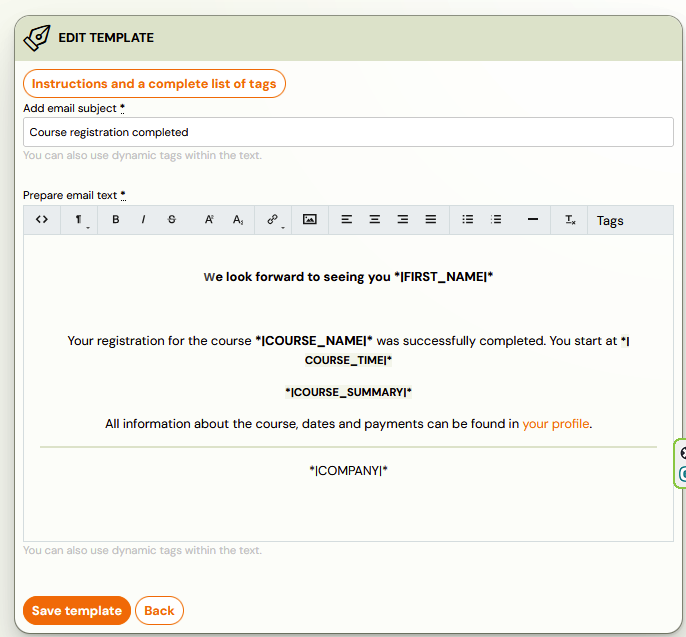
The template opens like an email browser, with the subject line and text prepared in advance. You can edit the template just as you would edit an email: overwrite parts of text, highlight in bold, change font size, and align text. You can add both links and images. Do not forget to save your changes.
Tip: View all templates. Customise them according to your needs and be creative.
Automatic communication without editing capability
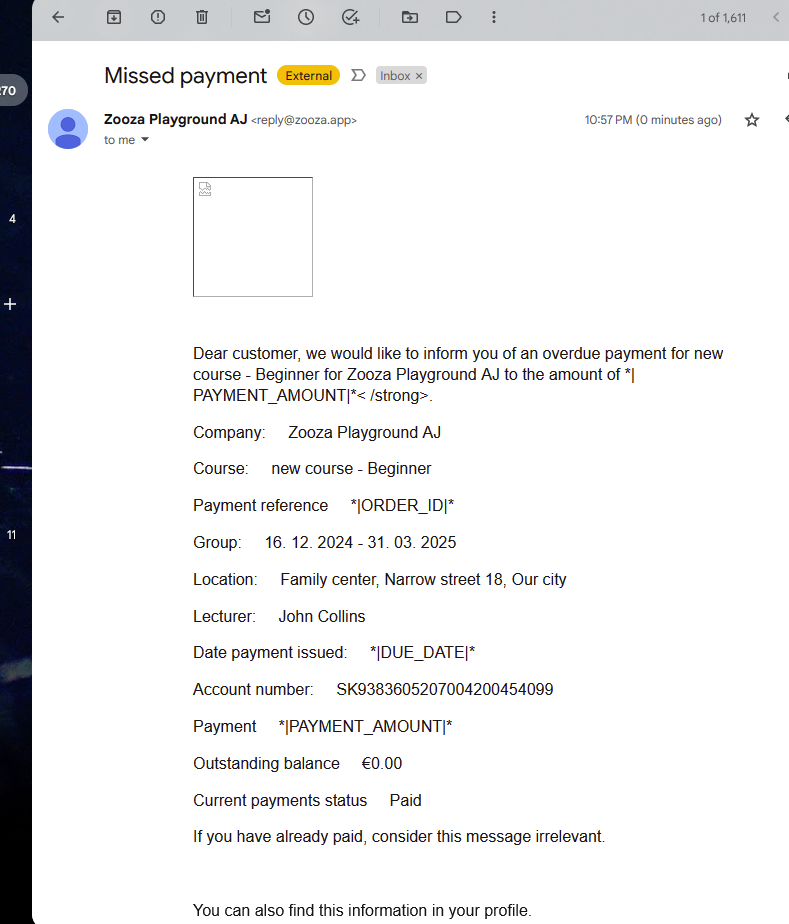
There is also automatic communication with default text that cannot be edited. For example: a reminder about an unpaid payment, checking out of an appointment, selecting an alternative session, or an evaluation.
Reminder about an upcoming appointment
If you want clients to receive an automatic message about an upcoming session, you can set this up in Programmes --> Online Registration. See the automatic session notification manual for how this works, and the editing manual for how to customise the template.
Reminders for outstanding payments
These reminders may or may not be sent to clients automatically. You can set them up at the programme level in Price and Payment --> Payment Reminder Settings. See the automatic payment reminders manual.
You can set whether and when to send them, as well as whether to automatically delete outstanding bookings.
System templates vs. user templates
Zooza has two types of templates, and finding the right one can be confusing:
System templates
- Pre-built templates provided by Zooza (e.g., payment confirmation, booking confirmation).
- Found under Communication → Templates with the orange Template label.
- Some system templates cannot be edited (e.g., payment confirmations, login codes).
- For editable system templates, we recommend copying the original before making changes.
User templates
- Custom templates you create for your specific communication needs.
- Found under a separate User templates section in the template selector when sending emails.
- You can assign user templates to specific programmes or programmes.
Where to find each type when sending an email
When composing an email from a booking or class, the template dropdown shows two separate sections:
- Saved communication templates — system templates
- User templates — your custom templates
If you cannot find your custom template, check that you are looking in the User templates section, not the system templates section.
Creating template variants and assigning them to a programme
Zooza lets you create multiple variants of the same template type — for example, separate booking confirmation emails for summer camps, adult classes, or open courses. Each programme can then use a different variant.
Step 1 — Create a new variant
- Go to Communication → Templates.
- Find the template type you want to customise (e.g. Confirmation of booking).
- Click Add variant (or open an existing template and use Duplicate).
- Name the variant clearly (e.g. "Booking confirmation — Summer camp").
- Edit the subject line and body. Use dynamic tags as needed.
- Click Save.
Tip: If you want to restore a previous version of a template, contact Zooza support — deleted or overwritten templates can sometimes be recovered from history.
Step 2 — Assign the variant to a programme
- Go to the Programme you want to use this template for.
- Open Settings → Online registration.
- Find the Confirmation email (or equivalent) field.
- Select your new variant from the dropdown.
- Save the programme settings.
From this point on, every booking made for that programme will use your custom variant instead of the default system template.
Notes
- If no variant is assigned at programme level, Zooza uses the default system template for that template type.
- You can assign different variants to different programmes — useful if you run camps, regular classes, and one-off events with different confirmation styles.
- Template variants are shared across your account. Any admin can edit them.
When automatic emails are NOT sent
Zooza sends automatic confirmation emails for online bookings. However, automatic emails are not sent in these cases:
- **Copied bookings — when you copy a booking from one term to another.
- Manually created bookings — when you create a booking on behalf of a client.
- Transferred bookings — when you transfer a booking between classes.
In all these cases, you must send the confirmation email manually from the booking's Communication tab.