Connect Slack to Zooza
Zooza can deliver notifications to Slack — todo assignments, system alerts, and other operational events — so your team gets updates without switching tabs.
One Slack workspace install covers your entire network. If your Zooza account is part of a franchise network, a single admin connects the shared Slack workspace once. Every other company in the network is attached automatically and only needs to configure which channels receive their notifications. If you are a standalone company (no network), the connection applies to your company only.
Requirements
- You must have Owner or Assistant role in Zooza.
- You need permission to install apps in your Slack workspace (Slack workspace admin or app approval).
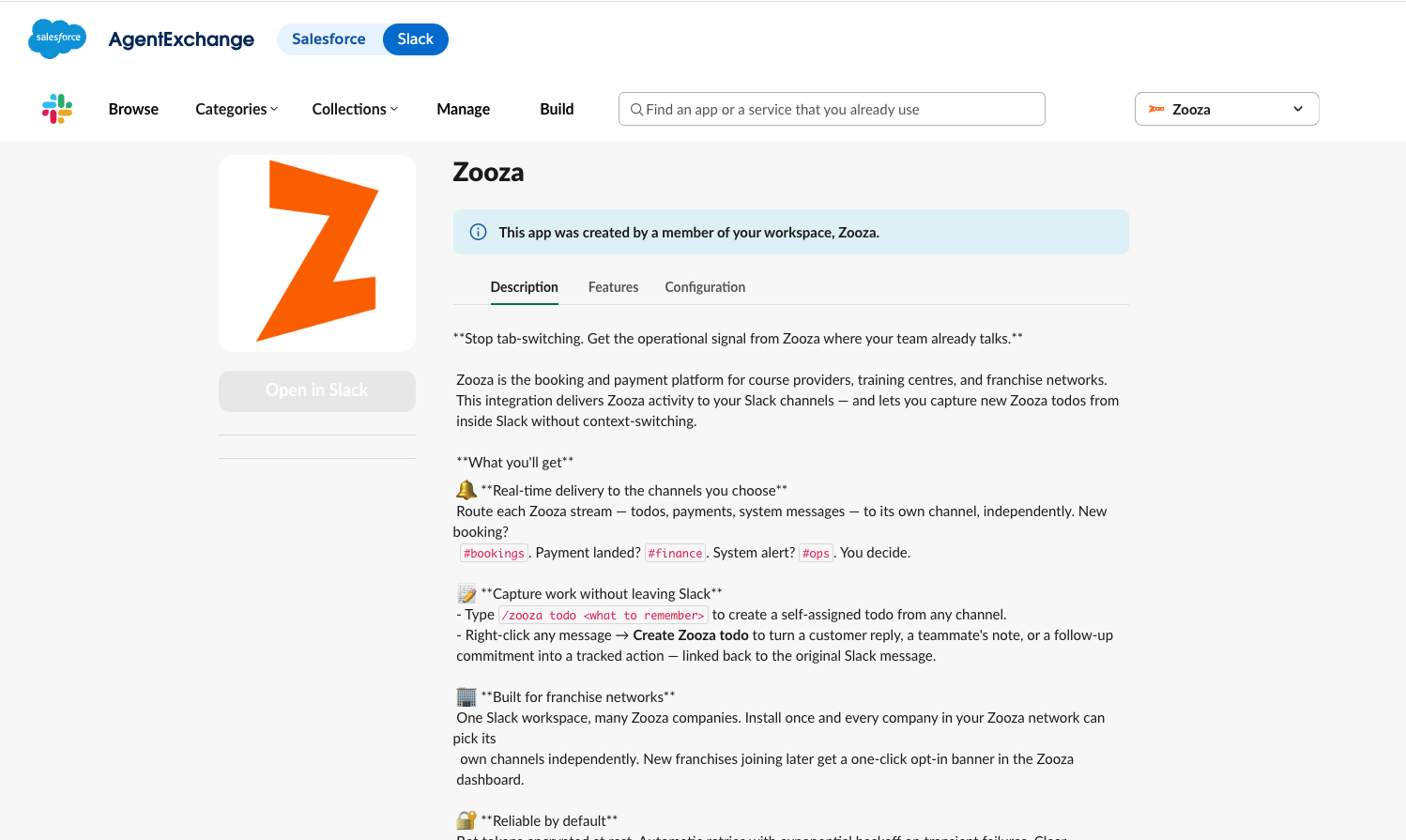
- The Zooza Slack App must be installed in your Slack workspace — this happens automatically during the OAuth flow below.
Connect your Slack workspace
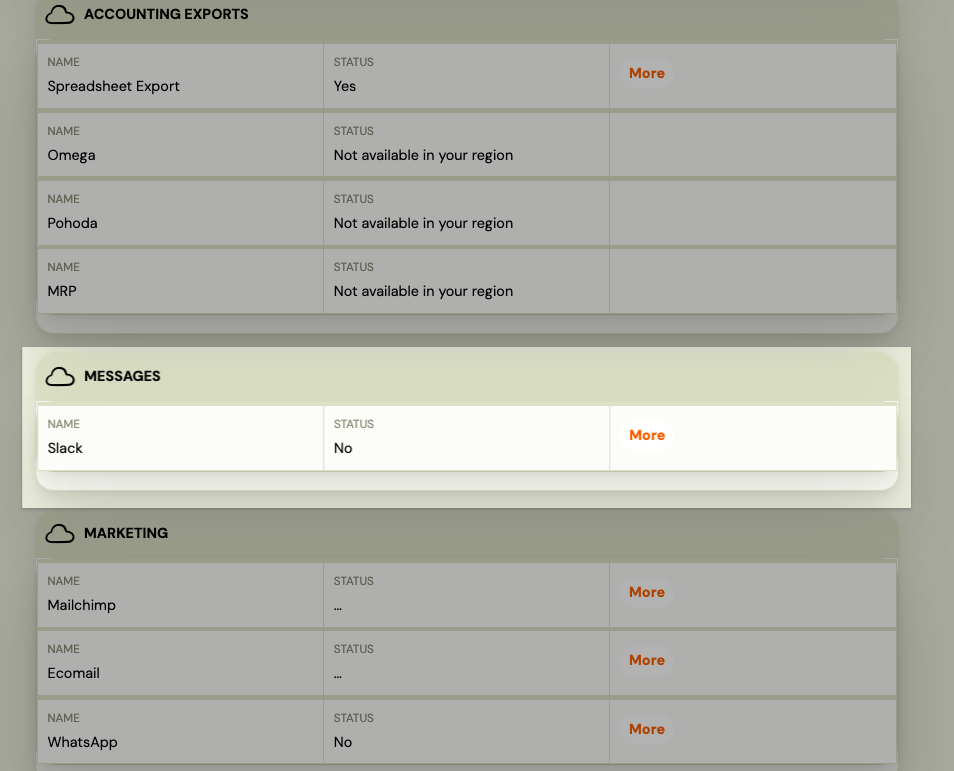
- Go to Settings → Integrations → Slack.
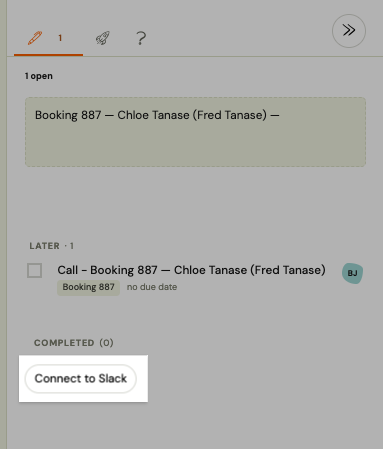
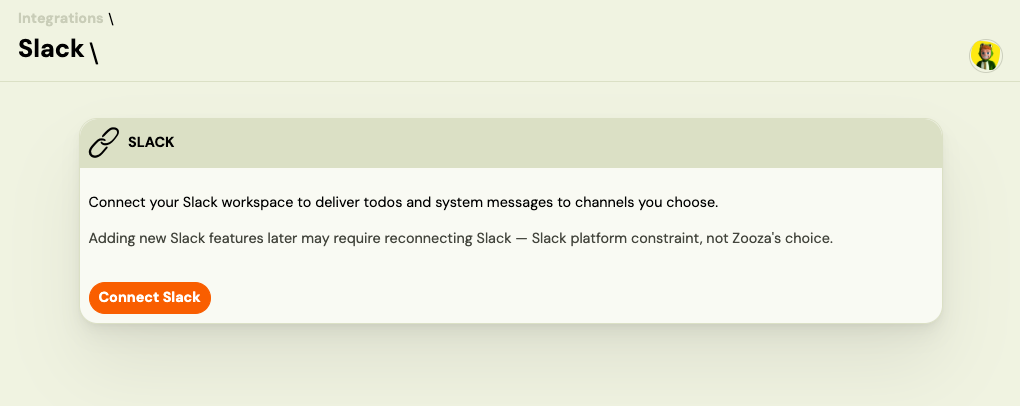
- Click Connect to Slack.
- You are redirected to Slack. Review the requested permissions and click Allow.
- You are redirected back to Zooza. The connection is active immediately.
If you are part of a franchise network: all companies in your network are now attached to this Slack workspace. Each company's admin can configure their own channel mappings independently — no further OAuth required for them.
If you are a standalone company: only your company is connected. Setup is complete.
Configure notification channels
After connecting, you decide which Slack channel receives each type of notification. You configure this per notification stream:
| Stream | What it delivers |
|---|---|
| Todos | When a team member assigns a todo to a colleague, the assignee's notification appears in the configured channel. |
| System messages | Automated alerts — worker failures, payment errors, integration issues. |
To configure:
- Go to Settings → Integrations → Slack.
- Under Channel mapping, select a Slack channel for each stream you want to activate.
- Leave a stream unmapped to disable Slack delivery for it.
- Click Save.
The channel list is fetched from your Slack workspace. If you do not see a channel, make sure the Zooza bot has been added to it (in Slack: open the channel → Add apps → Zooza).
Network and franchise setup
When a network company installs Slack, the Zooza bot joins the shared workspace once. Each franchise unit then picks its own channels:
- Franchise admin goes to Settings → Integrations → Slack.
- The connection is already active (inherited from the network install).
- Configure channel mappings for this location's streams.
No re-authorization is needed. If a new company joins the network after the initial install, they will see a prompt in Settings → Integrations → Slack to opt in.
Manage the connection
Disconnect your company
To stop Slack delivery for your company without affecting others in the network:
- Go to Settings → Integrations → Slack.
- Click Disconnect this company.
Your channel mappings are removed. The Slack workspace install and other network companies are unaffected.
Uninstall (remove from the entire workspace)
Only the company that originally completed the OAuth can fully uninstall:
- Go to Settings → Integrations → Slack.
- Click Uninstall.
This revokes the Zooza bot from Slack and deactivates the connection for all attached network companies.
What gets delivered to Slack
Zooza only sends a Slack notification when an in-app notification would also fire. Events that are silent in-app — for example, assigning a todo to yourself, or completing your own todo — are also silent in Slack.
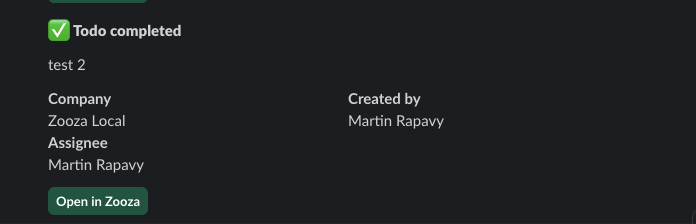
Each Slack message includes:
- The todo message or system alert text
- Company name (useful in network setups with a shared channel)
- Created by / Assigned to
- Due date (if set)
- A Open in Zooza link that takes you directly to the relevant record
Troubleshooting
Messages stopped appearing in Slack The Slack bot token may have been revoked (e.g., a workspace admin removed the Zooza app, or another OAuth was completed for the same workspace from a different Zooza network). Go to Settings → Integrations → Slack — if the status shows Needs re-authorization, click Reconnect and complete the OAuth flow again.
Channel not listed The Zooza bot must be a member of the channel. In Slack, open the channel, click the channel name at the top, go to Integrations → Add apps, and add Zooza.
"Another network already has this workspace" Each Slack workspace can only be connected to one Zooza network. If a second Zooza network tries to install into the same Slack workspace, the install is blocked. Contact support if you believe this is an error.
Related
- Use Zooza from Slack — create todos and use slash commands directly in Slack
- Slack FAQ
- Integrations overview