Manage your to-do list
The Zooza to-do list is a lightweight task tracker built into the app sidebar. Use it to leave yourself a quick reminder, assign a follow-up to a teammate, or flag something that came up while you were reviewing a booking or a payment. Each todo can be linked to the screen where it was created, so clicking through takes you straight back to the relevant record.
Open the to-do list
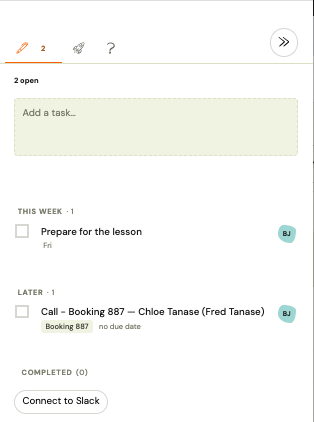
Click the To-dos icon in the persistent sidebar on the left. The panel shows all open tasks assigned to you, sorted by due date (overdue first, tasks without a date last).
The sidebar icon shows a badge with the count of open tasks assigned to you.
Create a to-do
From the sidebar
- Click To-dos in the sidebar.
- Click Add to-do.
- Type your task (up to 500 characters).
- Optionally select an assignee (defaults to you) and a due date.
- Press Save.
The todo appears at the top of the list immediately.
From a booking, event, or payment
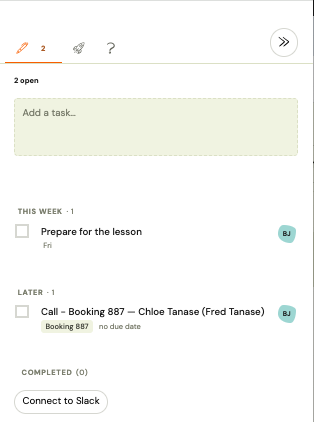
When you are looking at a specific record — a registration, an event, a payment — you can create a todo that links back to it:
- Open the record (e.g. a booking detail page).
- Click Add to-do in the sidebar — it pre-fills a short context prefix based on the record you are viewing, for example
Registration 1234 —. - Add your reminder after the prefix, or replace it entirely.
- Save.
In the to-do list, a small icon next to the task shows its context type. Clicking the icon navigates directly to that record.
This context link is stored automatically — you do not need to copy URLs or record numbers.
Assign a to-do to a teammate
In the Assignee field, select any team member from your company. They receive a real-time notification in their Zooza sidebar and, if your company has Slack connected, in the configured Slack channel.
You can also assign a todo to yourself (the default) and reassign it later.
You can only assign todos to users in the same Zooza company. Cross-company assignment is not supported.
Set a due date
Click the Due date field and pick a date. Due dates are optional.
Tasks are sorted by due date ascending — overdue tasks appear first, tasks without a date appear last. The sidebar badge counts all open tasks assigned to you regardless of date.
Mark a to-do as done
Click the checkbox next to the task. The todo moves out of the active list.
Who gets notified when you complete a todo:
- If a colleague assigned the todo to you, they receive a notification when you mark it done.
- If you assigned the todo to yourself, no notification is sent.
Reopen a completed to-do
- In the to-do list, switch the filter to Done.
- Find the task and click Reopen.
The todo returns to the active list and is assigned back to the original assignee.
Delete and undo
Click the Delete icon on a todo to remove it. Only the person who created the todo can delete it.
An Undo option appears briefly after deletion. Click it to restore the task if you deleted it by mistake.
Deleted todos are not permanently erased immediately — they are hidden and can be recovered briefly via Undo. After that, recovery is not possible.
Real-time notifications
Zooza updates the sidebar and badge counts in real time — you do not need to refresh the page. Notifications fire when:
| Event | Who gets notified |
|---|---|
| Todo assigned to you | You |
| Todo reassigned to someone else | The new assignee (and the previous assignee is notified they were removed) |
| Assignee marks your todo as done | You (the creator) |
| Todo reopened and assigned back | The assignee |
Self-assignments and self-completions are silent — no notification is sent.
Privacy and visibility
- You can only see todos where you are the creator or the assignee.
- You cannot see todos between other colleagues that do not involve you.
- Owners and Assistants do not have a company-wide view of all todos — the list is always personal.
Limits
| Setting | Value |
|---|---|
| Maximum task length | 500 characters |
| Assignee | Must be a user in the same Zooza company |
| Context link | One entity per todo (registration, event, payment, etc.) |
| Attachments, comments, subtasks | Not supported |
Related
- To-do list FAQ
- Use Zooza from Slack — create todos from Slack