Getting Help and Support
Zooza has a built-in support system that gives you instant answers from an AI assistant and lets you reach the team directly when you need a human touch. Everything is accessible from a single button in the app.
Opening the Help panel
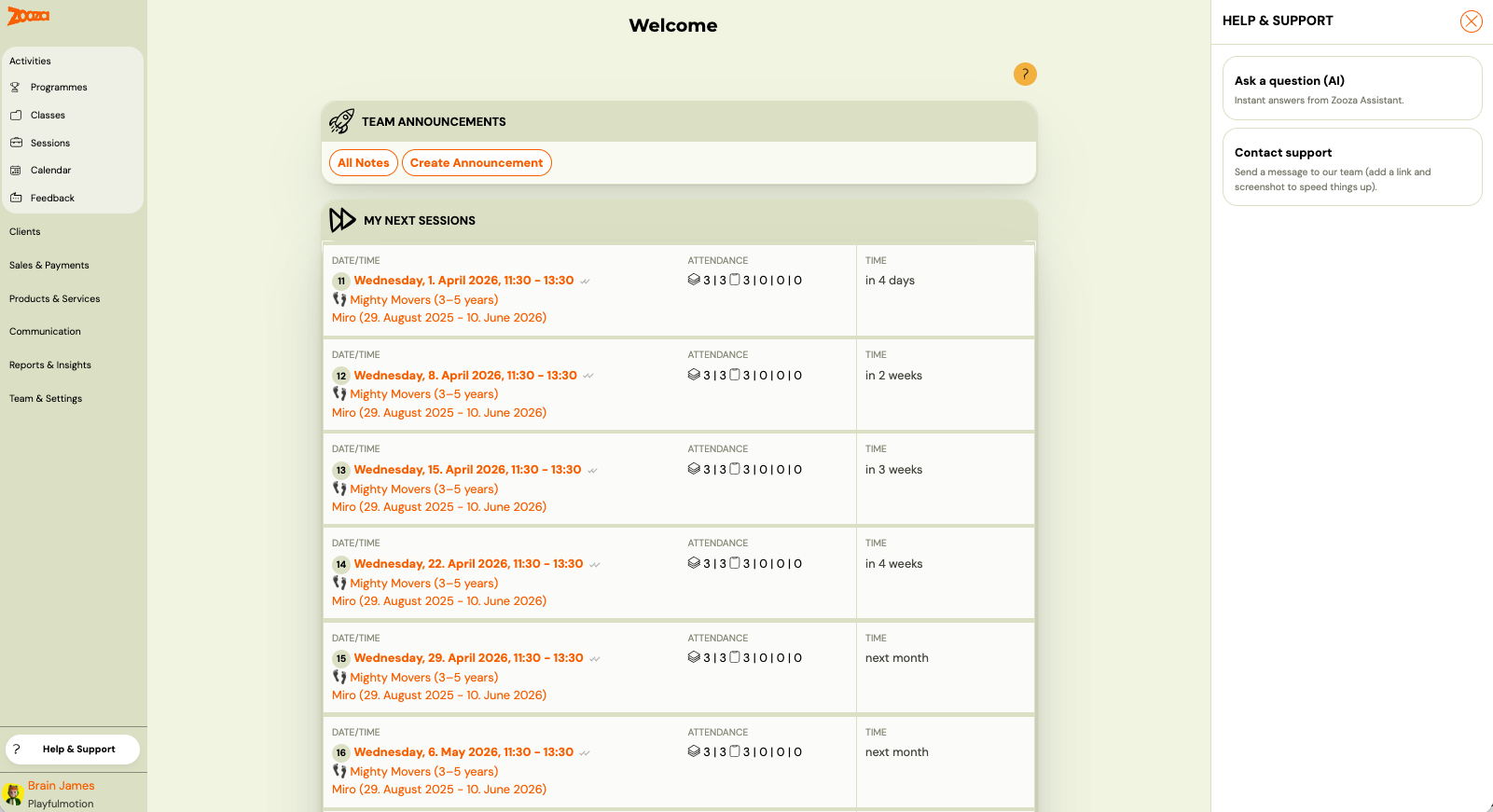
Click the ? button in the bottom-left corner of any page in Zooza. A panel slides in with two options:
- Ask a question (AI) — start a chat with the AI assistant
- Contact support — go straight to creating a ticket
Zooza Assistant (AI chat)
Zooza Assistant is the AI built into your support panel. It has access to the entire Zooza knowledge base. It can help you with:
- how to set up programmes, classes, bookings, and payments
- understanding what Zooza can and cannot do
- step-by-step instructions for any workflow
- general business questions related to running your activity business
It can share links, walk you through exact steps, and even hold a broader discussion about how to structure your setup.
What Zooza Assistant cannot do
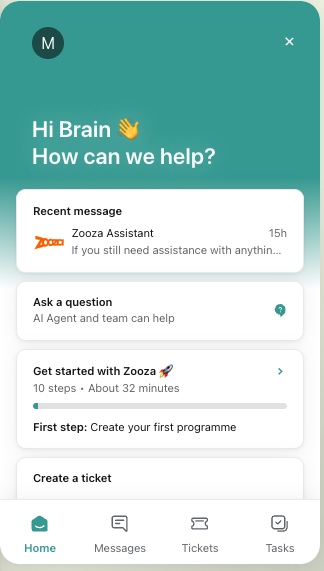
Zooza Assistant works with documentation and general knowledge — it does not have access to your Zooza account data. This means it cannot:
- look up specific clients, bookings, or payments from your account
- follow exact record links or ticket numbers
- interpret data directly from your app
If your question is about something specific in your account (e.g. a payment that looks wrong), it's best to open a ticket and include a screenshot.
Language
Write in any language and Zooza Assistant will respond in kind. Slovak and Czech are both supported — it occasionally confuses them but the quality is generally good.
Escalating to a human
When you start a chat, Zooza Assistant will respond first and try to help. If it doesn't fully resolve your issue, you can ask it to escalate — a team member will pick up the conversation and take it from there.
All conversations are monitored by the Zooza team. If something needs a human response, the team will step in even without you asking.
You can also reach the team directly by email — your first reply may still come from Zooza Assistant, after which a team member will follow up if needed.
Creating a ticket
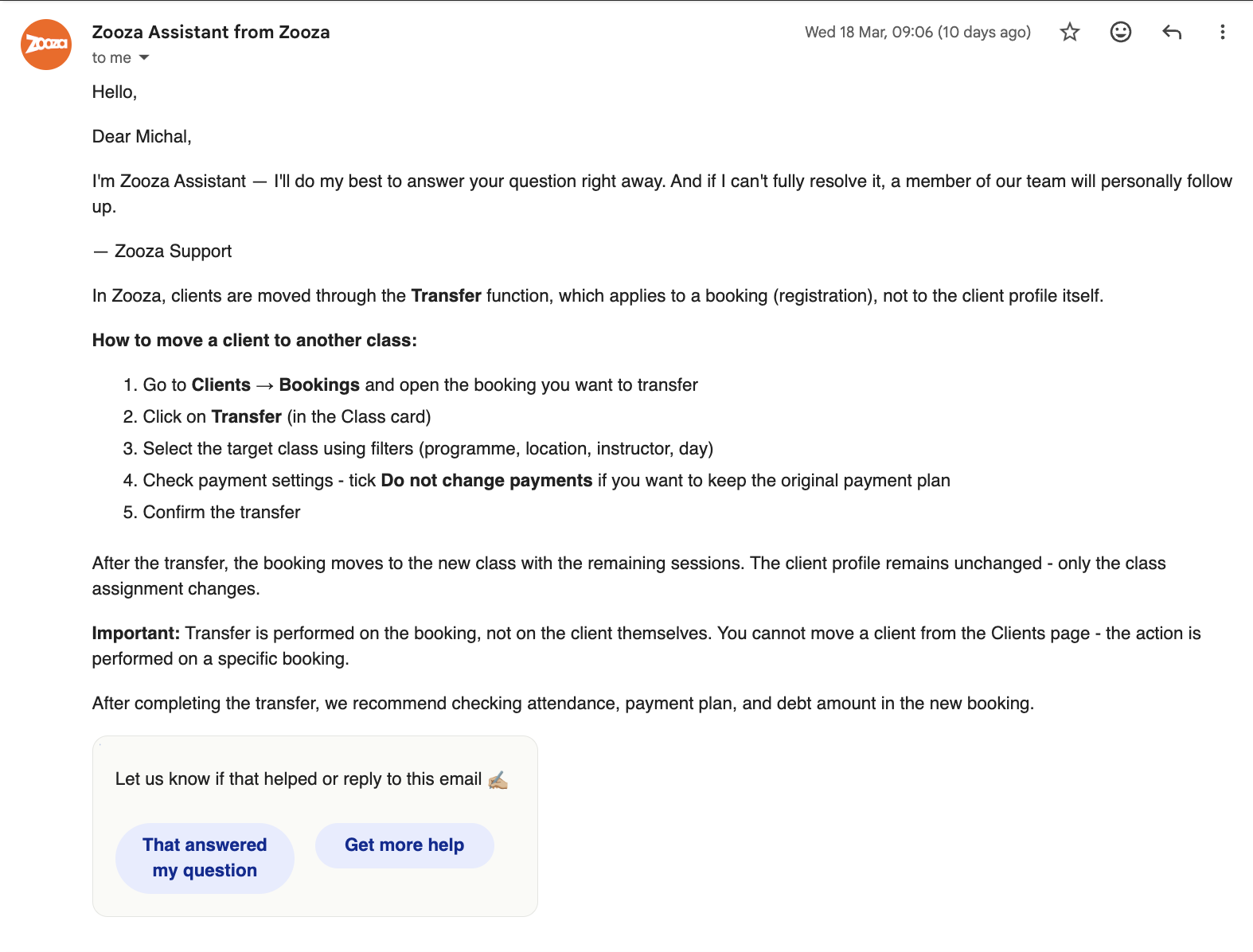
If you prefer to go straight to a human, use the Create a ticket option. You can find it:
- on the Home tab of the chat panel
- by clicking Create a ticket from the Help & Support screen
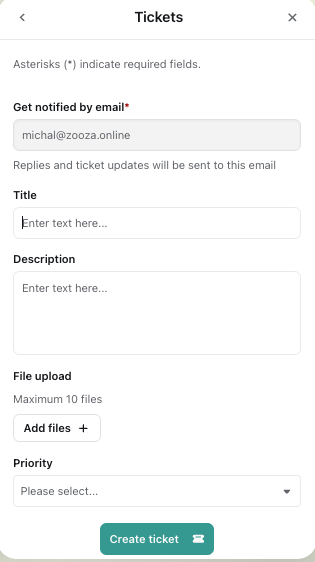
Fill in the ticket form:
| Field | Notes |
|---|---|
| Pre-filled with your account email. Replies and status updates go here. | |
| Title | A short description of the issue |
| Description | As much detail as you can provide |
| File upload | Attach up to 10 screenshots or files |
| Priority | Select based on urgency |
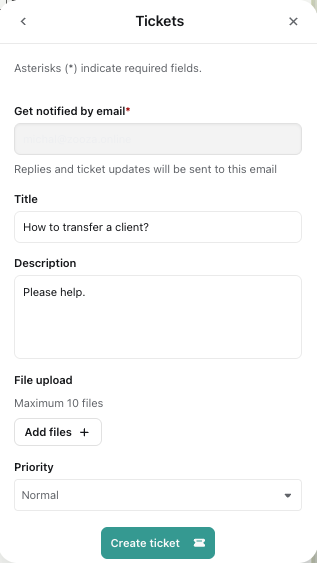
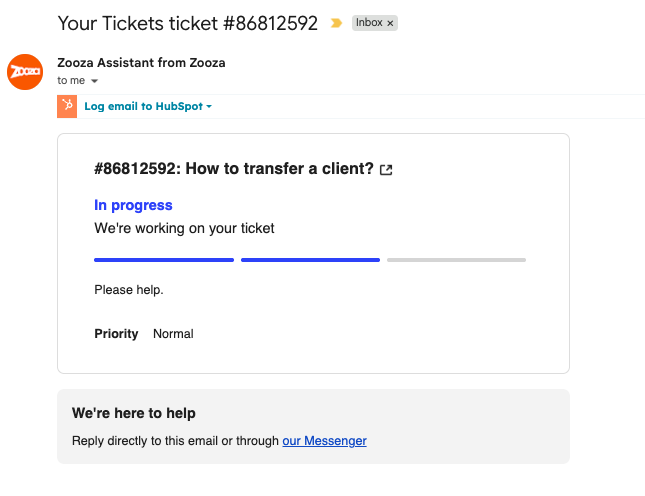
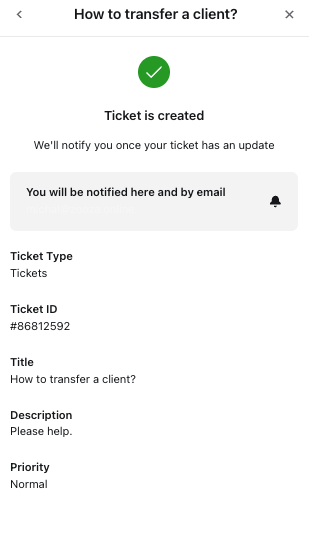 Click Create ticket to submit.
Tips for faster resolution
- Include a screenshot or screen recording — it removes back-and-forth.
- Describe what you were trying to do and what happened instead.
- If it's a payment or booking issue, include the client name or relevant date.
Tracking your tickets
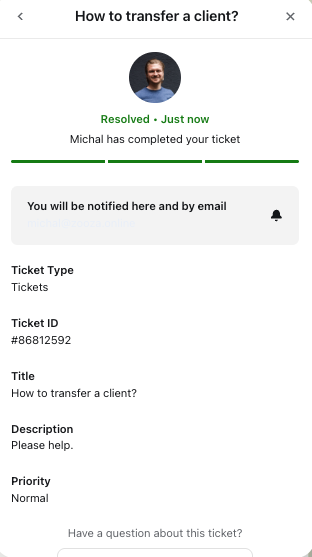
Open the chat panel and go to the Tickets tab. You'll see a list of all your submitted tickets with their current status:
- Submitted — received, awaiting response
- Resolved — completed by the team
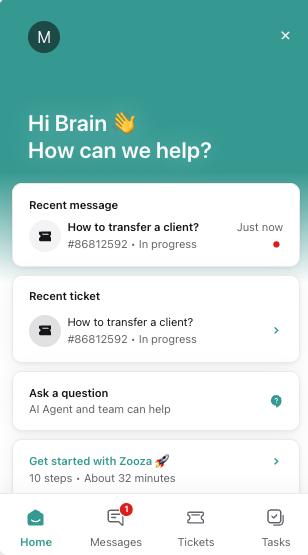
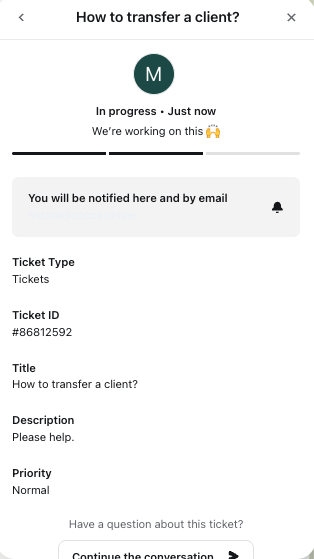 Click any ticket to see its full detail, including any replies. If you have a follow-up question, use Continue the conversation to keep the thread open.
The more you use it, the better it gets
Every conversation you have with Zooza Assistant helps improve future answers. The system learns from real usage, so regular questions — even small ones — contribute to better responses for your whole team over time.