Tracking billable sessions
If you already have set up billable sessions, the application will start calculating the progression of the class differently: You can switch between the types of statistics in the class list. Next to the Sort drop-down menu there is a filter button to set the View Settings. You can switch between viewing the class bookings or the class progress.
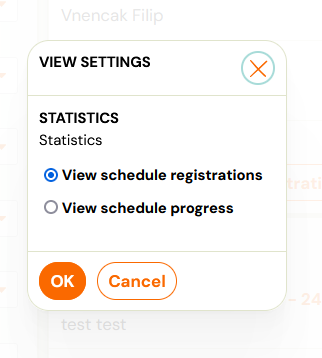
This selection is then saved and retained in all user sessions.
View class progress
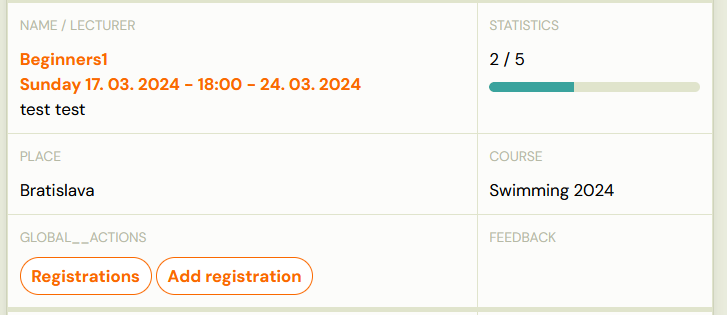
If the class does not have set billable sessions, then the view of schedule progress for classes shows the total number of available dates (scheduled, unscheduled) compared to the number of sessions that have already happened.
If the class already has billable sessions set, the view shows the total number of billable sessions available compared to the number of billable sessions that have already happened. Next to the coin pile icon there is number in brackets indicating the number of billable sessions subject to payment that are set on the class or on the programme.
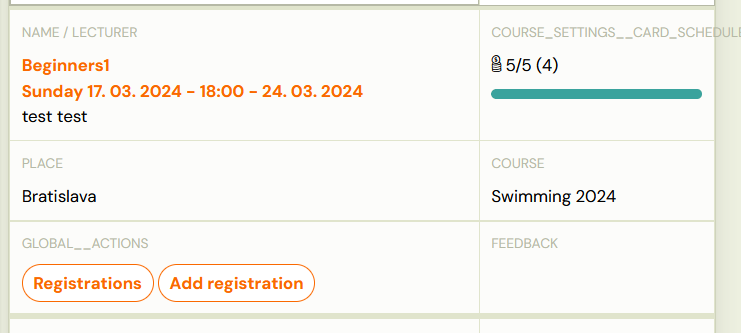
Attention! The setting on the class/programme specifies how many billable sessions the class SHOULD HAVE. When viewing with billable sessions, we are looking at ACTUAL STATUS of sessions that are marked as paid. The number in parentheses serves as confirmation that the class does not actually contain MORE or LESS billable sessions than it should.
Viewing over/under drawn billable sessions
As mentioned earlier, the number of sessions actually paid may differ from the settings in the class/programme. Zooza will notify you of this status as follows:
-
In class list when the class overrun is displayed: 2/4 (10)
- This means that the class has already set 2 billable sessions out of 4, but the total should be set to 10 sessions.
-
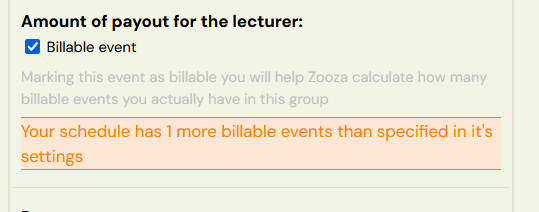
In class detail under billable sessions setting, a warning will appear to remind you that you have more or less billable sessions than you should have
-
In session detail under billable sessions setting, a warning will appear to remind you that you have more or less billable sessions than you should have.
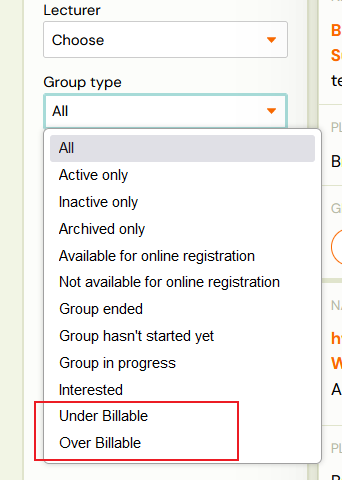
You can view the overdrawn/under drawn billable sessions using the filter at the class level.
View billable sessions in calendar
- On the calendar tile there is a “EURO coins” icon, which indicates whether the date is paid or not.

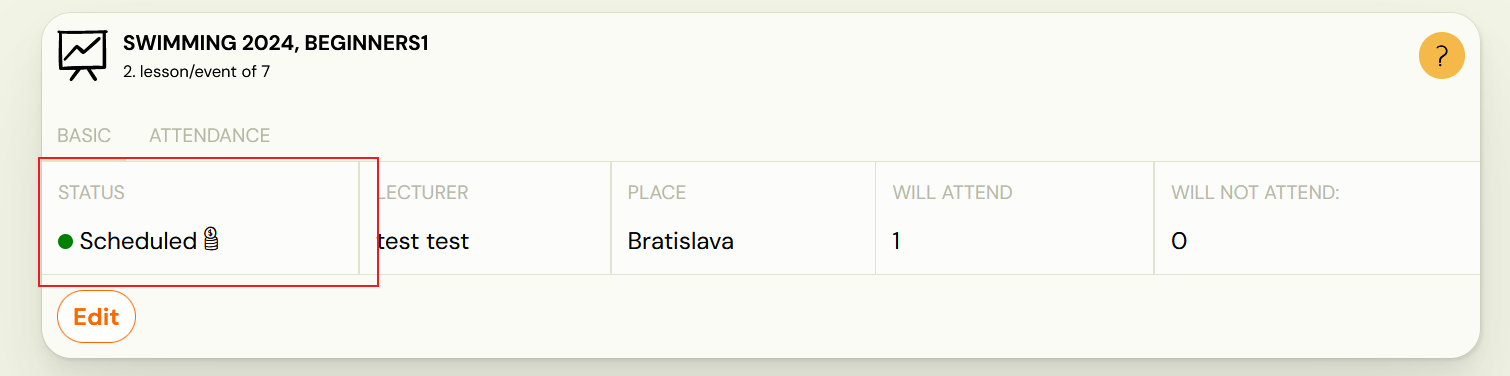
- On the date detail of the calendar, a coin pile icon is also displayed in the Status section to indicate that the date is paid.
View in the Instructor report
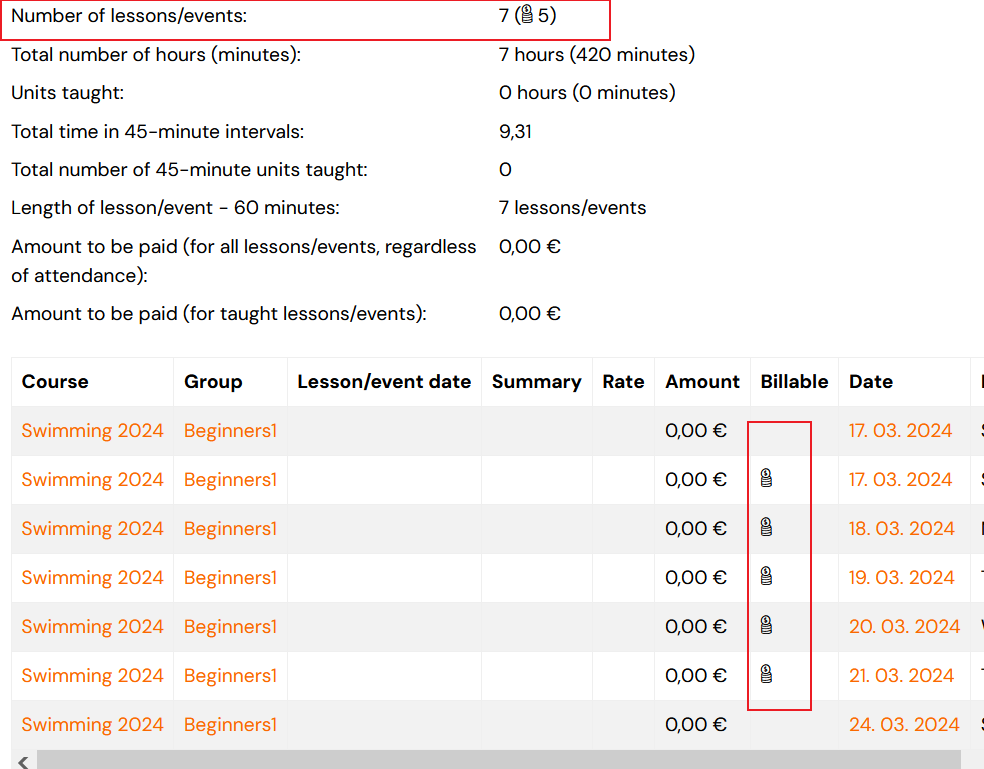
In order to view a billable session in the instructor report, see the Paid column, which indicates that the session is paid.
View in the Client profile
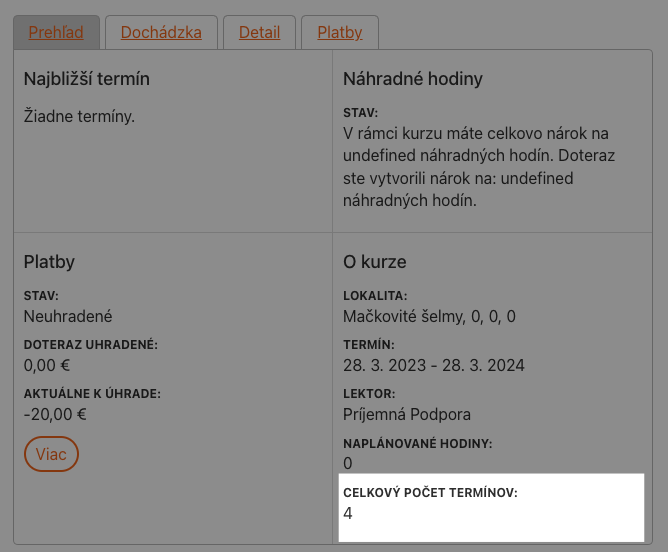
In the client profile on the programme report, the field: Total Sessions is displayed, which shows either the total number of billable sessions set for this class, or the total number of sessions in the class (if no billable sessions are set).