Class Detail
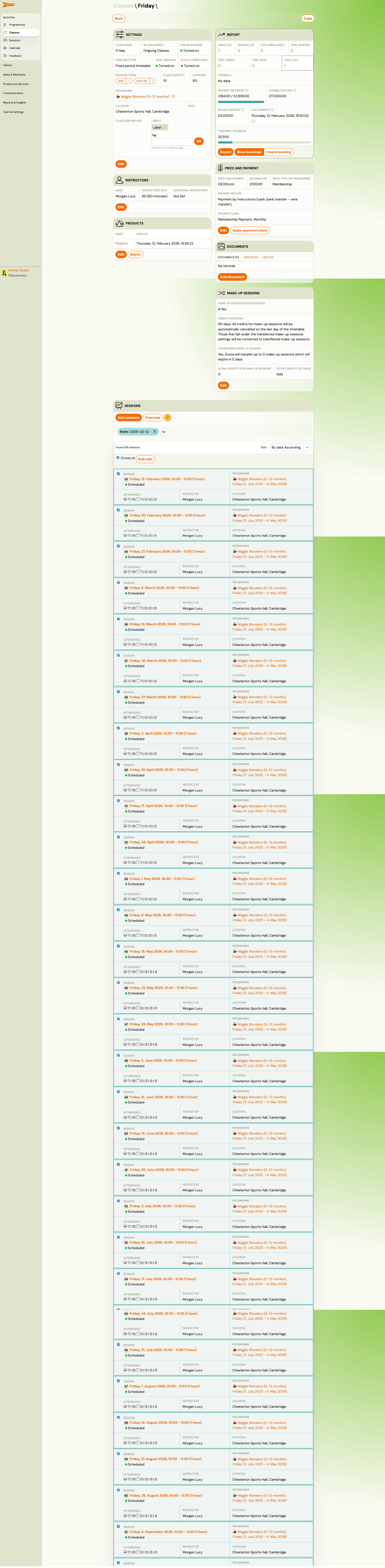
The Class Detail page is the central hub for managing a single timetable. It shows settings, instructors, products, pricing, documents, make-up sessions, and the full list of sessions with attendance data.
Navigation: Go to Activities → Classes → click a class name. Or from Programmes → select a programme → click a class.
Overview Tabs
The class detail page is organized into sections accessible from the top of the page:
| Section | Description |
|---|---|
| Settings | Class name, timetable type, venue, capacity, dates, billing period, and advanced settings. |
| Instructors | Primary and additional instructors with roles and rate. |
| Products | Products linked to this class (e.g., merchandise, kits). |
| Price and Payment | Per-session price, booking fee, and payment frequency/plans. |
| Documents | Documents attached to the class. |
| Make-up Sessions | Make-up session configuration and rules for this class. |
| Videos | Video content linked to the class. |
| Report | Session-by-session attendance report. |
| Sessions | Full list of all sessions with date, status, and actions. |
Settings
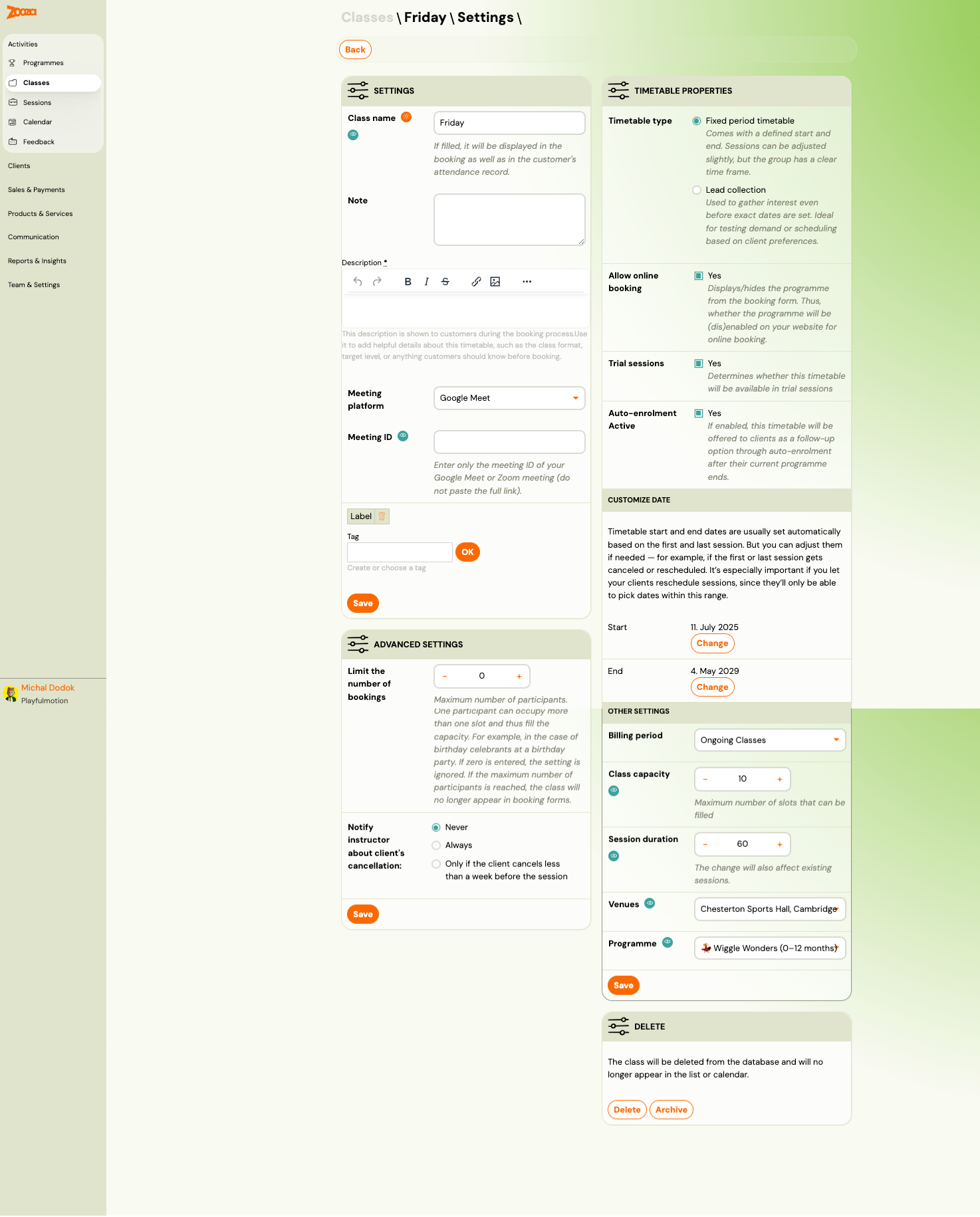
The settings section has two columns: general settings on the left and timetable properties on the right.
General Settings
| Field | Description |
|---|---|
Class name | Display name (shown in bookings and attendance records). |
Note | Internal note (not visible to clients). |
Description | Rich-text description shown to clients during booking. Use it for class format, age range, or other details. |
Meeting platform | Online meeting tool (e.g., Google Meet, Zoom). |
Meeting ID | Meeting room ID (not the full link). |
Label | Custom label badge. |
Tag | Categorization tag. |
Timetable Properties
| Field | Description |
|---|---|
Timetable type | Fixed period timetable — defined start/end. Lead collection — interest gathering. |
Allow online booking | Shows/hides this class on the booking form. |
Trial sessions | Whether this timetable is available for trial sessions. |
Auto-enrolment Active | Whether this timetable is offered via auto-enrolment. |
Customize Date
| Field | Description |
|---|---|
Start | First session date. Click Change to adjust. |
End | Last session date. Click Change to adjust. |
Timetable dates are set automatically from the first and last session but can be adjusted manually. This is important if you allow rescheduling — clients can only pick dates within this range.
Other Settings
| Field | Description |
|---|---|
Billing period | Payment grouping for this class (e.g., "Ongoing Classes"). |
Class capacity | Maximum number of participants. |
Session duration | Duration in minutes (affects all existing sessions). |
Venues | Assigned venue. |
Programme | Parent programme (read-only reference). |
Advanced Settings
| Field | Description |
|---|---|
Limit the number of bookings | Max participants (0 = unlimited). One person can occupy more than one slot. |
Notify instructor about client's cancellation | Never, Always, or Only if the client cancels less than a week before the session. |
Delete Section
- Delete — permanently removes the class from the database.
- Archive — hides the class from lists and calendar but keeps the data.
Instructors
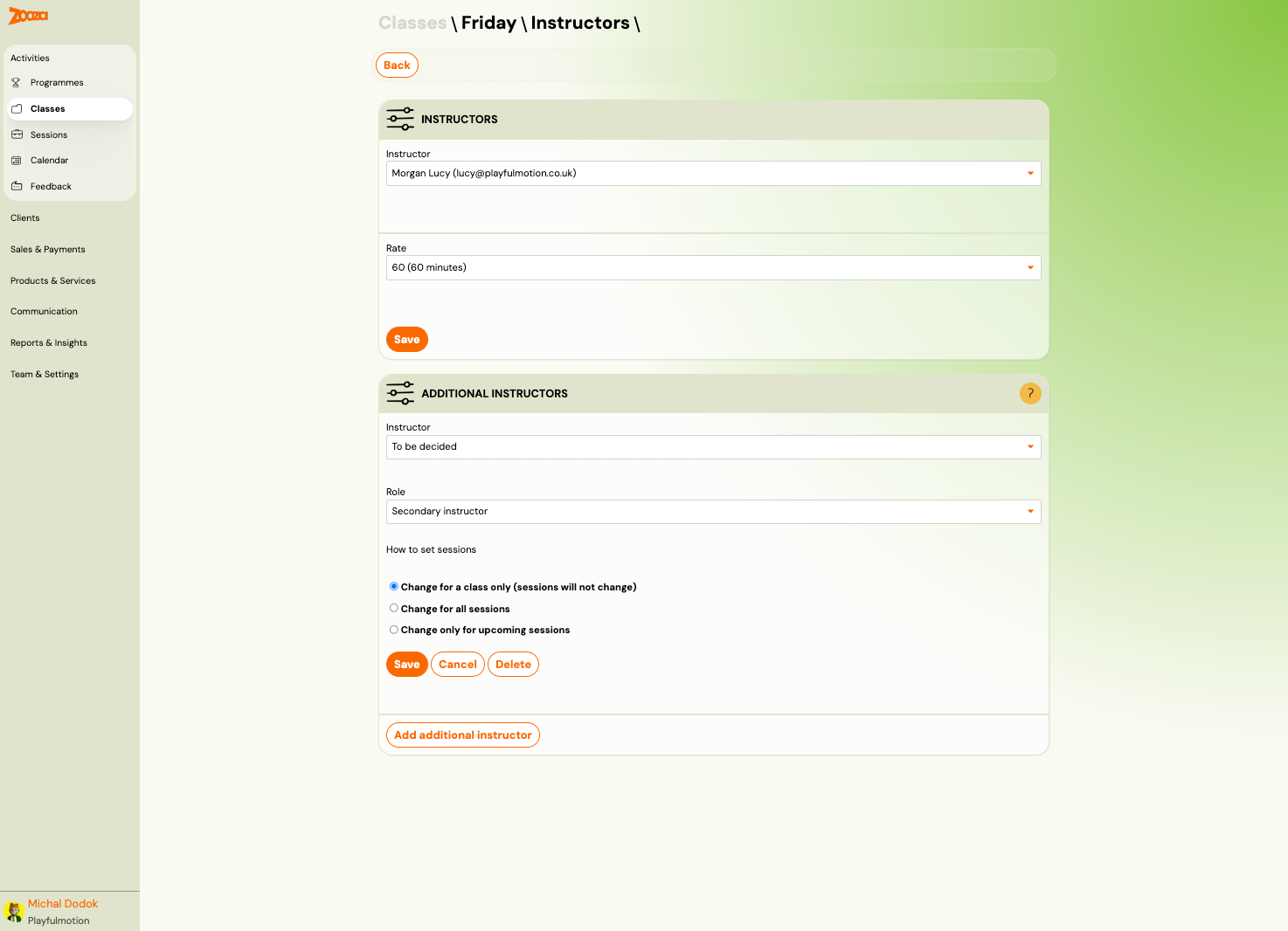
Manage the primary instructor and any additional instructors for the class.
Primary Instructor
| Field | Description |
|---|---|
Instructor | Select from the instructor list. |
Rate | Pay rate (e.g., "60 (60 minutes)"). |
Additional Instructors
| Field | Description |
|---|---|
Instructor | Select an additional instructor. |
Role | Secondary instructor or other roles. |
How to set sessions | Change for a class only (sessions unchanged), Change for all sessions, or Change only for upcoming sessions. |
Click Add additional instructor to assign more instructors.
Price and Payment
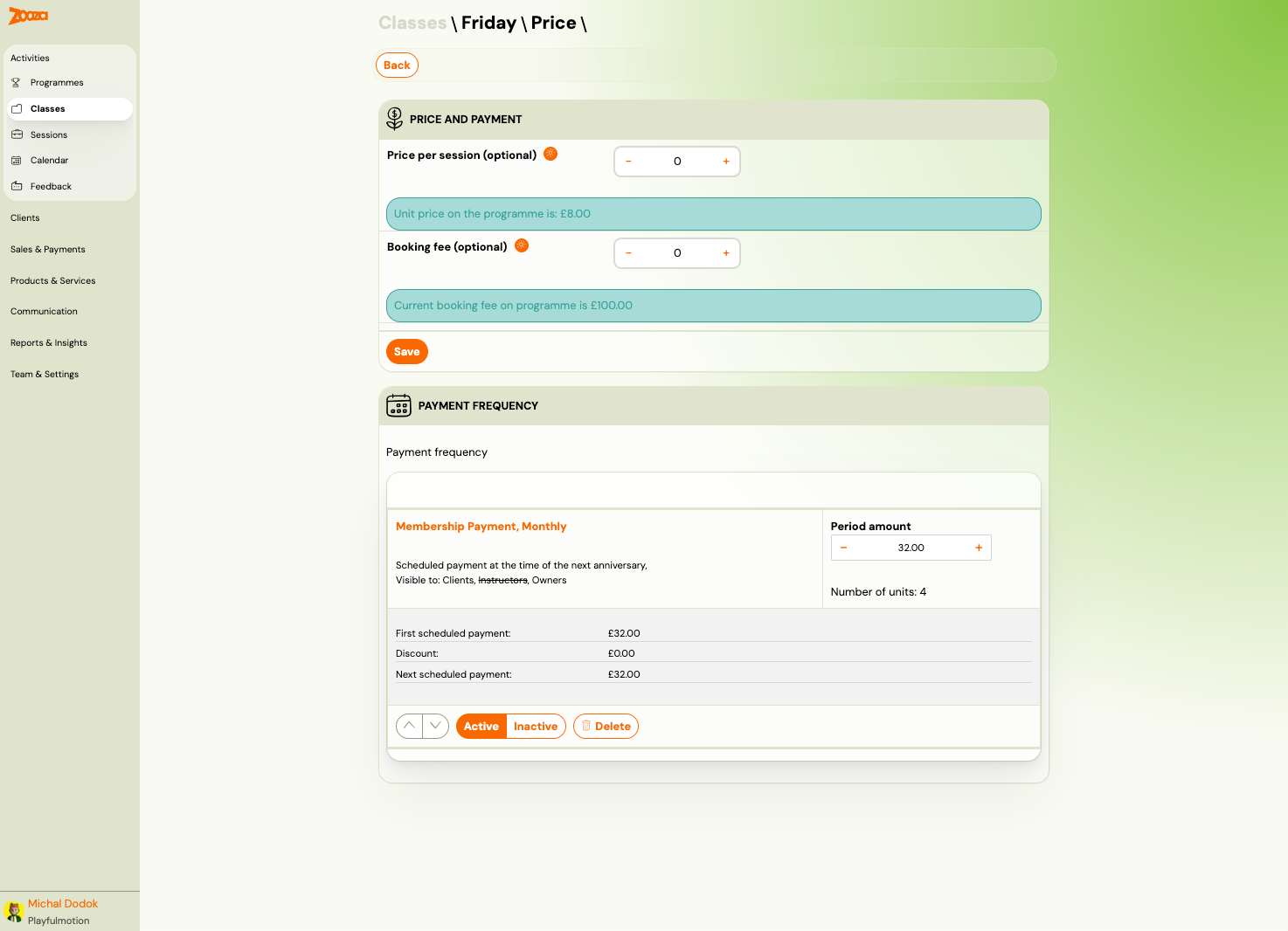
Override programme-level pricing at the class level.
Price and Payment
| Field | Description |
|---|---|
Price per session (optional) | Override the programme unit price for this class. |
Booking fee (optional) | Override the programme booking fee for this class. |
Info banners show the current programme-level prices for reference.
Payment Frequency
Shows the active payment plan for the class:
| Field | Description |
|---|---|
Payment plan name | E.g., "Membership Payment, Monthly". |
Period amount | Amount per payment period. |
Number of units | Number of periods in the plan. |
First scheduled payment / Discount / Next scheduled payment | Financial details. |
Visible to | Who can see the plan (Clients, Instructors, Owners). |
Payment plans can be reordered, activated, deactivated, or deleted.
Report
Session-by-session attendance and financial report for the class.
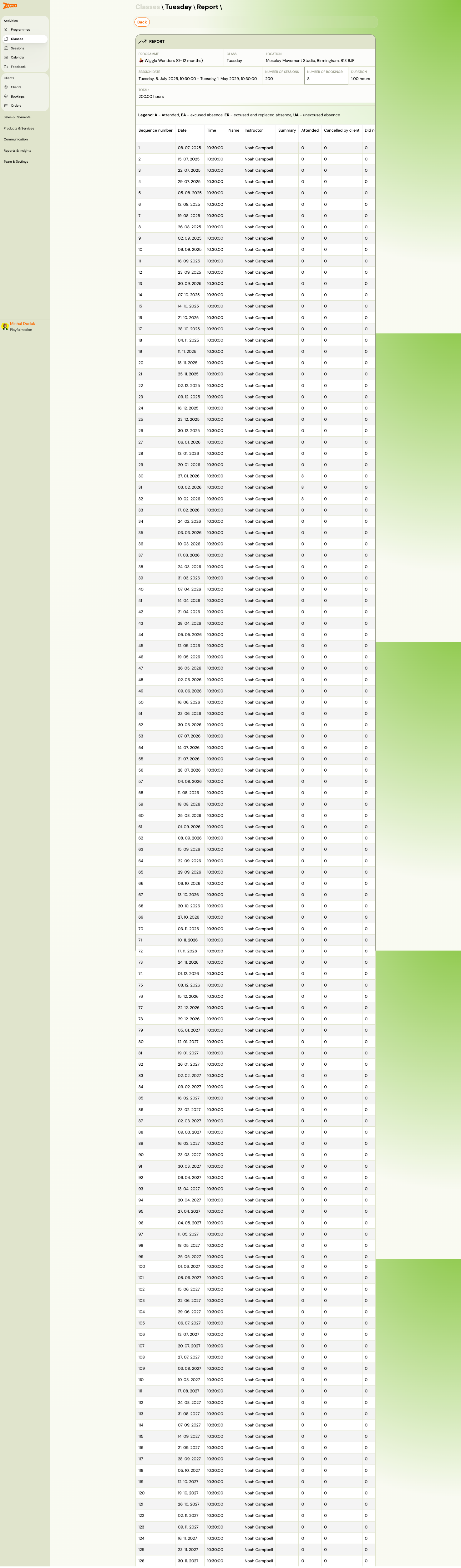
The report shows:
| Column | Description |
|---|---|
Sequence number | Session number (1, 2, 3, ...). |
Date | Session date. |
Time | Session start time. |
Name | Instructor name. |
Instructor | Instructor name (confirmed). |
Summary | Attendance summary count. |
Attended | Number who attended. |
Cancelled by client | Client cancellations. |
Absence count | Unexcused absences. |
The report header shows the class name, programme, day, location, date range, and total hours.
Sessions
The sessions list shows every scheduled session for the class.
Each session row shows:
- Date, day, and time range (e.g., "Friday, 13. February 2026, 10:00 – 11:00")
- Status indicator (colour-coded: green = scheduled, orange = in progress)
- Programme name and date range
- Instructor name and venue
- Detail and Bulk edit action buttons
Session Actions
| Button | Description |
|---|---|
| Add sessions | Add new sessions to the class. |
| Colourize | Toggle colour coding on sessions. |
| Filter by date | Filter the session list by date. |
| Choose all | Select all sessions for bulk operations. |
| Bulk edit | Edit multiple sessions at once (e.g., change time, instructor). |
Sessions can be sorted by date (ascending/descending).
Changing instructors
Change the instructor for a class
- Open the class you want to update.
- Find the Instructor setting in the class detail.
- Select a different instructor from the list.
- Choose whether the change applies to all sessions or only upcoming sessions.
This sets the main responsible instructor for the class. Past sessions are not affected.
Change the instructor for specific sessions only
- Go to Sessions in the class detail.
- Use filters (e.g. by date) to find the sessions you want to change.
- Open each session and update the instructor there.
Session-level instructor changes override the class-level setting for those sessions only.
Two instructors per class
To assign a main instructor and an assistant (or two co-instructors) to the same class:
- When creating the class, select the first instructor in the basic settings.
- After the class is created, open it in the Classes view.
- In the Instructors tile, add the second instructor.
Both instructors appear on the class and on the sessions generated from it. The first instructor is treated as the primary responsible instructor for reporting and billing purposes.
Related
- Creating a class — step-by-step guide to creating a new class.
- Classes List — the cross-programme classes view.
- Sessions List — global sessions view.
- Edit Sessions in Programmes Guide — modifying sessions.
- Attendance and Catch-ups FAQ — marking attendance, catch-up flow.