Sessions List
The Sessions screen shows all individual sessions across all programmes and classes in a single chronological list. Use it to see your complete day-by-day schedule, check instructor assignments, and access session details.
Navigation: Go to Activities → Sessions.
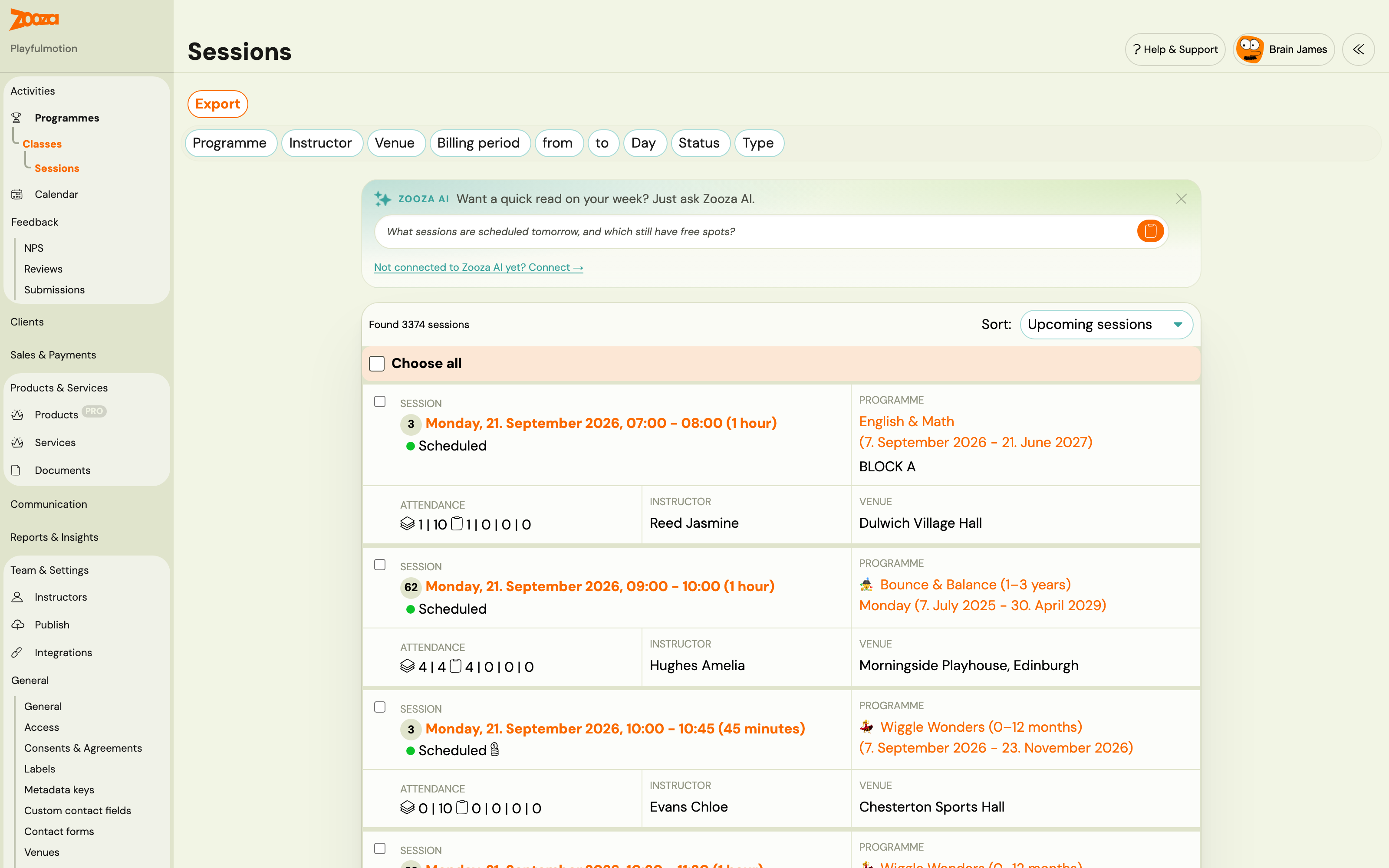
Filters
| Filter | Description |
|---|---|
Programme | Filter by specific programme. |
Instructor | Filter by instructor. |
Location | Filter by venue. |
Billing period | Filter by billing period. |
From / To | Date range filter. |
Status | Filter by session status. |
Type | Filter by session type — see values below. |
Type filter values
| Value | Description |
|---|---|
| All | No filter — shows all session types. |
| Session over capacity | Sessions where the number of enrolled clients exceeds the class capacity. Use this to find and resolve over-capacity situations. |
| Session under capacity | Sessions with available slots — useful for spotting classes with low fill rate. |
| Custom make-up session | Sessions created as a custom make-up (requested by a client, approved by instructor). |
| Rescheduled | Sessions that were moved to a different date or time. |
| Substituted | Sessions where the originally assigned instructor was replaced by a substitute. |
| Cancelled | Sessions that were cancelled. |
Tip: Use Session over capacity to quickly identify sessions where attendance exceeds the maximum. This can happen when a client books a make-up slot in a class that is full, and then a regular client subsequently re-registers — the regular client has priority but the make-up booking remains, temporarily creating over-capacity. Review the session detail to decide whether to remove the make-up or increase the class limit.
Export to Excel
Permission required: Owner role
Download the currently filtered session list as an XLSX spreadsheet. Use this for offline attendance checks, instructor payout calculations, billing reconciliation, or venue usage reporting.
The export mirrors exactly what the filter shows — one row per session, with programme name, class name, date/time, instructor, location, and attendance counts. Apply your filters first, then click Export.
Note: The export is capped at 5 000 rows. If your filter returns more, narrow the date range or add other filters before exporting.
Results can be sorted by Upcoming sessions (default) or other criteria.
Session List
Each session row shows:
| Element | Description |
|---|---|
| Session date and time | Full date with day of week, start and end time (e.g., "Friday, 13. February 2026, 10:00 – 11:00 (Fixed)"). |
| Status badge | Colour-coded: green = scheduled, orange = in progress, etc. |
| Detail link | Opens the session detail with attendance tracking. |
| Instructor | Assigned instructor name. |
| Programme and class | Programme name, class name, and date range. |
| Attendance icon | Quick-view of attendance status. |
The total number of sessions found is shown at the top (e.g., "Found 846 sessions"). Use Choose all to select all sessions for bulk operations.
Related
- Classes List — the cross-programme classes view.
- Class Detail — managing a single class with its sessions.
- Calendar — visual calendar view of sessions.
- Edit Sessions in Programmes Guide — modifying session dates and times.
- Attendance and Catch-ups FAQ — marking attendance.