Email and Communication FAQ
Do SMS messages require a country code in the phone number?
No. You do not need to enter the country code when saving a client's phone number. Zooza automatically applies the country code based on the country configured for your Zooza account.
Enter the local phone number format (e.g. 0912 345 678). Zooza will format it correctly when sending SMS notifications.
If a client has a foreign number from a different country, enter it with the full international format including the + prefix (e.g. +420 777 123 456).
What is the difference between "Trial Booking Completed" and "Confirmation of Booking" emails?
- Trial Booking Completed — sent immediately after a parent books a trial class. It confirms the trial booking.
- Confirmation of Booking — sent after a parent completes a full programme enrolment (not a trial).
These are separate templates that serve different stages of the client journey.
What dynamic tags can I use in emails?
Common dynamic tags:
*|FIRST_NAME|*— parent's first name.*|EF_FULL_NAME|*— child's full name.*|BOOKING_URL|*— pre-filled booking form link.*|WIDGET_PROFILE_URL|*— secure direct-login link to the parent's profile.
The full tag list is available via the Tags button in the email editor. Some tags only work in specific template types (e.g., session tags only in session notifications).
Do dynamic tags work in email subject lines?
Yes, but with limitations. Some tags may not populate in certain template types. Test your email before sending to a large class.
Why does my email lose formatting when sent?
When composing emails in Zooza, the editor preserves formatting (paragraphs, bold, etc.). If the sent email appears as a single block of text, you may be pasting plain text without the correct line breaks. Use the built-in editor's formatting tools rather than pasting from external sources.
Where do replies to Zooza emails go?
Replies go directly into the Zooza application. The reply-to address is system-managed and routes to your Zooza inbox.
Nothing tells you they arrived unless you ask it to. Because the reply lands in the app and not in your mailbox, it can sit there unread for days. Turn on the New email reply from client notification and it emails you each time one comes in — see Notifications Center.
Only a few templates go out from no-reply@zooza.app; the rest are sent from your own
address, which is why replies come back to us and are collected in the app.
If you would rather the reply reached your mailbox, that is what the New email reply from client notification above is for — it emails you the moment one arrives, and you read and answer it in Zooza.
If you want mail to go out from your own address technically as well — your domain in the envelope, replies landing straight in your own inbox, the whole thread in your mail client — that is possible, but it is a paid add-on that has to be set up for your domain. It is what most franchise networks use. Ask support for what is involved and what it costs; it is not part of the standard plan.
Can I block replies to Zooza emails or set up an autoresponder?
Zooza does not support blocking replies to outgoing emails or sending an autoresponder to incoming replies. Outgoing emails are event-driven (booking confirmation, reminders, etc.) — there is no mechanism to auto-reply to a client who replies to one of those messages.
Workarounds:
- Add a line in your email templates such as "Please do not reply to this email — contact us at youraddress@..." so clients know where to reach you.
- For a true autoresponder (e.g., out-of-office reply to incoming emails), configure it through your email provider, not through Zooza.
How does the Ecomail integration work?
When you connect Zooza to Ecomail, basic client information is automatically synchronised to your Ecomail account. The sync runs every 2 hours.
Data synced per client:
- First name
- Last name
- Email address
- Programme (course) name
The sync is one-way — Zooza pushes data to Ecomail; changes in Ecomail are not reflected back in Zooza.
Limits apply: Ecomail has its own contact and send limits depending on your plan. If your client count exceeds your Ecomail plan, contacts may not sync completely.
To connect Ecomail or request an extension of synced fields, contact Zooza support.
Can I use a custom sending domain for emails?
Custom sending domains are available for specific plans. Contact your Zooza account manager to discuss options.
How do I send an email to all clients at a specific location?
Go to Bookings, filter by the relevant class or location, and use the bulk communication option. You can also go to Communication for broader email sends, though the filtering options differ from the bookings view.
Session reminders didn't arrive — how do I check what happened?
Session reminders (day-before notifications) are processed in a queue. If clients report they didn't receive a reminder, check the notification log before assuming a bug:
- Go to Reports → Session notifications (or navigate directly to
/#reports/event_notifications). - The log shows each notification batch: when it was created, how many were processed, how many failed, and the notification type.
- Find the relevant date and check the status.
Common reasons reminders don't arrive:
- Client opted out (booking level) — the client (or admin) turned off session reminders on that booking. Check the booking → Options tab → Reminder toggle.
- Client opted out (profile level) — each client has notification preferences in their profile that apply across all their bookings. If one specific client isn't receiving reminders while everyone else in the same class is, open the client's profile and check their notification settings. This is separate from the per-booking toggle.
- Processing delay — reminders are batched. On busy days processing can take longer than usual. Check the log — if the status is "Processed", the email was sent from Zooza's side.
- Session was already cancelled — cancelled sessions suppress reminders automatically.
- Client's email filtered it — if the log shows "Processed" but the client didn't receive it, check spam/junk. Zooza cannot override recipient-side filtering.
- No sessions that day — verify the session date is correct and the session is not in Draft or Cancelled status.
SK: Ak notifikácie neodišli, skontrolujte log na stránke Reports → Session notifications. Ak je stav "Processed", email bol odoslaný zo strany Zooza — problém je na strane klienta (spam, vypnuté notifikácie).
I sent an email to "all active clients" — did it reach clients on trial?
No. When you send via Communication → Send message and select all active clients (or all clients in a class), the audience includes only clients with an active enrolment booking. Clients with a Trial booking status are not included in that group.
To reach trial clients, you need to send a separate message:
- Go to Communication → Send message.
- Choose the same message type (email or WhatsApp).
- In the audience selector, filter by Trial status (or select the specific class and filter to trial bookings).
- Send the message to that group separately.
This applies to both manual email sends and WhatsApp messages composed via the Communication module. Automated notifications triggered by programme rules (e.g. session reminders, trial confirmation) are sent correctly to trial clients based on their booking type — this limitation only affects manually composed broadcasts.
How do I set up class reminder emails for parents?
Class reminders are part of the automated email flow. They are configured per programme under the communication/automation settings. Typically, a reminder is sent the day before the scheduled session.
A client turned off their session reminders — how do I reactivate them?
Session reminders (and session-change notifications) can be toggled per booking. Both the client — via an unsubscribe link in the reminder email or via the client portal — and the admin can manage this. Client preference takes precedence: if the client turns the reminder off, it stays off even if the admin turns it back on.
To reactivate as an admin:
- Open the client's booking/registration detail.
- Go to the Options tab.
- Find the Reminder toggle and turn it back on.
Scope: This toggle controls session reminders and session-change notifications only. Payment reminders, booking confirmations, and other transactional notifications are not affected — those cannot be opted out from by the client.
Note: if the client opts out again from the unsubscribe link in a future email, it will be disabled again.
Can I get an email notification when a new booking or trial comes in?
Yes. Admin notifications are configured in the system settings. You receive an email whenever a new booking (including trials) is created.
I sent a bulk email — the job shows "Pending" but clients already appear in their communication history. What does "Pending" mean?
These two views track different things:
- The job status (Communication → your send history) shows where the send is in the processing pipeline —
Pending approval,Queued,Sending,Completed. "Pending approval" means the batch is waiting for you to click Approve. For sends under 100 recipients, approval happens automatically and the job moves toSendingalmost immediately. - The individual client's Communication tab records each email as soon as Zooza hands it off to the mail gateway, which can happen before the overall job status updates on screen.
So seeing "Sent" in a client's history while the job still shows "Pending" or "Sending" is normal — those emails are already on their way.
Statuses at a glance:
| Job status | What it means |
|---|---|
| Pending approval | Batch created, waiting for your approval. No emails sent yet. |
| Queued | Approved, but another send is active. Will start automatically. |
| Sending | Dispatching in progress. Emails appear in client histories as they are processed. |
| Completed | All recipients processed. Check Sent and Failed counts for the final result. |
For the full breakdown, see Bulk email send tracking.
Why do dynamic tags show wrong data for make-up or block-based sessions?
Tags like COURSE_TIME and COURSE_DATE_DAY pull their values from the primary class's first session, not from the make-up session or the specific block the client registered for. This is a known limitation. For block-based programmes, use the ORDER_SUMMARY tag instead, which includes the correct session details for the client's specific block.
Why do payment reminder emails arrive in the middle of the night?
Payment-related automated emails — missed payment notifications, upcoming payment reminders — are processed in a nightly batch job. The exact delivery time depends on server scheduling and typically falls between midnight and 6am.
This is intentional, not a bug. Zooza (like other platforms) runs these batch jobs overnight for two reasons:
- Server load — processing reminders for all companies at once would slow down the application during the day when admins and clients are actively using it. Overnight processing keeps the app fast and responsive during business hours.
- Communication timing — running reminders during the day would overlap with other automated messages (session reminders, booking confirmations, etc.) and potentially flood clients. A dedicated overnight window keeps automated messages predictable.
The overnight timing is not configurable — neither globally nor per programme.
If clients find late-night emails disruptive, consider adding a short note to the Missed payment or Upcoming payment email template — for example: "This message was generated automatically overnight. If you have questions, contact us during business hours." See Message Templates for how to edit templates.
How do I resend a registration confirmation email to a client?
- Open the registration (booking) detail.
- Go to the Communication tab.
- Click Send email.
- In the template selector, choose the Booking confirmation template (or any other template you want to send).
- Send.
This works for any booking — not just manually created ones. Use it any time a client says they didn't receive their confirmation or need it re-sent.
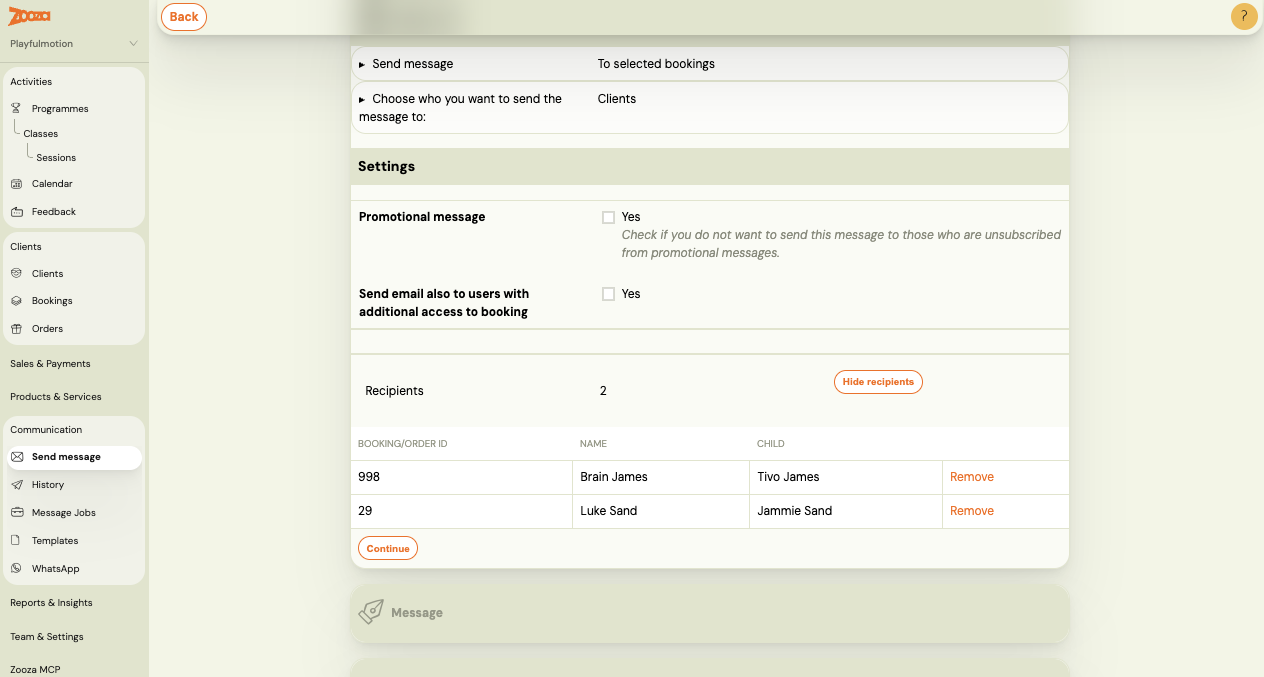
How do I remove specific people from the recipient list when sending a bulk email?
In step 2 of the email send flow (the recipient review step), you can expand the recipient list and uncheck individual recipients before sending.
- Compose your email and proceed to the next step.
- Click the recipient count or the Recipients section to expand the full list.
- Uncheck anyone you do not want to receive this send.
- Proceed to send.
Unchecking a recipient only affects this single send — it does not affect their subscription status or future sends.
Why did a session reminder arrive at a different email address than the client's account email?
Each registration has an optional additional notification email field. When this field is set, session reminders and certain automated notifications go to that address — not to (or in addition to) the client's main account email.
This is intentional. It allows a second parent, guardian, or contact person to receive session reminders independently of who owns the account.
To check or change the additional notification email for a registration:
- Open the registration (booking) detail.
- Go to the Options tab.
- Look for the Additional notification email field.
If a client reports receiving reminders at an unexpected address, check this field first. Clear it to send notifications to the account email only.
Why did my client not receive the confirmation email for a manual or copied booking?
Copied and manually created bookings do not trigger automatic confirmation emails. This is by design. To send a confirmation, go to the booking's Communication tab and send the confirmation email manually.
What is the difference between system templates and user templates?
- System templates (e.g., payment confirmation, login code) are built into Zooza and cannot be edited. They appear under the "System communications" section in the template selector.
- User templates are custom templates you create. They appear under the "User templates" section in the template selector.
These are listed in separate dropdown sections. If you cannot find your custom template, make sure you are looking under User templates, not under system or saved communication templates.
Will the session reminder email be resent if I reschedule a session to a different date?
No. If a session reminder email was already sent for the original date, Zooza will not automatically resend it when you move the session to a different date or time.
The reminder system fires once when the scheduled send time arrives. If the session is rescheduled after that point, no new reminder is generated.
Workaround: Send a manual notification from the session's Communication tab to inform clients of the new date/time. You can also create and send a custom message via Communication → Send message targeted at the attendees of that session.
How do I troubleshoot emails not arriving for a specific client?
- Go to the booking's Communication tab and check the sent email logs to confirm whether the email was sent by Zooza.
- Common causes for non-delivery:
- The client's mailbox is full (e.g., "inbox out of storage space" bounce).
- The client's email provider is filtering Zooza emails as spam.
- The client previously marked a Zooza email as unwanted.
- Ask the client to whitelist your sending address and check their spam/junk folder.
Zooza cannot override recipient-side filtering. If the logs confirm the email was sent, the issue is on the recipient's side.
A client's address is marked invalid (a cross on the client, but fine in the bookings list) — how do I clear it?
You do not have to. The flag is set when delivery to that address fails, and it clears itself the next time a message is delivered there successfully.
While it is set, the address is left out of recipient lists — which is why a bulk email to a class can quietly skip somebody. If you know the address is good (the client confirmed it, or their provider had an outage), send them a single message from the booking's Communication tab: once it lands, the flag goes and they are back in the lists.
Do not swap the client to a different address just to get around it. That changes who the booking belongs to — see Client management FAQ.
Related
- Email delivery troubleshooting — diagnose bounces, spam filtering, and delivery failures
- Send email after a session — follow-up workflow for post-session communication
- Automated notifications — configure session reminders and event-triggered emails
- Message templates — create and edit email and SMS templates
- WhatsApp FAQ — WhatsApp messaging setup and limits
- Notifications center — view and manage all outgoing notification history