Email Delivery Troubleshooting
A client says they did not receive an email from Zooza. This guide walks you through how to verify delivery, identify common causes, and resolve the issue.
Step 1: Check if the email was sent
- Open the client's registration or booking.
- Go to the Communication tab.
- Look for the email in the sent email log.
If the email appears in the log, it was sent from Zooza successfully. The problem is on the recipient's side.
If the email does not appear in the log, the system did not send it. Common reasons:
- The booking was created manually or by copying another one. Neither goes through the standard booking flow, so neither sends the confirmation by itself. When you copy a booking there is an option to send it — it is easy to click past, and a confirmation that was never ticked looks exactly like one that failed. Send it afterwards from the Communication tab.
- The notification template is not assigned to the programme. Check Programme Settings > Online Registration > Notifications.
- Programme type mismatch. Each automated email template is tied to a specific programme type (e.g. a template for "Regular enrolment" will not fire for a "Trial" booking, and vice versa). If your programme type does not match the template's expected booking type, no email fires. Check the programme type under Programme Settings and verify the template is configured for that type.
What the ticks and the cross next to an email mean
Zooza marks every message it sends with how far it got. Read the marker before you start looking for a fault:
| Marker | Meaning |
|---|---|
| One tick | Zooza sent the message. |
| Two ticks | The receiving mail server confirmed it as well. This is as much proof of delivery as any sender can have. |
| A cross | The receiving server refused it. It never reached the person, and resending the same address will not change that. |
Sending goes through Mandrill, a large standard email infrastructure — but a company can still refuse it under its own rules, which is what a cross against a corporate address usually means. For those, the options are a different address, or the client's IT administrator allowing zooza.app.
Why the client card and the booking disagree
The same address can show one marker on the client and another on the booking. That is not a fault, they record different things:
- the client stores whether the address itself has been verified
- the booking stores whether a given message was sent
On top of that, the bookings list is recalculated in the background rather than on every load, so it can be a little behind what you see on the booking itself. When the two disagree, the booking detail is the one to trust.
Whether someone marked you as spam cannot be found out
No email service reports that back to the sender, so nobody — Zooza included — can tell you a recipient hit the spam button. What you can see is what was delivered and what was opened, and that usually settles the argument. A parent insisting they received nothing, against a login-code email the log shows opened twice, is a conversation about their inbox rather than about Zooza.
Step 2: Verify the recipient email address
- Open the client's profile.
- Confirm the email address is correct and has no typos.
- If there is a warning icon or error indicator next to the email address, the system has previously failed to deliver to that address.
If the address is wrong, update it and resend the email.
Zooza flags an address it could not deliver to
A booking whose address has failed shows a small X next to it. That marker is reliable — treat the address as dead rather than retrying.
What it does not give you is a list. There is no view of every booking carrying an X, so you find them one at a time, usually by accident, while the seat stays occupied by somebody you cannot reach. Until that exists, the practical routine is:
- A phone number on the booking? Call, get the right address, correct it on the booking. The client keeps their place and their history.
- No other way to reach them? Delete the booking and free the seat. Somebody who mistyped their address and never heard from you will usually book again.
Step 3: Identify the delivery failure
"Email rejected" indicator on client profile
Symptom: A red indicator or the label "Email rejected" appears next to the client's email address in their profile, even though the email address appears to be valid.
Cause: Zooza uses a third-party email delivery service that automatically marks an address as rejected when a previous delivery attempt fails — for example, because the client's mailbox was full or temporarily unreachable. Once an address is flagged, the service continues to reject delivery attempts even if the issue has been resolved.
Solution:
- Ask the client to check whether their mailbox is full and free up space if needed.
- Once the client confirms their inbox is working, contact Zooza support to clear the rejected status for that email address.
- After the flag is cleared, resend any missed emails from the Communication tab.
The rejection flag is only visible to admins — clients do not see it in their own profile.
When Zooza sends an email but it does not arrive, the cause is almost always on the recipient's side. These are the most common failures.
Recipient mailbox is full
Symptom: The system shows a bounce message such as "The recipient's inbox is out of storage space."
Solution:
- Contact the client and ask them to free up space in their mailbox or switch to a different email address.
- Once the mailbox issue is resolved, resend the email from the Communication tab.
Spam or junk filter on recipient side
Symptom: The email was sent (visible in sent logs) but the client cannot find it in their inbox.
Solution:
- Ask the client to check their Spam, Junk, Promotions, or Updates folder.
- If found there, ask the client to mark the email as "Not spam" and move it to their primary inbox.
- Ask the client to add the Zooza sending address (
@zooza.app) to their contacts or whitelist.
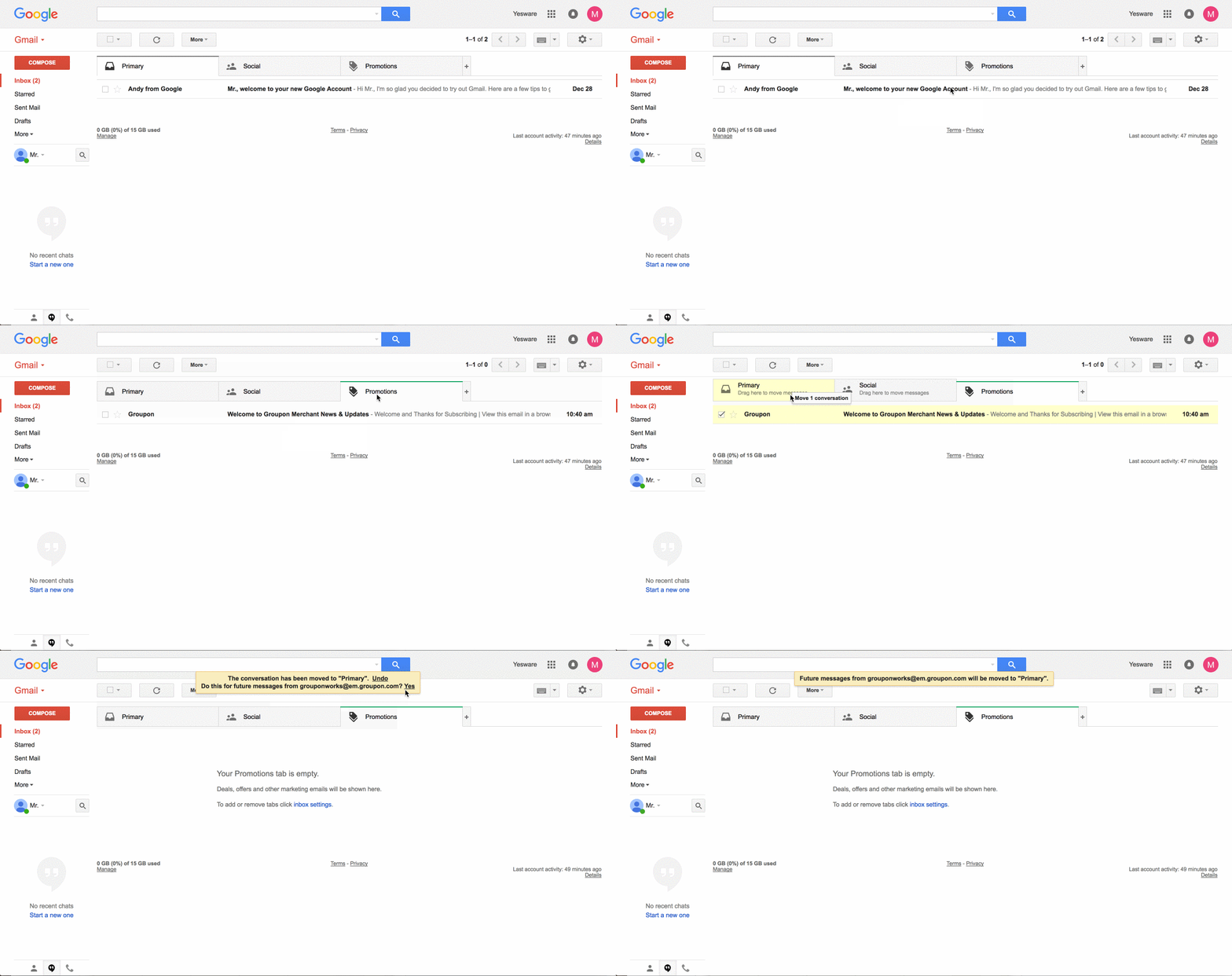
For Gmail users specifically, emails from new senders may land in the Promotions or Updates tab. The more the client interacts with Zooza emails (opens, replies, moves to Primary), the more likely future emails will arrive in the Primary inbox. Gmail learns over time — the client can speed this up by opening the email in the Promotions tab and dragging it to the Primary tab, which trains Gmail to deliver future messages there directly.
Email provider blocking
Symptom: Emails consistently fail for clients using a specific provider (e.g., seznam.cz, corporate Outlook/Exchange servers).
Some email providers apply aggressive filtering. For example, seznam.cz has been observed marking Zooza emails as spam even when the client did not flag them manually.
Solution:
- Ask the client to check their spam folder and whitelist the sender address.
- If the provider continues to block emails, ask the client to use an alternative email address (e.g., Gmail).
Email marked as unwanted by recipient
Symptom: Zooza's email delivery provider reports that the recipient previously marked emails from Zooza as spam or unwanted.
When a recipient marks an email as spam, the email provider remembers this and may silently reject future emails.
Solution:
- Contact the client and ask them to remove the spam flag on Zooza emails.
- Ask them to whitelist the Zooza sending address.
- Zooza support can remove the client from the provider's suppression list on our side. Contact support if the problem persists after the client has whitelisted the address.
Is it us, or is it their mailbox?
Two checks, in this order, before you chase anything further:
- Read the address back. Open the booking and check the spelling character by character. A typo is the single most common cause and costs nothing to rule out.
- Ask whether they get any Zooza email. In the booking's communication history you can see what was sent to that address. If Zooza sent it and other messages do arrive, the problem is at their end — a full mailbox, a provider rejecting or silently binning mail, a filter.
If Zooza sent it and nothing at all arrives, that is worth reporting. If Zooza never sent it, the cause is a setting rather than delivery — work through the steps above.
Some providers are worse than others. Addresses at
@azet.skare the current problem: as of September 2026 mail to them is accepted and never arrives — not in spam, not late. It is happening at Azet's end, it affects every kind of message we send, and we have not been able to get a response from them about it. Reported by several companies in the same week, so if you see it you are not alone and it is not your setup.Login codes are the casualty people notice first. A parent enters their address, waits for the code and nothing comes, so it looks like the login is broken rather than the mailbox. When a client on one of these providers cannot get in, changing their address to a different provider is the fix — resending will not help.
Step 4: What you can do as an admin
| Action | How |
|---|---|
| Resend an email | Go to the registration's Communication tab and resend the email manually. |
| Ask client to whitelist sender | Tell the client to add @zooza.app to their contacts or safe senders list. |
| Ask client to check spam folder | Direct them to look in Spam, Junk, Promotions, or Updates folders. |
| Change client email address | If the address is invalid or permanently bouncing, update it on the client's profile and resend. |
Session reminder emails not sent
Session reminder emails (day-before notifications) are processed in batches. On busy days the batch may run later than expected. If reminders appear delayed or missing, check the Session Notifications report before escalating:
- Go to Reports → Session notifications (direct link:
/#reports/event_notifications). - Find the date of the sessions whose reminders should have gone out.
- Check the status:
- Processed — Zooza sent the reminder. If the client didn't receive it, the issue is on the recipient side (spam, opt-out, wrong email).
- Failed — Zooza attempted to send but failed. Contact support with the report details.
If a specific client is not receiving reminders even though the report shows Processed, check whether the client opted out of notifications on their booking. Go to the booking detail and look for a notification preference or opt-out flag.
The email arrived but looks wrong
Delivery and appearance are different problems. If the message got there but the layout is broken or the logo is huge, nothing is wrong with sending.
How an email looks is decided by the recipient's email client. Zooza defines the layout, and in the large majority of clients it renders as intended. Gmail, Outlook and Seznam each apply their own rules on top, and they do not agree with each other.
Forwarding is the usual culprit. When someone forwards a Zooza email, their client re-writes the HTML — and it commonly strips the size limits on images. That is why a logo can look correct on arrival and oversized in a forward. It happens outside Zooza and cannot be prevented from our side.
Check what was actually sent
Before changing anything, look at the message as Zooza sent it:
- Go to Communication → History (
/#communication/sent_communication). - Click the client's email in the list.
- You see the message in roughly the format it went out in.
If it looks right there, the difference was introduced after delivery.
If the logo is too large
You upload the logo at whatever size you have, and Zooza scales it down for email. If forwarded copies still show it oversized, upload a smaller version under Settings → General (/#settings/general). A smaller original limits how big it can get when a client strips the constraints.
What Zooza cannot do
- Override recipient-side filtering. If the client's email provider blocks or filters the email, Zooza cannot force delivery.
- Deliver to full mailboxes. The client must free up space or change their email address.
- Control where emails land. Whether an email appears in Primary, Promotions, or Spam is determined by the recipient's email provider, not by Zooza.
Suspicious or phishing emails
If a client reports receiving a suspicious email that appears to come from Zooza:
- Go to the registration's Communication tab and check the sent email logs.
- If the email does not appear in the logs, it was not sent by Zooza. This is likely a phishing attempt.
- Advise the client not to click any links in the suspicious email and to delete it.
- If the email does appear in the logs, it is legitimate. The client can safely interact with it.
When to contact Zooza support
Contact support if:
- The sent email log confirms the email was sent, the client's mailbox is not full, and the client still cannot find it after checking spam folders.
- You see a persistent delivery failure for multiple clients on the same email provider.
- A client reports a phishing email and you need help verifying its origin.
- You need a client removed from the email provider's suppression list after they previously marked Zooza emails as spam.
Email marketing integrations
Zooza can sync client contacts with external email marketing platforms. Go to Team & Settings → Integrations and find the platform under Communication.
Mailchimp — syncs your contacts to a Mailchimp list every two hours. Synchronised data includes email, first name, last name, phone, activity status, and assigned programmes. Click Activate to connect your Mailchimp account.
Ecomail — syncs email contacts with Ecomail automatically on the same schedule.
If you do not see the option, contact Zooza support to check whether it is enabled for your account.