Waiting List FAQ
Zooza has two different waiting lists — which one applies?
Zooza has two completely separate waiting-list systems. They work differently and are configured separately:
| Class capacity waitlist | Make-up session waitlist | |
|---|---|---|
| When it applies | A full class — no remaining enrolment spots | A full make-up slot — all extra-capacity spots taken |
| Who is in it | Prospective clients wanting to enrol in the class | Clients who already have a make-up credit and want a specific session |
| How it works | Admin receives a notification; must manually approve each booking | Fully automatic — when a spot opens, ALL waitlisted clients are emailed at the same time; the first to click the confirmation link gets the spot |
| Configuration | Automatic when class is full — no extra setup needed | Must be enabled in programme settings → Make-up sessions |
| Slovak name | Poradovník do skupiny | Poradovník na náhradky |
Class capacity waitlist
How does the class capacity waitlist work?
When a class is full, parents can still submit a booking. Their booking is placed on a waiting list. You receive a notification, and you can manually approve the booking if a space becomes available. The system does not auto-enrol from the waiting list — every approval is manual.
Will parents see that a class is full before they start registering?
Yes. The booking form shows a "class full" indicator upfront. However, parents can still proceed with the form and submit a waiting list request at the bottom. Some parents may not scroll down to see this option.
How do I manage waiting list entries?
Go to Bookings and filter by status Waitlist. From there you can:
- Approve a waiting list entry (if a spot has opened up).
- Move the person to a different class with availability.
- Contact the parent to offer alternatives.
How do I move someone from the waiting list to a confirmed booking?
- Go to Bookings and open the booking with the status In the waiting list.
- Click Change status.
- Select Enrolled — this is the confirmed booking status.
- Tick Send confirmation email if you want the parent notified.
Nothing moves off the waiting list on its own. Every approval is a decision you make, even when a place has clearly opened up.
If the booking is unpaid, set the amount owed before you send the confirmation — the email carries the payment status, so sending it first tells the parent they owe nothing.
Is the class capacity waitlist enabled by default?
Yes. When a class reaches full capacity, the waiting list option is automatically available on the booking form. No additional configuration is needed.
How do I turn the waiting list off?
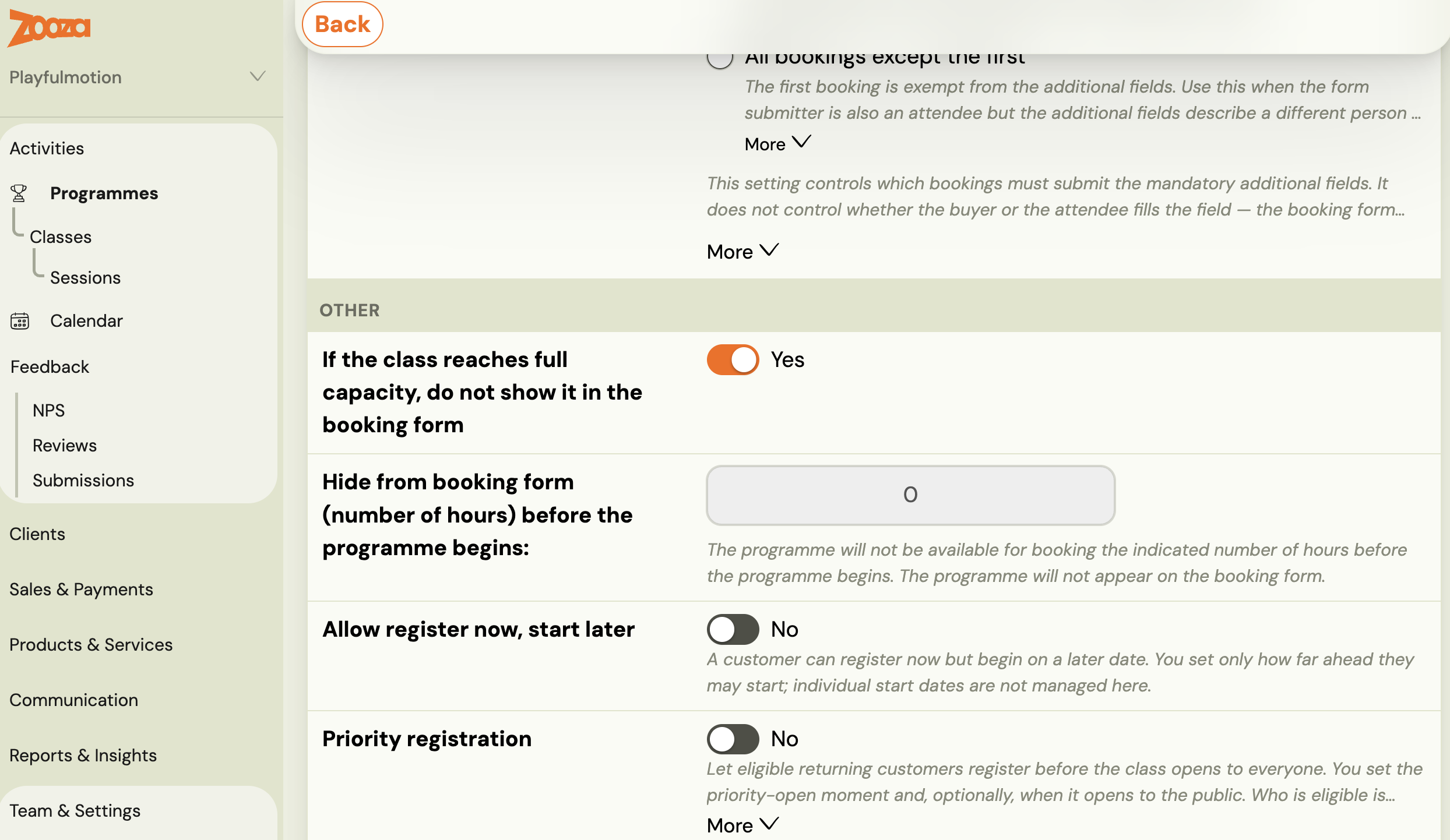
There is no switch labelled "waiting list". You stop it by hiding the class from the booking form once it fills up:
- Go to Programmes → open the programme → Online Booking → Edit.
- Scroll to the Other section.
- Set If the class reaches full capacity, do not show it in the booking form to Yes.
A hidden class is not in the picker, so nobody can select it, and nobody can queue for it. That is the whole mechanism — people join the waiting list by submitting the form for a full class, so removing the class from the form removes the queue.
This is per programme, not per class. Every class in the programme starts hiding itself when full. If you want the queue on some classes and not others, they have to sit in different programmes.
What you lose by hiding: you stop collecting the demand signal. A full class that stays visible tells you how many more people wanted in, which is what you would use to decide whether to open another class. Consider delayed start before switching it off — it offers a later joining date instead of a queue, and fills seats that would otherwise sit empty.
My class still shows 10/10 (full) even though students cancelled — why?
Class capacity counts active registrations (bookings), not session attendance. When a client misses a session or cancels a session-level attendance, their booking is still active — they are still enrolled in the class. The capacity counter does not change.
To release a spot so a new client can register, you must do one of:
- Cancel or delete the booking — go to the booking detail and cancel or delete it. This removes the client from the class and frees a capacity slot.
- Transfer the client to a different class using the Transfer booking flow.
Simply marking a client as absent or cancelling a single session does not release capacity.
Why did this registration end up on the waiting list?
There are four reasons, and only the first is the one people expect:
| Reason | How to tell |
|---|---|
| The class is full | Capacity is reached. The class shows no free places. |
| The child is outside the age range | An age restriction is set on the programme's additional fields, and the date of birth falls outside it. The parent sees an explanation on the form. |
| A downpayment was not paid | The programme asks for a downpayment and it has not arrived. |
| An unpaid-booking automation moved it | The booking stayed unpaid and an automation tied to downpayments fired — even if you do not collect downpayments at all. |
Work down the list in that order. If capacity and age both look fine, it is one of the payment reasons, and the class showing free places is a red herring rather than a fault.
See Age restriction for how the age band is configured.
A client is on the waiting list but there is space and the age is right
Check the payment before you check the capacity. A booking can be placed on the waiting list by an unpaid-booking automation, not by the class being full.
The automation is tied to downpayments. If it is switched on but you do not actually collect downpayments, an unpaid booking is moved to the waitlist even though nothing is wrong with the class. Capacity and age restrictions are then a red herring — the class shows free places because there are free places.
To put it right:
- Open the booking and change the status from Waitlist to Enrolled.
- Go to the booking → Payments and add the amount the parent owes, including the registration fee if you charge one.
- Go to Communication → Send message and resend the booking confirmation, so the parent can open their profile and pay.
Then review the automation itself, or every unpaid booking will keep landing on the waitlist.
The confirmation email carries the payment status and a link to the parent's profile. For anything payment-related, sending parents to their profile is usually faster than issuing an invoice.
Could a later start date avoid the waiting list?
Often, yes. If the class is full now but frees up shortly, delayed start offers the client a later joining date instead of the waiting list — they pay from that date and take a seat that was going to sit empty.
It has to be switched on per programme, with a window of how far ahead someone may join.
Make-up session waitlist
How does the make-up session waitlist work?
The make-up waitlist is for clients who already hold a make-up credit and want to book a specific session that is currently full. When all extra-capacity slots for that session are taken, clients can join the queue.
When a spot opens up:
- All clients on the waitlist for that session are emailed simultaneously with a confirmation link.
- The first client to click the link secures the spot.
- Clients who did not click in time remain on the waitlist and may receive future notifications.
This process is fully automatic — there is no admin action required.
How do I enable the make-up session waitlist?
Go to Programmes → select a programme → Settings → Make-up sessions → enable Make-up sessions waitlist.
When the waitlist is disabled, clients only see sessions that currently have a free spot and cannot queue for full sessions.
Where can I see who is on the make-up waitlist?
The make-up session waitlist for a specific session is visible in the session's attendance detail. When a client joins the queue, they appear in the attendees list with a waitlist status.