Bookings
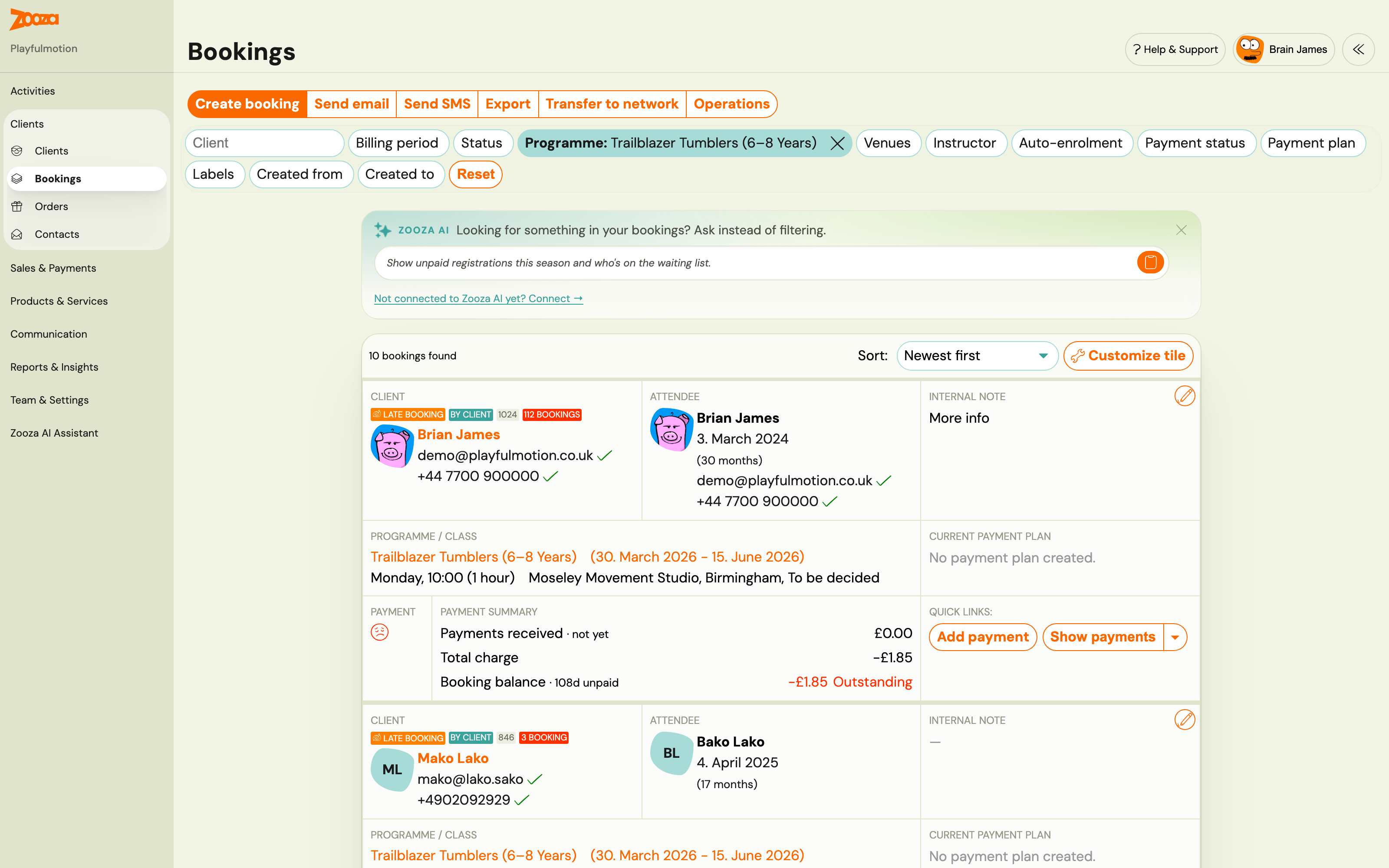
The Bookings screen lists all bookings across your programmes. Use it to search, filter, and manage individual enrolments, payments, attendance, and communication.
Navigation: Go to Clients → Bookings.
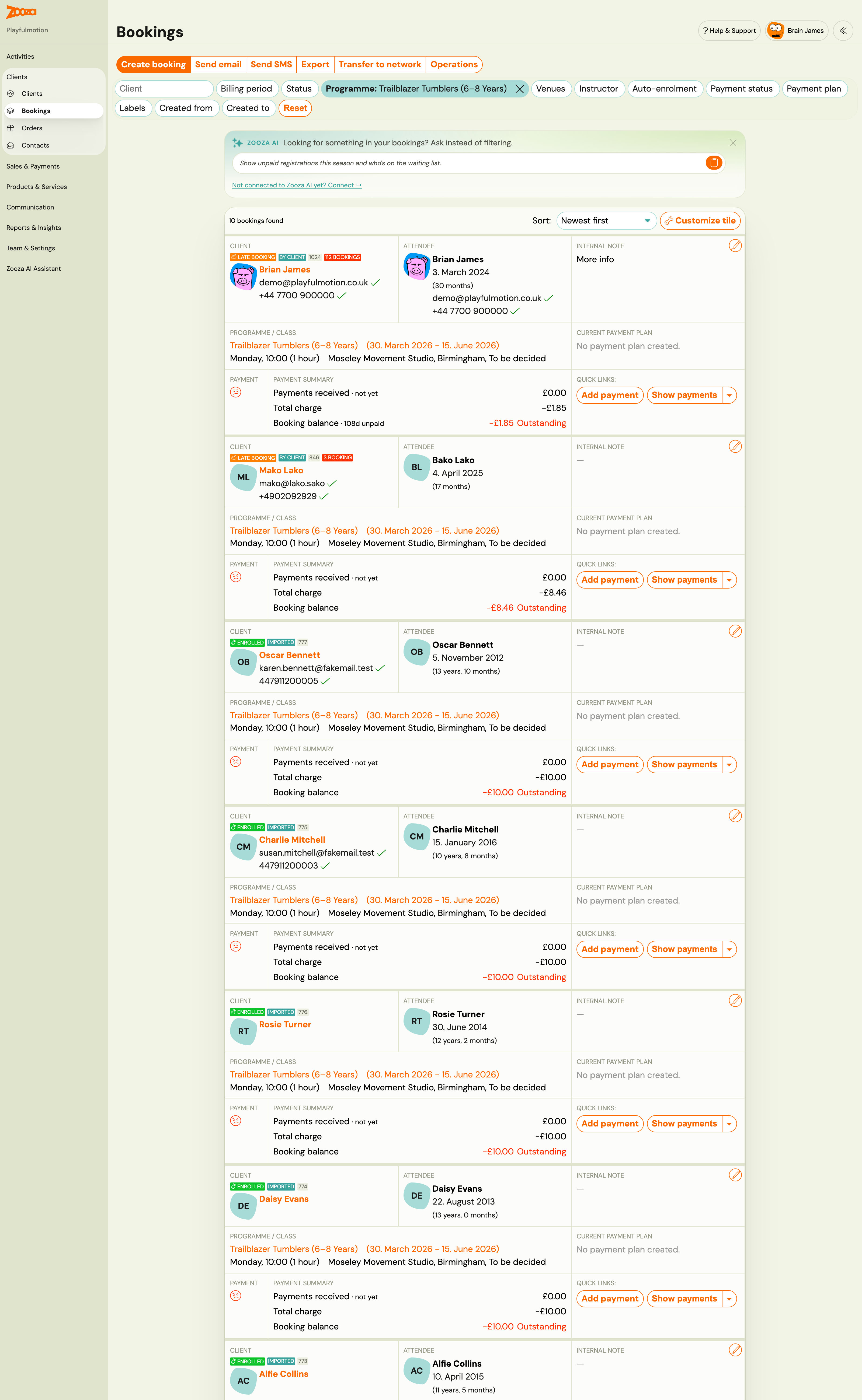
List View
Above the list sit the actions that work on bookings in bulk: Create booking, Send email, Send SMS, Export, Transfer to network and Operations.
Each booking is a tile in three bands:
| Block | What it holds |
|---|---|
| Client | Status badges — Enrolled, Copied, the booking number, how many bookings that client holds, and an Awaiting payment – until <date> badge when one is running. Under them the client's name, email and phone, each with a verification tick. |
| Attendee | The person attending, which is usually not the client: name, date of birth and age in months. |
| Internal note | Your own note, or a dash. The pencil edits it in place. |
| Programme / Class | Programme, class with its date range, the day and time, then venue and instructor. |
| Current payment plan | View, a link to the payments overview, a progress bar and the next payment date. |
| Payment summary | Payments received, Total charge and Booking balance — the balance in red and labelled Outstanding when money is owed. |
| Quick links | Add payment and Show payments. |
The header shows the total, e.g. "287 bookings found", with Sort and Customize tile beside it — the second one changes which of these blocks the tile displays, so your list may not look exactly like the picture.
Filters
Filters appear as buttons directly above the bookings list. Click any button to open its filter panel, select a value, and the list updates automatically — no Search button needed.
| Filter | Description |
|---|---|
| Client | Search by name, email, reference number, or phone. |
| Billing period | Filter by billing period. |
| Status | Filter by booking status (Enrolled, Waiting list, Cancelled, etc.). |
| Programme | Filter by programme. |
| Venues | Filter by venue/location. |
| Instructor | Filter by instructor. |
| Auto-enrolment | Filter by auto-enrolment status — see table below. |
| Payment status | Filter by payment status — see table below. |
| Payment plan | Filter by payment frequency type. |
| Labels | Filter by label. Select one or more labels from the list. |
| Created from / Created to | Filter by booking creation date range. |
Click Reset to clear all active filters.
Auto-enrolment values
| Value | Description |
|---|---|
| All | No filter — shows all bookings. |
| Not decided yet | Client has not yet responded to the auto-enrolment offer. |
| Auto-enrolment Declined | Client declined to continue for the next period. |
| Auto-enrolment Accepted | Client accepted continuation for the next period. |
Payment status values
Available statuses depend on whether the booking uses a payment plan with a down payment.
| Status | Description |
|---|---|
| No debt | The booking is fully paid — nothing is owed. |
| Not paid | Nothing has been paid yet (balance is zero). |
| Awaiting payment | The client has an outstanding balance but is still within the payment due window — the deadline has not passed yet. Once the window expires, the status automatically transitions to Unpaid. See Automatic payment reminders for how the due window is configured. |
| Unpaid | The payment window has closed and the balance is overdue. Use this to identify clients who are genuinely past their payment deadline. |
| Partially paid | Some amount has been paid, but the full balance is not yet settled (e.g. instalment plan in progress). |
| Paid | The booking is fully paid. |
| Overpaid | More has been paid than the amount owed — a credit is on the account. |
| Down payment unpaid | The booking has a down payment structure and the down payment has not been paid. |
| Down payment partially paid | The down payment has been partially paid. |
| Down payment paid | The down payment is fully paid; final payment may still be outstanding. |
| Final payment unpaid | The final payment is due and has not been paid. |
| Final payment partially paid | The final payment has been partially paid. |
| Final payment paid | The final payment is fully settled. |
| Final payment overpaid | More than the final payment amount has been paid. |
Tip: To find all bookings with outstanding balances, filter by Awaiting payment + Unpaid + Partially paid. Use Awaiting payment alone to see clients who still have time to pay; use Unpaid alone to see overdue bookings.
Top Actions
| Button | Description |
|---|---|
| Create booking | Opens the new booking wizard (see Create New Booking). |
| Send email | Send an email to filtered/selected clients. |
| Send SMS | Send an SMS to filtered/selected clients. |
| Export | Export the bookings list. |
| Transfer to network | Bulk-transfer selected bookings to another company in the network. See Bulk Network Transfer. |
| Operations | Bulk-set or bulk-remove the retention flag for all registrations matching the current filters. Includes a dry-run preview before applying. See Retention. |
| Customize tile | Opens the tile editor — choose which fields appear on each booking card. See below. |
Customize Tile
Click Customize tile to enter edit mode. A widget bar appears above a live preview of the booking tile. Drag widgets in or out to control what each booking card shows. Click Save to apply, Reset to default to restore the original layout, or Cancel to discard changes.
The layout is saved per user — each team member can configure their own view independently.
See Customizing the booking tile for the full widget list and tips.
Editing notes inline
Booking cards with a note widget visible show a pencil icon next to each note field. Click the pencil to open an inline edit modal — no need to open the full booking detail.
| Note field | Who sees it |
|---|---|
| Company note | Internal admin note, visible to all admins |
| Internal note | Personal note per user, shared across all their registrations |
| Customer note | The note the client submitted during booking (read-only from the client's side) |
| Public note | Visible to the client in their profile |
Note fields only appear on the booking card if they are added via Customize tile.
Booking Detail
Click a booking card to open the detail page.
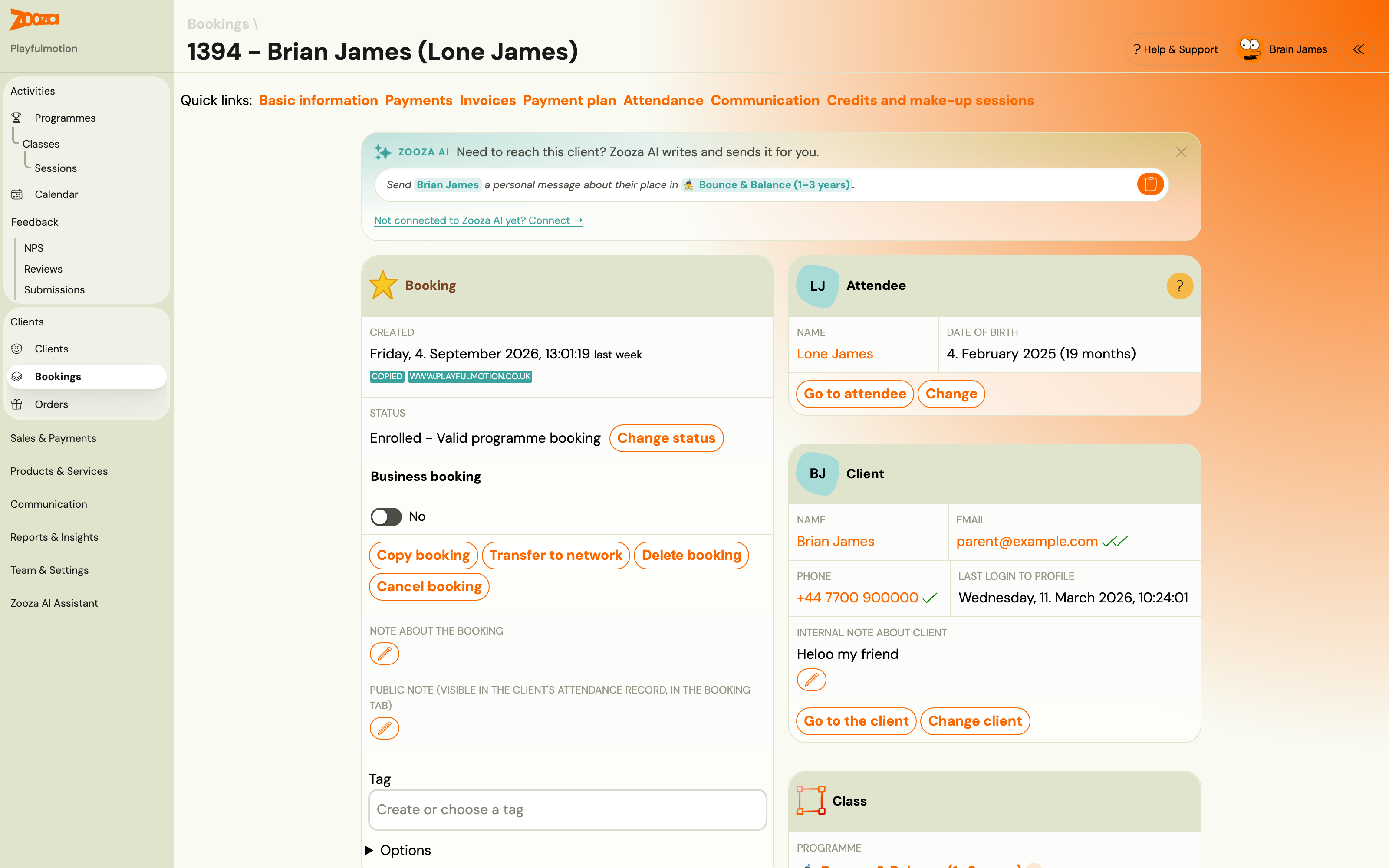
The booking detail is a dense page with multiple sections. Quick links at the top provide navigation: Basic information, Payments, Attendance, Communication, Credits and make-up sessions.
Booking Section (Left Column)
| Field | Description |
|---|---|
Created | Date and time the booking was created, with relative time (e.g. "3 weeks ago"). |
Status | Current booking status with badges (e.g. "Enrolled", "Trial started") and a Change status button. |
Business booking | Checkbox — mark as a business booking. |
Copy booking | Creates a copy of this booking. |
Cancel booking | Opens the cancellation form. |
Note about the booking | Editable public note (visible in the client's attendance record). |
Label | Add custom labels/tags. |
Tag | Add custom tags. Type and click OK. |
Options
Expandable section with additional settings:
- Change widget — change the booking widget used.
- Send reminders of the upcoming sessions — toggle automatic session reminders.
- Occupied slots — set the number of spaces reserved by this booking in a session (default: 1).
- Extra make-up sessions — add extra make-up session slots beyond the programme default.
- Extra limit for make-up sessions — adjust the limit.
- Guest access to the booking — grant access via email address.
- Additional email for reminders before sessions — one or more addresses, separated by commas, that also receive session reminders. Typically the second parent, an older child, or a grandparent.
- Additional email for reminders before sessions — add extra email addresses for session reminders.
Additional Fields
Shows address and other custom fields. Click Set up to configure.
Attendance Summary
Shows next session date/time with attendance status, and a programme overview counter (e.g. "0 / 200"). Click Attendance to open the full attendance tab.
Credits Summary
Quick overview showing:
Available session dates/Make-up sessions/Make-up sessions carried over/Discounts/Prepaid credit
Buttons: Create credit and All credits.
Order Summary
Shows the order details including child's date of birth, children's name, address, programme, price, booking fee, scheduled payments, paid total, and "To pay" balance.
Attendee Card (Right Column)
| Field | Description |
|---|---|
Name | Attendee name (clickable). |
Date of birth | Attendee's date of birth and age. |
| Go to attendee | Link to the attendee's client profile. |
| Change | Change the attendee for this booking. |
Client Card
| Field | Description |
|---|---|
Name | Client (payer) name. |
Email | Client email. |
Phone | Client phone number. |
Last login to profile | Timestamp of client's last login. |
Internal note about client | Staff-only note about this client. |
| Go to the client | Link to the client's profile. |
| Change client | Reassign the booking to a different client. |
Class Card
| Field | Description |
|---|---|
Programme | Programme name with emoji icon. |
Class | Class name, schedule, and date range. |
Billing period | Payment grouping. |
Location | Venue name and address. |
Instructor | Assigned instructor. |
Enrolled | Current enrolment count vs. capacity (e.g. "7/10"). |
| Transfer | Transfer this booking to a different class. |
Payments Card
| Field | Description |
|---|---|
Payments status | Status icon with label (e.g. "Paid"). |
Amount to pay | Outstanding amount. |
Paid | Total amount paid. |
Current account balance | Running balance. |
Latest payment received | Date and amount of last payment. |
| Add payment | Record a new payment. |
| Show payments | Open the full payments tab. |
Linked Bookings
Shows related bookings. Click Link booking to connect another booking.
Communication Card
| Field | Description |
|---|---|
Unread / To do / Total messages / Session reminders | Communication statistics. |
| Email / SMS / Communication | Quick action buttons. |
Products Card
Lists available products for this booking with a Buy action.
Documents Card
| Field | Description |
|---|---|
Documents / Videos / URLs / Dynamic documents | Counts for each document type. |
| Add document | Attach a new document. |
Trial Booking Detail
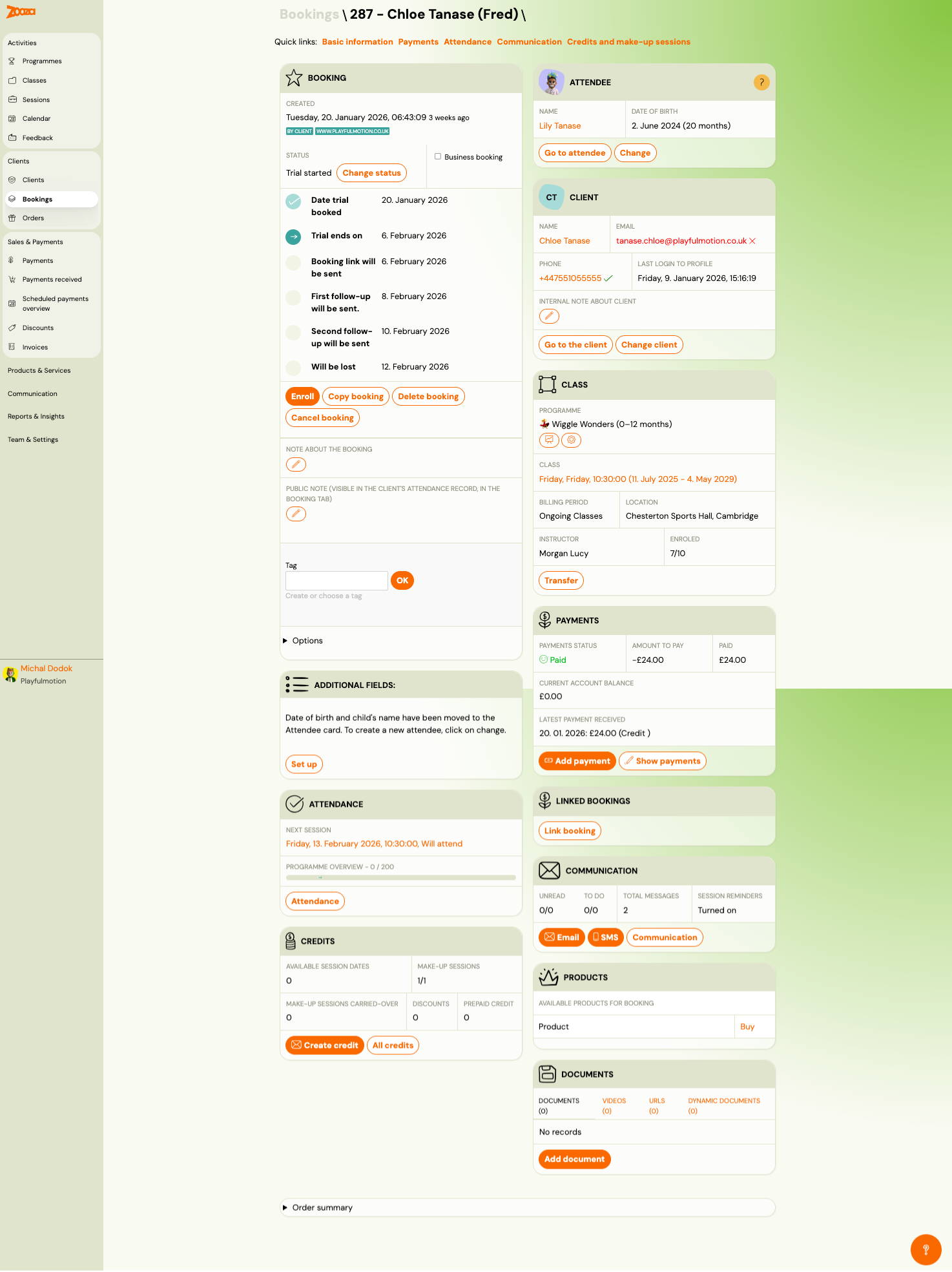
Trial bookings show additional fields in the Booking section:
| Field | Description |
|---|---|
Date trial booked | When the trial was created. |
Trial ends on | Expiry date for the trial period. |
Booking link will be sent | Date the booking link email is scheduled. |
First follow-up will be sent | Date of the first follow-up email. |
Second follow-up will be sent | Date of the second follow-up email. |
Will be lost | Date the trial lead will be marked as lost. |
Additional action buttons for trials:
- Enroll — convert the trial to a full enrolment.
- Copy booking — duplicate the booking.
- Delete booking — permanently remove the booking.
- Cancel booking — cancel the trial.
Create New Booking
Navigation: Bookings list → Create booking.
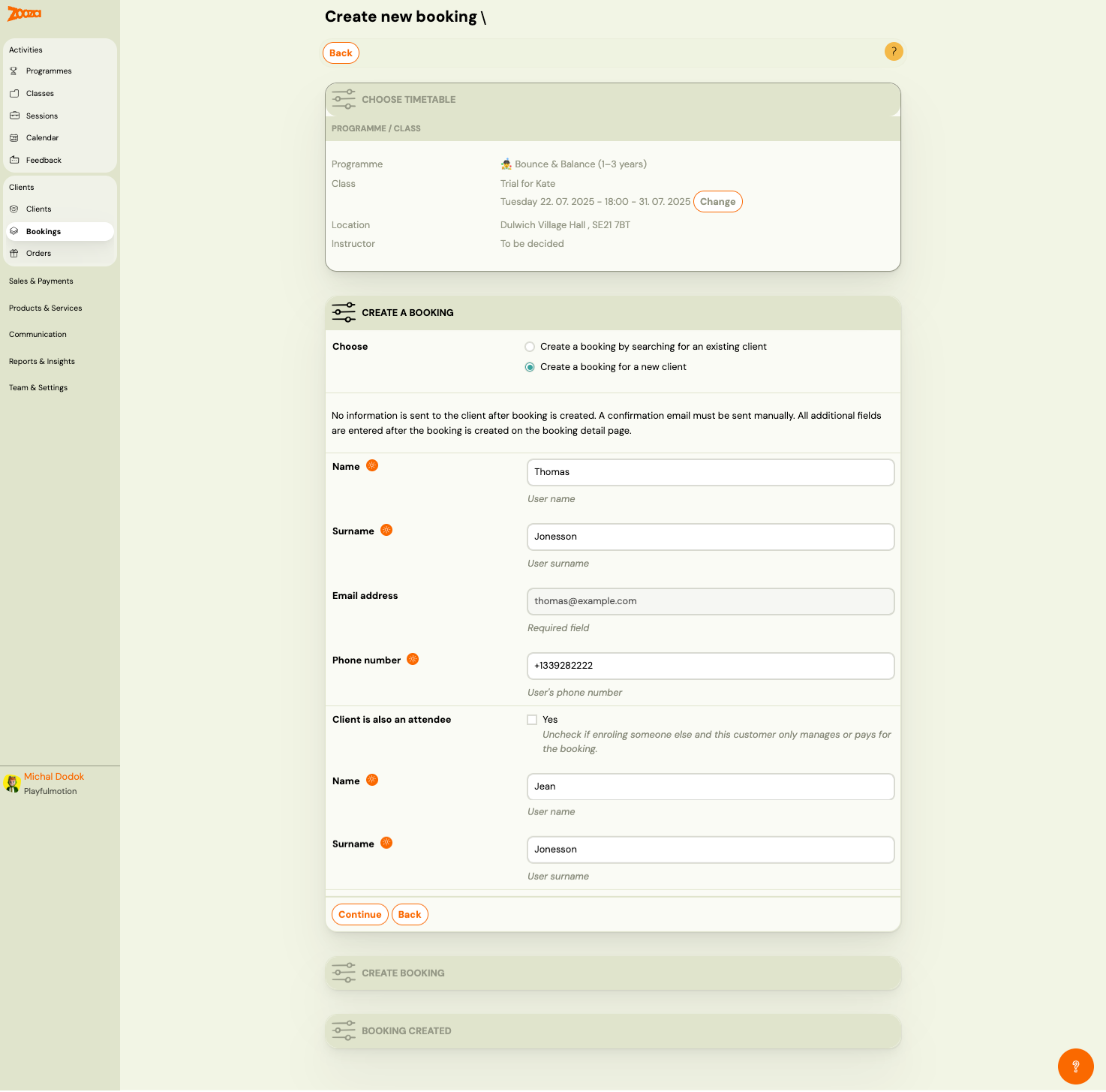
The booking creation wizard has multiple steps:
Step 1: Choose Timetable
Shows the selected programme/class details:
| Field | Description |
|---|---|
Programme | Programme name. |
Class | Class name and date range. |
Location | Venue and address. |
Instructor | Assigned instructor. |
Click Change to select a different class.
Step 2: Create a Booking
| Field | Description |
|---|---|
Choose | Create a booking by searching for an existing client or Create a booking for a new client. |
Name | Client's first name (required). |
Surname | Client's last name (required). |
Email address | Client's email (required). |
Phone number | Client's phone (required). |
Client is also an attendee | Checkbox — uncheck if the client only manages/pays for the booking (e.g. parent booking for a child). |
Name (attendee) | Attendee's first name (shown when "Client is also an attendee" is unchecked). |
Surname (attendee) | Attendee's last name. |
Note: No confirmation email is sent automatically when creating a booking manually. A confirmation email must be sent manually.
Click Continue to proceed, or Back to return.
Change Booking Status
Navigation: Booking detail → Change status.
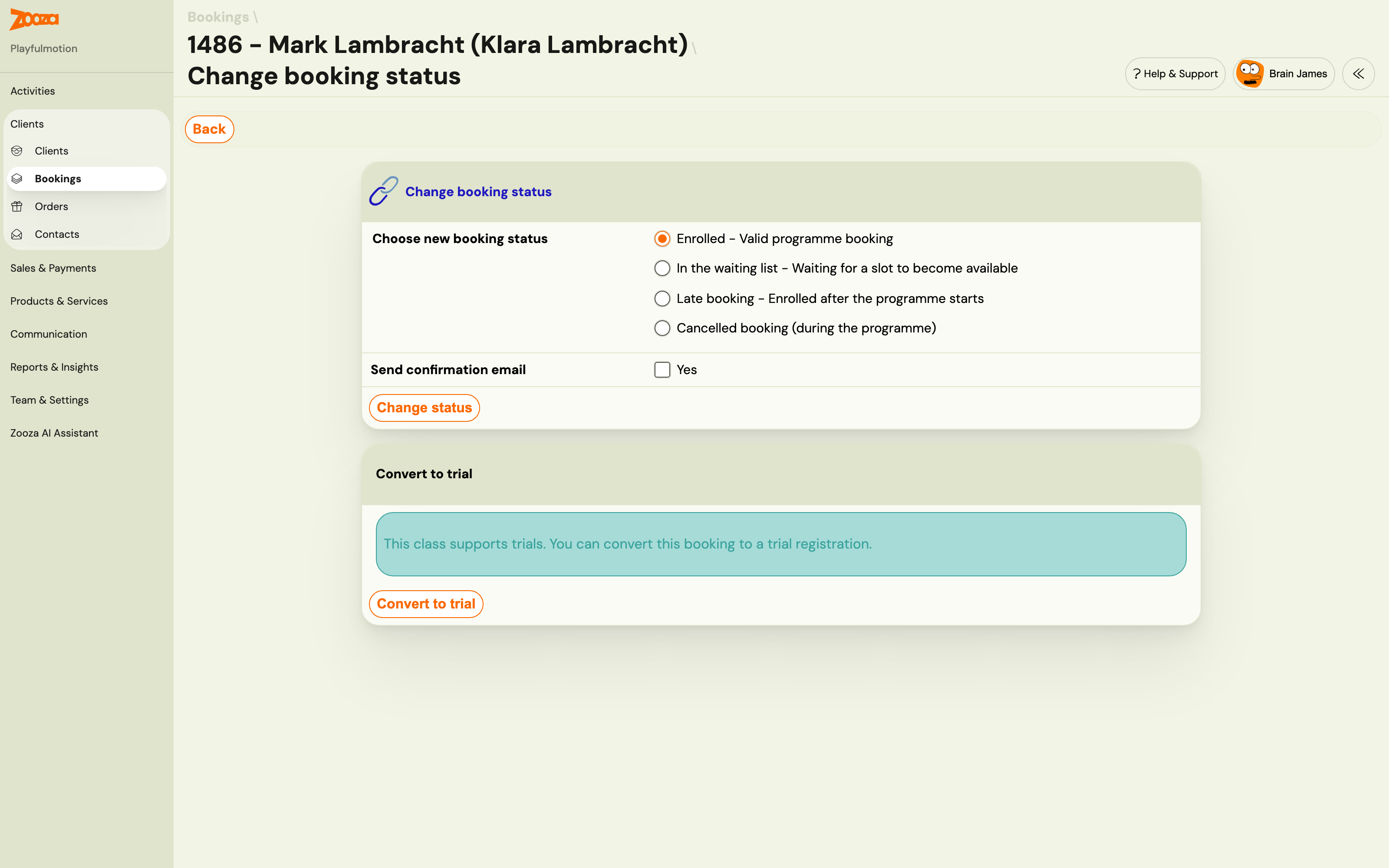
Available statuses:
- Enrolled — Valid programme booking.
- In the waiting list — Waiting for a slot to become available.
- Late booking — Enrolled after the programme starts.
- Cancelled booking (during the programme) — Cancelled mid-programme.
Options:
- Send confirmation email — checkbox to notify the client about the status change.
Click Change status to apply.
Cancel Booking
Navigation: Booking detail → Cancel booking.
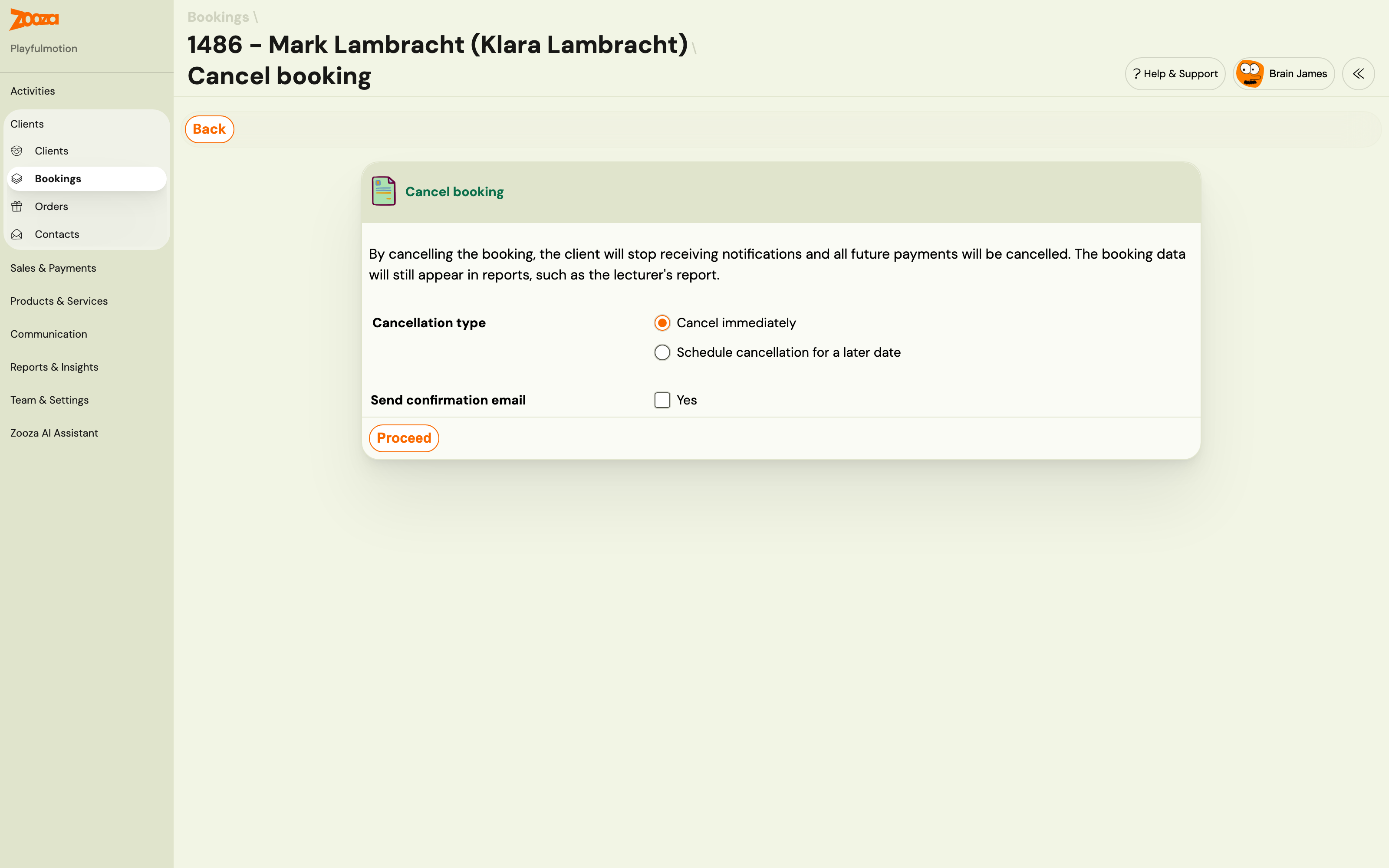
Cancellation notice: "By cancelling the booking, the client will stop receiving notifications and all future payments will be cancelled. The booking data will still appear in reports, such as the instructor's report."
| Field | Description |
|---|---|
Cancellation type | Cancel immediately or Schedule cancellation for a later date. |
Cancellation date | Date picker (shown when scheduling). The booking will be cancelled on this date; until then, the client stays enrolled. |
Send confirmation email | Checkbox — notify the client. |
Click Proceed to confirm.
Change Class (Transfer)
Navigation: Booking detail → Transfer (in Class card) or Change link.
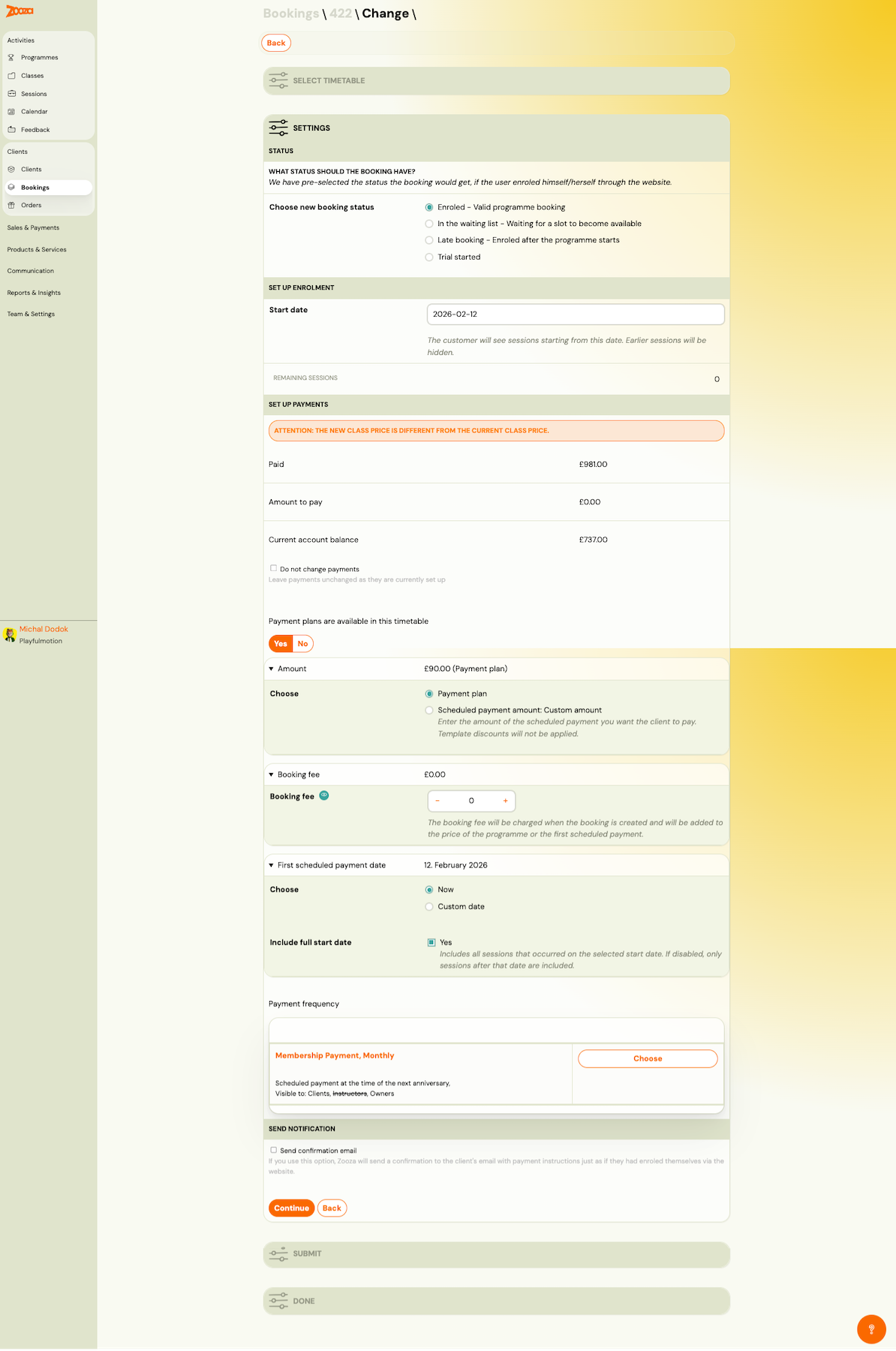
The transfer wizard includes:
Settings — Status
Choose the booking status after transfer:
- Enrolled — Valid programme booking
- In the waiting list — Waiting for a slot to become available
- Late booking — Enrolled after the programme starts
- Trial started
Set Up Enrolment
| Field | Description |
|---|---|
Start date | The client will see sessions starting from this date. Earlier sessions will be hidden. |
Remaining sessions | Count of sessions remaining after the start date. |
Set Up Payments
Shows a warning if the new class price differs from the current class price.
| Field | Description |
|---|---|
Paid | Amount already paid. |
Amount to pay | Remaining amount. |
Current account balance | Current balance. |
Do not change payments | Checkbox — leave payments unchanged. |
Payment plans available | Yes/No toggle for payment plan usage. |
Amount | Payment plan amount. |
Choose | Payment plan or Scheduled payment amount: Custom amount. |
Booking fee | One-time fee with +/- controls. |
First scheduled payment date | Choose Now or Custom date. |
Include full start date | Checkbox — include sessions on the start date. |
Payment frequency | Select from available payment templates. |
Send Notification
- Send confirmation email — checkbox to send the client a confirmation.
Click Continue to proceed, or Back to return.
Payments Tab
Navigation: Booking detail → Payments (quick link) or Show payments.
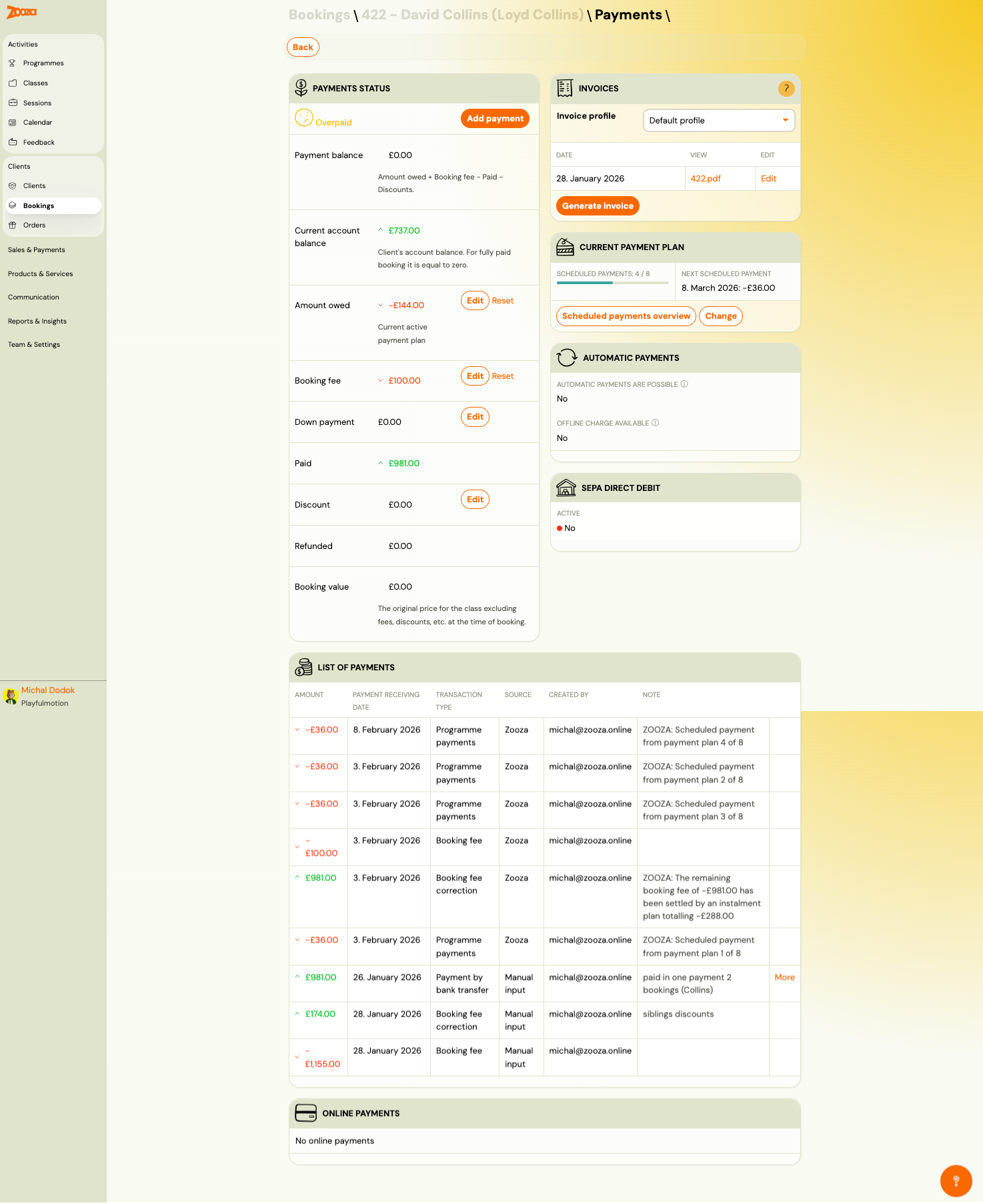
Payments Status
| Field | Description |
|---|---|
Status | Payment status with icon (e.g. "Overpaid", "Paid", "Unpaid"). |
Payment balance | Formula: Amount owed + Booking fee − Paid − Discounts. |
Current account balance | Client's overall account balance. |
Amount owed | Current active payment plan amount. Edit / Reset buttons. |
Booking fee | One-time fee. Edit / Reset buttons. |
Down payment | Initial payment amount. Edit button. |
Paid | Total paid. Edit button. |
Discount | Applied discount amount. Edit button. |
Refunded | Total refunded amount. |
Booking value | Original class price excluding fees and discounts at time of booking. |
Button: Add payment.
Invoices
| Field | Description |
|---|---|
Invoice profile | Dropdown to select invoice profile (e.g. "Default profile"). |
| Invoice list | Shows date, view link (PDF), and edit link for each invoice. |
| Generate invoice | Create a new invoice. |
Edit Invoice Dialog
| Field | Description |
|---|---|
Period Start / Period End | Invoice period date range. |
Debt within the period | Total debt for the period. |
Amount paid within the period | Total payments within the period. |
Invoice date | Date shown on the invoice. |
Delivery date | Delivery/service date. |
Payment method | Dropdown (e.g. "Transfer payment"). |
Use default item description | Checkbox. |
Send invoice to customer via email | Checkbox. |
Item description | Editable description text. |
Current Payment Plan
Shows progress bar for scheduled payments (e.g. "4 / 8"), next scheduled payment date and amount. Buttons: Scheduled payments overview and Change.
Automatic Payments
| Field | Description |
|---|---|
Automatic payments are possible | Yes/No. |
Offline charge available | Yes/No. |
SEPA Direct Debit
Shows whether SEPA direct debit is active.
List of Payments
Table with all payment transactions:
| Column | Description |
|---|---|
Amount | Payment amount (negative = charge, positive = payment received). |
Payment receiving date | Date payment was recorded. |
Transaction type | E.g. "Programme payments", "Booking fee", "Booking fee correction", "Payment by bank transfer". |
Source | "Zooza" (automatic) or "Manual input". |
Created by | User who recorded the payment. |
Note | Additional notes (e.g. "paid in one payment 2 bookings"). |
Online Payments
Lists any online payments received.
Current Active Payment Plan
Navigation: Payments tab → Scheduled payments overview.
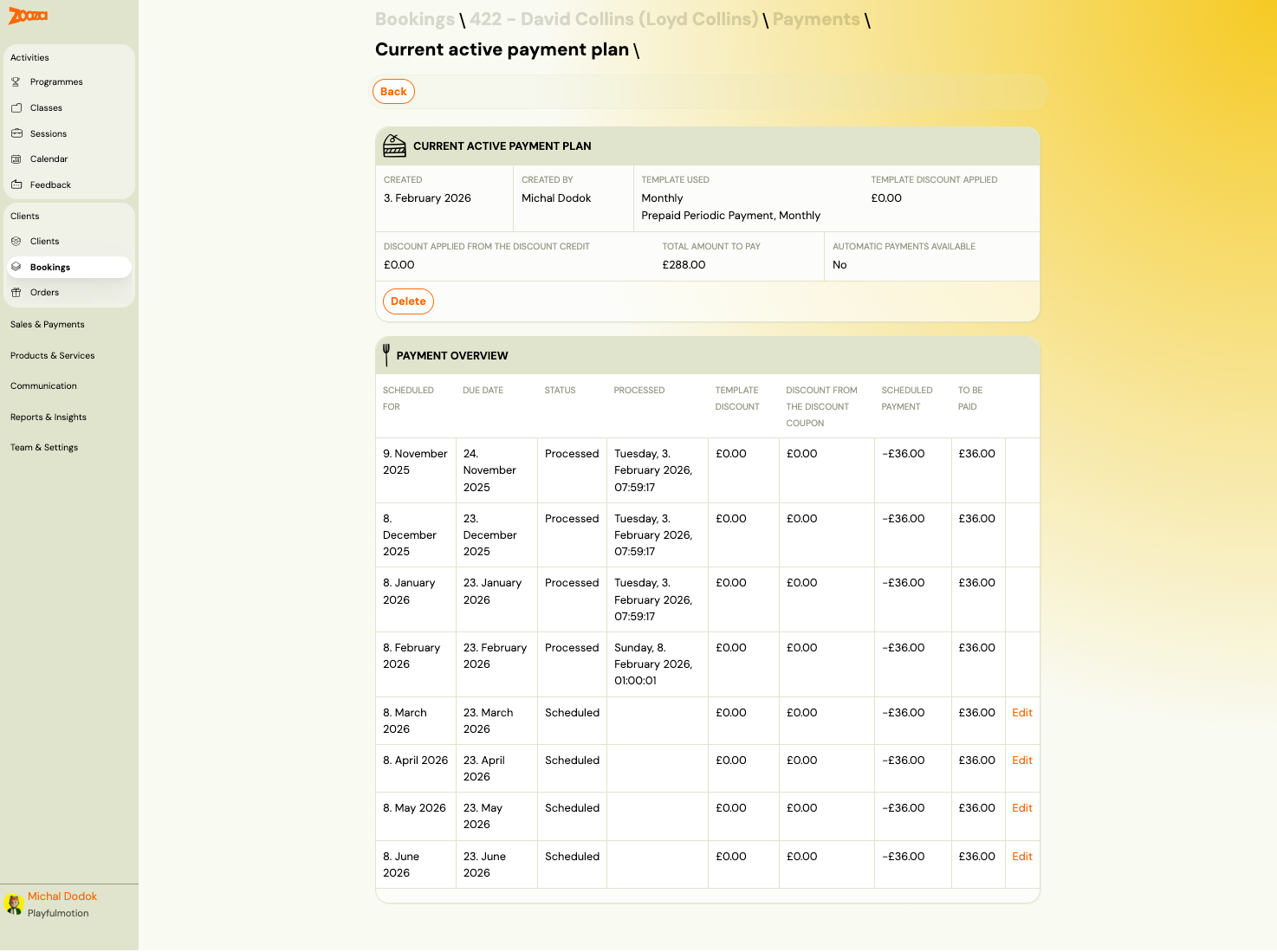
Shows the payment plan header:
| Field | Description |
|---|---|
Created | Date the plan was created. |
Created by | User who created the plan. |
Template used | Payment template name and type (e.g. "Monthly, Prepaid Periodic Payment, Monthly"). |
Template discount applied | Discount amount from the template. |
Discount applied from the discount credit | Discount from credits. |
Total amount to pay | Total amount across all scheduled payments. |
Automatic payments available | Yes/No. |
Button: Delete — removes the payment plan.
Payment Overview Table
| Column | Description |
|---|---|
Scheduled for | Session/period date. |
Due date | Payment due date. |
Status | "Processed" or "Scheduled". |
Processed | Timestamp when processed. |
Template discount | Discount from template. |
Discount from the discount coupon | Coupon discount. |
Scheduled payment | Scheduled charge amount. |
To be paid | Actual amount to pay. |
Scheduled (future) payments show an Edit link.
Offline Payment Detail
Navigation: Payments tab → click a payment row.
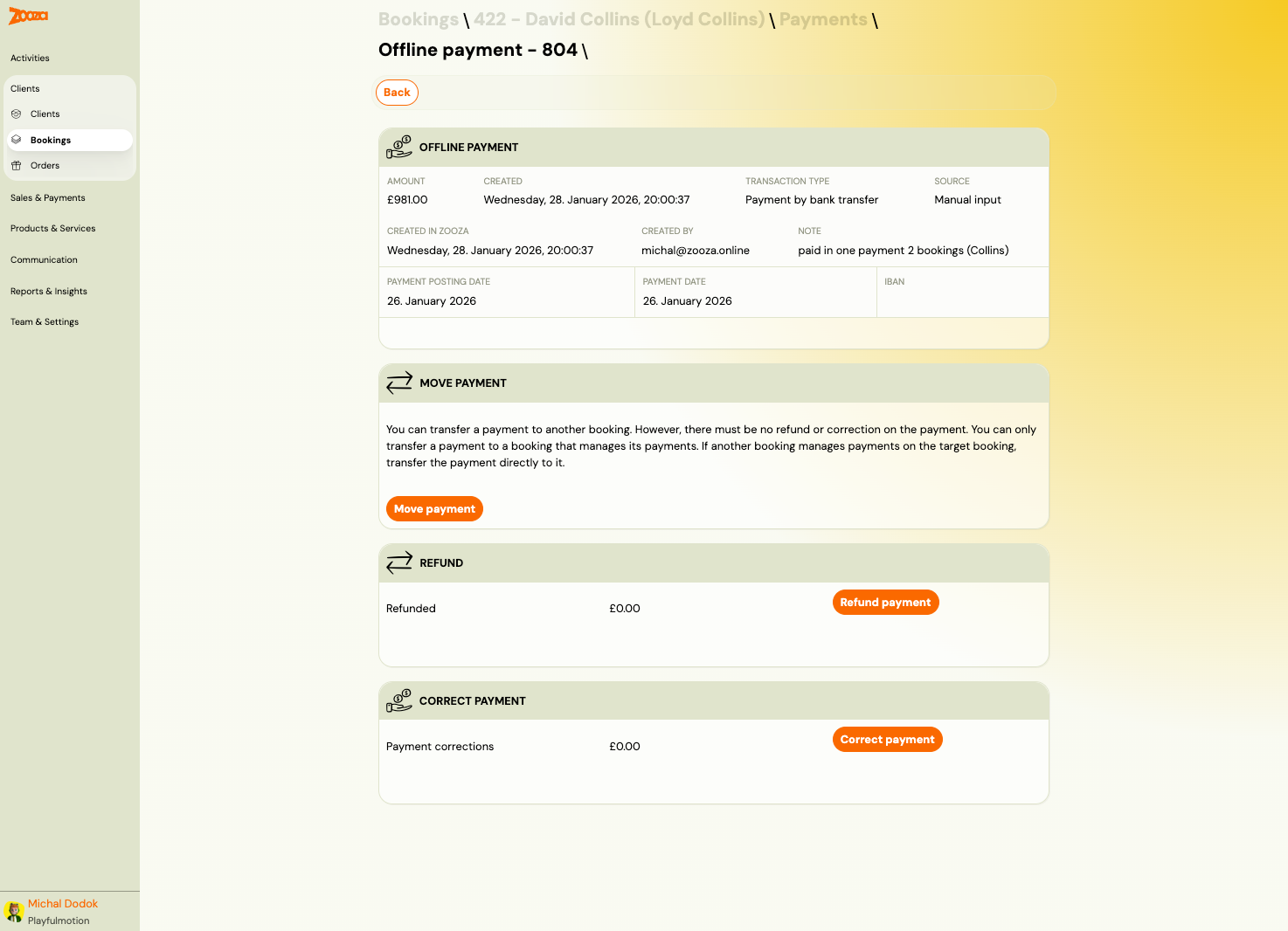
Offline Payment
| Field | Description |
|---|---|
Amount | Payment amount. |
Created | Timestamp. |
Transaction type | E.g. "Payment by bank transfer". |
Source | "Manual input" or "Zooza". |
Created in Zooza | Timestamp in Zooza system. |
Created by | User who recorded it. |
Note | Free-text note. |
Payment posting date | Date the payment was posted. |
Payment date | Actual payment date. |
IBAN | Bank account number (if applicable). |
Refund
Shows refunded amount. Button: Refund payment.
Correct Payment
Shows payment corrections amount. Button: Correct payment.
Move Payment
Transfer a payment to another booking — for example if a payment was recorded on the wrong booking or a client has paid for a different programme than expected.
Requirements:
- The payment must have no refund or correction applied.
- The target booking must manage its own payments (not inherited from an order).
Button: Move payment. Select the target booking by booking number or client name, then confirm.
Attendance Tab
Navigation: Booking detail → Attendance (quick link).
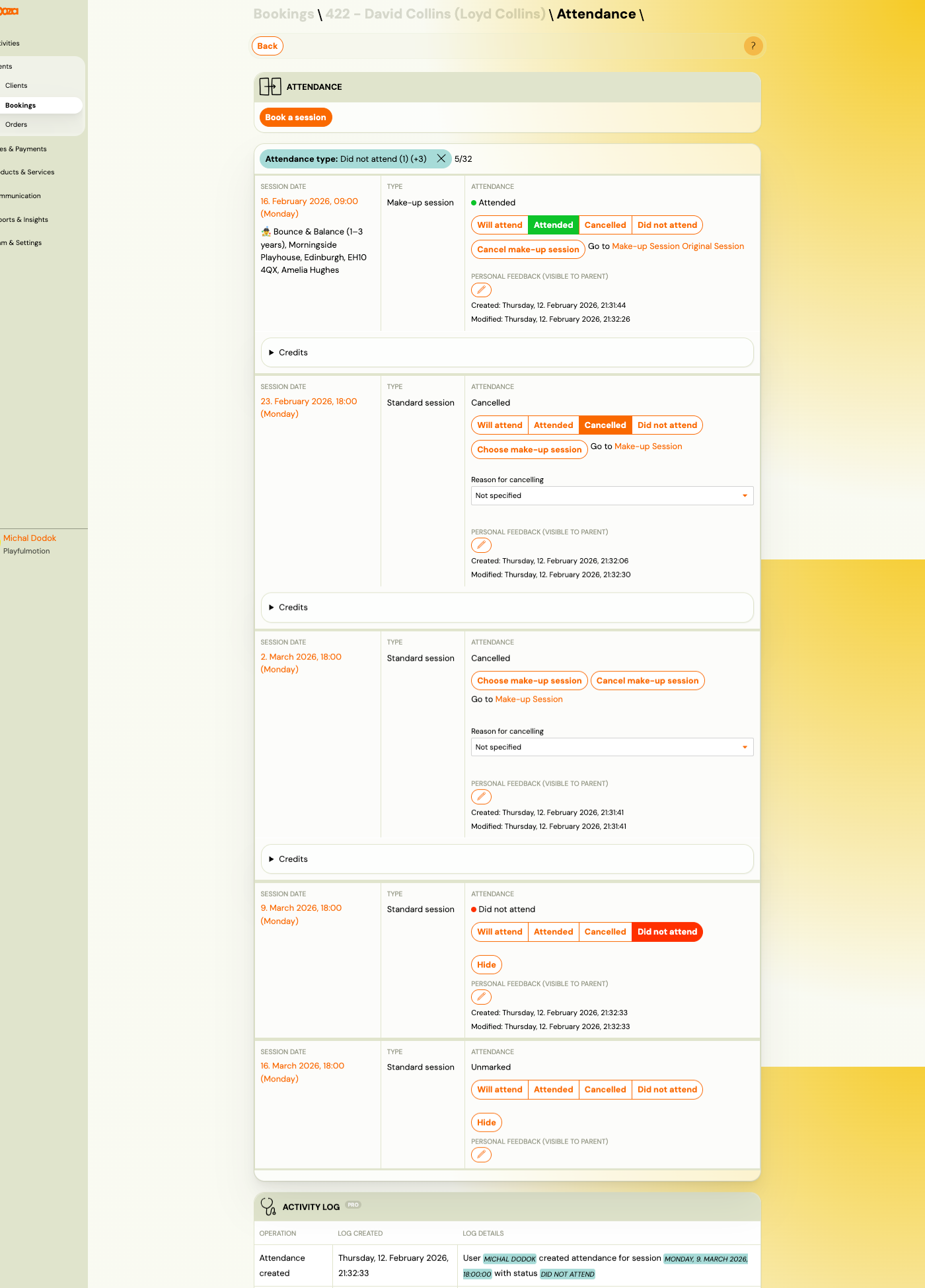
The attendance tab lists every session for this booking. Button: Book a session.
Filter: Attendance type — filter by status (e.g. "Did not attend (1) (+3)") with count.
Each session row shows:
| Field | Description |
|---|---|
Session date | Date and time (e.g. "16. February 2026, 18:00 (Monday)"). |
Type | "Standard session" or "Make-up session". For make-up sessions, the programme and venue are also shown. |
Attendance | Current status — "Attended", "Cancelled", "Did not attend", or "Unmarked". |
Attendance action buttons:
- Will attend — mark as planning to attend.
- Attended — mark as attended (highlighted green when active).
- Cancelled — mark as cancelled (highlighted orange when active).
- Did not attend — mark as absent (highlighted red when active).
For cancelled sessions:
- Choose make-up session — opens the make-up session picker.
- Cancel make-up session — cancel an assigned make-up.
- Go to Make-up Session — link to the make-up session detail.
Reason for cancelling— dropdown to select cancellation reason.
Each session shows:
- Personal feedback (visible to parent) — editable feedback field with created/modified timestamps.
- Credits — expandable section showing credits related to this session.
- Hide — collapse the session details.
Choose Make-up Session
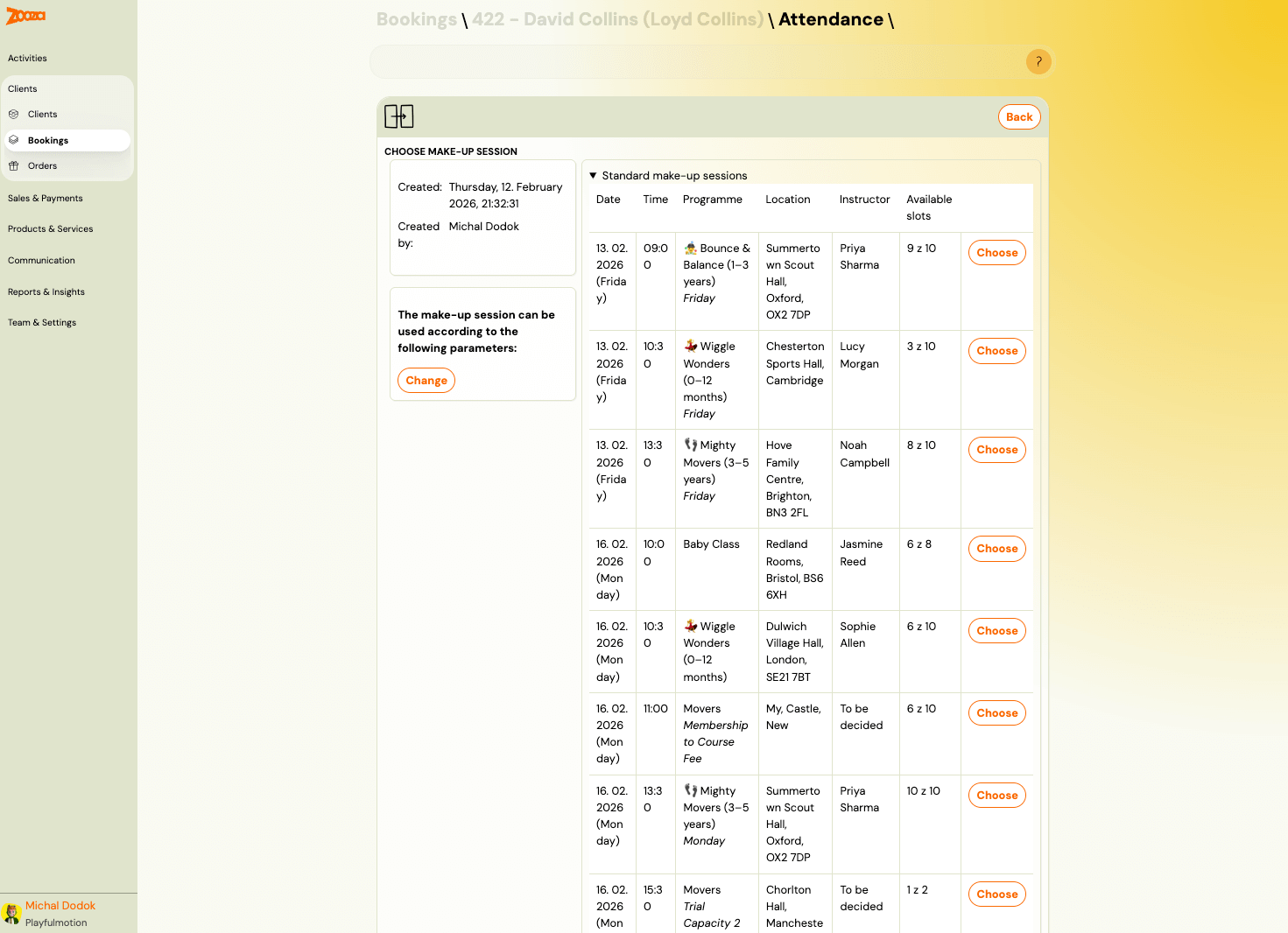
Shows available make-up sessions in a table:
| Column | Description |
|---|---|
Date | Session date. |
Time | Start time. |
Programme | Programme name. |
Location | Venue name. |
Instructor | Instructor name. |
Available slots | Remaining capacity (e.g. "9 z 10"). |
Includes filter by Change to modify make-up session parameters.
Click Choose to assign a make-up session.
Activity Log
At the bottom, an activity log tracks all attendance changes:
| Column | Description |
|---|---|
Operation | Action type (e.g. "Attendance created"). |
Log created | Timestamp. |
Log details | Description with user, session date, and status. |
Credits and Make-up Sessions Tab
Navigation: Booking detail → Credits and make-up sessions (quick link).
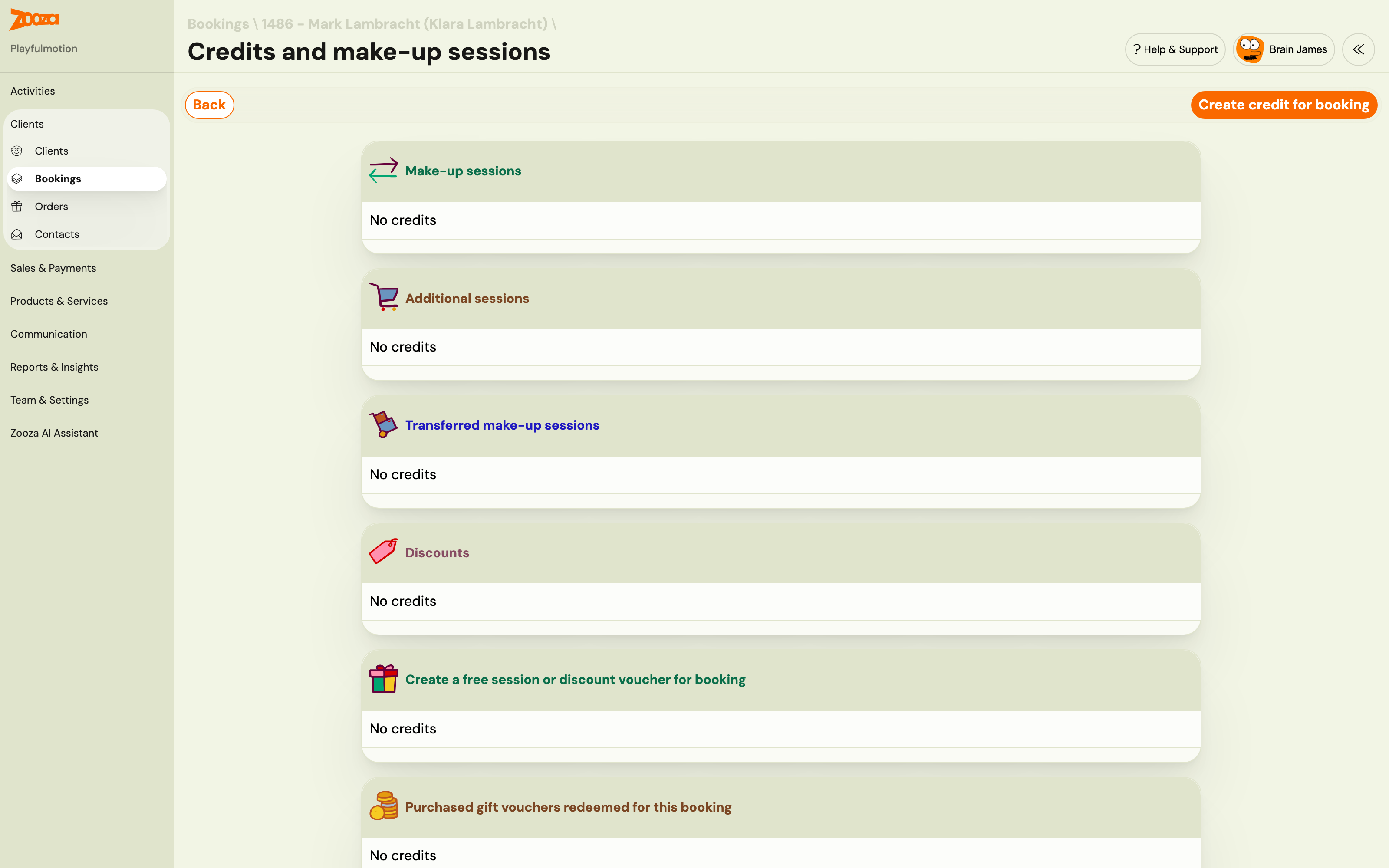
Button: Create credit for booking.
Make-up Sessions
| Column | Description |
|---|---|
Status | "Not used" or "Used". |
Created by | User who created the credit. |
Used by | User who redeemed it. |
Date created | Creation timestamp. |
Used on | Redemption timestamp. |
Date of expiry | Expiration date. |
Value | Credit value (e.g. "£10.00"). |
| More | Link to credit detail. |
Additional Sections
- Transferred make-up sessions — credits transferred from other bookings.
- Discounts — discount credits applied.
- Create a free session or discount voucher for booking — manually created entry passes.
- Purchased gift vouchers redeemed for this booking — gift vouchers used.
- Entry pass — entry pass credits.
New Credit
Navigation: Credits tab → Create credit for booking.
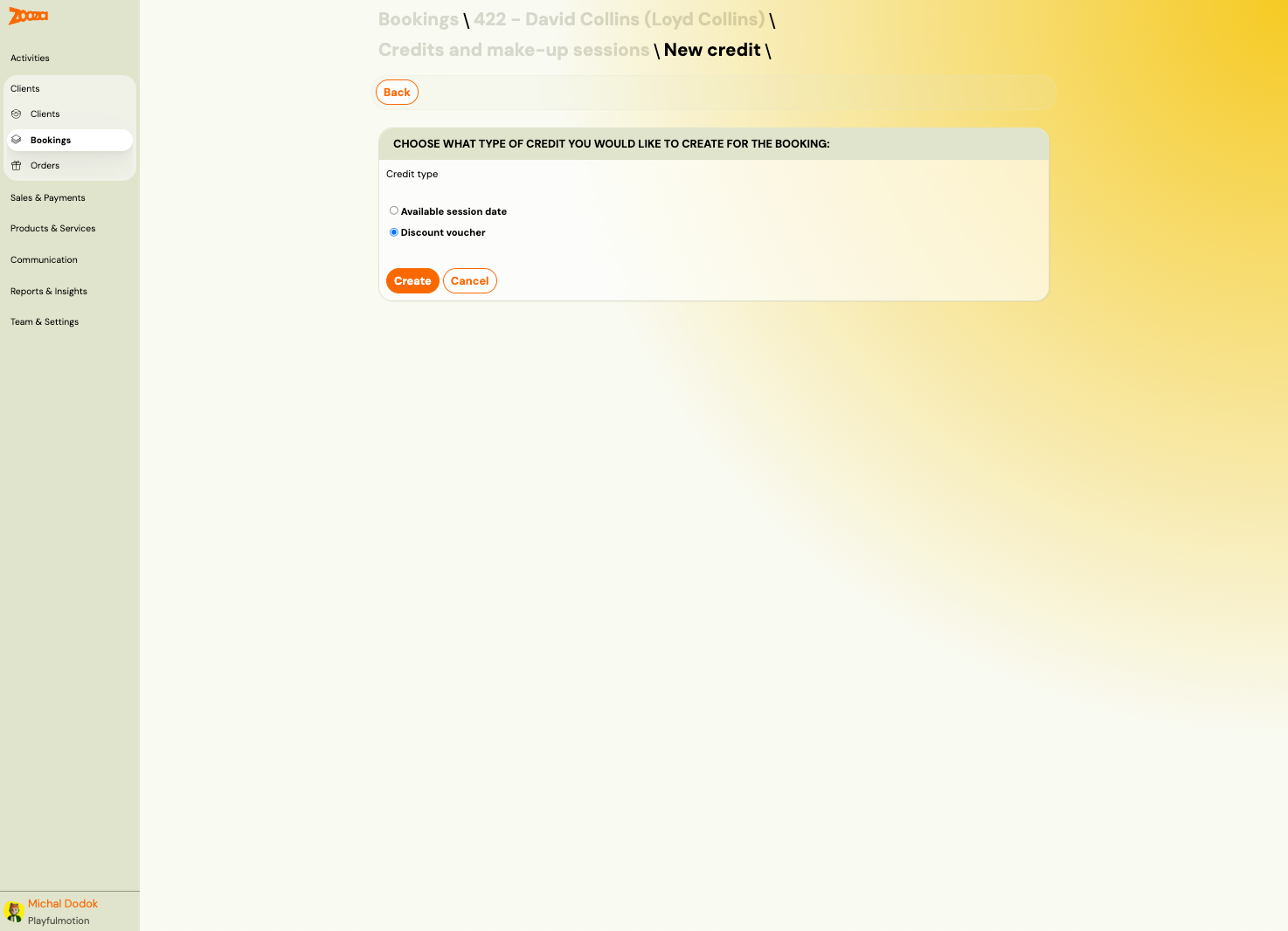
| Field | Description |
|---|---|
Credit type | Available session date — a make-up session slot. Discount entry pass — a monetary discount. |
Click Create to add the credit, or Cancel to discard.
Credit Detail
Navigation: Credits tab → More on a credit row.
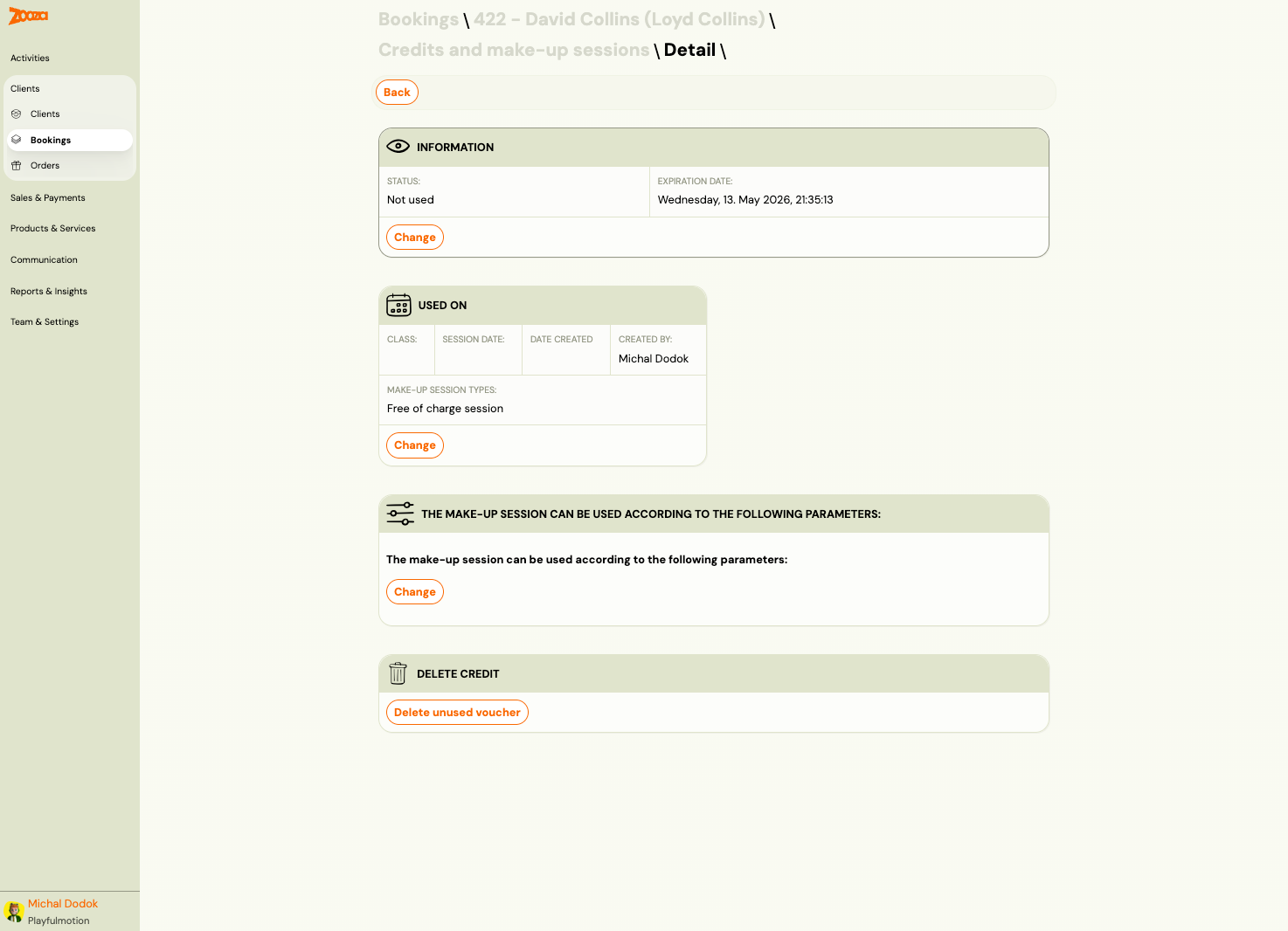
Information
| Field | Description |
|---|---|
Status | "Not used" or "Used". |
Expiration date | When the credit expires. |
Button: Change — modify the credit information.
Used On
| Field | Description |
|---|---|
Class | Class where the credit was used. |
Session date | Session date. |
Date created | When it was redeemed. |
Created by | User who redeemed it. |
Make-up session types | E.g. "Free of charge session". |
Button: Change — modify the usage details.
Make-up Session Parameters
Shows the parameters that govern where and when the credit can be used. Button: Change.
Delete Credit
Button: Delete unused entry pass — removes an unused credit.
Communication Tab
Navigation: Booking detail → Communication (quick link).
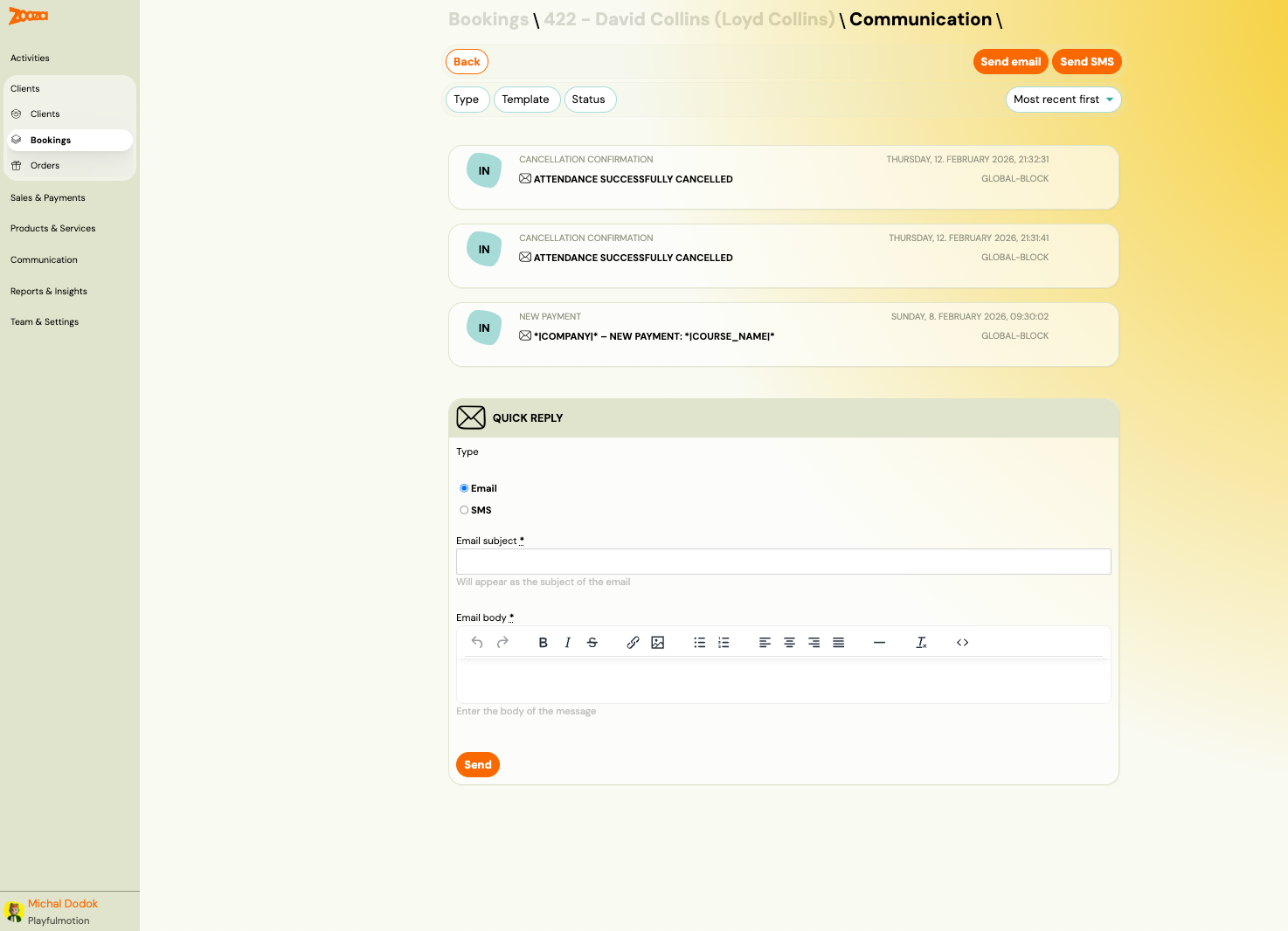
Top Actions
| Button | Description |
|---|---|
| Send email | Compose and send an email to this client. |
| Send SMS | Send an SMS to this client. |
Filters
- Type — filter by message type.
- Template — filter by template used.
- Status — filter by delivery status.
- Sort — "Most recent first" (default).
Message List
Each message shows:
| Field | Description |
|---|---|
| Type label | E.g. "Cancellation confirmation", "New payment". |
| Direction | "IN" badge for inbound/system messages. |
| Content | Subject line or preview (e.g. "Attendance successfully cancelled"). |
| Timestamp | Date and time. |
| Scope | E.g. "Global-block". |
Quick Reply
Compose a message directly from the communication tab:
| Field | Description |
|---|---|
Type | Email or SMS radio buttons. |
Email subject | Subject line (required for email). |
Email body | Rich text editor with formatting toolbar. |
Click Send to send the message.
Related
- Common Booking Scenarios — FAQ for booking-related tasks.
- Booking and Booking FAQ — common booking questions.
- Payment Pairing Guide — how to match payments to bookings.
- Attendance and Catch-ups FAQ — make-up session questions.