Send Email
The Send Email screen lets you compose and send email messages to clients. Bulk sends are processed in the background — Zooza shows you the exact recipient count before sending starts and tracks delivery progress in real time.
Navigation: Go to Communication → Send message.
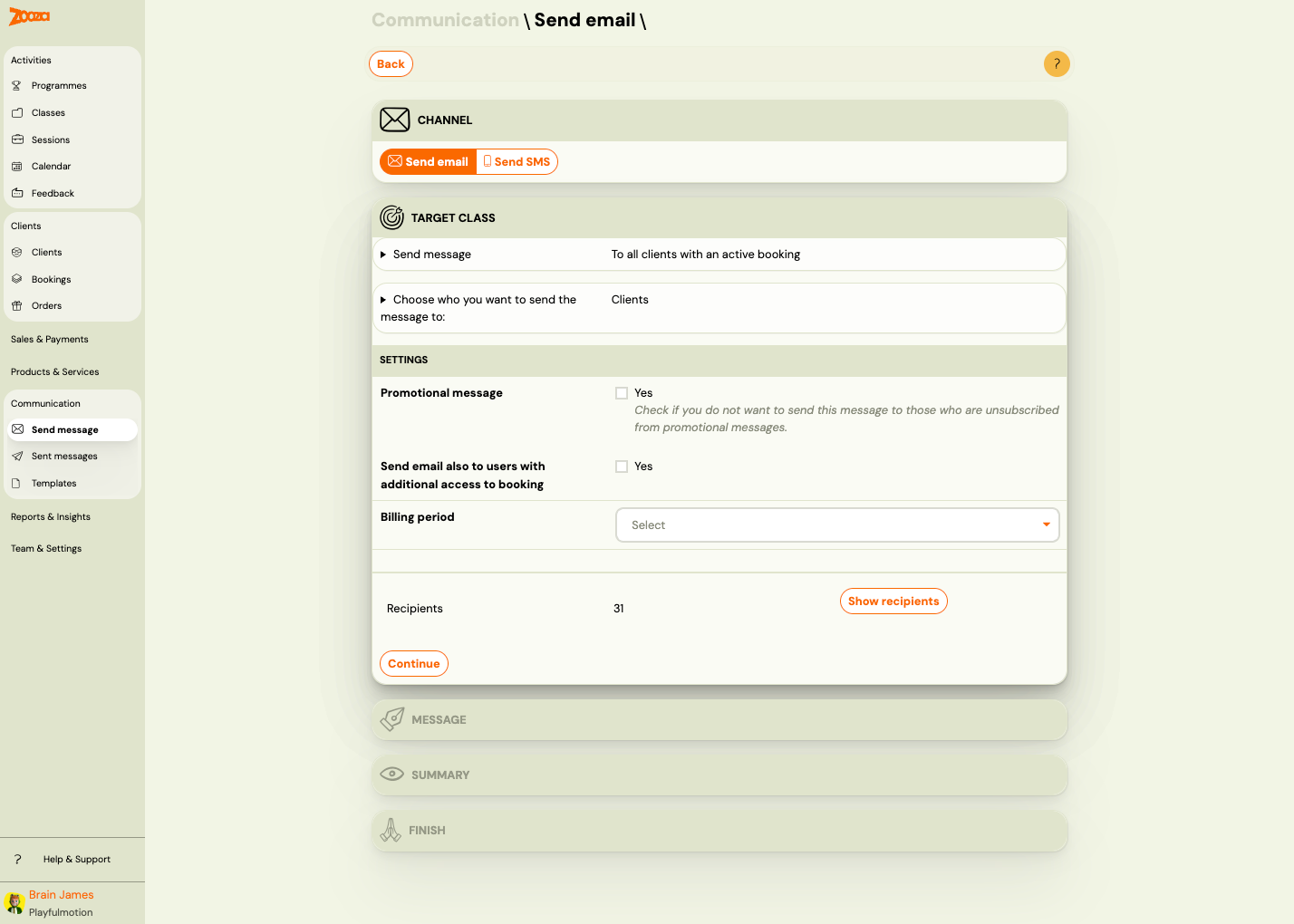
Step 1: Target
Send Message
Choose who receives the email:
| Option | Description |
|---|---|
| To all clients with an active booking | Sends to all clients in the selected billing class with status "Enrolled". |
| To all clients | Sends to all clients regardless of bookings or billing periods. |
| To a specific class | Sends to all clients in the selected class with status "Enrolled". |
| To a single recipient | Sends to a single email address only. |
| To selected bookings | Sends to a manually selected set of bookings. |
Choose Who You Want to Send the Message To
| Option | Description |
|---|---|
| Clients | Message is sent to each client just once. If the client has multiple bookings, merge fields specific to a booking (such as COURSE_PRICE or VARIABLE_SYMBOL) cannot be used. Best for general announcements. |
| Individual bookings | Message is sent to each booking that meets the criteria. If a client has multiple bookings, they receive one email per booking. Best for messages about specific bookings. |
Settings
| Field | Description |
|---|---|
Promotional message | Check Yes if you do not want to send this message to clients who have opted out of promotional messages. |
Send email also to users with additional access to booking | Check Yes to also send to users with shared access to the booking. |
Billing period | Dropdown to select the billing period (e.g. "Ongoing Classes"). |
Recipients
Shows the count and list of recipients matching your criteria.
| Column | Description |
|---|---|
Name | Client (parent) name. |
Child | Child name associated with the booking. |
| Remove | Remove the recipient from this send. |
Use Show recipients / Hide recipients to toggle the recipient list.
Click Continue to proceed to the Message step.
Step 2: Message
Compose the email content. This step uses the rich text editor (same as the template editor — see Template Editor).
Step 3: Summary
Review recipients, message content, and settings before sending. Click Continue.
Step 4: Approval and sending
When you confirm the send, Zooza creates a message job — it counts the exact recipient list and breaks it into chunks for background processing.
Approval gate
Sends to 100 or more recipients require explicit approval before any emails are dispatched.
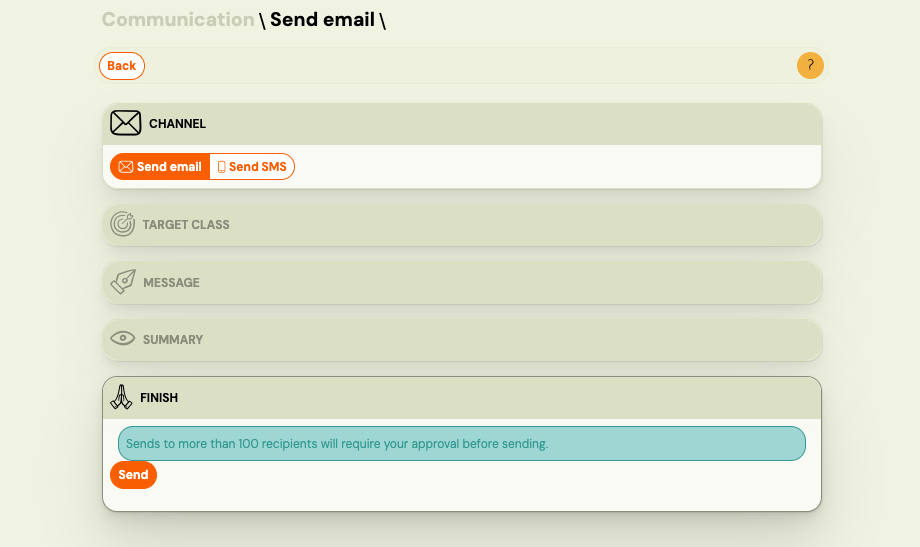
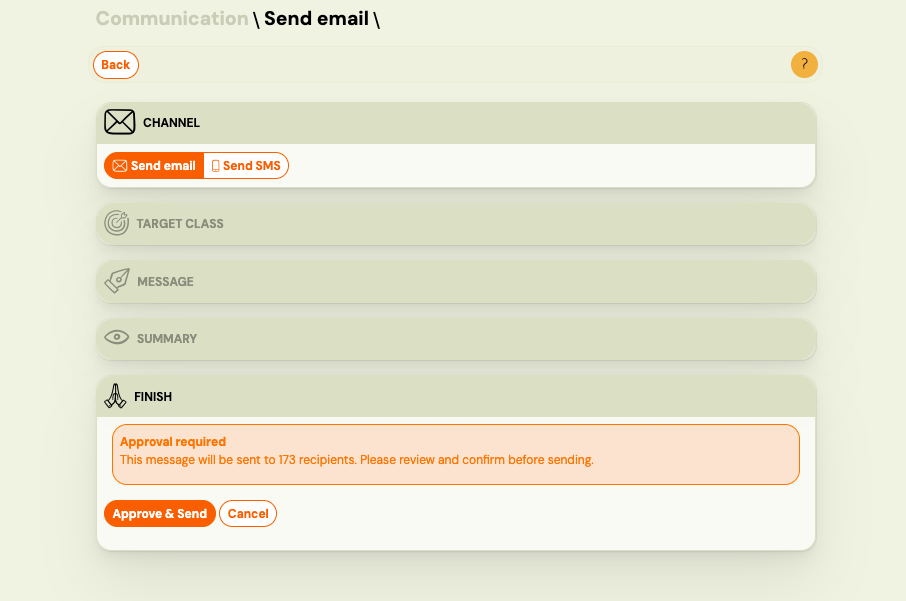
| Status shown | What it means |
|---|---|
| Pending approval | Job created, waiting for you to approve. No emails sent yet. |
| Approve button | Click to start sending. |
| Cancel button | Abandon the send entirely. |
Sends under 100 recipients are approved automatically and start immediately.
Progress view
Once approved (or auto-approved), Zooza processes the send in the background. The progress view shows:
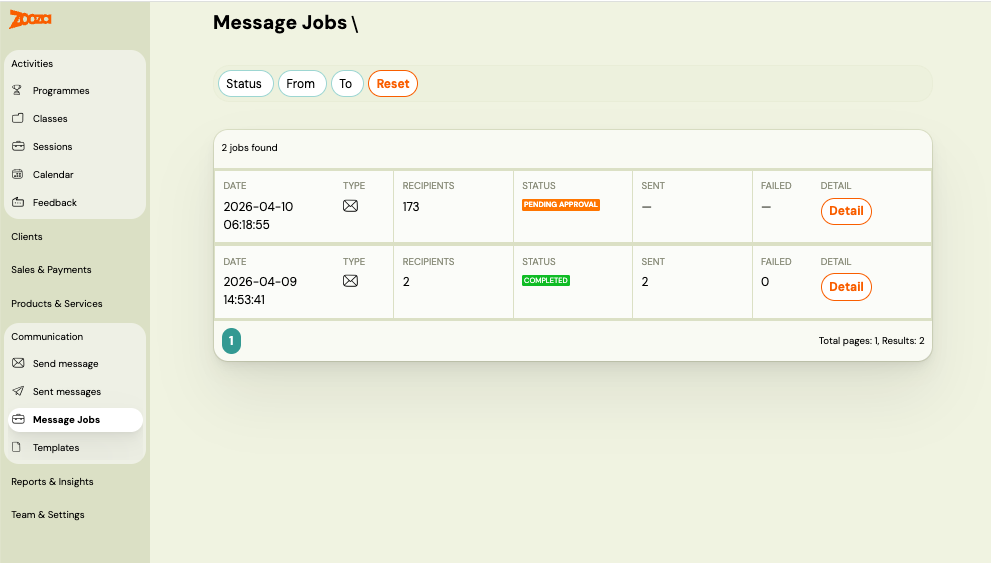
| Field | Description |
|---|---|
| Status | Current job status: Queued, Sending, Completed, or Failed. |
| Recipients | Total number of recipients in this send. |
| Sent | Recipients successfully handed off to the mail gateway. |
| Failed | Recipients that could not be processed. |
| Queued | Job is waiting because another send for your account is already in progress. |
Only one bulk send can be active per account at a time. If you start a second send while the first is still running, the second enters the queue and starts automatically when the first completes.
Cancellation
You can cancel a send that is in progress. Chunks already sent cannot be recalled, but unsent chunks are stopped.
Click Cancel on the progress view to stop the send.
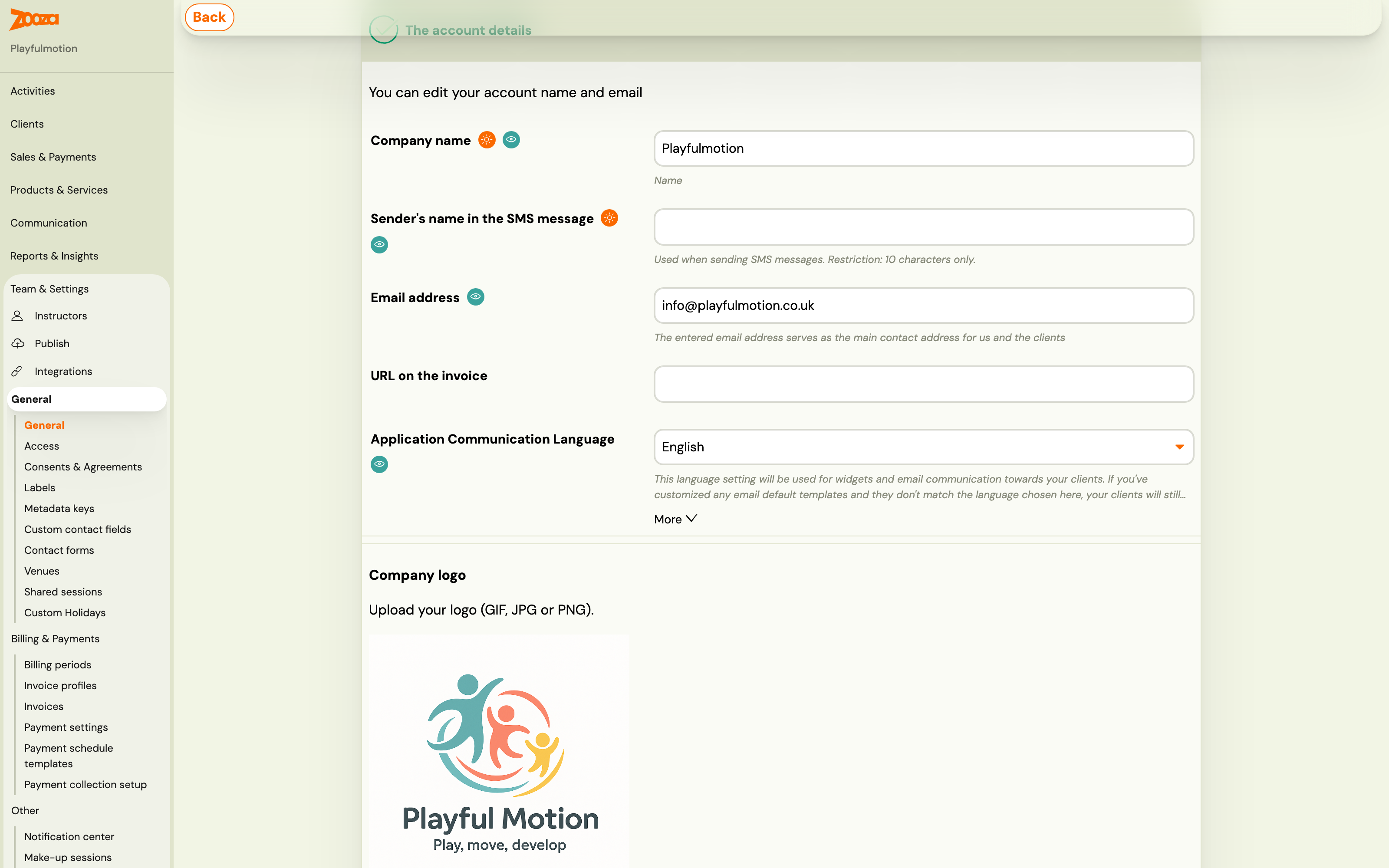
Company logo in email communication
You can display your company logo in the header of all emails sent to clients.
- Go to Settings → General → General.
- In the Company logo section, drag and drop your logo or click browse to choose a file (GIF, JPG or PNG).
- Click Upload.
The logo appears in the header of all outgoing client emails.
Related
- Communication — Communication menu overview.
- Message Templates Reference — manage reusable templates.
- Sending Email/SMS Guide — step-by-step instructions.
- Bulk Send Tracking — understanding job statuses, queue, and send history.
- Dynamic Tags Guide — available merge fields for templates.
- Email Communication FAQ — common email questions.