Class Detail
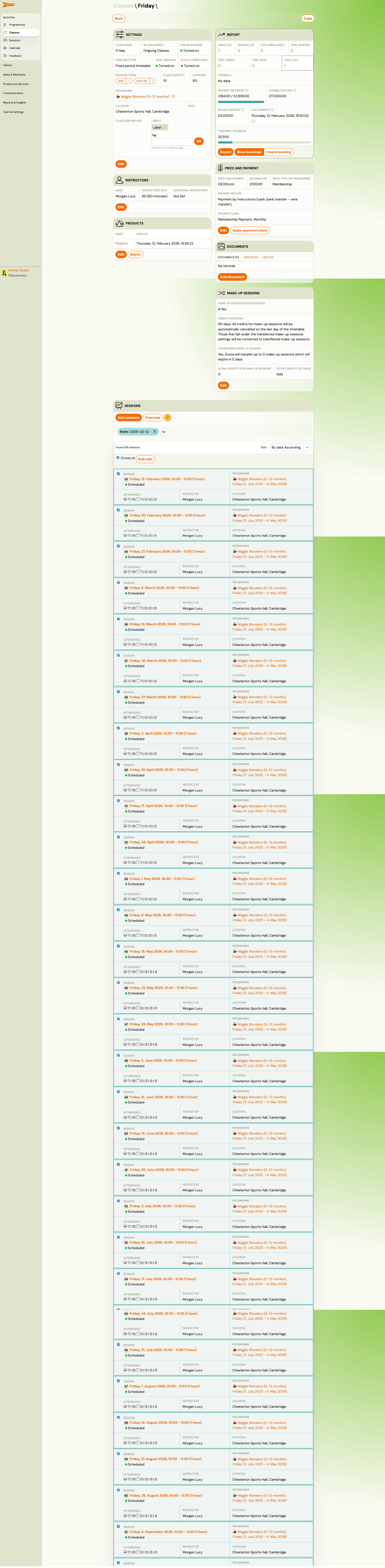
The Class Detail page is the central hub for managing a single timetable. It shows settings, instructors, products, pricing, documents, make-up sessions, and the full list of sessions with attendance data.
Navigation: Go to Activities → Classes → click a class name. Or from Programmes → select a programme → click a class.
Overview Tabs
The class detail page is organized into sections accessible from the top of the page:
| Section | Description |
|---|---|
| Settings | Class name, timetable type, venue, capacity, dates, billing period, and advanced settings. |
| Instructors | Primary and additional instructors with roles and rate. |
| Products | Products linked to this class (e.g., merchandise, kits). |
| Price and Payment | Per-session price, booking fee, and payment frequency/plans. |
| Documents | Documents attached to the class. |
| Make-up Sessions | Make-up session configuration and rules for this class. |
| Videos | Video content linked to the class. |
| Report | Session-by-session attendance report. |
| Sessions | Full list of all sessions with date, status, and actions. |
Settings
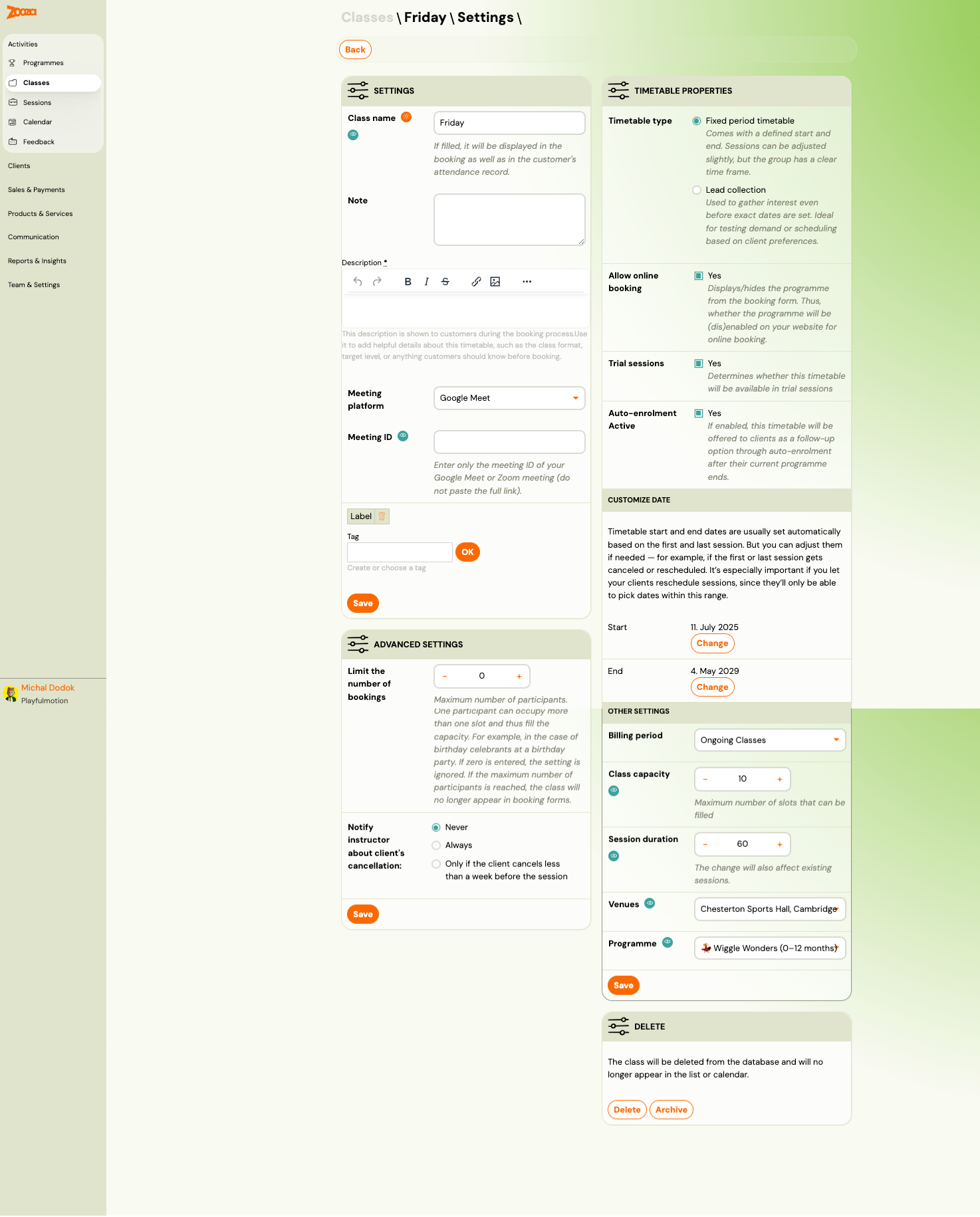
The settings section has two columns: general settings on the left and timetable properties on the right.
General Settings
| Field | Description |
|---|---|
Class name | Display name (shown in bookings and attendance records). |
Note | Internal note (not visible to clients). |
Description | Rich-text description shown to clients during booking. Use it for class format, age range, or other details. |
Meeting platform | Online meeting tool (e.g., Google Meet, Zoom). |
Meeting ID | Meeting room ID (not the full link). |
Label | Custom label badge. |
Tag | Categorization tag. |
Timetable Properties
| Field | Description |
|---|---|
Timetable type | Fixed period timetable — defined start/end. Lead collection — interest gathering. |
Allow online booking | Shows/hides this class on the booking form. |
Trial sessions | Whether this timetable is available for trial sessions. |
Auto-enrolment Active | Whether this timetable is offered via auto-enrolment. |
Customize Date
| Field | Description |
|---|---|
Start | First session date. Click Change to adjust. |
End | Last session date. Click Change to adjust. |
Timetable dates are set automatically from the first and last session but can be adjusted manually. This is important if you allow rescheduling — clients can only pick dates within this range.
Other Settings
| Field | Description |
|---|---|
Billing period | Payment grouping for this class (e.g., "Ongoing Classes"). |
Class capacity | Maximum number of participants. |
Session duration | Duration in minutes (affects all existing sessions). |
Venues | Assigned venue. |
Programme | Parent programme (read-only reference). |
Advanced Settings
| Field | Description |
|---|---|
Limit the number of bookings | Max participants (0 = unlimited). One person can occupy more than one slot. |
Notify instructor about client's cancellation | Never, Always, or Only if the client cancels less than a week before the session. |
Delete Section
- Delete — permanently removes the class from the database.
- Archive — hides the class from lists and calendar but keeps the data.
Instructors
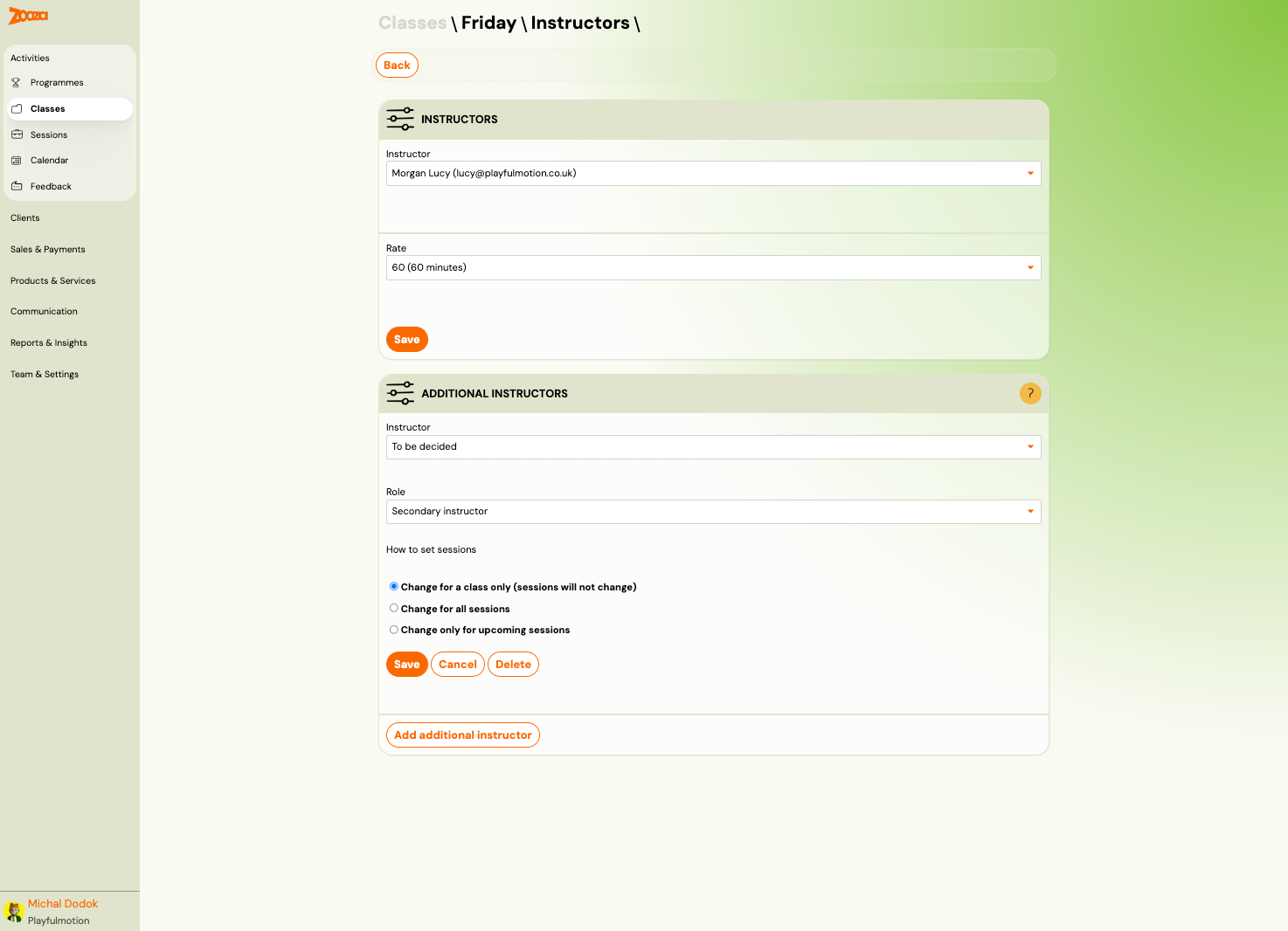
Manage the primary instructor and any additional instructors for the class.
Primary Instructor
| Field | Description |
|---|---|
Instructor | Select from the instructor list. |
Rate | Pay rate (e.g., "60 (60 minutes)"). |
Additional Instructors
| Field | Description |
|---|---|
Instructor | Select an additional instructor. |
Role | Secondary instructor or other roles. |
How to set sessions | Change for a class only (sessions unchanged), Change for all sessions, or Change only for upcoming sessions. |
Click Add additional instructor to assign more instructors.
Price and Payment
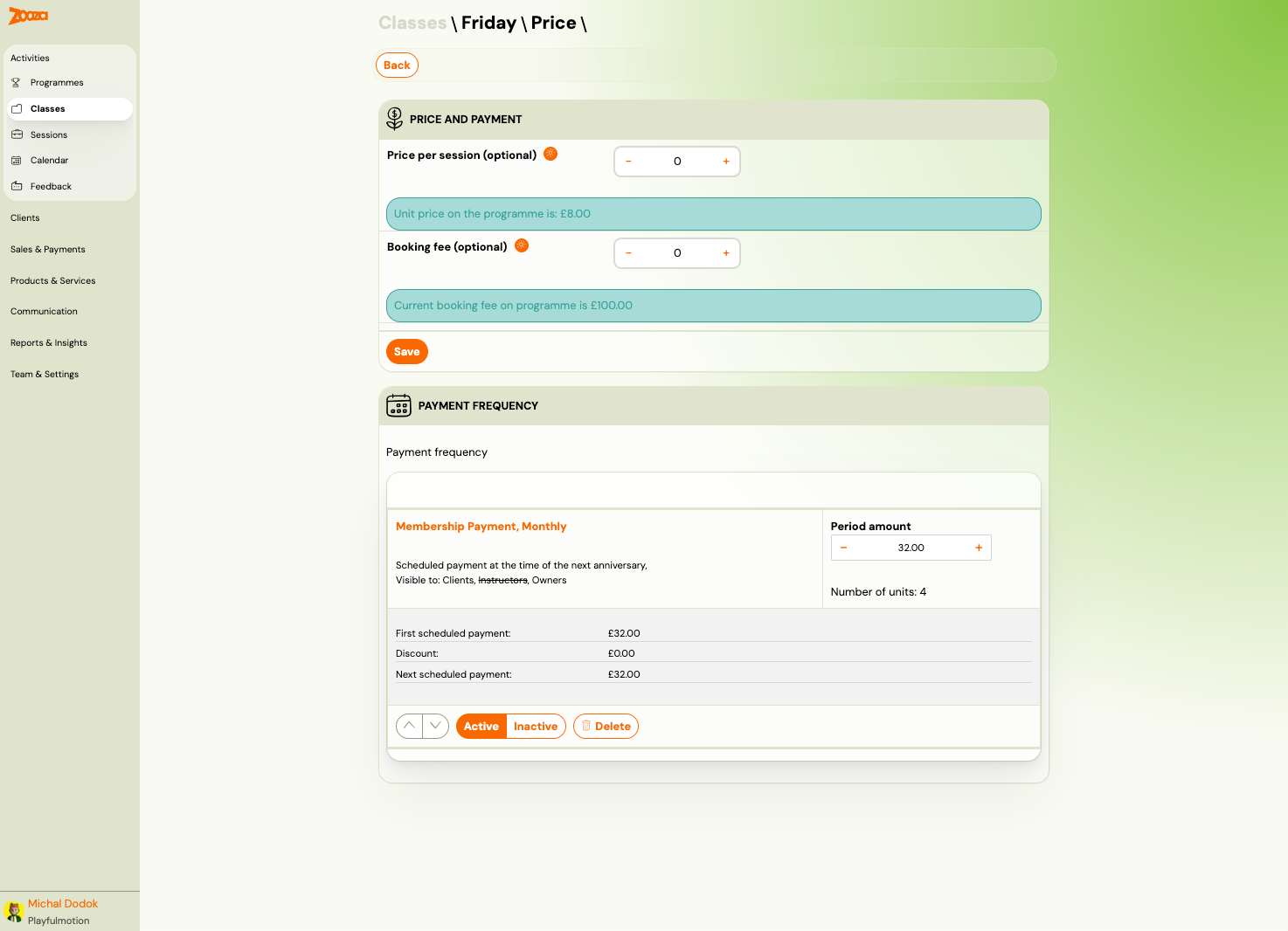
Override programme-level pricing at the class level.
Price and Payment
| Field | Description |
|---|---|
Price per session (optional) | Override the programme unit price for this class. |
Booking fee (optional) | Override the programme booking fee for this class. |
Info banners show the current programme-level prices for reference.
Payment Frequency
Shows the active payment plan for the class:
| Field | Description |
|---|---|
Payment plan name | E.g., "Membership Payment, Monthly". |
Period amount | Amount per payment period. |
Number of units | Number of periods in the plan. |
First scheduled payment / Discount / Next scheduled payment | Financial details. |
Visible to | Who can see the plan (Clients, Instructors, Owners). |
Payment plans can be reordered, activated, deactivated, or deleted.
Report
Session-by-session attendance and financial report for the class.
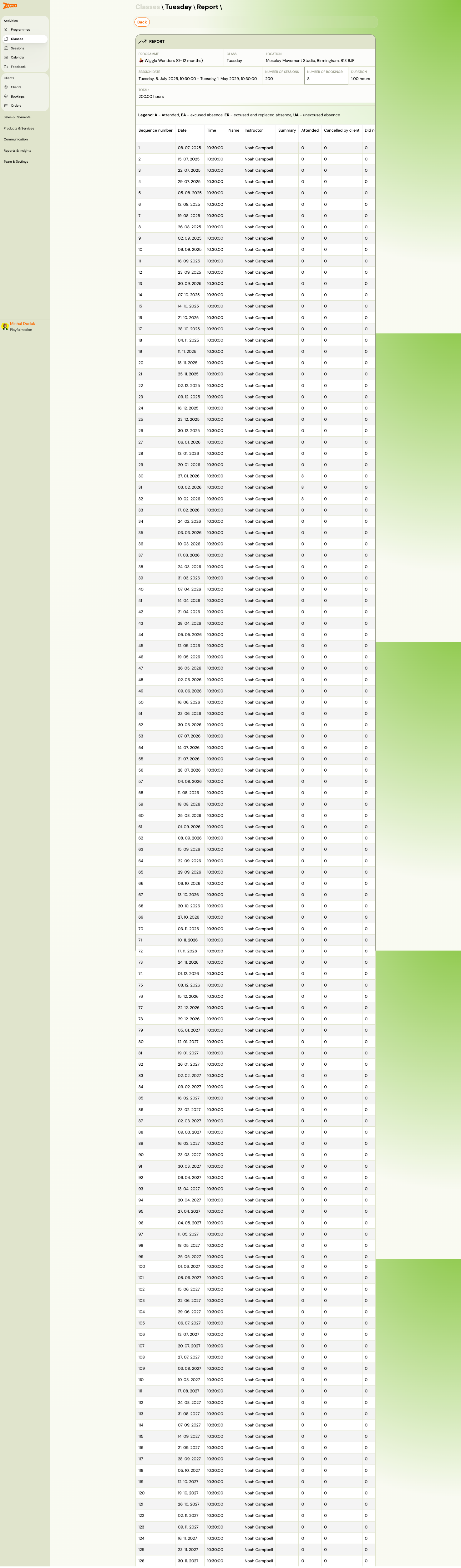
The report shows:
| Column | Description |
|---|---|
Sequence number | Session number (1, 2, 3, ...). |
Date | Session date. |
Time | Session start time. |
Name | Instructor name. |
Instructor | Instructor name (confirmed). |
Summary | Attendance summary count. |
Attended | Number who attended. |
Cancelled by client | Client cancellations. |
Absence count | Unexcused absences. |
The report header shows the class name, programme, day, location, date range, and total hours.
Sessions
The sessions list shows every scheduled session for the class.
Each session row shows:
- Date, day, and time range (e.g., "Friday, 13. February 2026, 10:00 – 11:00")
- Status indicator (colour-coded: green = scheduled, orange = in progress)
- Programme name and date range
- Instructor name and venue
- Detail and Bulk edit action buttons
Session Actions
| Button | Description |
|---|---|
| Add sessions | Add new sessions to the class. |
| Colourize | Toggle colour coding on sessions. |
| Filter by date | Filter the session list by date. |
| Choose all | Select all sessions for bulk operations. |
| Bulk edit | Edit multiple sessions at once (e.g., change time, instructor). |
Sessions can be sorted by date (ascending/descending).
Related
- Creating a class — step-by-step guide to creating a new class.
- Classes List — the cross-programme classes view.
- Sessions List — global sessions view.
- Change Instructor Guide — how to reassign instructors.
- Edit Sessions in Programmes Guide — modifying sessions.
- Attendance and Catch-ups FAQ — marking attendance, catch-up flow.