Billable sessions
In programmes using the Booking for the full programme duration type, a client pays for all sessions in the class when they enrol. However, the actual number of sessions in a class may not always match the number the client should pay for. The billable sessions feature lets you separate paid sessions from unpaid ones within a single booking.
This is purely a billing feature — it has nothing to do with attendance. It controls how the booking price is calculated.
When to use billable sessions
- Free bonus session — You add an extra session to a class as a credit for a previously cancelled session. Without billable sessions, Zooza would divide the total price across all sessions (including the free one), lowering the unit price incorrectly.
- Make-up sessions — A client books a make-up session in a class. This adds a session to the class that should not affect the price calculation for existing bookings.
In both cases, the class ends up with more sessions than originally planned. Billable sessions tell Zooza: "the client pays for X sessions, regardless of how many sessions actually exist in the class."
How to set it up
Billable sessions are configured at three levels: programme, class, and session.
1. Programme level (default for all classes)
- Go to Programmes → select the programme → Edit Settings.
- Open the Price and Payment tile.
- Set the Billable sessions field to the number of sessions that should be paid for.
This value becomes the default for all classes within the programme.
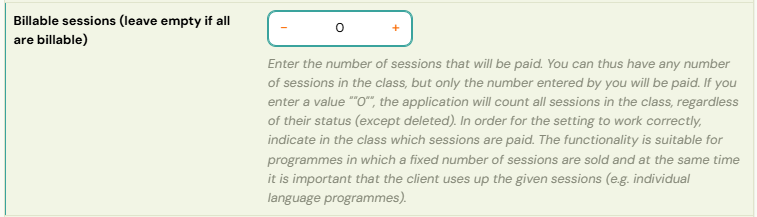
2. Class level (override per class)
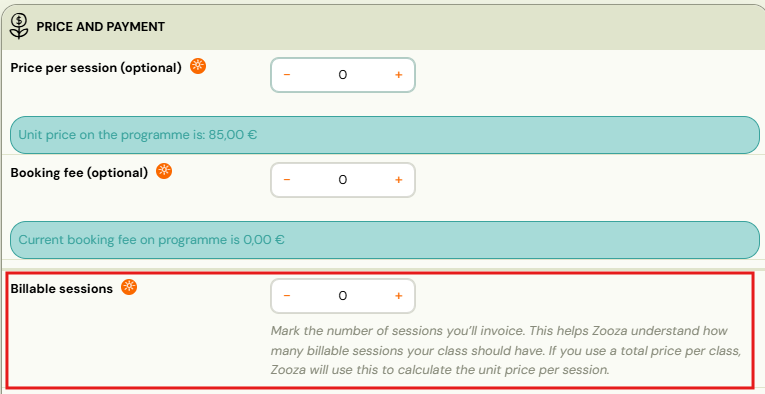
- Go to Classes → select the class → Price and Payment.
- Set the Billable sessions field.
If a class has its own value, it overrides the programme-level setting. This allows individual classes to have a different number of billable sessions.
Important: If the programme has billable sessions set (e.g. 12) and the class value is 0, the programme value is used. You cannot set a class to 0 billable sessions when the programme has a non-zero value.
3. Session level (mark individual sessions)
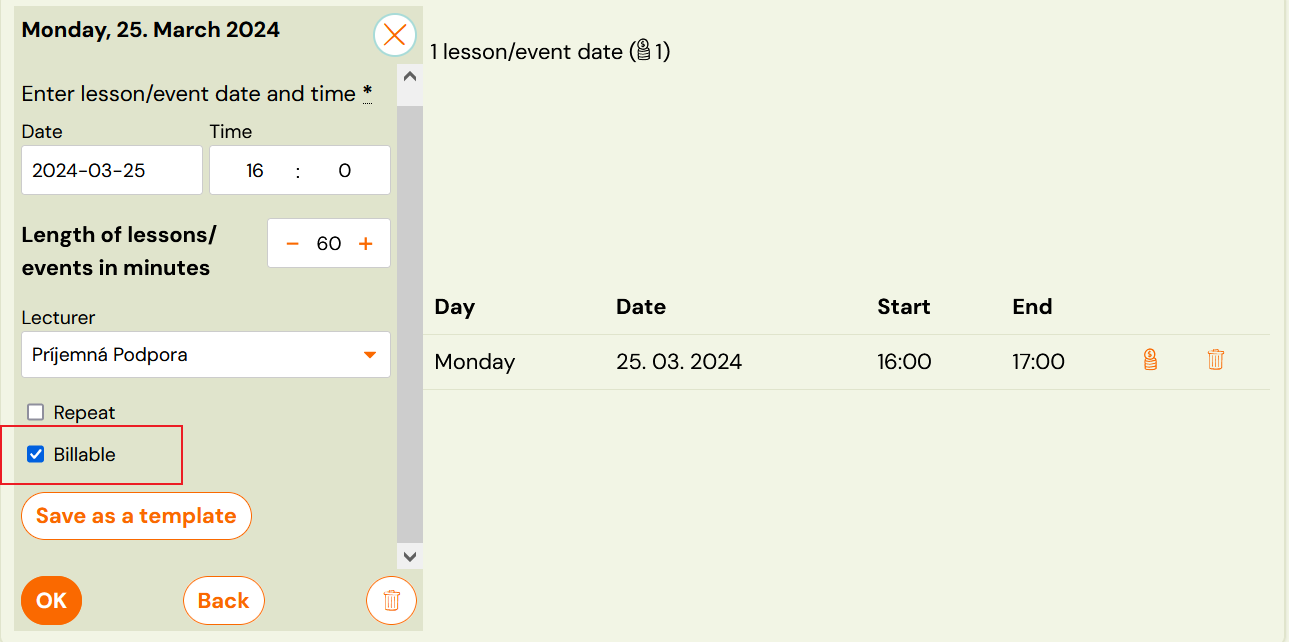
Each session must also be marked as billable or not billable:
-
When creating sessions — check the Billable checkbox.
-
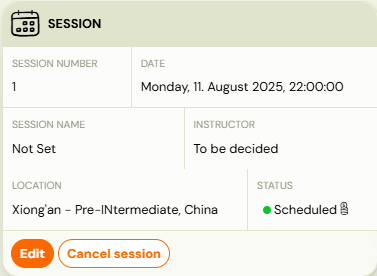
On an existing session — open the session detail → Session settings → toggle the Billable session field.
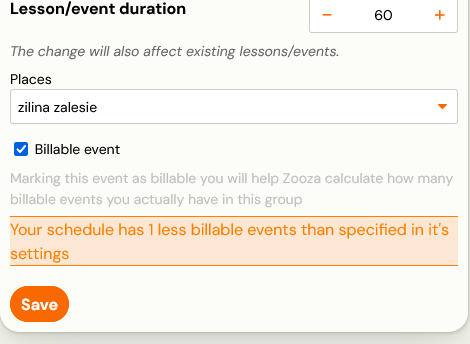
How it works
For the setup to work correctly, all three levels must be aligned. If you set 10 billable sessions on the programme, you need exactly 10 sessions marked as billable at the session level.
Adding sessions to a class
When you add sessions to a class that has billable sessions configured, the Repetition frequency field automatically pre-fills with the number of missing billable sessions. For example, if the class should have 5 billable sessions but only has 2 marked, the field suggests 3.
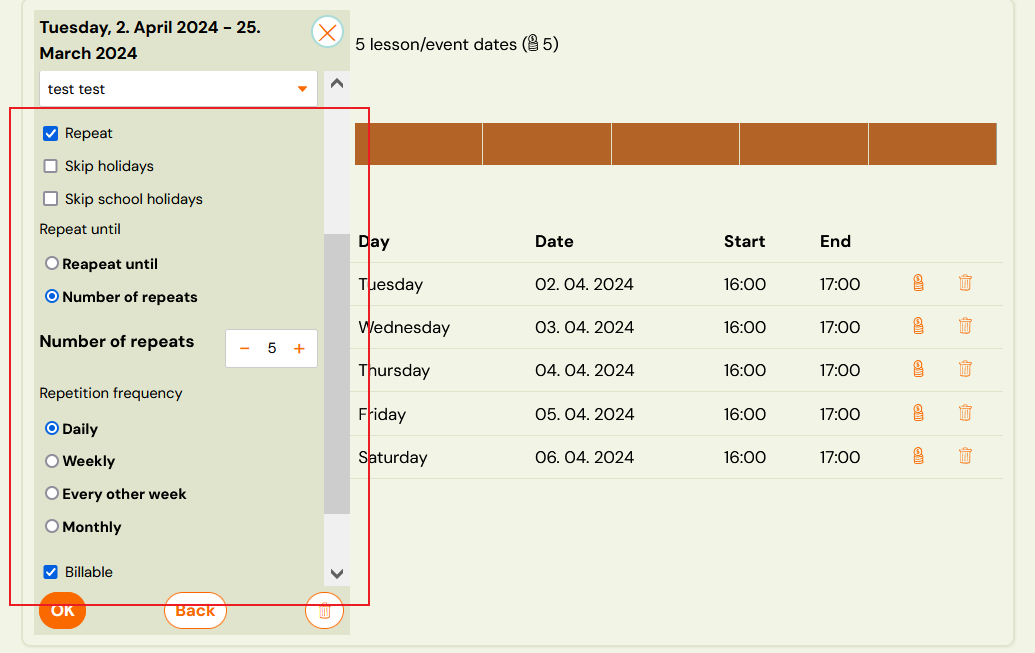
Billable toggle on new sessions
Once billable sessions are configured, a checkbox appears when creating new sessions, letting you mark them as billable or not. You can also toggle the billable status using the billing icon on existing sessions.
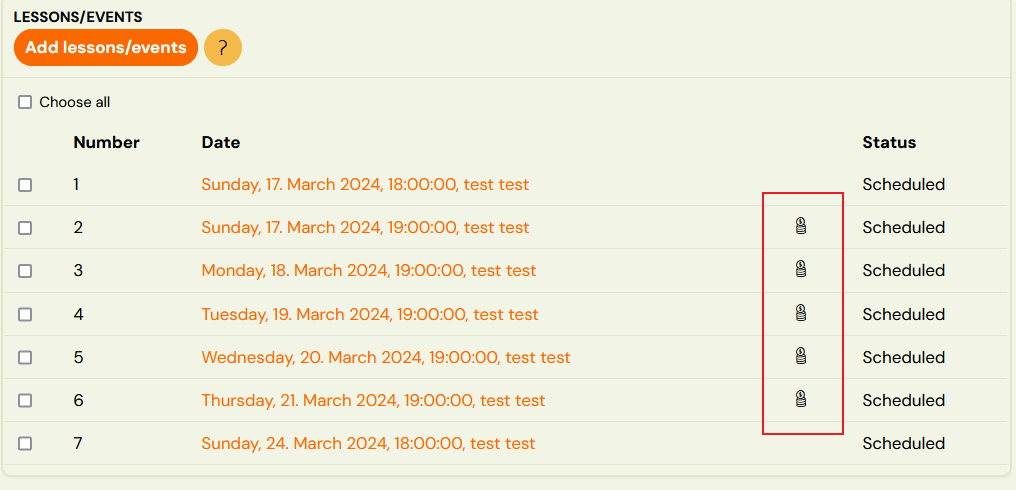
Unit price calculation
When billable sessions are set on a class, Zooza calculates the unit price (price per session) using the billable session count instead of the total number of sessions.
Example: A class costs 120 EUR and has 15 sessions total, but only 12 are billable. The unit price is 120 / 12 = 10 EUR per session (not 120 / 15 = 8 EUR).
This applies only to programmes using Booking for the full programme duration. Pay-as-you-go programmes already use a fixed unit price per session.
Changing billable sessions mid-programme
If you change the number of billable sessions during a running programme, you must also update the programme/class price accordingly. Otherwise the unit price calculation will be incorrect.
Related
- Tracking billable sessions — how to view and monitor billable session status across classes.