Calendar bulk actions
From the Calendar, you can select multiple sessions at once and perform the same action on all of them — send an email, send an SMS, or open the bulk edit flow.
Enable bulk selection
On desktop
- Go to Calendar.
- In the toolbar above the calendar grid, click Bulk edit.
- The calendar switches to selection mode. Click sessions to select them — selected sessions are highlighted.
On mobile
- Go to Calendar.
- In the sticky toolbar at the top, tap Actions.
- A side drawer opens. Tap Enable bulk selection.
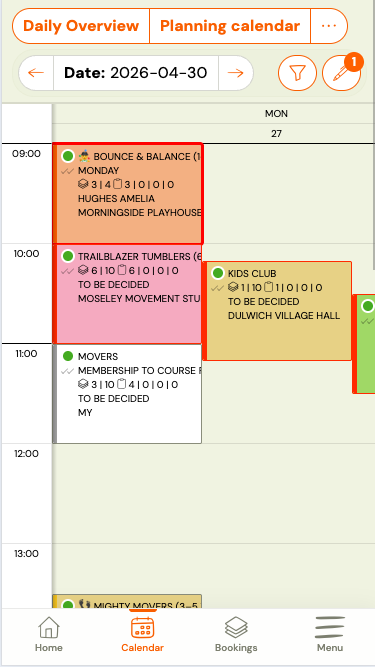
- The drawer closes. Tap sessions in the calendar to select them.
Select sessions
Click or tap any session tile to add it to your selection. Click again to deselect. The current count of selected sessions is shown:
- Desktop: in the bulk actions toolbar.
- Mobile: as a badge on the Actions button.
Perform a bulk action
Once you have selected one or more sessions:
On desktop
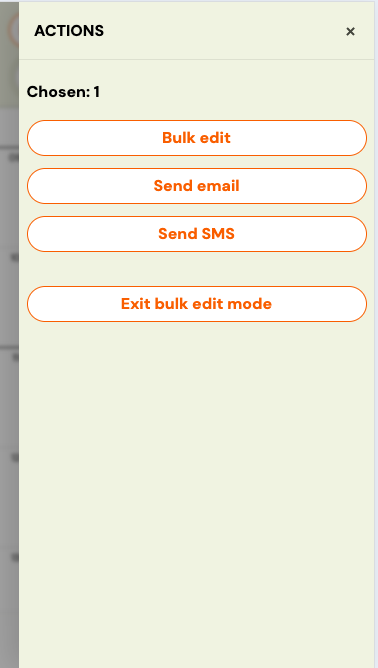
The actions appear in the inline toolbar above the calendar: Edit, Send email, Send SMS.
On mobile
Tap the Actions button to open the drawer again. The available actions are listed there: Edit, Send email, Send SMS. Tapping an action starts the flow and closes the drawer.
Turn off bulk selection
- Desktop: click Turn off in the toolbar, or navigate away.
- Mobile: open the Actions drawer and tap Turn off.
Your selection is cleared.
Available bulk actions
| Action | What it does |
|---|---|
| Edit | Opens the bulk session editor — change time, instructor, location, or cancel multiple sessions at once. |
| Send email | Opens the email composer pre-addressed to all clients booked into the selected sessions. |
| Send SMS | Opens the SMS composer pre-addressed to all clients booked into the selected sessions. |