Services
The Services screen manages service add-ons that can be attached to products or offered during booking. Services represent additional options such as insurance, parking, meal plans, or extras — typically for camps and sessions.
Navigation: Go to Products & Services → Services.
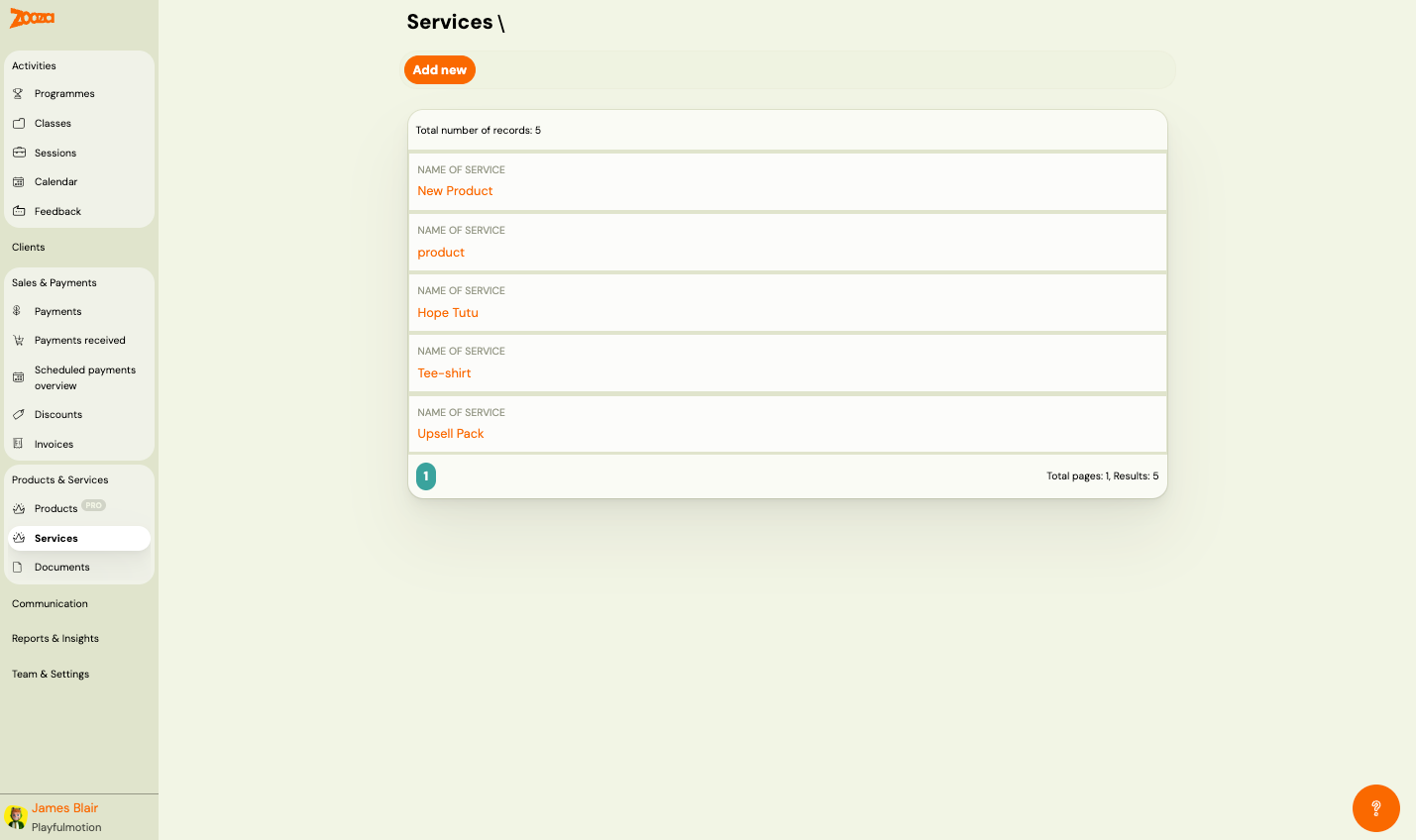
Top Actions
| Button | Description |
|---|---|
| Add new | Create a new service (see New Service). |
Service List
The header shows the total number of records.
Each row displays:
| Column | Description |
|---|---|
Name of service | Service name (clickable link to service detail). |
Pagination shows total pages and results count.
New Service
Navigation: Services → Add new, or click an existing service name.
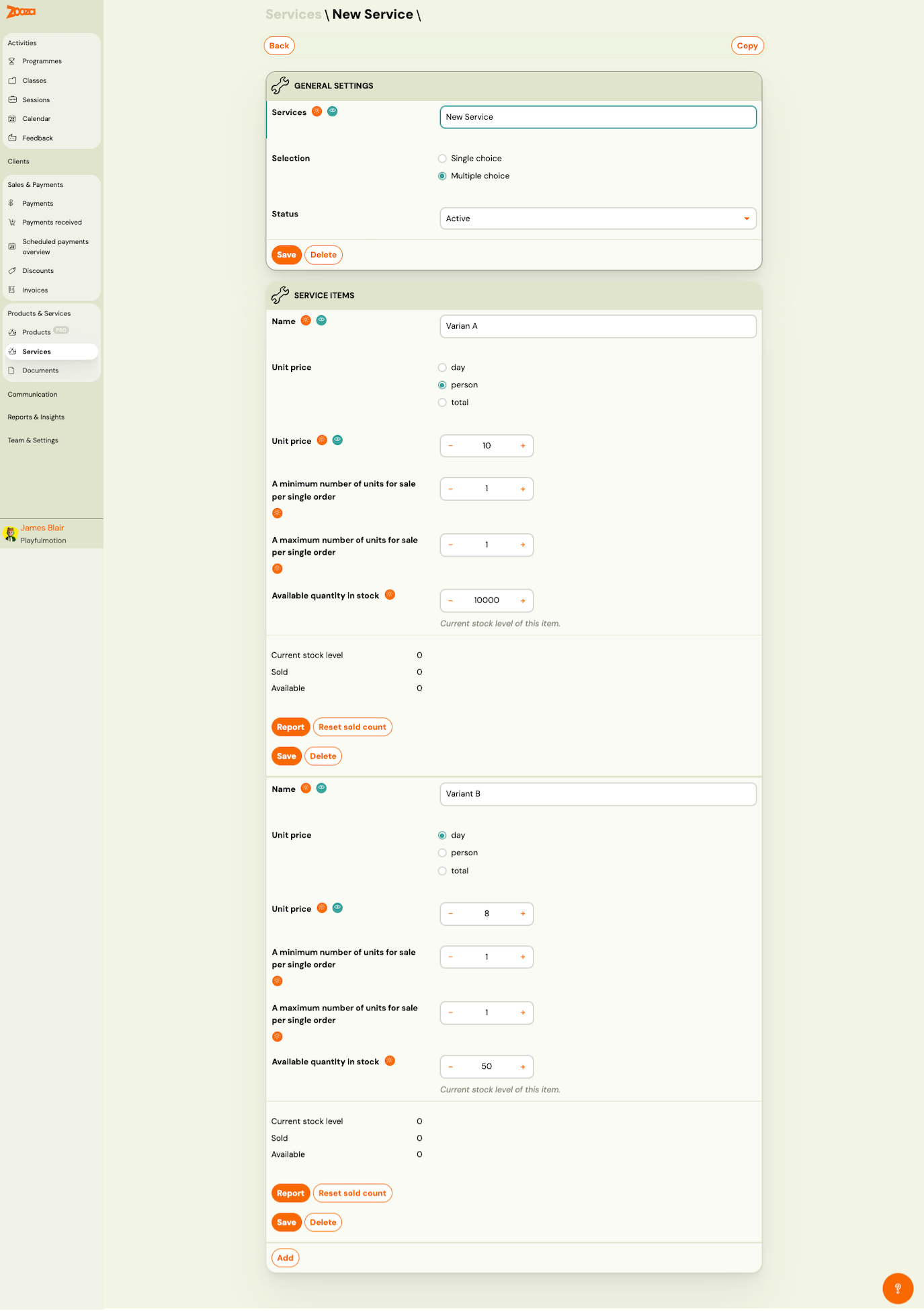
General Settings
| Field | Description |
|---|---|
Services | Service name. Required. |
Selection | How clients choose options: Single choice (pick one) or Multiple choice (pick several). |
Status | Dropdown — Active or Inactive. |
Buttons: Save and Delete.
Top-right action: Copy — duplicate the service.
Service Items
Each service contains one or more variants (items). Items are displayed as collapsible panels — click a panel to expand or collapse it.
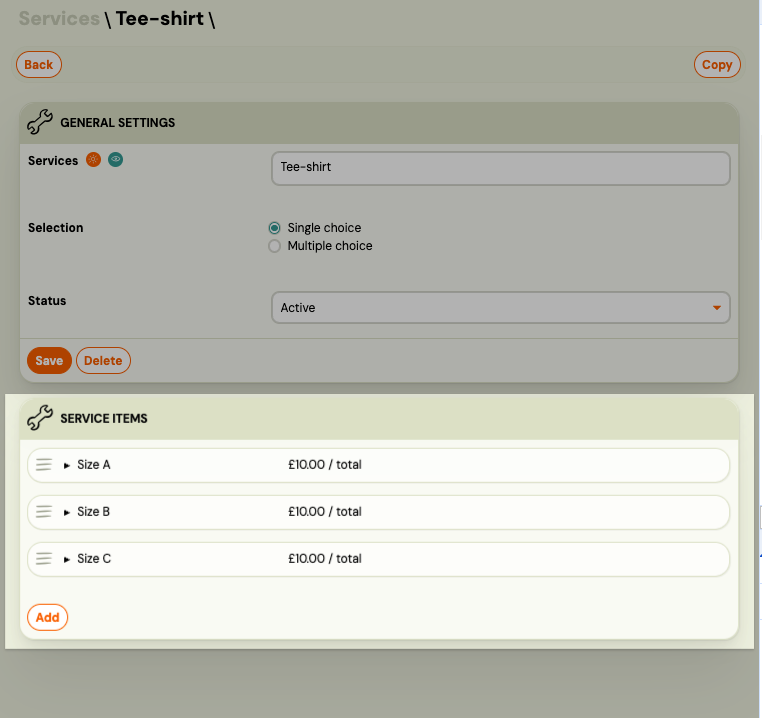
The collapsed view shows the item name and unit price (e.g. "1.00 / person"). Expand a panel to edit the full item details.
Reordering items
Items can be reordered using drag-and-drop. The order you set here is the order clients see when selecting options during registration.
- Grab the drag handle (≡ icon) on the left of a collapsed item.
- Drag it to the desired position and release.
Zooza saves the new order automatically.
New items (not yet saved) appear at the end of the list and cannot be reordered until saved.
Item fields
| Field | Description |
|---|---|
Name | Variant display name (e.g. "Variant A", "Variant B"). Required. |
Unit price | Pricing unit: day (per day), person (per person), or total (flat fee). |
Unit price | Price amount. +/− controls. Required. |
A minimum number of units for sale per single order | Minimum quantity a client must order. +/− controls. |
A maximum number of units for sale per single order | Maximum quantity a client can order. +/− controls. |
Available quantity in stock | Total available stock for this item. +/− controls. |
Stock Info
Below each variant, stock status is displayed:
| Field | Description |
|---|---|
Current stock level | Current available stock. |
Sold | Number of units sold. |
Available | Remaining units available. |
Item Actions
| Button | Description |
|---|---|
| Report | View sales report for this item. |
| Reset sold count | Reset the sold counter back to zero. |
| Save | Save changes to this item. |
| Delete | Remove this item. |
The Add button at the bottom creates a new service item variant.
Related
- Products Reference — manage sellable products.
- Documents Reference — manage documents and videos.
- Selling Products During Booking — how to offer products and services at booking time.