Instructors
The Instructors screen manages your team of instructors and account owners. Use it to add team members, manage profiles, set working hours, and download instructor reports.
Navigation: Go to Team & Settings → Instructors.
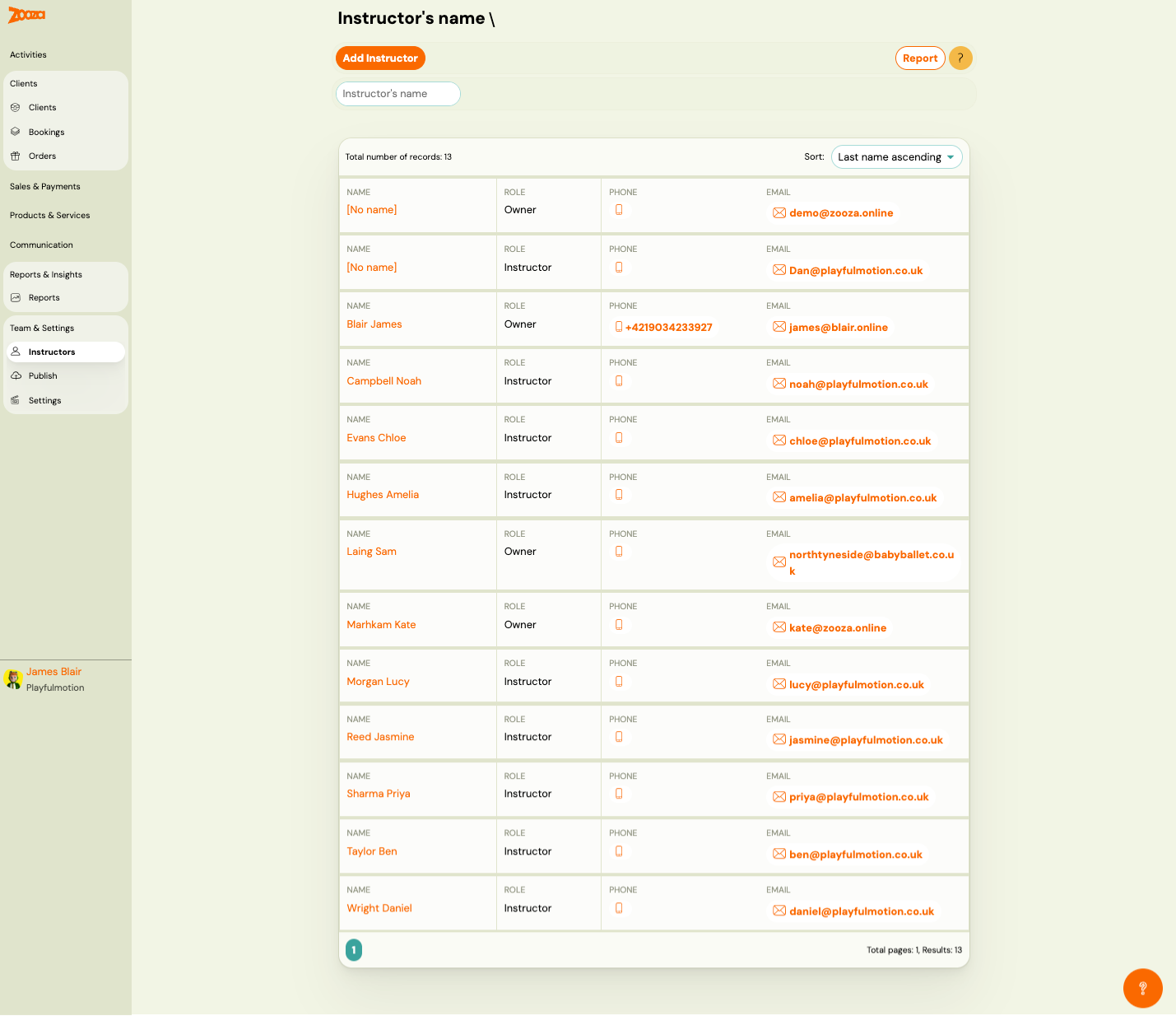
Top Actions
| Button | Description |
|---|---|
| Add Instructor | Create a new instructor (see Instructor Profile). |
| Report | Open the Instructors Report for Download. |
Filter
- Instructor's name — search by name.
Sort
- Last name ascending (default) — dropdown to change sort order.
Instructor List
The header shows the total number of records.
Each row displays:
| Column | Description |
|---|---|
Name | Instructor name (clickable link to profile). Shows "[No name]" if not set. |
Role | "Owner" or "Instructor". |
Phone | Phone number (clickable). |
Email | Email address (clickable). |
Pagination shows total pages and results count.
Instructor Profile
Navigation: Instructors → click an instructor name, or Add Instructor.
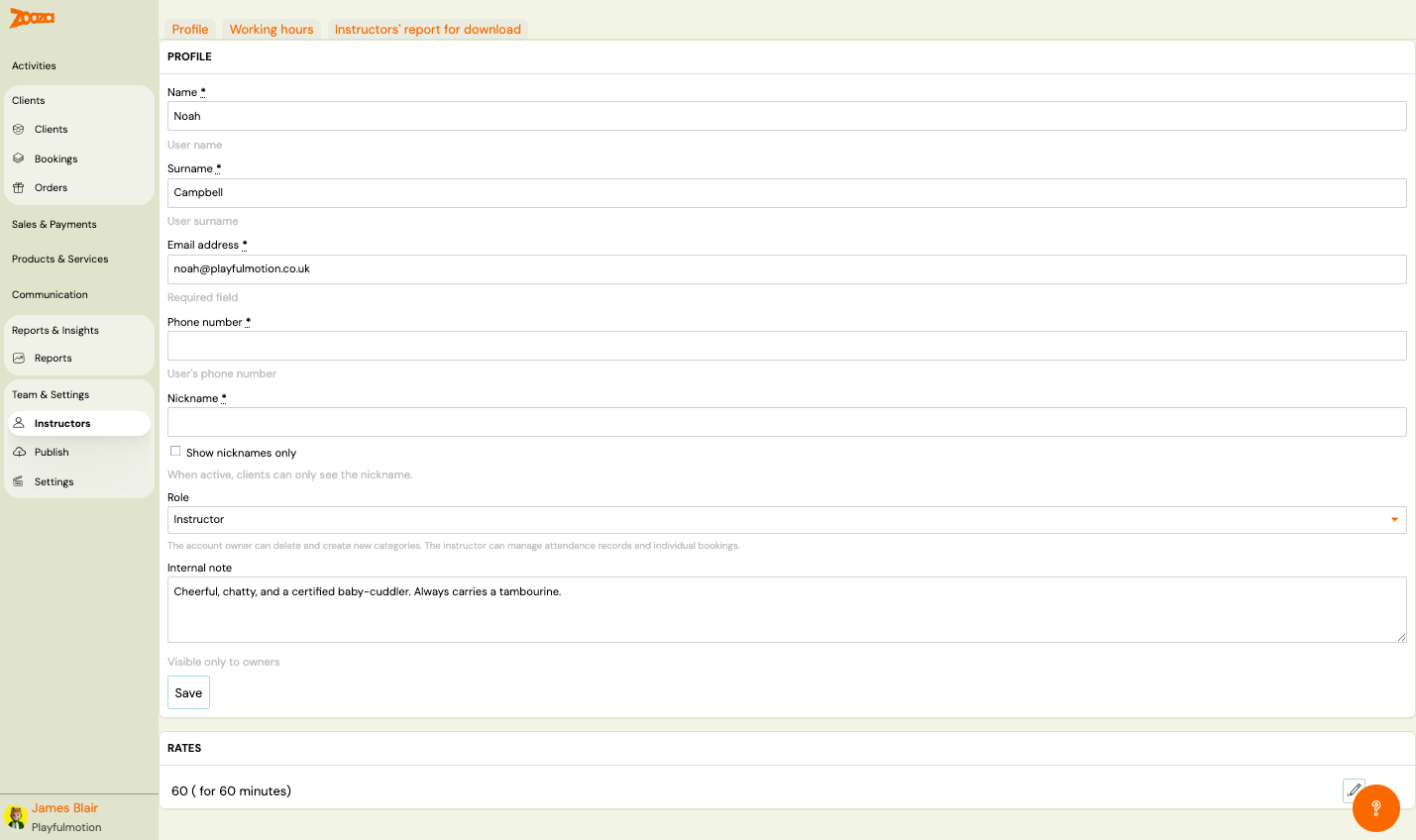
The instructor detail has three tabs: Profile, Working hours, and Instructors' report for download.
Profile
| Field | Description |
|---|---|
Name | First name. Required. |
Surname | Last name. Required. |
Email address | Email address. Required. |
Phone number | Phone number. Required. |
Nickname | Display nickname for clients. |
Show nicknames only | When active, clients can only see the nickname. |
Role | Dropdown — "Owner" or "Instructor". The owner can delete and create new categories. The instructor can manage attendance records and individual bookings. |
Internal note | Free-text note visible only to owners. |
Button: Save.
Rates
Below the profile section, the instructor's pay rates are listed (e.g. "60 (for 60 minutes)"). Click the edit icon to modify rates.
Working Hours
Navigation: Instructor detail → Working hours tab.
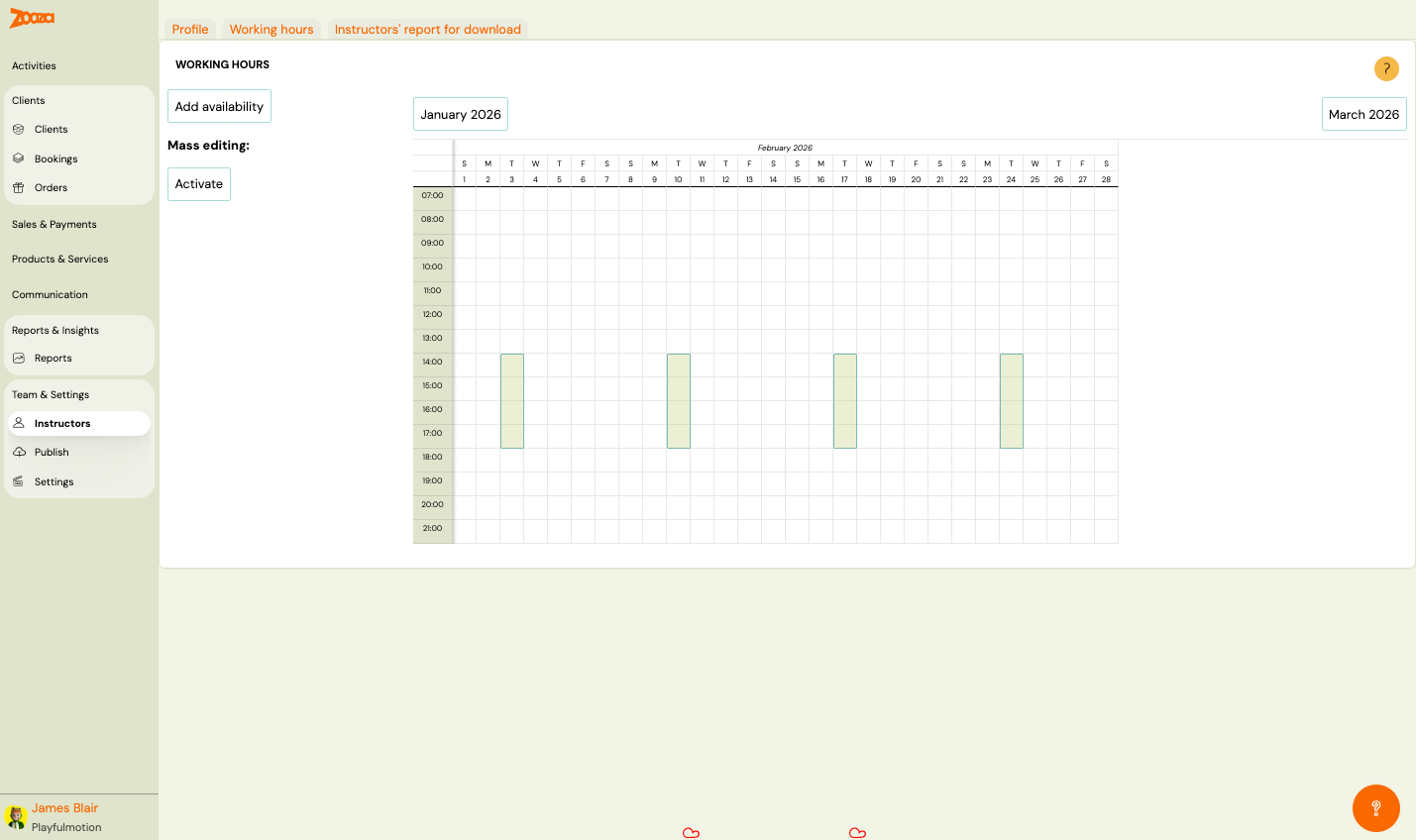
A monthly calendar view showing the instructor's scheduled sessions and availability.
| Action | Description |
|---|---|
| Add availability | Add a new availability block. |
| Mass editing: Activate | Enable bulk editing of availability. |
| Month navigation | Previous month / Next month buttons. |
The calendar shows days of the week (S–S) with hourly time slots (07:00–21:00). Green blocks indicate scheduled sessions.
Instructors' Report for Download
Navigation: Instructor detail → Instructors' report for download tab, or Instructors list → Report.
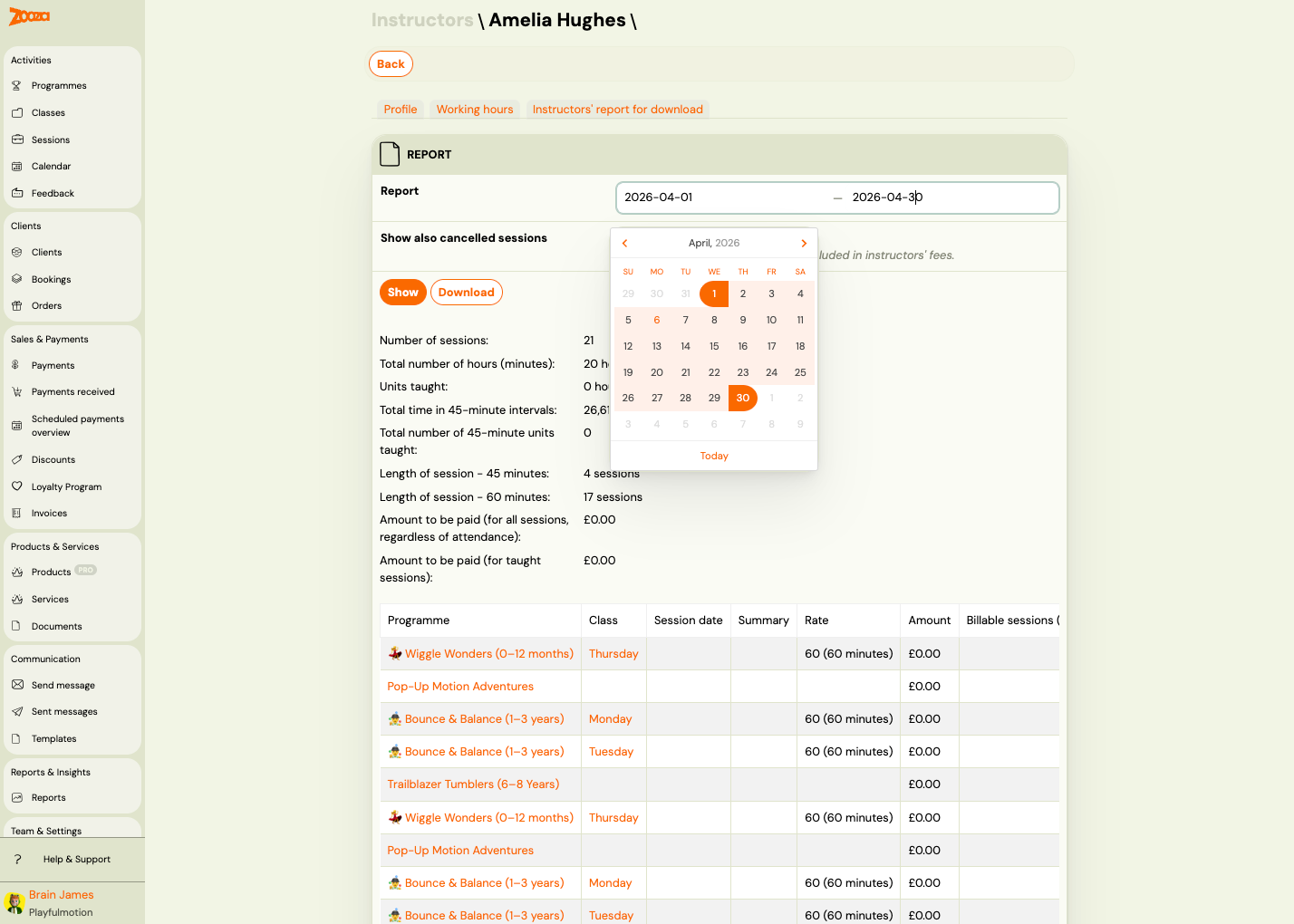
Report Filters
| Field | Description |
|---|---|
Date from | Start date for the report period. |
Date to | End date for the report period. |
Show also cancelled sessions | Check to include cancelled sessions in instructor fees. |
Select instructors | All instructors or Selected instructors (as currently filtered). |
Buttons: Download and Back.
Report Detail (Show)
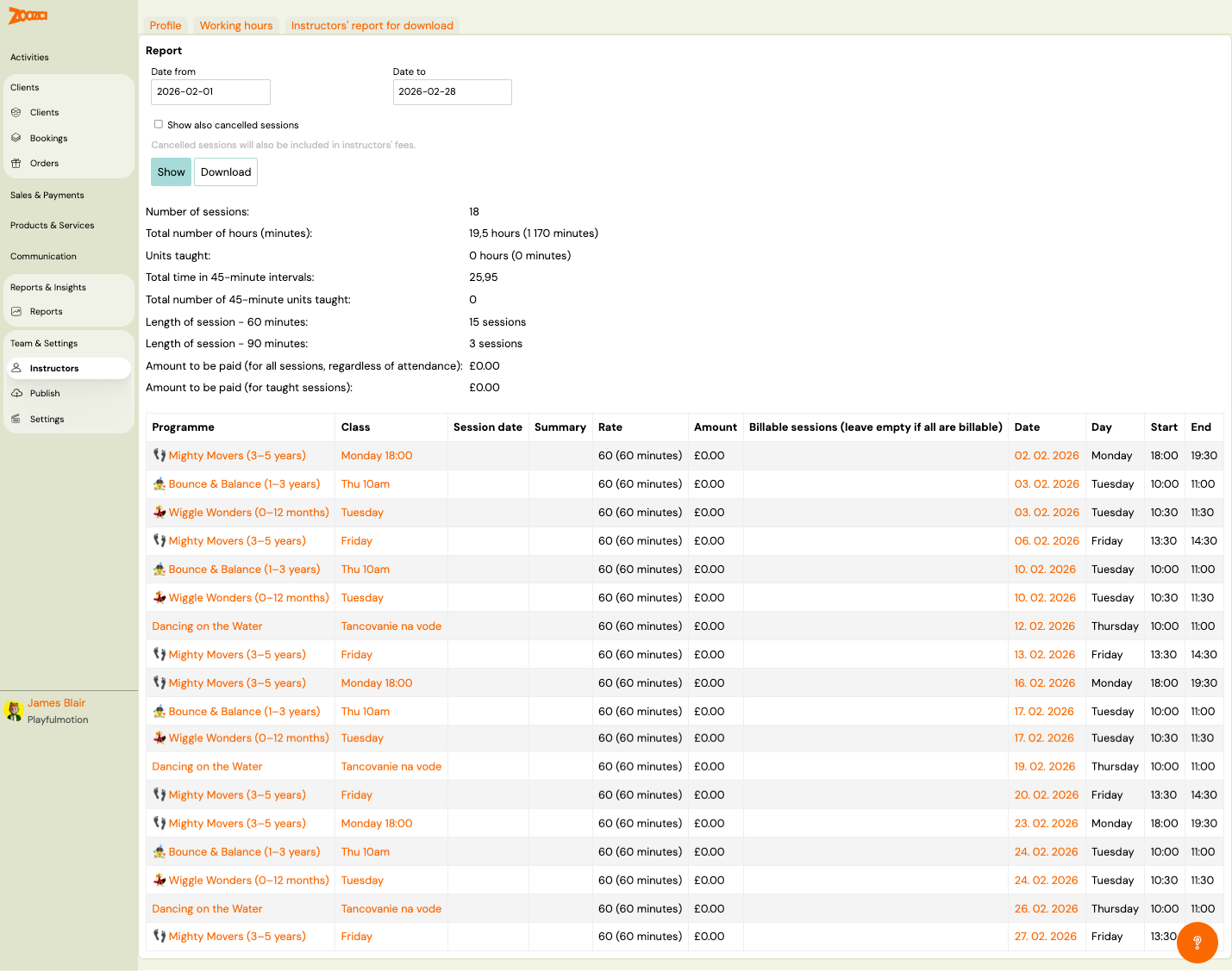
Summary statistics:
| Metric | Description |
|---|---|
Number of sessions | Total sessions in the period. |
Total number of hours (minutes) | Total teaching time. |
Units taught | Number of units actually taught. |
Total time in 45-minute intervals | Time converted to 45-minute units. |
Total number of 45-minute units taught | Units taught in 45-minute intervals. |
Length of session – 60 minutes | Count of 60-minute sessions. |
Length of session – 90 minutes | Count of 90-minute sessions. |
Amount to be paid (for all sessions, regardless of attendance) | Pay for all scheduled sessions. |
Amount to be paid (for taught sessions) | Pay only for sessions actually taught. |
Session Table
| Column | Description |
|---|---|
Programme | Programme name with icon (clickable link). |
Class | Class name (clickable link). |
Session date | Date of the session. |
Summary | Session summary. |
Rate | Pay rate (e.g. "60 (60 minutes)"). |
Amount | Payment amount. |
Billable sessions | Checkbox — leave empty if all are billable. |
Date | Session date. |
Day | Day of the week. |
Start | Start time. |
End | End time. |
Buttons: Show (view report) and Download (export).
Related
- Instructor Access FAQ — common questions about instructor permissions.
- Instructor Rate Guide — how to set up instructor pay rates.