Xero Integration
Xero is an international cloud accounting platform. The Zooza–Xero integration is the most feature-rich of all invoice engines: invoices are created automatically in Xero, payments are synced back, and account codes can be mapped per transaction type.
Market: International (UK, Australia, New Zealand, and others) Setup effort: Connect (OAuth) + configure account codes + re-authorize every 60 days
Before you start
You need an active Xero account with:
- A bank account set up in Xero (required for payment sync)
- A revenue account with a tax rate assigned (required for invoice line items)
Important: Xero requires re-authorization every 60 days. This is a Xero security policy — not a Zooza limitation. Set a reminder so invoices don't start failing.
Setup
Step 1 — Connect Xero
-
Go to Settings → Billing and open your Invoice Profile.
-
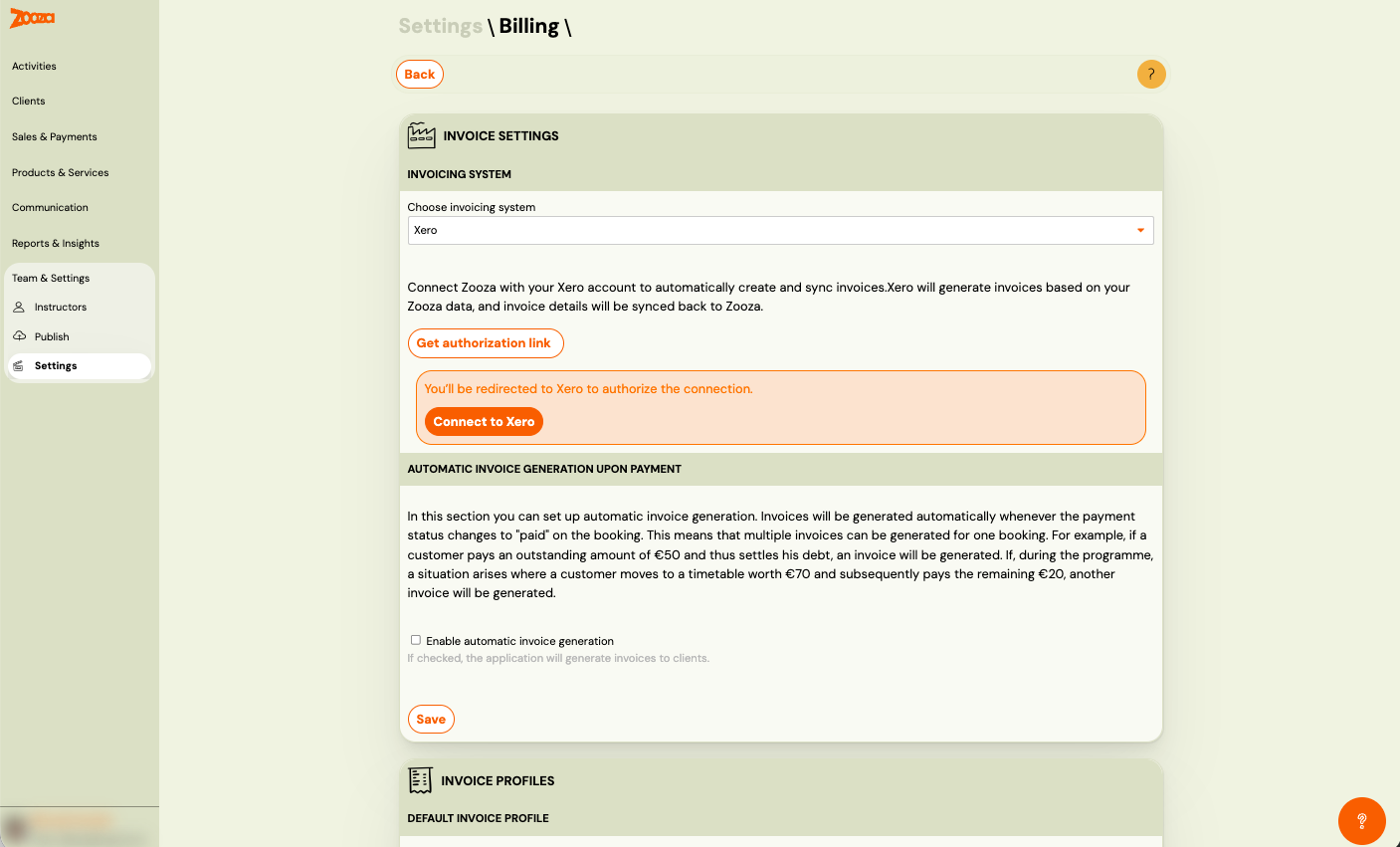
In the Invoice Engine section, select Xero.
-
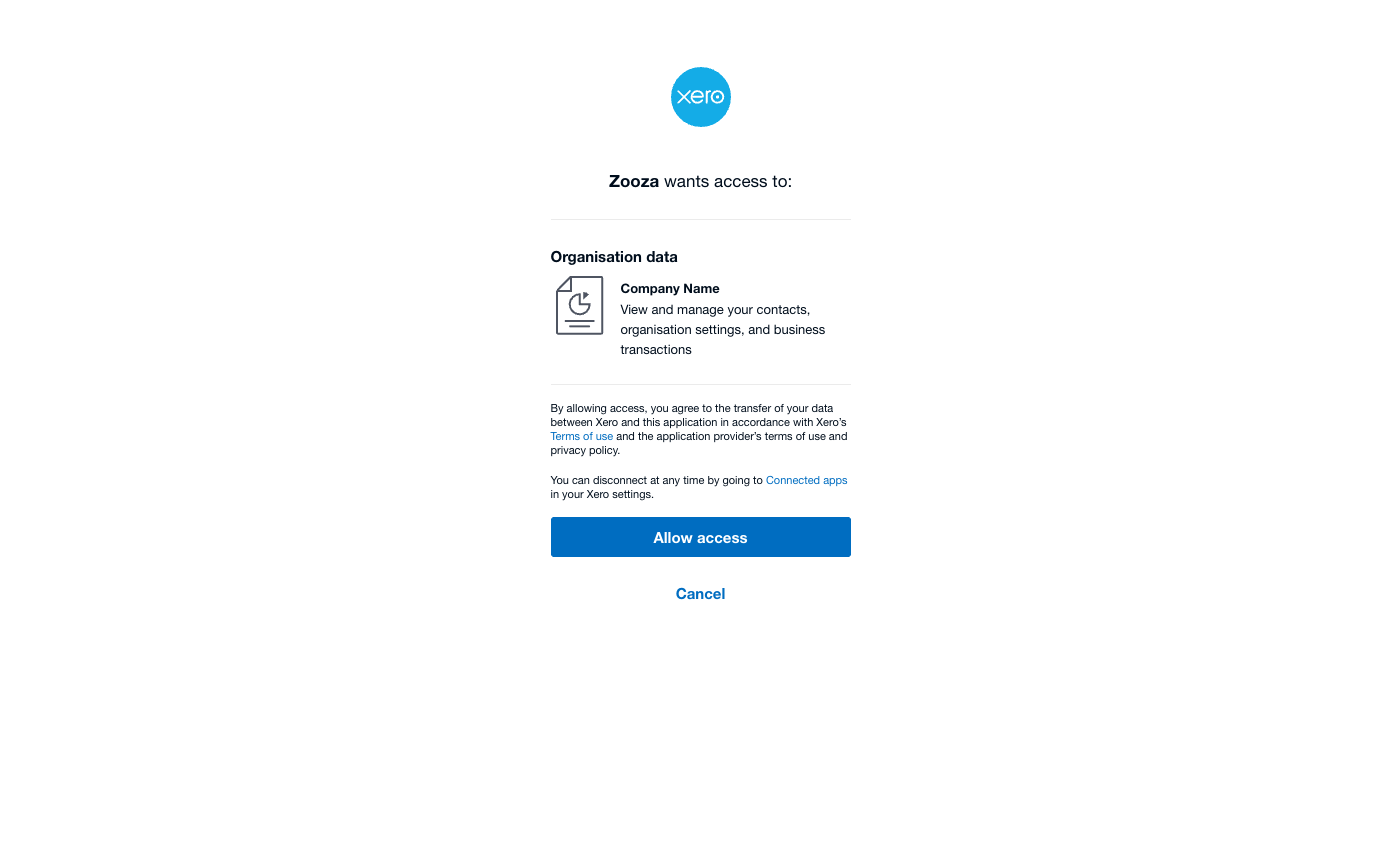
Click Connect Xero — you are redirected to Xero to log in and authorize Zooza.
-
Log in to Xero and click Allow Access.
-
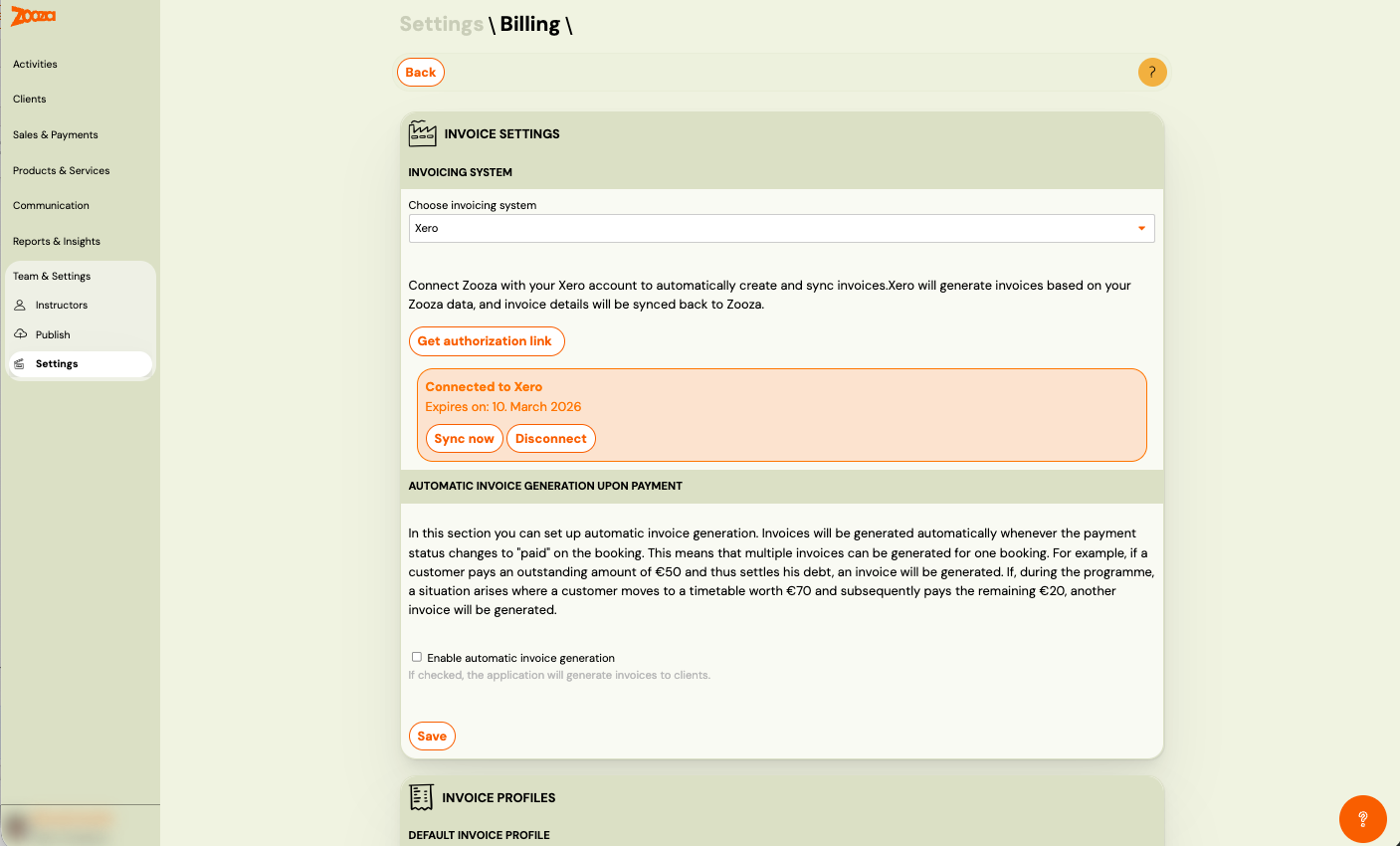
You are redirected back to Zooza. The connection is active.
Step 2 — Sync VAT (VAT payers only)
If your company is a VAT payer:
-
Go to Settings → Billing → scroll to the bottom.
-
Click Sync VAT — Zooza pulls tax rates from Xero.

If you are not a VAT payer, skip this step.
Step 3 — Configure the Invoice Profile
Open your Invoice Profile (/#settings/invoice_profiles) and complete the following:
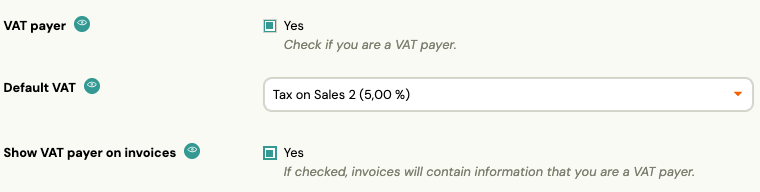
VAT settings:
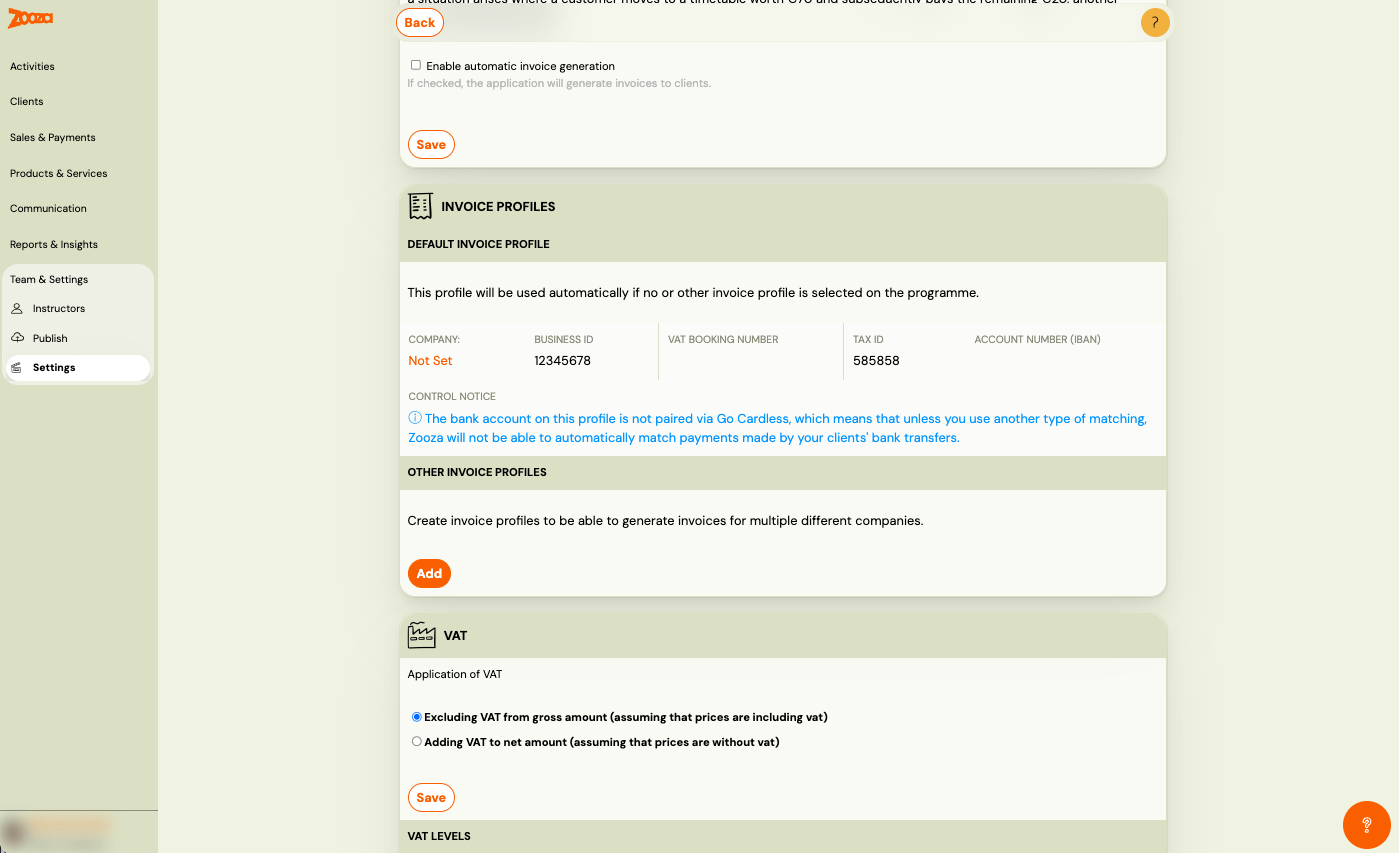
- VAT payer: enable and select the tax rate synced from Xero.
- Not a VAT payer: leave the VAT payer checkbox unchecked.
Bank account:
Scroll to the bank account section and select the Xero bank account that receives payments.
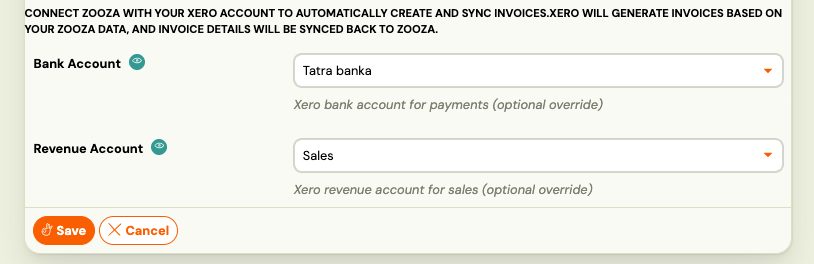
The bank account must:
- Exist in Xero as a Bank Account (not just an account in the chart of accounts)
- Have a code assigned in Xero
If the bank account was created later in Xero, refresh Zooza to reload the list.
Revenue account:
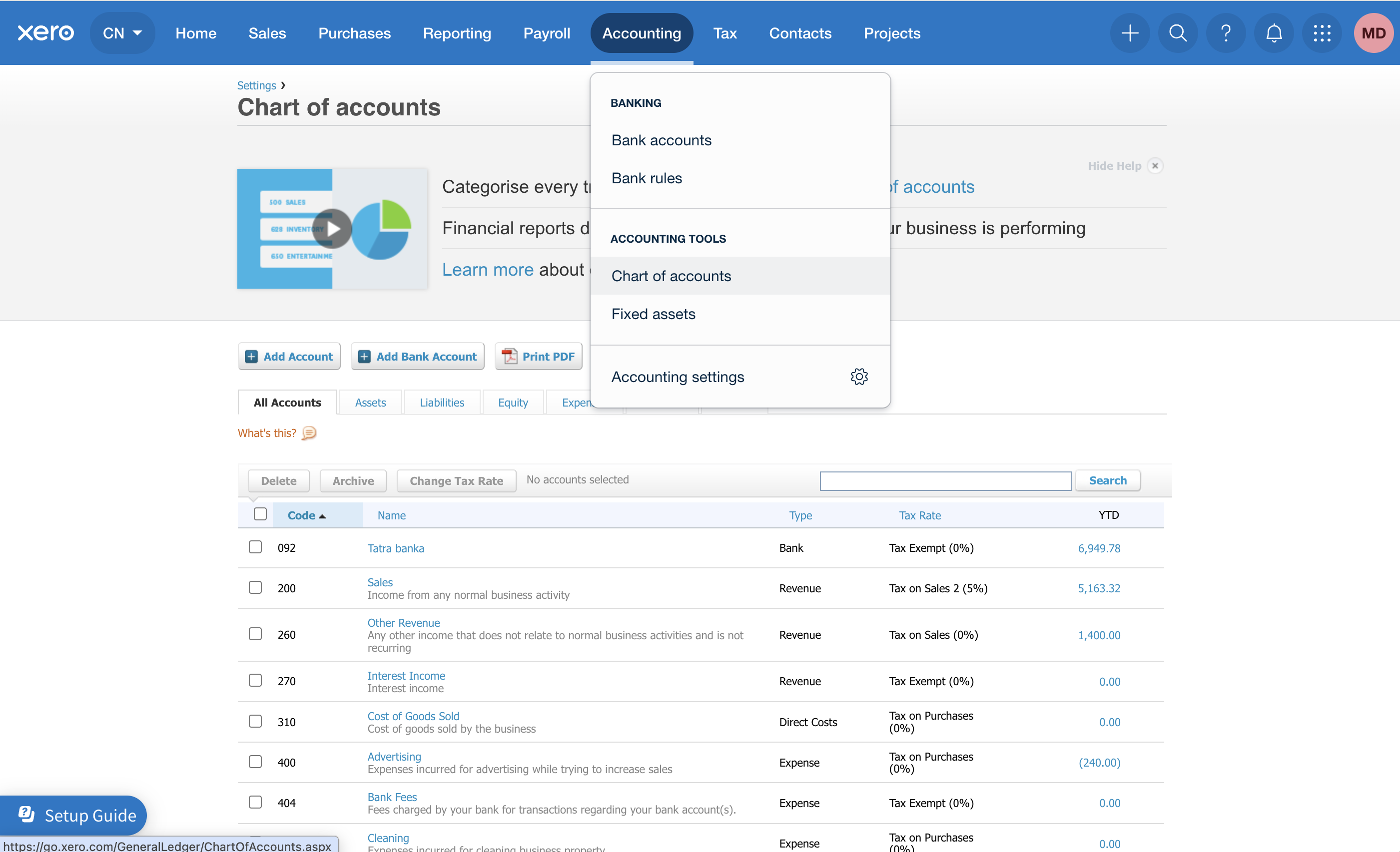
Select the revenue account from Xero. This account:
- Represents your income (e.g.
200 – Sales) - Must have a tax rate assigned in Xero that matches the tax rate in this Invoice Profile
Manage revenue accounts in Xero under Accounting → Chart of Accounts → All Accounts.
Step 4 — Save
Click Save on the Invoice Profile.
How invoices work
Once configured:
- Every time a payment is recorded in Zooza, an invoice is created in Xero.
- Xero assigns the invoice number.
- After creation, payment sync runs automatically — each payment (credit, bank transfer, direct debit, Stripe, refund) appears as a separate transaction in Xero against the invoice.
- Discounts, registration fees, and payment schedules appear as invoice line items — they are not synced as payment transactions.
- The system checks what Xero says is still owed before syncing, to prevent over-payment. Already-synced payments are skipped automatically.
Note: Zooza links to the invoice in Xero but does not store a local PDF copy. To download the PDF, open the invoice in Xero.
Manual invoice creation
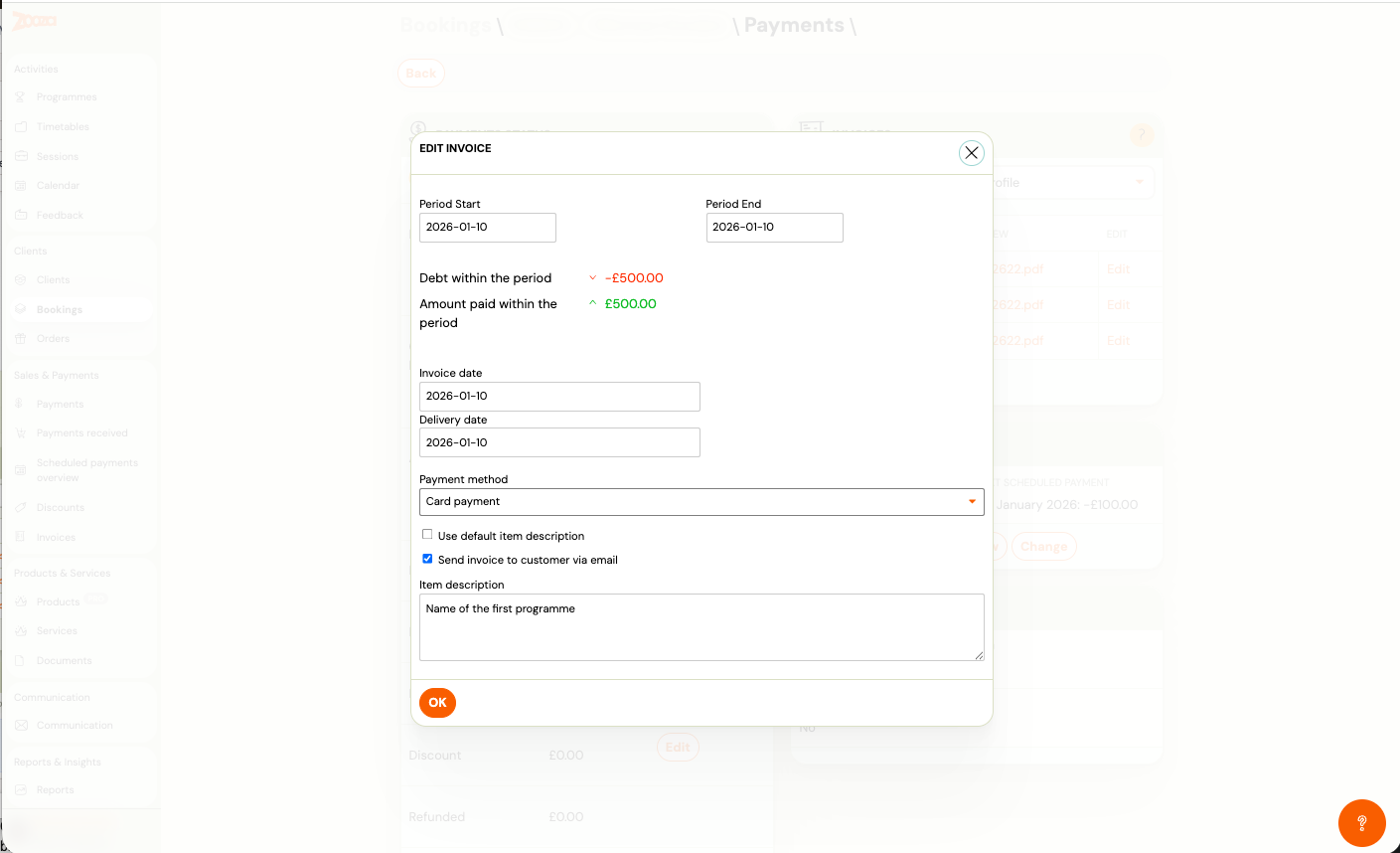
You can generate invoices manually from a booking, regardless of whether automatic generation is enabled:
-
Open the booking detail.
-
Find the Payments tile and click Show payments.
-
Select the invoice period and click Generate invoice.
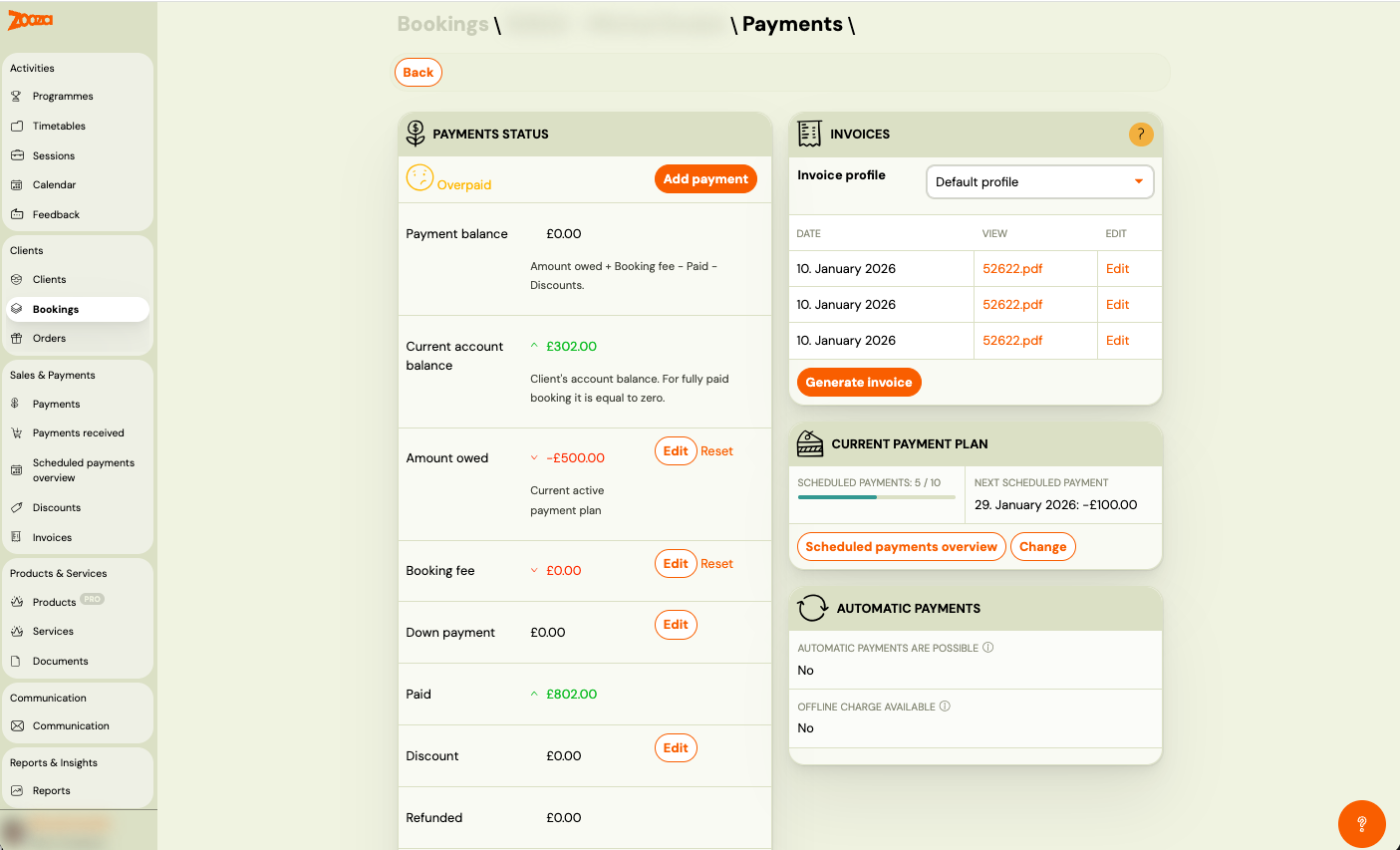
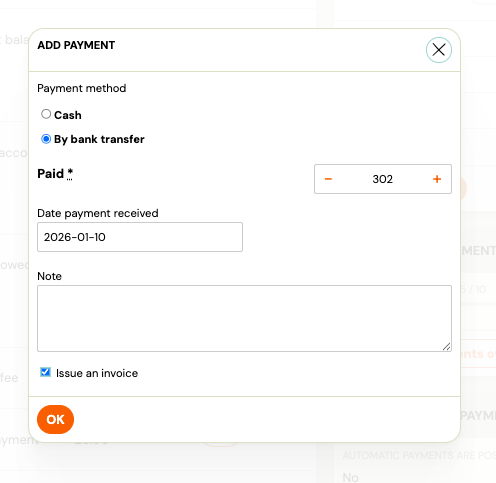
You can also generate an invoice when recording a manual payment:
Automatic invoice generation
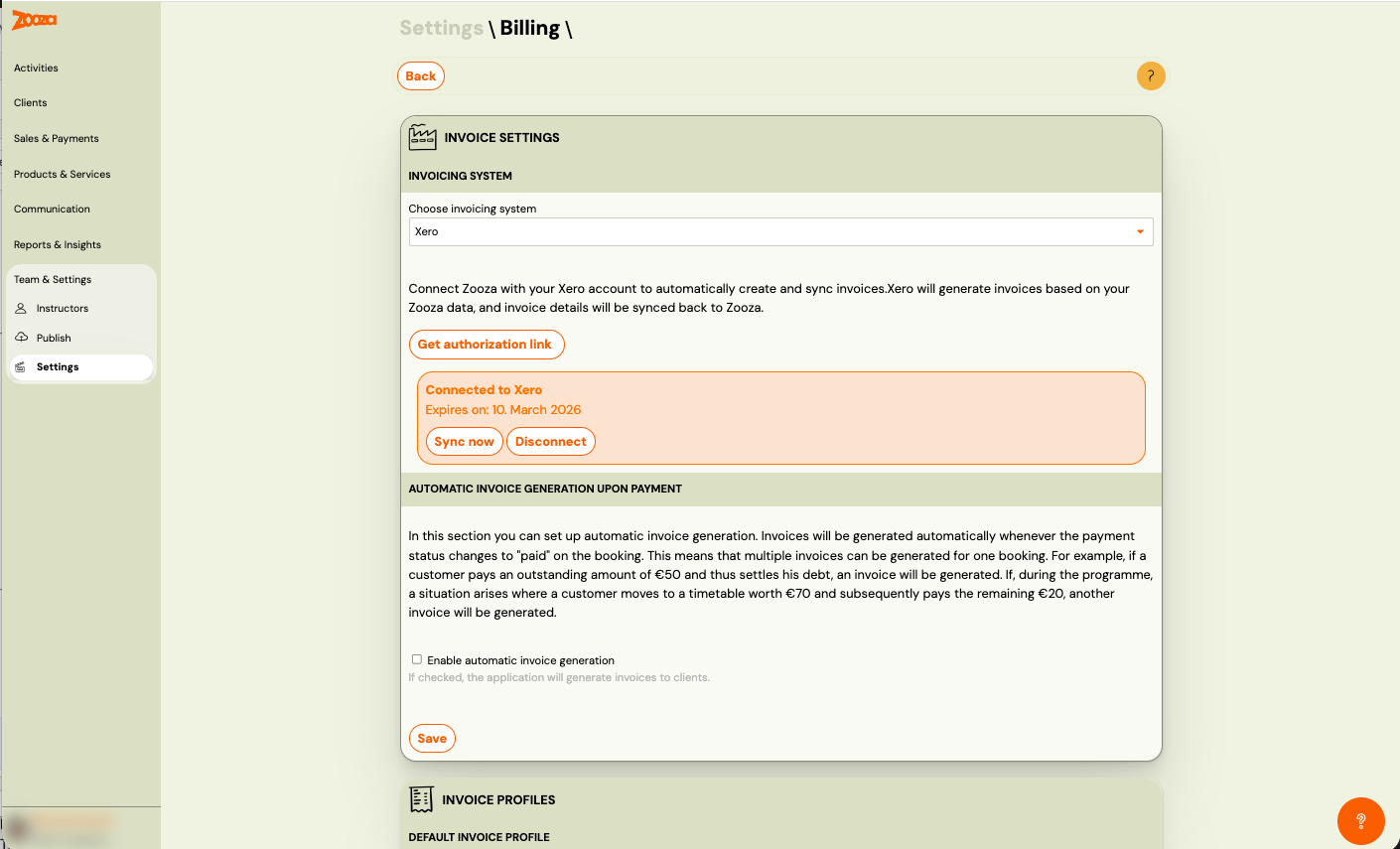
To enable automatic invoicing on every payment:
Go to Settings → Billing → enable Automatic invoice generation upon payment.
Multi-line invoices and account codes
Xero supports itemised invoice breakdown — each transaction type as a separate line with its own Revenue Account Code.
Configure this in the Invoice Line Types section of the Invoice Profile. Use Sync accounts to pull the latest accounts from Xero, then map each transaction type (Course Payment, Registration Fee, Discount, etc.) to the appropriate Xero revenue account.
See Billing and invoicing — Multi-line invoices.
What works and what doesn't
| Feature | Status |
|---|---|
| Invoice creation | ✓ Automatic |
| Payment sync | ✓ Full — each payment as a separate Xero transaction |
| Multi-line invoices + account codes | ✓ Supported |
| VAT sync from Xero | ✓ Supported |
| Viewable in Xero only — no local copy in Zooza | |
| Re-authorization | Required every 60 days (Xero policy) |
| Editing invoices | Edit in Xero — changes sync back to Zooza only after a manual refresh |
| Credit notes | ✗ Not supported — issue in Xero directly |
Known issues
60-day re-authorization — Xero forces the connection to expire after 60 days. When this happens, invoice generation fails until you reconnect. Go to the Invoice Profile and click Connect Xero again.
Payments attach to one invoice only — When a booking generates multiple invoices (e.g. monthly), all payments for the period are synced to the invoice being processed. If a student pays 3 months upfront, the full payment goes on the first invoice — the other two show as unpaid in Xero. Workaround: generate one invoice covering the full paid period instead of monthly invoices.
Tax rate must match — The tax rate on the revenue account in Xero must match the tax rate configured in the Zooza Invoice Profile. A mismatch causes invoice creation to fail.
Related
- Invoicing overview — how invoice engines work
- Billing and invoicing — Invoice Profiles, auto/manual generation, multi-line
- Xero invoicing FAQ — common Xero questions
- VAT management — configuring VAT rates