Connect Zooza to Claude or ChatGPT (Zooza AI)
Zooza AI connects an AI assistant — Claude or ChatGPT — to your Zooza account via an MCP connector. Instead of switching between tabs, you can manage classes, schedules, attendance, and more through a simple conversation — in any language Claude supports.
Prerequisite: An active Zooza account with Admin access.
Connect via Claude.ai
- Open claude.ai and go to Settings → Connectors.
- Click Add connector and enter:
- Name:
Zooza - URL:
https://mcp.zooza.app/mcp
- Name:
- Click Save.
- Sign in with your Zooza account — OAuth, same login as zooza.app.
The connector is active immediately.
Connect via ChatGPT
Same connector, same address — but OpenAI has moved this setting several times, most recently in July 2026, so a click path written down today may not survive the year.
Check the in-app guide first. Open zooza.app/#mcp in Zooza. It is the page we
keep current, and it is the one to trust if it disagrees with the steps below.
As things stand you need two things:
- In ChatGPT's settings, switch on developer mode.
- Under plugins (connectors), add a custom connector pointing at
https://mcp.zooza.app/mcp, then sign in with your Zooza account.
If the menus do not look like that, ask ChatGPT itself. Tell it you want to add a custom MCP connector at
https://mcp.zooza.app/mcpand to walk you through where that setting lives in your version. It knows its own interface better than any screenshot we could publish, and it handles this well. This is genuinely the fastest route when the steps above do not match what you see.
Once connected, everything below works the same as it does in Claude.
Then refresh the tool list. Connectors cache the tools they learned on the day you connected — see Zooza AI says it cannot do something I know it can do.
What you can do
Ask Claude anything about your Zooza data, or use it to take action.
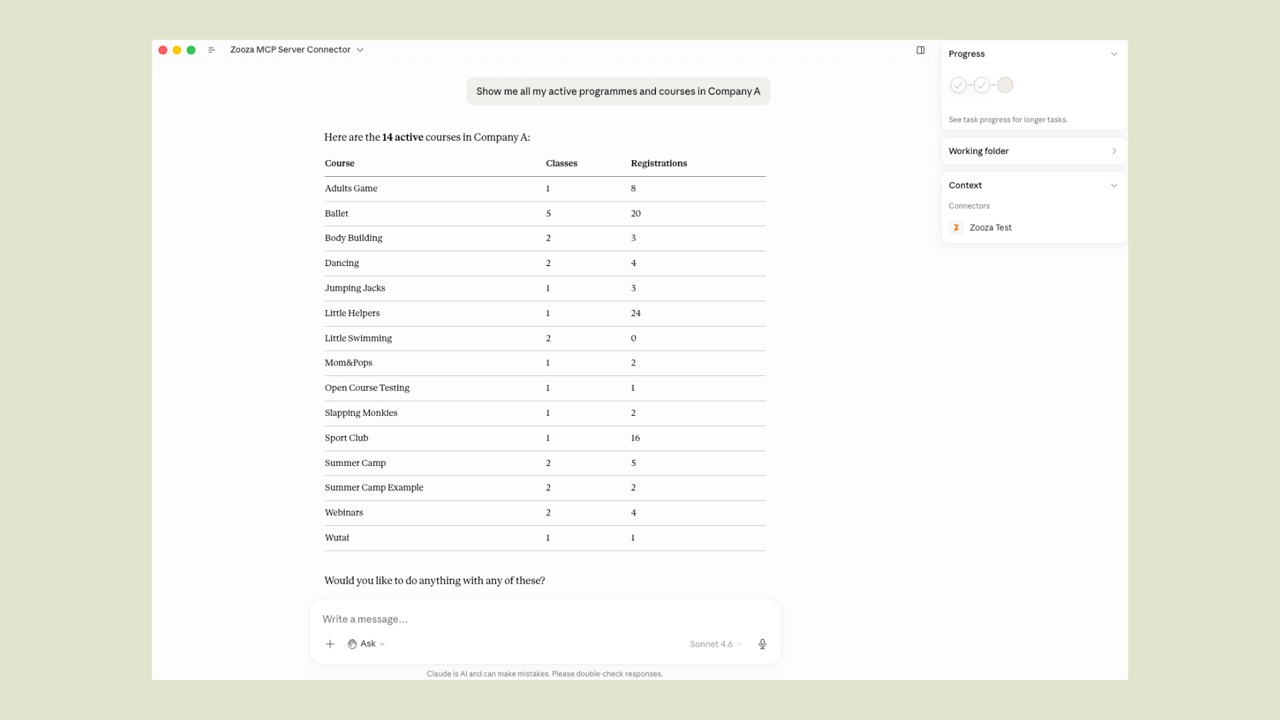
View programmes and groups
"Show me all my active programmes and how many groups each has"
Check your account and capabilities
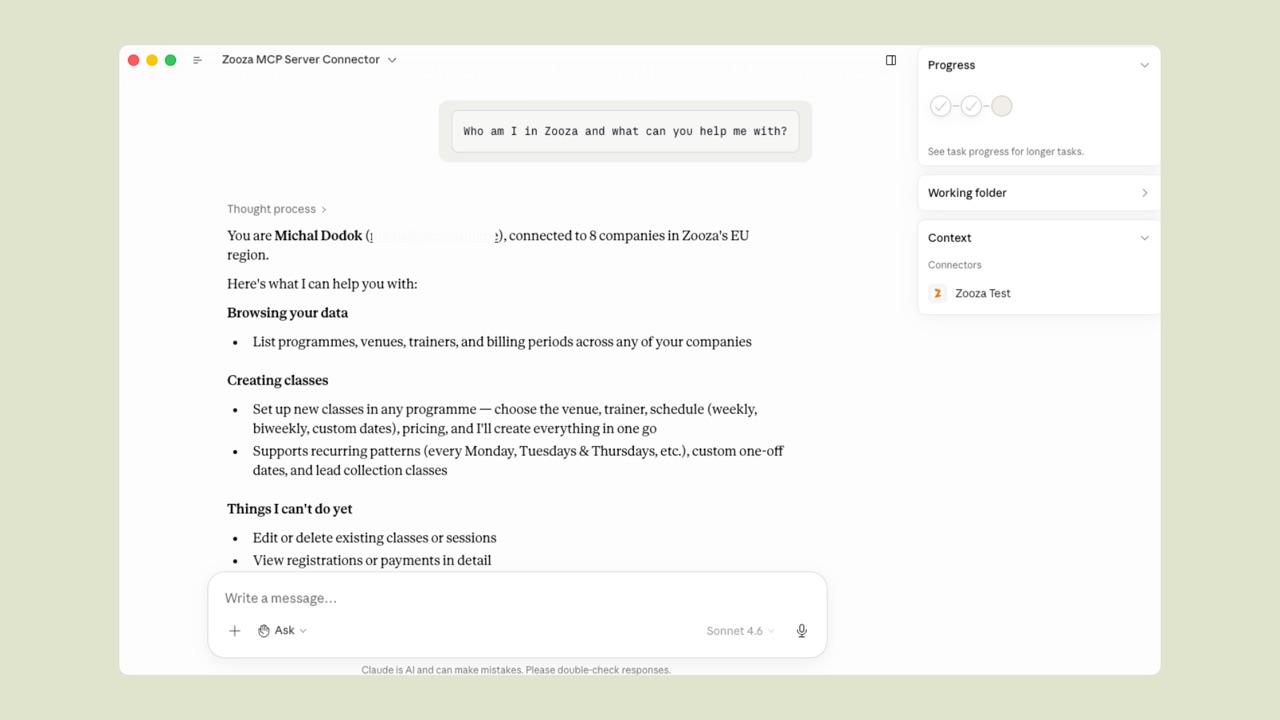
"Who am I in Zooza and what can you help me with?"
Claude shows your identity, which companies you have access to, and a summary of what it can and cannot do yet.
Create a new class
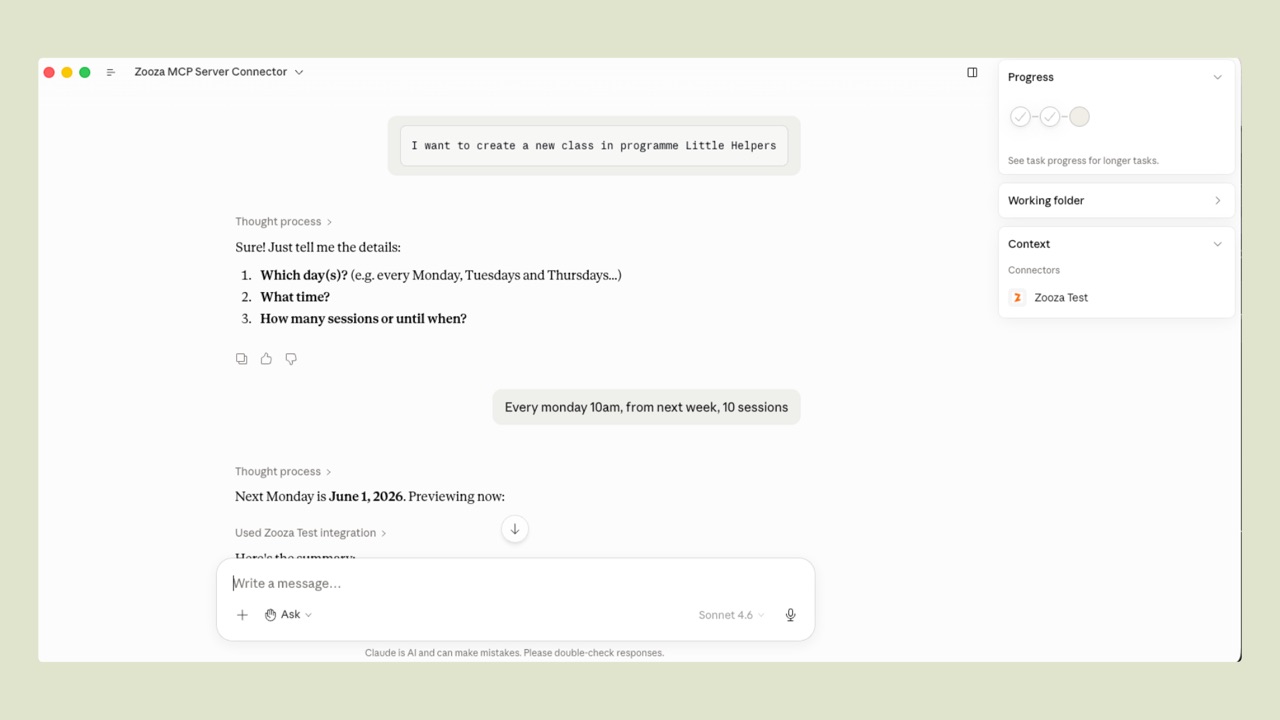
"I want to create a new class in programme Little Helpers"
Claude asks for any missing details one at a time — days, time, number of sessions. Once you answer, it shows a full schedule preview and waits for your confirmation before saving anything.
Edit an existing class or session
"Change the instructor for all upcoming Monday sessions in Little Helpers to Jana"
"Move next Tuesday's 5pm session to 6pm and notify clients"
Claude previews every change — how many sessions are affected, what will change — and only applies it after your confirmation. You can edit class settings (price, instructor, venue, capacity) or individual sessions (date, time, instructor, venue).
Add more sessions to a class that already exists
"Add one more session at the end of Little Helpers"
"Add a make-up class on 4 May at 10:00"
You do not have to rebuild the class to extend it. New sessions take the class's usual time, length, instructor and venue unless you say otherwise, and are created billable — so a priced class keeps charging for them. Claude lists the dates it is about to create and waits for your confirmation.
Change a programme's settings
"Turn trial sessions on for Baby Swimming"
"Take Little Helpers off online booking"
Claude works one settings section at a time — basic info, pricing, online booking, trial, make-up sessions, auto-enrolment, attendance, feedback, booking-form labels, or archiving — and shows you the before → after difference before anything is saved.
Mark attendance
"Mark attendance for today's 10am dance class — Peter and Sofia were absent"
When a parent calls to report an absence
"Remove Sofia from today's 3pm gymnastics session"
You can ask Claude while handling the call — no need to navigate to the attendance screen first. Claude confirms the change and shows which session was updated.
Add a session note
"Add a summary to today's session: focused on breathing, 8 students attended"
Create a programme
"Create a new programme called Baby Swimming, term payment, trials on"
A genuinely new offering, not another run of an existing one — for that, add a class to the programme you already have.
Email your clients
"Email everyone in Little Helpers that Monday's session is cancelled"
Claude works out the audience, drafts the message, and shows you both before anything is sent. Email only — WhatsApp is not available through the connector yet, however you phrase the request.
Set up how a programme is paid for
"Add a monthly payment template and apply it to Sofia's booking"
Claude can create payment templates and apply a payment plan to a booking. It does not take payments, issue refunds, or produce invoices.
Ask for the numbers
"How full are my classes this term?"
"Who hasn't paid?"
"How many make-up credits are sitting unused?"
Claude pulls the real, pre-aggregated figures out of your account and builds the report in the conversation — occupancy, unpaid, attendance, trials, retention, churn, revenue, clients by venue, and unused or expiring make-up credits. Every number comes from your data; it does not estimate, and it will say so plainly when a period has nothing in it. The default window is the last six months — ask for a different one.
Set your vocabulary
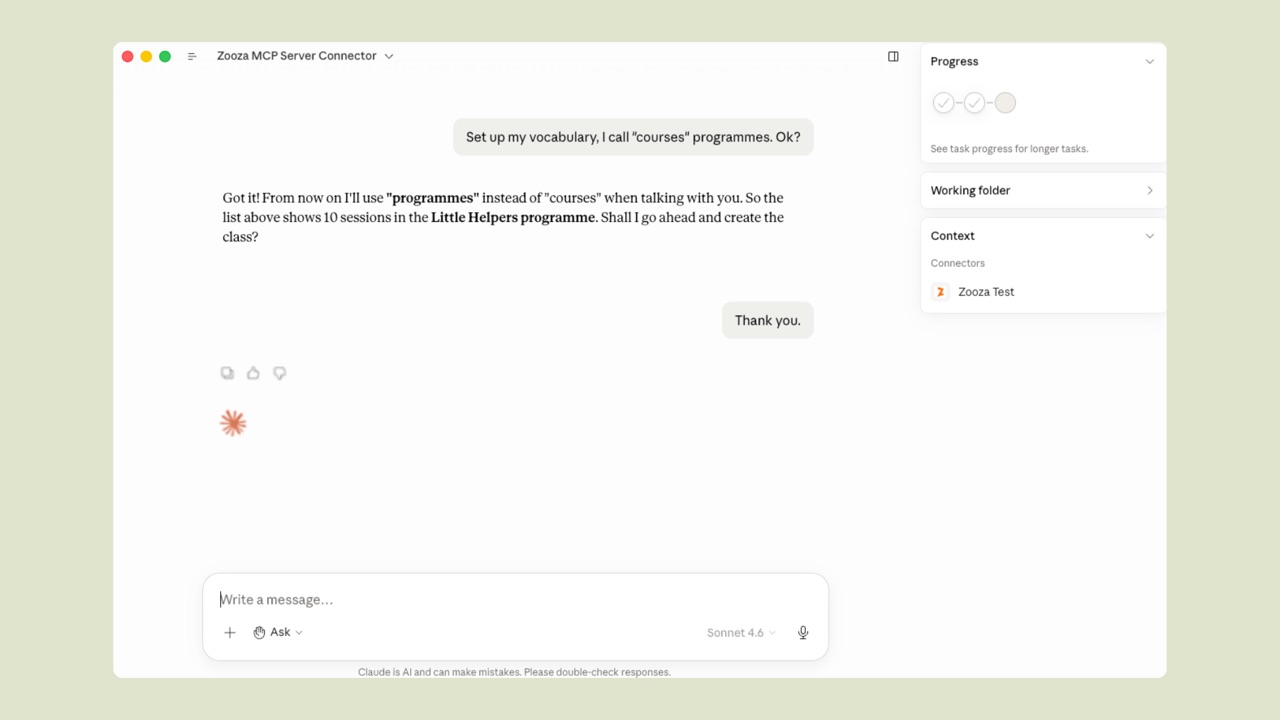
"Set up my vocabulary, I call 'courses' programmes. Ok?"
Claude confirms it has learned your terms and uses them from that point on.
Working an enquiry from first contact to booking
Five tools added in late August 2026 chain together, so a parent's enquiry can be tracked from the moment it arrives instead of living in your inbox.
"A parent emailed asking about Tuesday baby swimming — add her as a lead, tag it enquiry, and send her the class details"
Then, a few days later:
"Any replies from leads this week? Anything still unanswered?"
What each step does:
| Step | What Claude does |
|---|---|
| Capture the enquiry | Creates a lead from a name and email — a lightweight record you can track. |
| Tag it | Attaches a label so you can group enquiries and see where each one stands. |
| Email them | Sends the class details, previewed by you first. |
| Read what came back | Lists replies parents sent to your Zooza emails, and whether each is unread, needs a human, or is handled. |
| Leave yourself a to-do | Creates a to-do linked to the record, which you mark done, cancelled or reopened later. |
Four things worth knowing before you rely on it:
- A lead is not a booking. It sits on a lead-collection class, takes no payment, enrols nobody, and sends the parent nothing — it is a record for you. Convert it to a real booking when they commit.
- Ask once. Adding the same lead twice creates two records; Claude cannot tell it has already captured that enquiry.
- Replies only appear if the original email went out through Zooza on that registration. A parent replying to a message you sent from your own mailbox is invisible here.
- Labels on a class can be seen by parents on the public booking page. Labels on programmes and on bookings stay internal — so keep pipeline notes like chasing off the class itself.
The to-dos are the same ones in the app's to-do list — see Manage your to-do list.
Skills — guided multi-step operations
Skills are structured guides for more complex operations. Claude asks questions one at a time, validates inputs, and shows a preview before saving.
| Skill | How to start | What it does |
|---|---|---|
| Create a class | /class-management or "I want to create a new class" | Programme → location → instructor → schedule → preview → confirm |
| Set vocabulary | /zooza-setup or "Set up my vocabulary" | Teaches Claude your preferred terms — saved across conversations |
| Send feedback | "I want to report a bug" | Sends a message directly to the Zooza team |
Preview before saving
When creating a class, Claude always shows a table of planned sessions before saving anything. Check dates, times, and instructors — if anything looks wrong, say so and Claude will adjust.
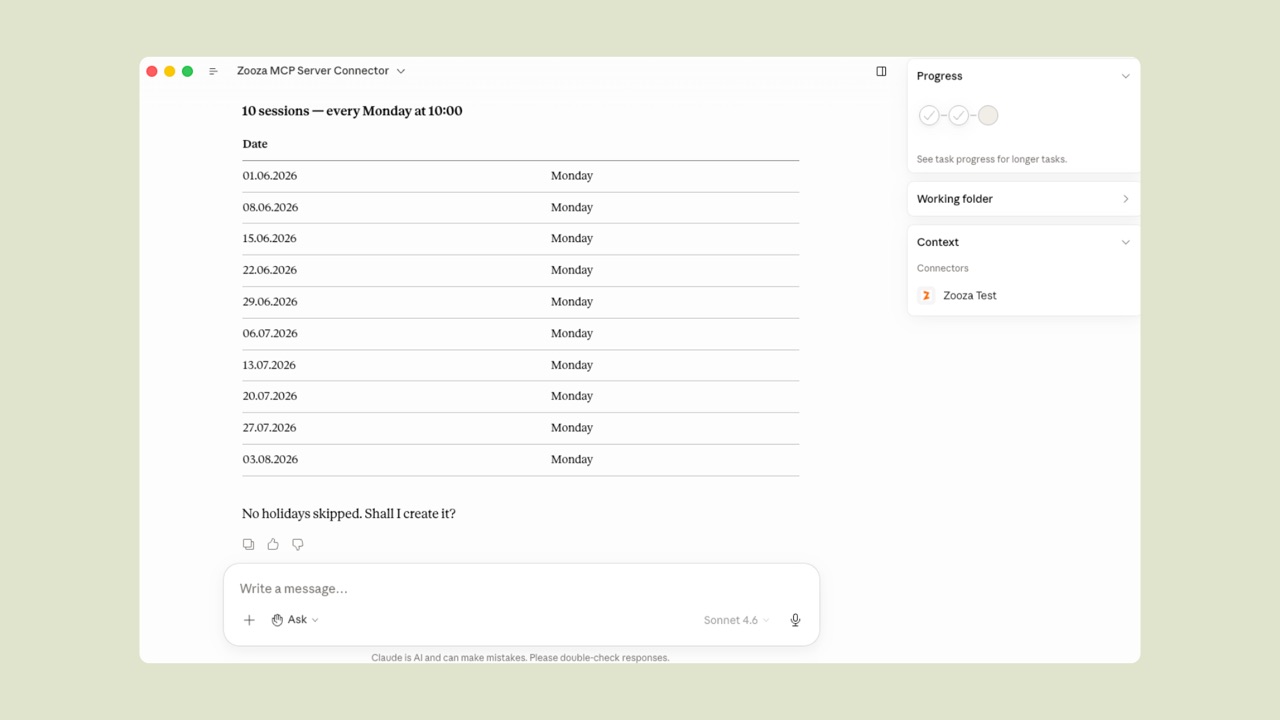
Saving only happens after your explicit confirmation.
Works in multiple languages
Claude responds in the language you write in — Slovak, Czech, Hungarian, Romanian, English, or any other language Claude supports. Data from Zooza is displayed in your account's configured language.
Model performance
Zooza AI supports multiple Claude models. You can compare their accuracy, speed, and cost directly in the app: go to Settings → Zooza AI → Model performance.
The comparison is based on real requests and updated periodically — use it to choose the model that best fits your priorities (accuracy vs. speed vs. cost).
What it can't do yet
Some things still need the Zooza web app. As of 5 September 2026:
| Not available through Claude | Where to do it |
|---|---|
| Cancelling or deleting a session — Claude moves, edits and adds sessions, but does not call one off or remove one | Calendar → the session. To clear a whole time slot, open Sessions, filter to that slot, and delete in bulk |
| Taking payments, refunds and invoicing — templates and payment plans yes, money no | Payments |
| WhatsApp messages — email works, WhatsApp does not | Communication |
| Staff accounts and permissions | Settings → General → Access |
Deleting is withheld on purpose. Bulk delete is powerful enough that nobody should be able to trigger it by accident in a conversation, so it is not one of the assistant's actions. Doing it yourself takes under a minute: Sessions, filter to the time slot you want gone, select, delete. This is the usual answer when a venue drops a day from the timetable.
If something is missing that would help your work, say so in the conversation: "I want to suggest a feature." It reaches the team with the context of what you were trying to do.
Claude says it cannot do something you have read about here? Refresh the connector's tool list — it does not update itself. Your connector kept the list it learned on the day you connected, so anything that shipped since is invisible to it, and it will tell you so with complete confidence. In Claude, refresh the tools from your connectors screen; in ChatGPT, Settings → Apps → Zooza → Refresh. Full steps, including what to do when refreshing is not enough: Zooza AI says it cannot do something I know it can do.
This is worth doing now if you connected before September 2026 — the enquiry tools, adding sessions to an existing class, programme settings and the reports above all shipped after that.
See also
- Zooza AI FAQ — pricing, security, and troubleshooting
- Integrations — overview of all Zooza integrations