Invoice buyer data (orderer details)
The invoice buyer is the entity that appears as the recipient (orderer) on an invoice — usually the parent registering a child, or a company when a business booking is made. Zooza stores buyer details separately from personal data so the same billing profile can be reused across registrations without re-entering details each time.
How buyer data is populated
When an invoice is generated for the first time, Zooza automatically creates a buyer data record from the registration:
- If the registration was made as a business booking (company name, address, IDs entered at registration) → the buyer profile is created from those fields.
- Otherwise → the buyer profile is created from the client's name, email, and phone number.
This happens silently — no admin action needed. The buyer profile is stored against the client record (person) and reused for future invoices from the same registration.
Deduplication: If the same client registers again with the same billing details, Zooza reuses the existing buyer profile instead of creating a duplicate. If the billing details change (e.g. a different company name or VAT number), a new profile is created automatically and linked to the new registration.
Viewing and editing buyer profiles
Each client can have one or more buyer profiles. To view and manage them:
- Open the booking detail page (Bookings → select the booking).
- Find the Payment > Invoice section.
- Click Edit next to a profile to update it, or click Add Buyer Information to create a new one.
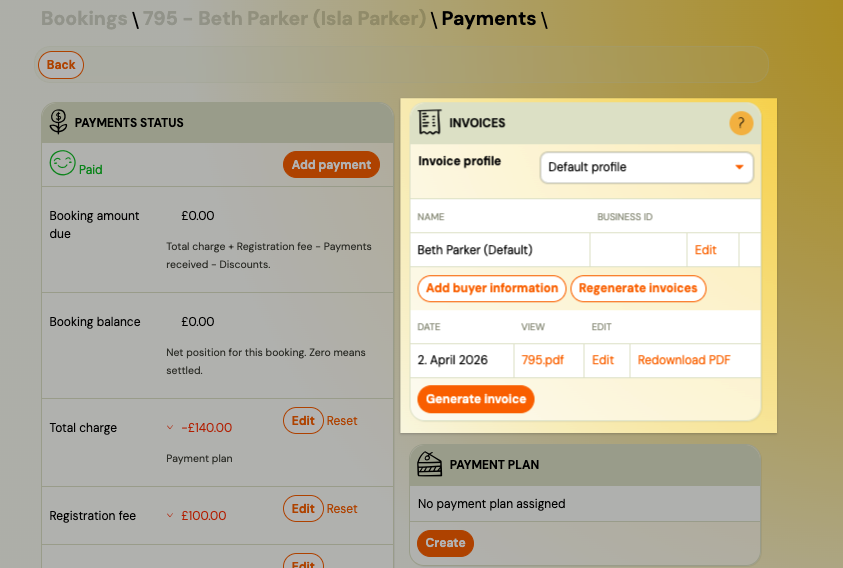 Each profile can contain:
| Field | Description |
|---|---|
| Name | Full name or company name as it should appear on the invoice. |
| Street | Street address. |
| City | City. |
| ZIP | Postal / ZIP code. |
| State | State or region (optional). |
| Business ID | Company registration number (ID). |
| Tax ID | Tax identification number (TAX ID). |
| VAT ID | VAT number (VAT ID). |
| Billing email address (optional). | |
| Phone | Billing phone number (optional). |
Note: Changing the buyer profile here does not automatically update already-issued invoices. To apply the corrected details to existing invoices, use the Regenerate invoices action (see below).
Selecting buyer data per registration
Each registration is linked to the buyer profile that was active when its invoices were last generated. If a client has multiple buyer profiles (e.g. two companies), you can select which one to use for a specific registration:
- Open the booking detail.
- Go to Invoices.
- Click the edit icon next to the invoice.
- Select the Buyer from the dropdown — showing all buyer profiles on record for this client.
- Save.
The invoice is updated with the selected buyer details.
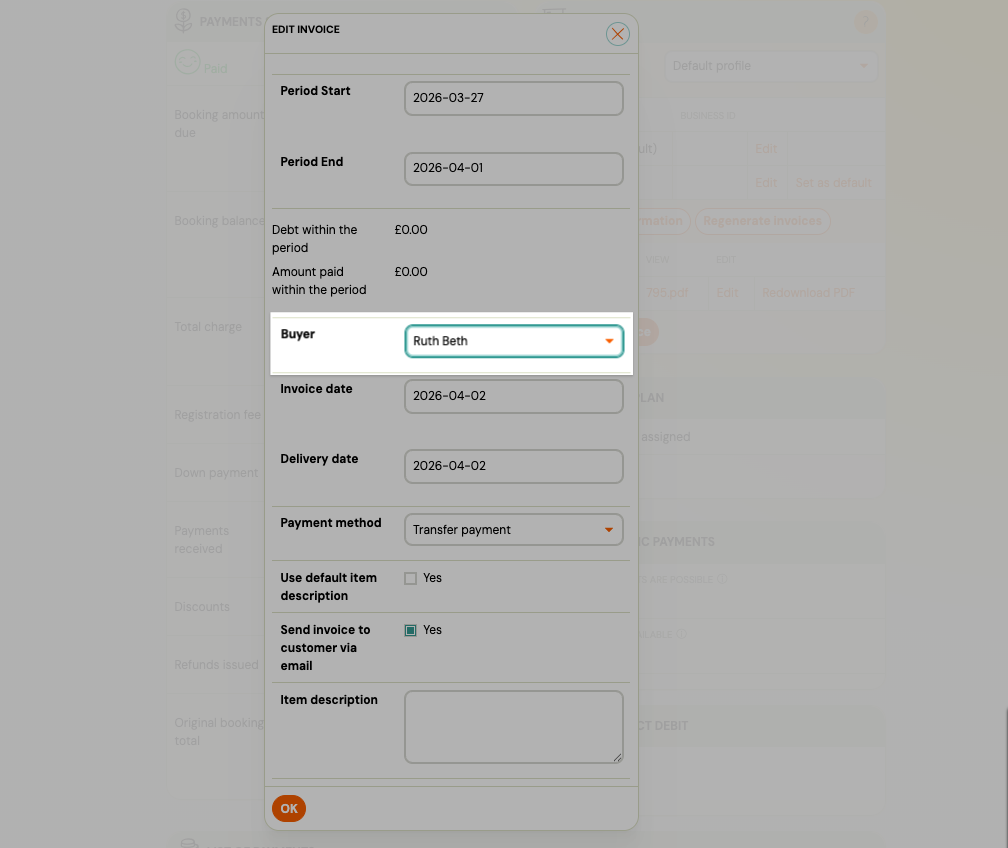
Regenerating invoices with updated buyer data
If you corrected buyer details after invoices were already issued, you can regenerate them without creating duplicates:
- Open the booking detail.
- Go to Invoices.
- Click Regenerate invoices.
- Optionally select a different buyer profile if needed.
- Confirm.
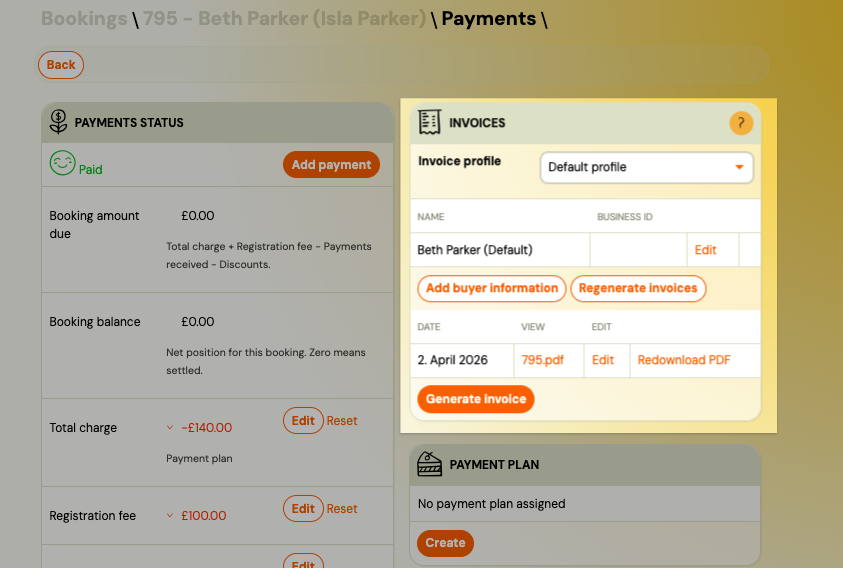
Zooza regenerates all invoice on that registration using the selected buyer profile.
Supported engines: Invoice regeneration is available for Faktury Online and Xero only. For other invoice engines, you must cancel and re-issue the invoice manually through your accounting software.
What happens to the old invoice: The previous invoice version is archived. The new invoice replaces it with the updated buyer details. The invoice number is preserved.
Common scenarios
The invoice has the wrong company name
The client registered as a company but entered the name incorrectly. Steps:
- Go to Clients → open the client's profile.
- Find Invoice Buyer Data and edit the relevant profile — correct the name.
- Go to the booking → Invoices → Regenerate invoices.
- The invoice is updated with the corrected company name.
The client has two companies and needs separate invoices per registration
Each registration can use a different buyer profile:
- Add a second buyer profile to the client's record if it doesn't exist.
- For each registration, open the booking → Payments → edit the invoice → select the correct buyer from the dropdown.
The invoice was originally in the client's personal name but should be in their company name
The client did not fill in business fields during registration but now needs a business invoice:
- Go to Clients → open the client → Invoice Buyer Data → Add.
- Enter the company details.
- Go to the booking → Invoices → edit the invoice → select the new company profile.
- Regenerate (if using Faktury Online or Xero) or update manually in your accounting system.
Related
- Billing and invoicing — Invoice Profiles, billing settings
- Business booking — registering as a company on the booking form
- Payments and Billing FAQ — common questions about invoices
- Additional fields on the booking form — business fields (company name, VAT, etc.)