Client Management FAQ
How do I create a new client manually (not through booking)?
Zooza does not have a standalone "Add client" button. A client record is created when a booking is made. You have three options:
Option 1 — From within a class (class)
Open the class, go to the bookings/registrations tab, and use the manual booking option there. This creates both the client record and the booking in one step.
Option 2 — From the Bookings list
Go to Bookings → Create booking. At the "Choose the client" step, select New client, enter name, surname, and email, then complete the booking. If you only need the client profile without an active booking, delete the booking afterwards — the client profile remains in the system.
Option 3 — Client import
Use Clients → Import to bulk-import client records from a CSV file. This creates client profiles (and optionally bookings) without going through the booking form one by one.
How do I change the client (parent) on an existing booking?
Changing the client on a booking reassigns that single booking to a different parent. It does not change the client's personal data across all their bookings.
- Open the booking detail.
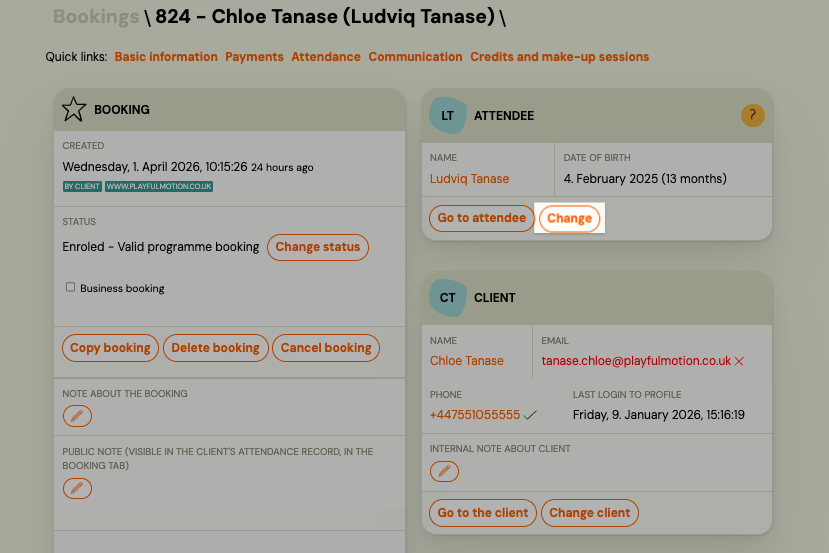
- Click Change Client.
- In the
Clientfield, enter the email or name of the new client and click Search. - Select the correct client from the results and confirm.
The new client must already exist in the system (they must have at least one booking of any status). Communication history tied to the booking is preserved because it is linked to the booking number, not the email address.
See also: Data Correction or Change Client.
A client has duplicate accounts -- how do I merge them?
Duplicates occur when a parent registers with two different email addresses, or when an admin creates a second record by mistake.
- Go to Clients and open one of the duplicate client profiles.
- Navigate to Family & Connections and click Manage.
- Select the duplicate profiles you want to merge.
- Click Merge profiles.
Merging combines the booking history and family connections from both profiles into one. You cannot undo a merge, so verify the records carefully before proceeding.
How do I change a client's email address?
You cannot edit a client's email address directly. Email changes go through a formal request process:
- Go to Clients and open the client's profile.
- Click Data correction.
- Click New Request and fill in the new email address in the
New data entryfield. - Click Submit.
The Zooza team reviews and processes the request, usually within 1 business days. You receive a notification email when the request is approved or rejected.
Common rejection reason: The name embedded in the new email address does not match the parent's name on record. For example, if the client's name is "Jana Nováková" but the requested email contains a different name, the request will be declined. Double-check that the new email belongs to the same person before submitting.
If you need to assign a booking to a completely different person (not just fix a typo), use Change Client on the booking instead.
Invoice name: If the client's invoicing name also needs to change (e.g. after a surname change), update it separately in Settings → Billing — this is a distinct field from the client's login email.
How do I add a child or attendee to an existing registration?
If a parent has already registered and wants to add a new child to their account, you can create the child's profile directly from their existing booking:
- Open the booking detail.
- In the Attendee section, click Add new person (or Create child).
- Enter the child's name, date of birth, and other required details.
- Save.
The new child record is linked to the same parent account. The parent can then use this child profile when making future bookings — they will see all registered children in their Client Profile and can select the correct one during checkout.
Note: Adding a child here creates the attendee profile only. You still need to create a separate booking for the child in whichever class or programme they are joining.
How does Client ID work across franchise accounts?
Each client profile can have a Custom customer ID field, which you set manually in the client detail. This is a free-text identifier you define for your own tracking purposes (e.g. an internal reference number).
When a child transfers between franchise accounts (separate Zooza companies), the child may exist as a different client record in each account. The Client ID does not sync automatically across franchise accounts. Each franchise manages its own client database independently.
Can I add a second email address for notifications on a booking?
Yes. You can add an additional email address that receives session reminders for a specific booking. This is useful when separated parents both need to receive notifications about their child's sessions.
- Open the booking detail.
- In the booking settings, find Additional email for reminders before sessions.
- Enter the second email address.
This additional email receives session reminder notifications only. It does not receive payment reminders or other booking-level communications. The second email can also be added by the client themselves through their Client Profile.
Warning: If you collect a secondary email address via an extra field on the booking form (e.g., Additional field 1), that value is not automatically transferred to the system's secondary email field. Extra fields are text-only data collection and are not linked to system notification fields. You must manually copy the email from the extra field into the booking's Additional settings → secondary email field for the second parent to actually receive notifications.
How do I give a divorced parent separate access to the same child?
Zooza supports this through a combination of guest access and additional notification emails:
- Guest access to the booking -- In the booking detail settings, use Guest access to the booking to grant a second parent read access via their email address. This lets them view the booking without needing a separate account.
- Additional email for reminders -- Add the second parent's email in the Additional email for reminders before sessions field so they receive session notifications independently.
Both parents do not need separate Zooza accounts. The primary client (the parent who created the booking) retains full control, while the second parent gets visibility through guest access and reminder emails.
Where can I see which fields are visible to instructors on the attendance screen?
The fields visible to instructors on the attendance screen are determined by the instructor's role and your account settings. By default, instructors see the attendee's name and basic session details.
Whether additional fields like phone number or email are shown depends on the role assigned to the instructor in Settings > Team > Access. The standard instructor role has limited visibility and does not show client contact details on the attendance screen. If you need instructors to see phone numbers or other client data, check the permissions for their assigned role.
Go to Settings > Team to review which roles have access to client contact information.
Where do I set or change a child's date of birth on a booking?
This depends on whether the attendee (participant) is a different person from the buyer (the person who registered and pays):
Attendee is different from the buyer (e.g. child booked by a parent)
The attendee's date of birth can be edited directly:
- Open the booking detail or the attendee's record in the Clients list.
- In the Attendee card, click the name or the edit icon.
- Update the Date of birth field and save.
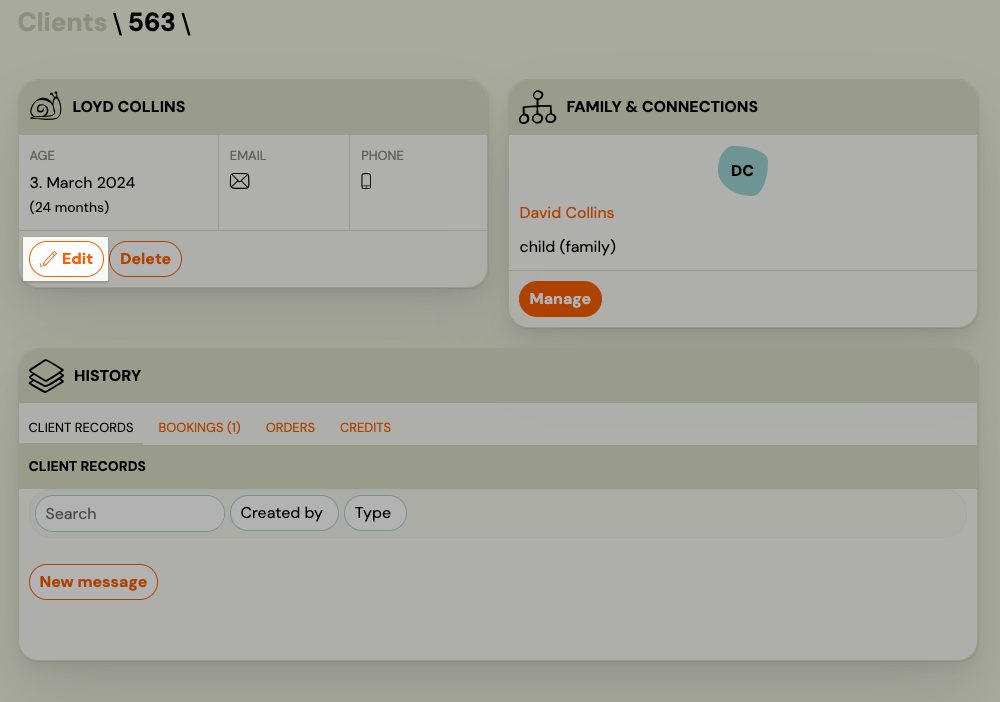
Note: This changes the date of birth across all bookings for that attendee — the attendee record is shared.
Attendee is the same person as the buyer (adult who registered themselves)
If the buyer filled in their own date of birth at booking, that value cannot be edited in the admin app. The client can update it themselves the next time they register, or by contacting Zooza support.
Changes to the buyer's core data (email, name) go through the formal Data correction request flow — see Data correction or change client data.
How do I move a child (or client) to a different class or class?
In Zooza, clients and their children are linked to bookings, not to classes directly. To move a child to a different class, you transfer the booking — not the client record.
Important: You cannot move a client or child from the Clients page. The action is performed on the booking itself, found under Clients → Bookings.
- Go to Clients → Bookings and open the booking you want to move.
- Click Transfer (in the Class card).
- Select the target class and confirm.
The child (attendee) and their booking move to the new class. Their client profile stays the same.
See Transfer and copy bookings for a step-by-step walkthrough.
How do I delete or remove a client?
Zooza does not have a standalone "Delete client" button on the Clients page. What most users mean when they want to "delete a client" is one of these booking-level actions:
| What you want to do | Action on the booking |
|---|---|
| Client registered by mistake or was a test entry | Set booking status to Deleted |
| Client is leaving or cancelling their enrolment | Set booking status to Cancelled |
| Client is taking a temporary break | Pause the payment plan (do not delete) |
Navigation: Go to Clients → Bookings → open the booking → change the status in the booking detail.
Setting a booking to Deleted is typically used in the early phase (test registrations, duplicates, or bookings created by mistake). The client record itself remains in the system — it is not removed.
If you need to delete a client record entirely, contact Zooza support.
See Common booking scenarios for details on each status.
Why can't I find "move" or "delete" actions on the Clients page?
The Clients page (and the individual client profile) shows contact and personal information only. It does not contain actions for moving, cancelling, or deleting enrolments.
All enrolment-level actions — transferring to another class, cancelling, deleting, pausing — are performed on the booking, not on the client record.
To manage enrolments, go to Clients → Bookings (the Bookings list), find the booking, and open it. All available actions appear there.
What does "active client" mean in Zooza?
A client is active if they have at least one booking in Enrolled, Trial not started, Trial started, or Trial finished status in a class that has not ended yet. A client is also active if they have a scheduled make-up session or unused credit. Active status is determined automatically — you cannot set it manually. For the full technical definition, see Active and inactive clients.
Why is a client still showing as active after I cancelled their booking?
Client deactivation runs once a day at midnight. If you cancel or delete a booking during the day, the client remains active until the next midnight run. Also check that the client does not have other active bookings, unused credits, or scheduled make-up sessions — any of these keeps the client active.
How does the active client count affect my Zooza subscription?
Your Zooza service package is based on the peak number of active clients within the month — not the count at month-end. If you exceed your current package limit at any point during the month, you are automatically upgraded. To downgrade, you must request it in writing by the end of the month. For details, see Active and inactive clients.
Related
- Remove a client or user — steps to deactivate or delete a client record
- Client profile 101 — reading and using the client profile
- Client profile dashboard — overview of the client-facing profile
- Documents — attach documents to client records
- Subscription FAQ — how active client counts affect your plan