Holiday settings
You must have the correct region filled in for each location in order for the app to automatically pull in vacations correctly.
General settings
-
You can make the settings in the main Settings, under Places.
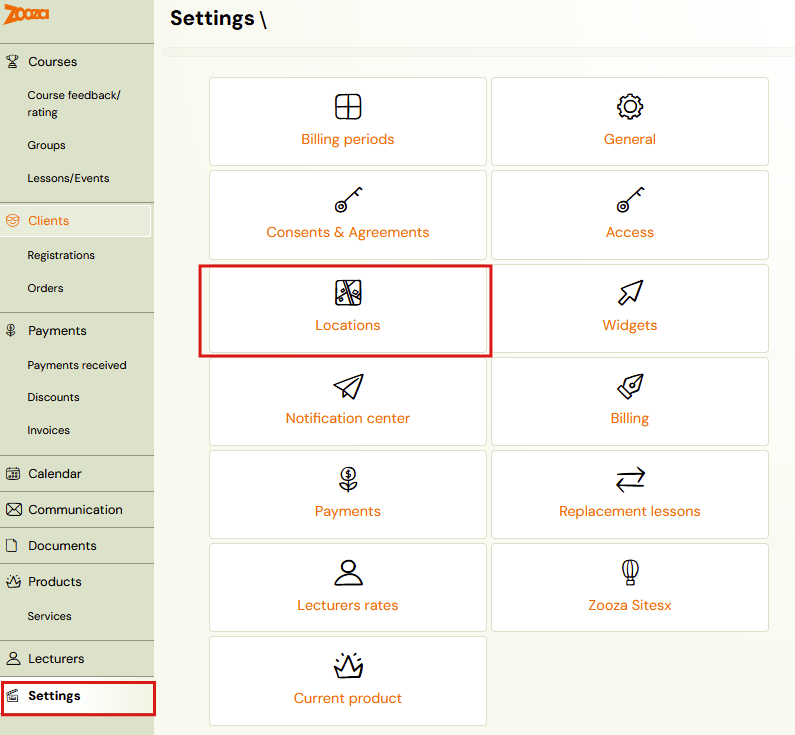
-
When adding a new location or editing an existing one, select a region from the menu. The offer is updated on the basis of the company region you entered in the application when creating an account in the application. If you would like to change this region, please feel free to contact us via chat on this page or by email at support@zooza.online.
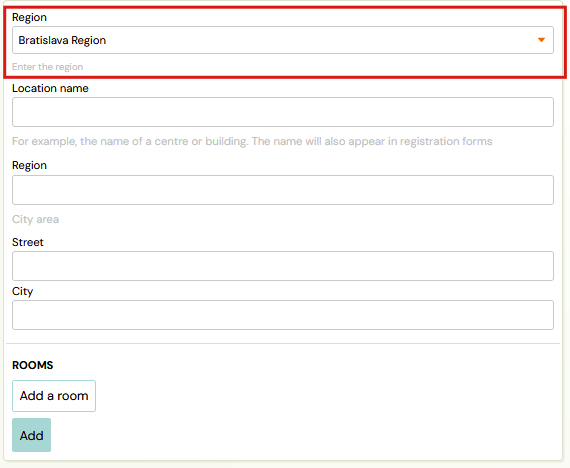
-
After selecting the region, click the Save button at the bottom of the page.
Regional holidays
Holidays are different for each state, city and region. That’s why we went to a detailed solution where you can set a region for each location you run your programmes in.
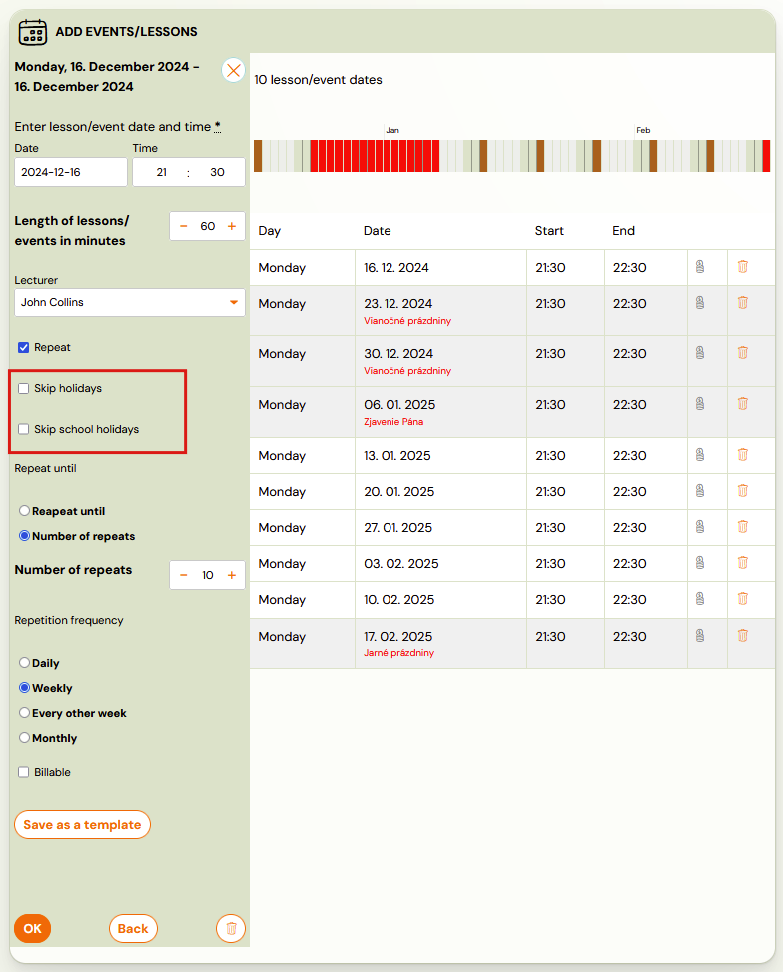
Based on this setting, the holidays of the specific region will be automatically added to your app. You will see the specific dates of the holidays at the level of inserting sessions into the class, where you will be reminded that the dates are during the holidays. You can choose to:
- keep these terms, if you are running your programmes also during the holidays
- delete these terms manually by clicking on the Bin icon
- skip these terms automatically by clicking on the Skip Holidays and Skip School breaks checkboxes
Setting different regions for multiple locations
If your business operates across multiple districts or regions (for example, a franchise with locations in different cities), each location can have its own region assigned independently. This is important because school holidays and public holidays often differ by region.
- Go to Settings > Places.
- Click on each location to open its detail.
- In the
Regionfield, select the correct district or region for that specific location. - Click Save.
Repeat for every location. Sessions generated for classes at each location will respect only the holidays of that location's assigned region.
Important: If a location has no region set, the system cannot determine which holidays apply. This commonly happens with online programmes or newly added locations. Always verify that every location -- including online or virtual ones -- has a region assigned.
Rescheduling sessions and holiday rules
When you bulk-reschedule existing sessions (for example, moving all sessions from one day of the week to another), holiday-skip rules are not re-applied. The system treats bulk rescheduling as a manual override of already-created sessions.
This means sessions may land on public holidays or school breaks after rescheduling, even if the original sessions correctly skipped those dates.
After any bulk reschedule, you must:
- Open the class and review all rescheduled sessions in the session list.
- Check whether any sessions now fall on a holiday or school break.
- Delete or move any unwanted sessions manually using the Bin icon or by rescheduling individual sessions.
Tip: The system displays a warning when you perform a bulk reschedule reminding you to verify the resulting sessions. Do not skip this step.
Custom holidays
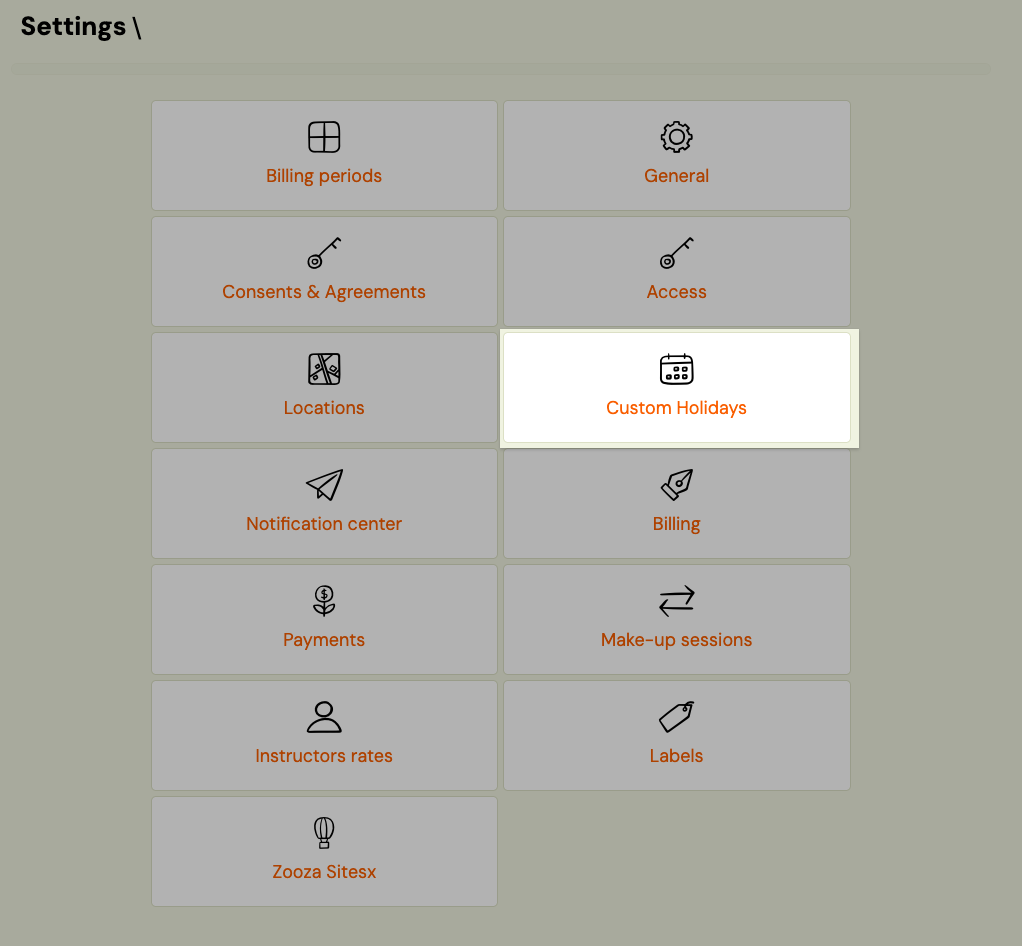
In addition to public and school holidays synced from the national calendar, you can create your own custom holidays — closures specific to your Zooza account that the system treats the same way as official holidays.
Common uses:
- Company retreat or team event
- Unexpected closure (e.g. venue unavailable)
- Local event not covered by the national calendar
Custom holidays can be company-wide (skip sessions across all locations) or region-specific (skip only sessions at locations in the selected regions).
See Custom holidays for the full setup guide.
External holiday data and accuracy
Zooza uses an external service to provide public holiday and school break data for each region. This data can sometimes be outdated or incorrect. Known issues include:
- Dates that are no longer public holidays still appearing in the system (for example, September 1 or November 17 in Slovakia).
- School break durations that do not match the current academic calendar for your specific region.
If you suspect holiday data is wrong:
- Compare the holidays shown in Zooza against an official government or school calendar for your region.
- Contact Zooza support at support@zooza.online to request a correction.
- In the meantime, manually add or remove affected sessions in your classes.
Note: Zooza is actively working on improving holiday data reliability. When the external service is unavailable or outdated, the team updates holiday records manually in the database.