Schedule a registration cancellation
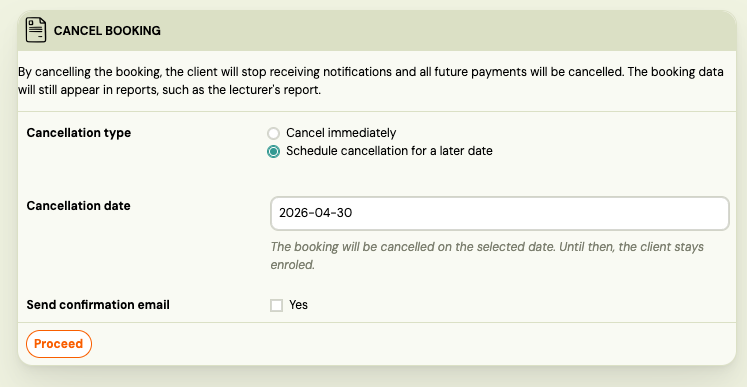
When a client's registration needs to end on a specific future date — for example, they gave notice, their term ends, or you negotiated a final attended session — you can schedule the cancellation in advance. Zooza handles the rest:
- The registration stays active until the scheduled date.
- Sessions on and after the cancellation date are automatically hidden from the client's attendance list.
- You can reference the cancellation date in email and notification templates.
Schedule a cancellation
- Open the registration.
- Click Actions → Schedule cancellation.
- Set the Cancellation date.
- Confirm.
The registration status shows as Cancellation scheduled with the target date. On that date, Zooza automatically cancels the registration.

What happens to attendance
As soon as you save the scheduled cancellation, Zooza hides all sessions on and after the cancellation date from the client's attendance roster. This keeps trainer attendance lists clean — trainers do not see a slot for a client who is already effectively leaving.
What gets hidden: sessions with no attendance record yet, or sessions marked as going. Only these are affected automatically.
What is NOT touched: any session where you or another admin explicitly set a status — attended, cancelled, no-show, on hold, waitlist. Those remain exactly as you set them.
Clients do not see sessions past the cancellation date in their profile widget, even if the registration is still technically active.
Change the cancellation date
- Open the registration.
- Click Actions → Change cancellation date.
- Set the new date.
- Confirm.
Zooza reverts attendance hiding under the old date and re-applies it under the new one. Sessions between the old and new date are restored to visible; sessions from the new date onward are hidden.
Cancel the scheduled cancellation (revoke)
If the client changes their mind:
- Open the registration.
- Click Actions → Revoke cancellation.
All automatically hidden sessions are restored to visible. Any session you had explicitly set to a non-standard status is untouched.
Use the cancellation date in email templates
Two merge variables are available for use in any email, SMS, or WhatsApp template that works with registration data:
| Variable | Value |
|---|---|
*|CANCELLATION_SCHEDULED|* | 1 if a cancellation is scheduled, 0 if not |
*|CANCELLATION_DATE|* | The cancellation date in YYYY-MM-DD format, or empty if not scheduled |
Example — conditional block in a Mandrill email template:
*|IF:CANCELLATION_SCHEDULED|*
Your registration will end on *|CANCELLATION_DATE|*.
*|END:IF|*
This block only renders when a scheduled cancellation exists. Use it in renewal reminders, session notifications, or any communication where the client should know their end date.
Note: SMS and WhatsApp do not support conditional
IFblocks — the variable substitutes as1/0or the date string directly. Design those templates accordingly.
What happens on the cancellation date
The nightly job checks for registrations due for cancellation and transitions them to Cancelled. Sessions on that date and beyond remain hidden (they are not converted to a different status — they stay in the hidden state). Sessions before the cancellation date are unaffected.