Customizing the booking tile
Each row in the Bookings list is a booking tile — a compact card showing the most relevant information about a booking. You can choose exactly which fields appear on the tile and in what order, so your team always sees what matters most without opening the booking detail.
Opening the customize panel
- Go to Clients → Bookings.
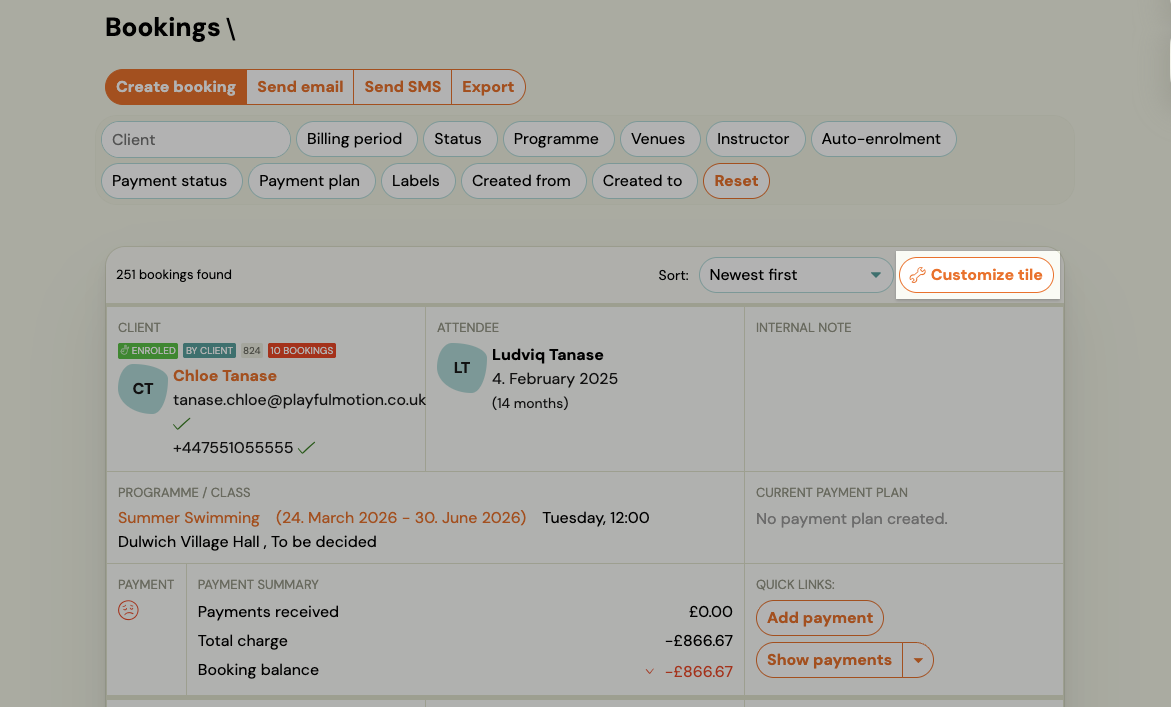
- Click Customize tile in the top-right corner of the list.
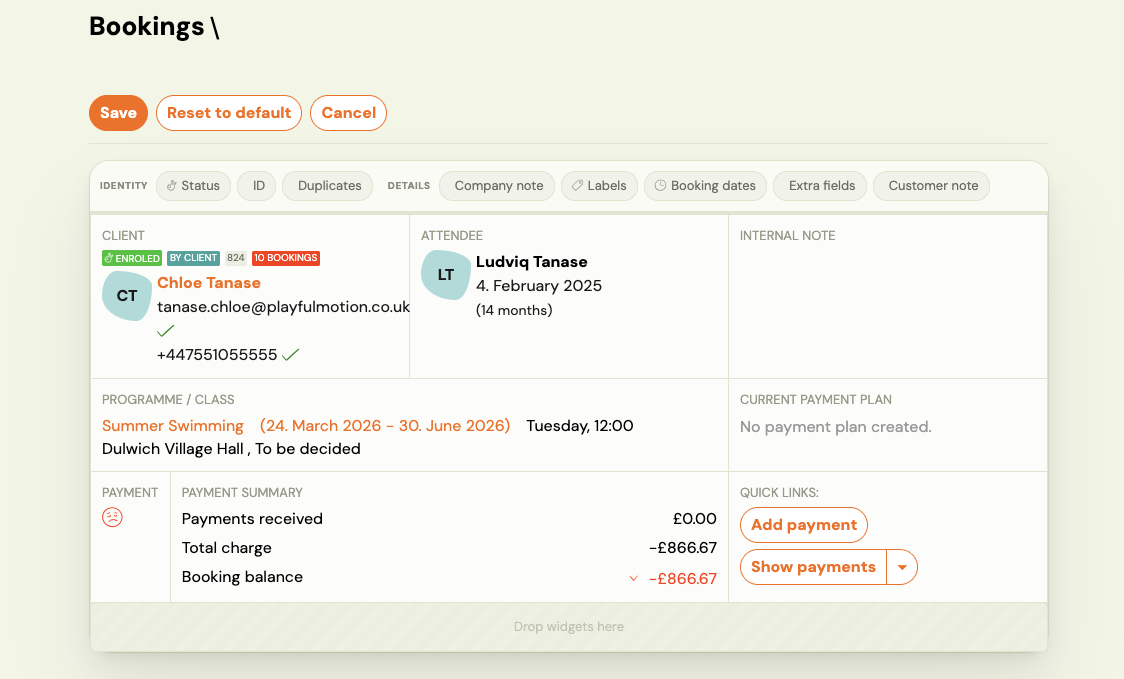
The tile switches into edit mode. A row of available widgets appears above a live preview of your booking tile.
Available widgets
Each widget adds a specific block of information to the tile:
| Widget | What it shows |
|---|---|
| Identity | Client name, email, phone, verification ticks, booking count badge, and status badges (Enrolled, By Client, etc.). Always visible — cannot be removed. |
| Status | Booking status badges only (e.g. Enrolled, Waiting list, Trial). |
| ID | Booking reference number. |
| Duplicates | Highlights if the client has potential duplicate records. |
| Details | Programme name, class date range, day/time, location, and instructor. |
| Company note | Internal note attached to the client's company record. |
| Labels | Booking labels/tags. |
| Booking dates | Booking creation date and other key dates. |
| Extra fields | Custom extra fields collected during registration (e.g. address, medical notes). |
| Customer note | Note visible to the client. |
Adding and removing widgets
- Add — drag a widget from the widget bar and drop it into the tile preview area ("Drop widgets here").
- Remove — drag a widget out of the tile preview, or click the remove icon on the widget.
- Reorder — drag widgets within the tile to change their order.
The live preview updates as you make changes so you can see exactly how the tile will look.
Saving your layout
Click Save to apply your layout. The new tile layout is applied immediately across the entire Bookings list.
Click Reset to default to restore the original Zooza layout. This cannot be undone.
Click Cancel to discard changes.
Note: The tile layout is saved per user account. Each team member can configure their own view without affecting others.
The booking count badge
When the Identity widget is active, each client shows a badge with their total number of bookings — for example 10 BOOKINGS. This is useful for quickly identifying high-value clients or spotting clients who have booked many times without you needing to open their profile.
Tips
- Operations teams often keep Identity + Details + Payment visible to monitor outstanding balances at a glance.
- Front desk staff may prefer Identity + Status + Booking dates for quick check-ins.
- Instructors typically need only Identity + Details.
- If you manage multiple programmes, Extra fields can be useful if you collect registration-specific data (e.g. medical info, skill level).
Related
- Bookings list reference — full Bookings screen overview.
- Additional fields — how to set up custom extra fields.
- Labels — creating and managing booking labels.